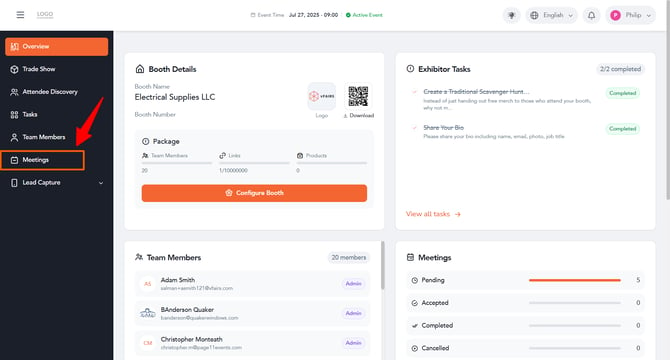
Step 1: Open the Meetings Tab
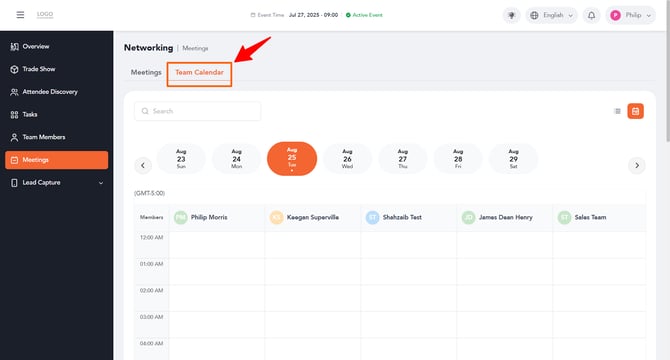
Log In to Your Exhibitor Portal. On the left navigation menu, click Meetings. This will take you to your meetings dashboard, where you can view all your scheduled meetings and switch between the Meetings list view and the Team Calendar view.
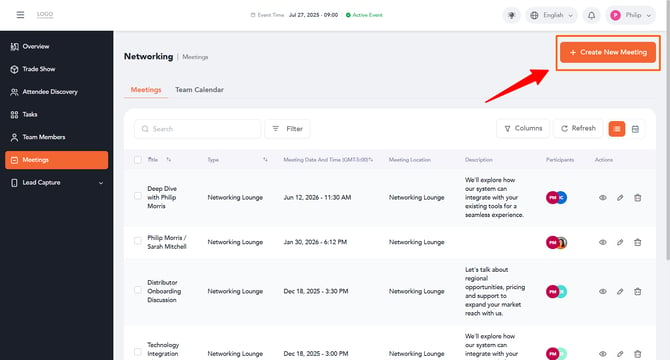
At the top right of the Meetings page, click the + Create New Meeting button. This opens a panel where you can enter the details of your new meeting.
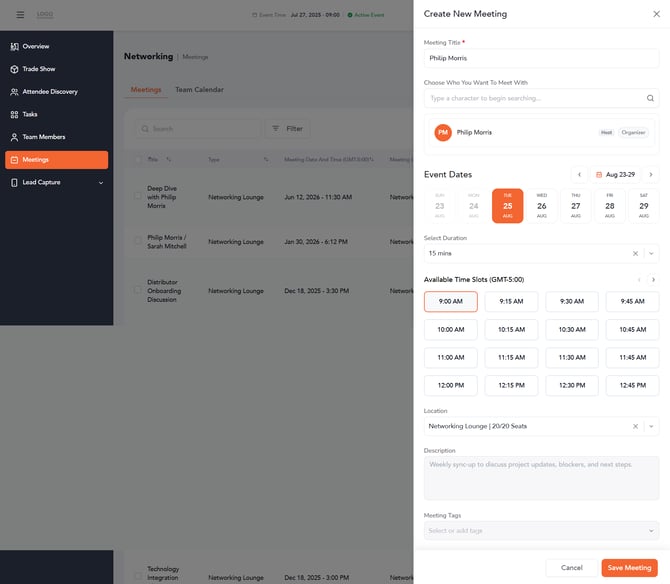
In the Create New Meeting panel, fill in the following fields:
- Meeting Title – Give your meeting a clear, descriptive name.
- Choose Who You Want to Meet With – Search for and select the person you'd like to meet.
- Event Dates – Pick the date of the meeting from the available event dates shown.
- Select Duration – Choose how long the meeting should last (for example, 15 minutes).
- Available Time Slots – Select an open time slot for your chosen date.
- Location – Choose the meeting location (for example, Networking Lounge).
- Description – Add a short note about what the meeting will cover.
- Meeting Tags – Optionally, add tags to help categorize the meeting.
Tip: Before picking a time slot, check the Team Calendar tab to see everyone's availability. This shows you which time slots are open and which are already booked, so you can avoid scheduling conflicts.
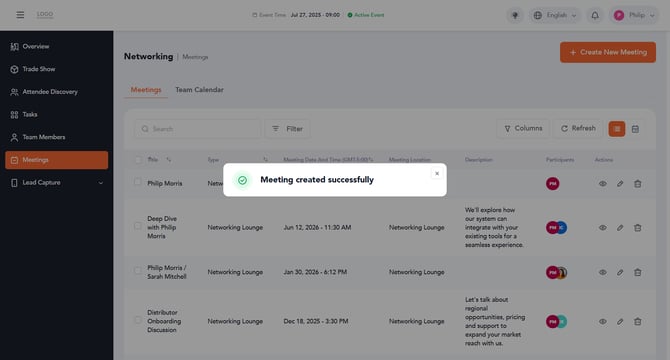
After clicking Save, a confirmation pop-up will appear letting you know your meeting has been created successfully. Your new meeting will now show up in the Meetings list.
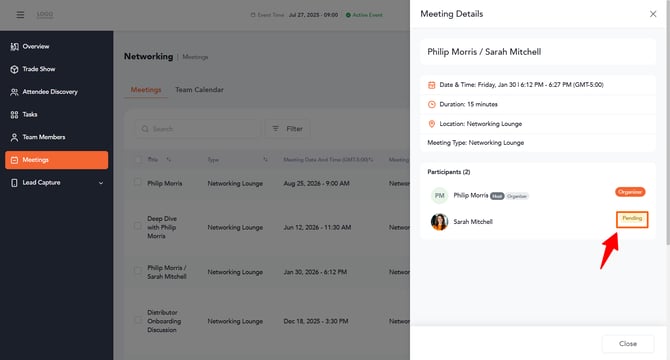
Your meeting will now appear in your Meetings list with a status of "Pending" in the Meeting details tab until the other participant accepts it.
Step 6: Manage Your Meeting
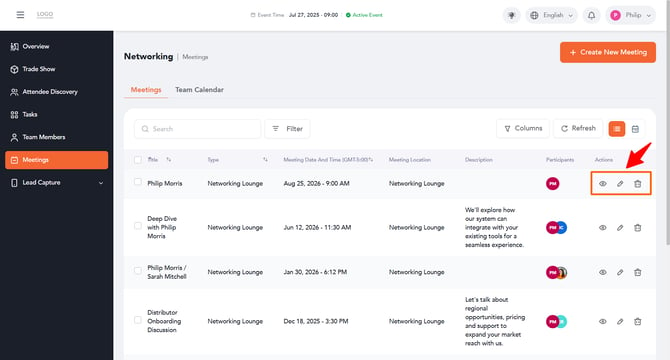
Once a meeting is created, you can manage it anytime from the Actions column in the Meetings list. Three icons are available:
- View – Click the eye icon to view the full details of the meeting.
- Edit – Click the pencil icon to edit the meeting details, such as the date, time, or description.
- Delete – Click the trash icon to delete the meeting if it's no longer needed.