-1.webp?width=150&height=63&name=vfairs-logo-landscape-gradient-5%20(2)-1.webp)
After you are logged in to your event using your exhibitor credentials, click Attendee Discovery from the left navigation menu.
The Attendee Discovery page displays a list of participating attendees along with their profile information and provides several tools to help you identify and connect with the right prospects.
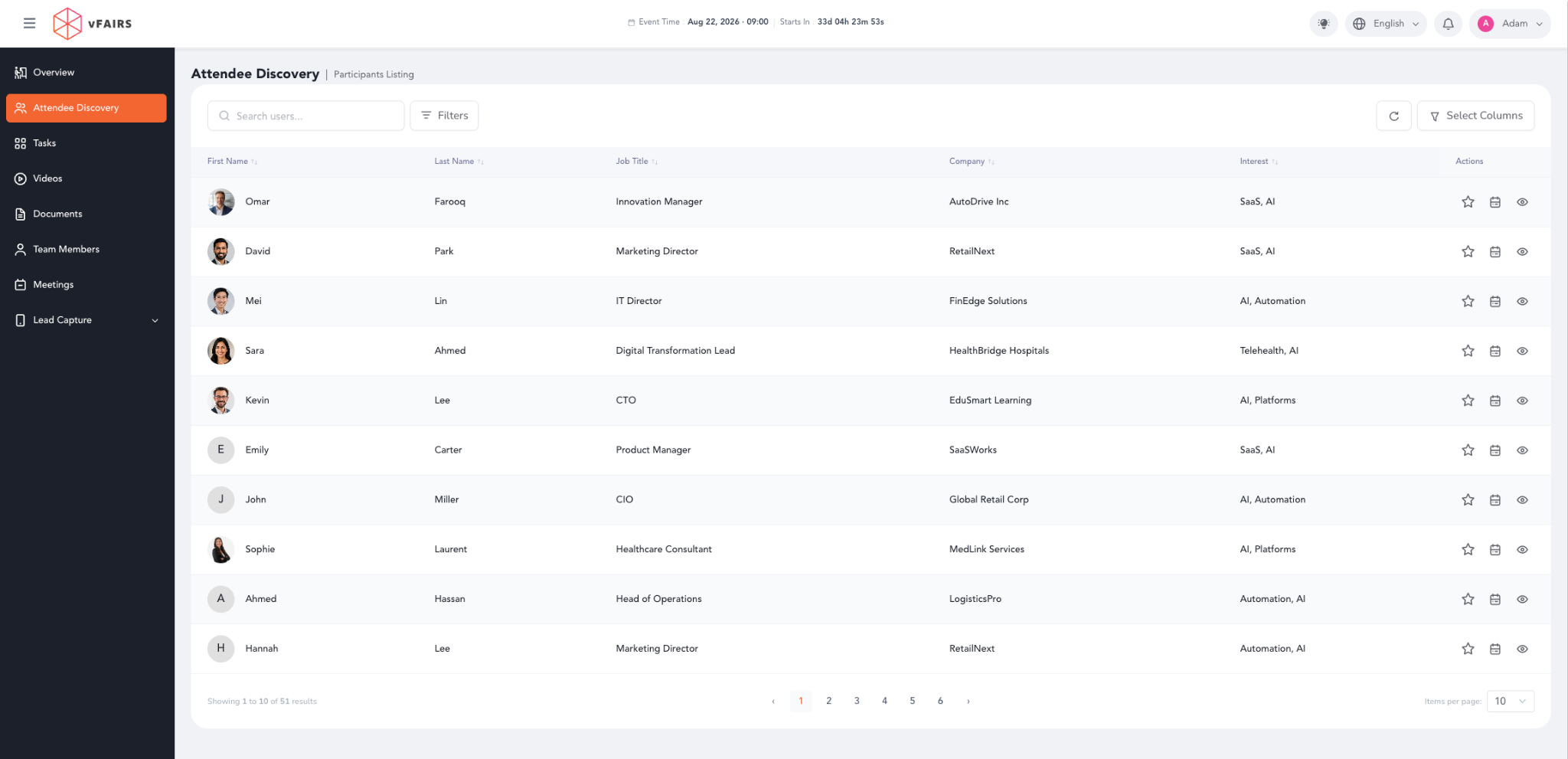
Use the Search bar to quickly find attendees by their name, job title, or company.
Click Filters to narrow down the attendee list based on the available filter options, helping you quickly find the profiles that are most relevant to your business.
The participant listing displays a set of default profile fields.
Click Select Columns to choose the attendee information that is most important to you. The system remembers your selection so you continue seeing your preferred columns every time you return to the page.
Each attendee includes quick action icons that allow you to perform common actions directly from the listing.
• Favorite: Click the star icon to save an attendee to your favorites.
• Book Meeting: Click the calendar icon to schedule a meeting.
• View Profile: Click the eye icon to open the attendee's complete profile.
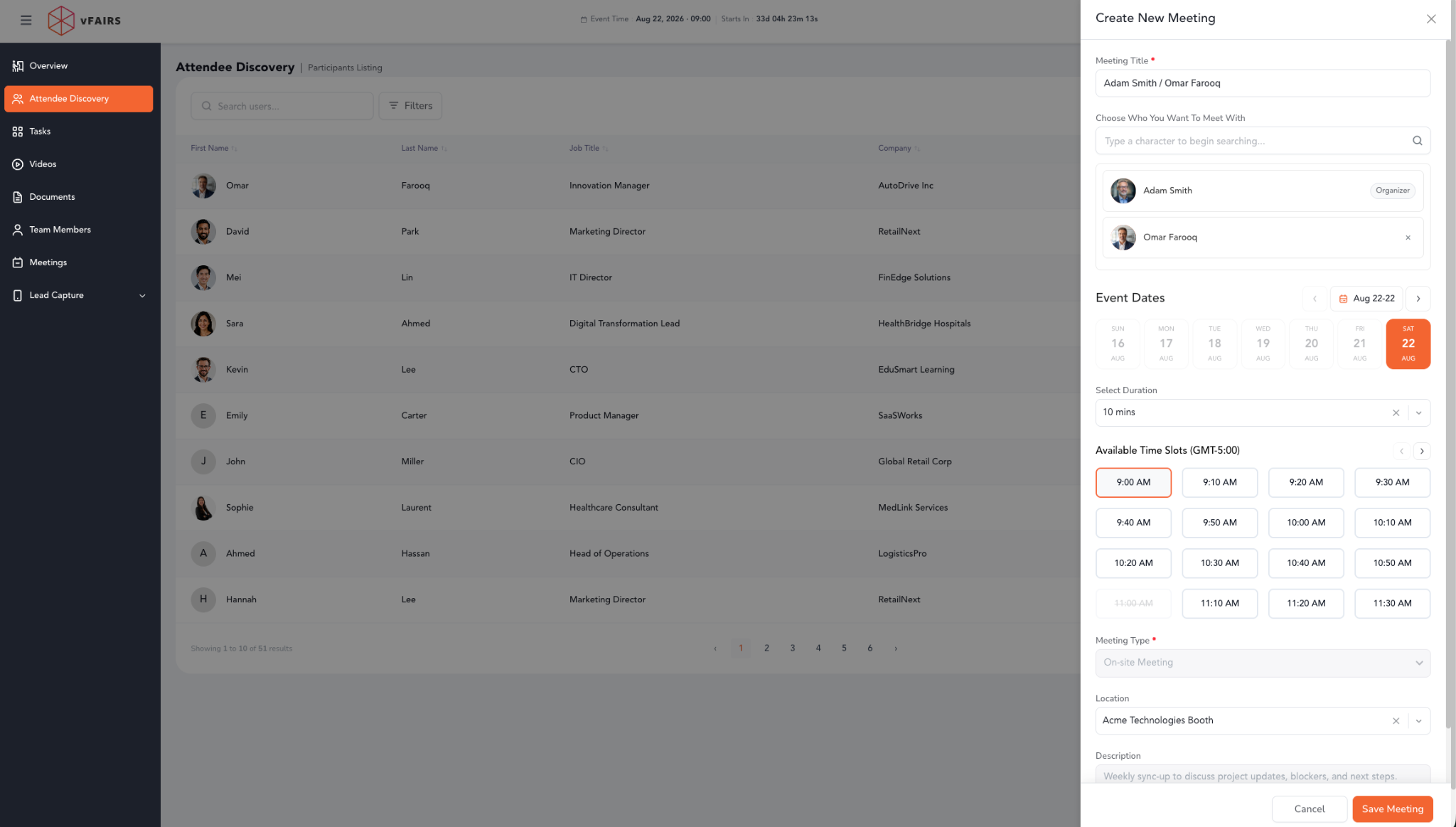
Click the calendar icon to open the Create New Meeting panel.
Select the meeting date, available time slot, meeting duration, meeting type, and location. You can also add a description before clicking Save Meeting to send the meeting request.
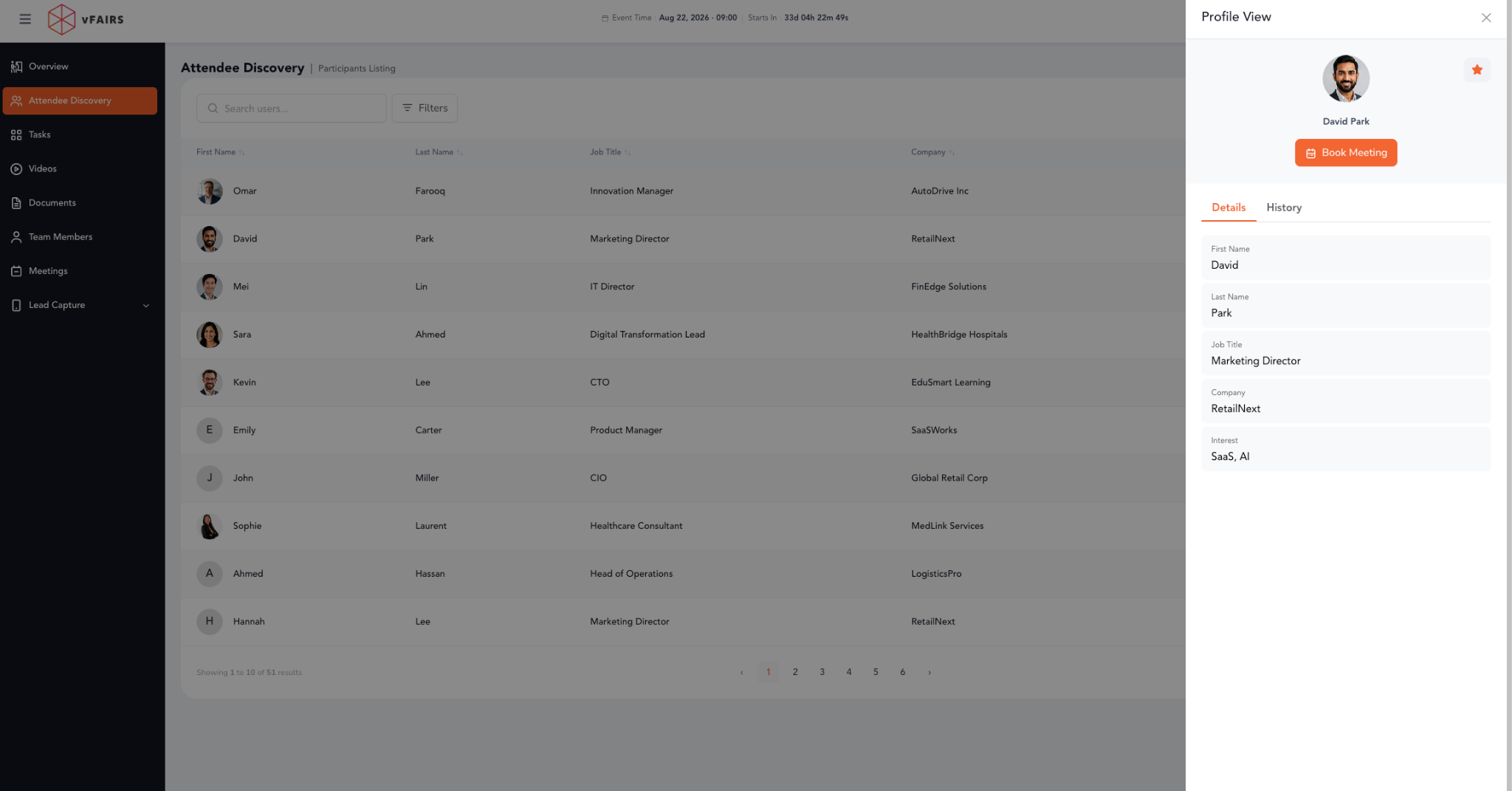
Click the view icon to open an attendee's complete profile.
The Details tab displays profile information such as the attendee's name, company, job title, and other registration details.
The History tab shows a record of activities performed with that attendee by any member of your booth team, allowing your team to track conversations and avoid duplicate follow-ups.