-1.webp?width=150&height=63&name=vfairs-logo-landscape-gradient-5%20(2)-1.webp)
From the left-hand navigation menu, click Marketing to expand the section, then select SMS Campaigns.
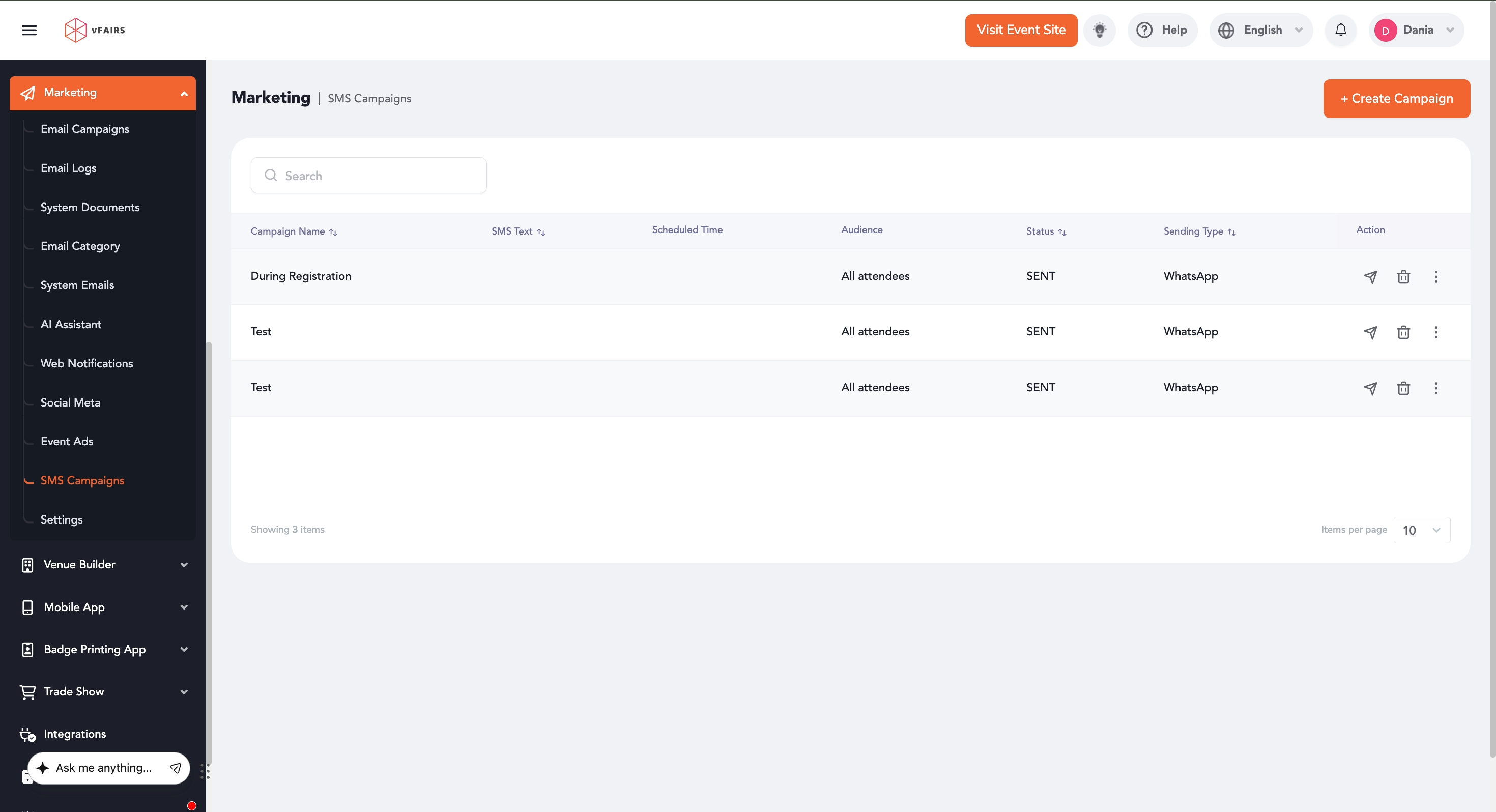
On the SMS Campaigns page, click the + Create Campaign button located in the top-right corner.
A Create SMS Campaign panel will appear on the right side of the screen.
Enter a descriptive name in the Campaign Name field.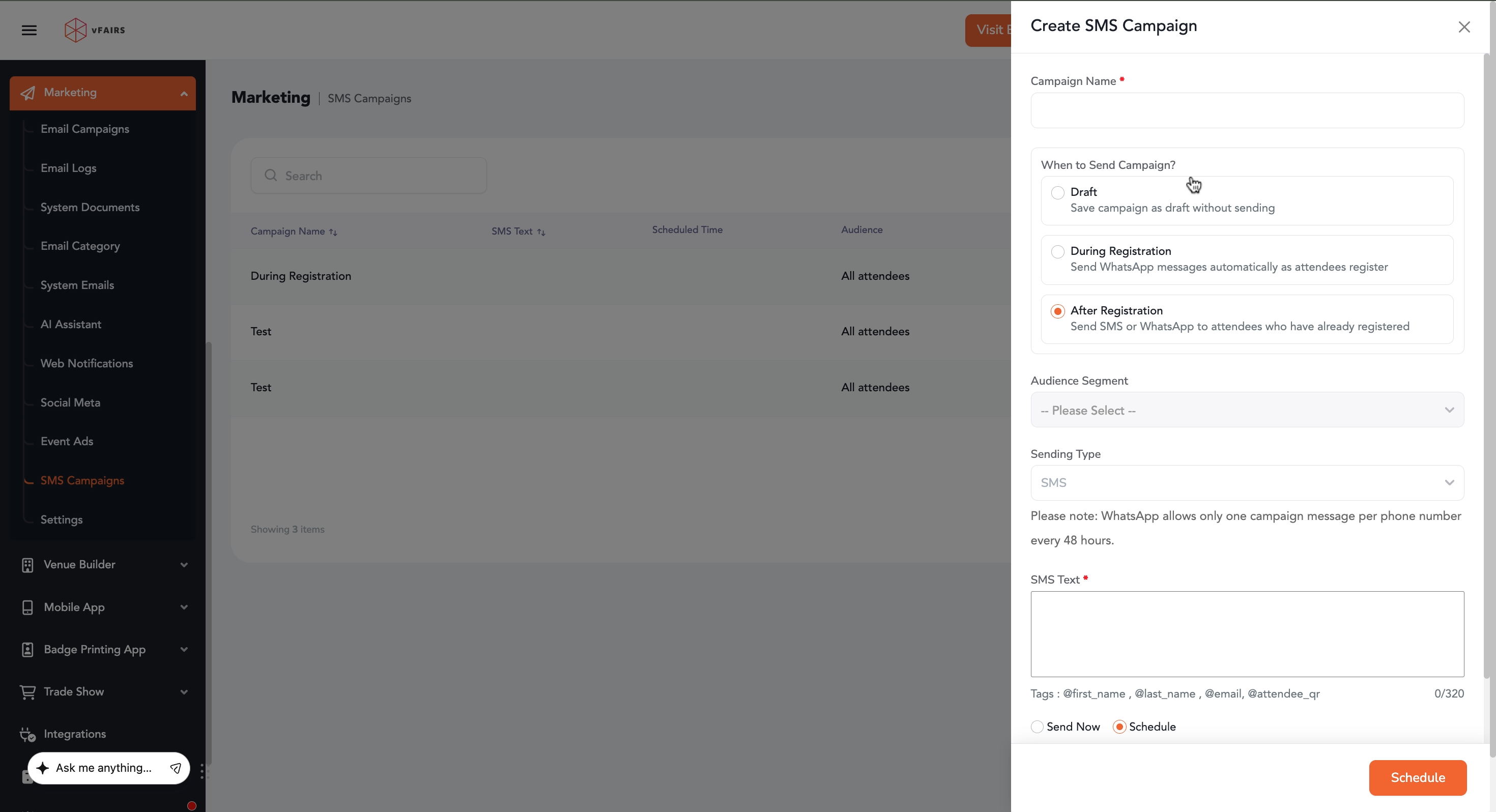
Under When to Send Campaign?, choose one of the following options:
- Draft
- During Registration
- After Registration
Choose the desired audience from the Audience Segment dropdown.
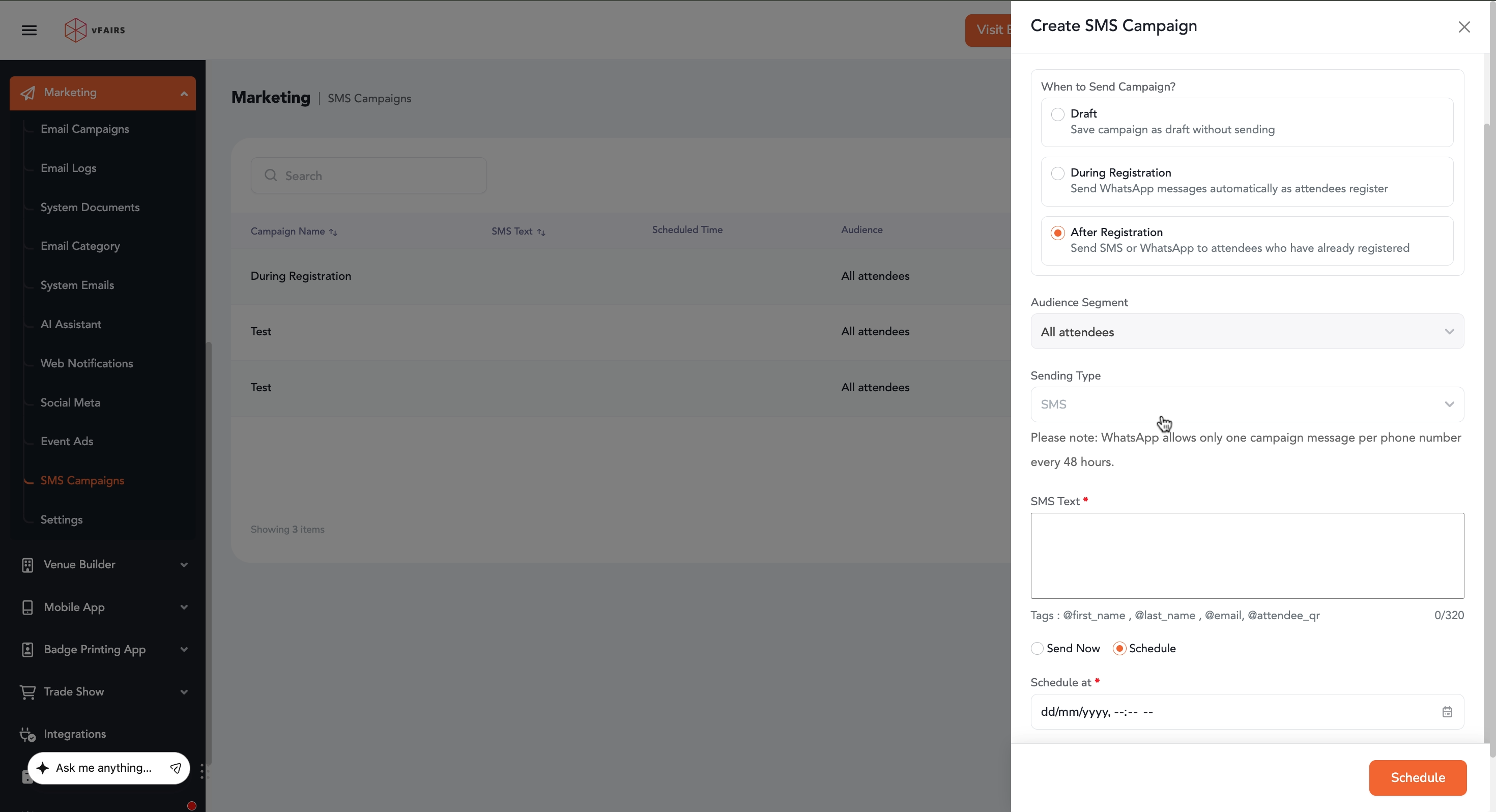
By default, All Attendees will be selected.
Step 6: Select Sending TypeChoose the desired communication channel:
- SMS
- WhatsApp
Step 7: Compose Your Message
Enter your message in the SMS Text field.
Personalize Messages Using Merge Tags
Merge tags automatically pull attendee-specific information and insert it into the SMS or WhatsApp message at the time of delivery. This helps create a more personalized communication experience.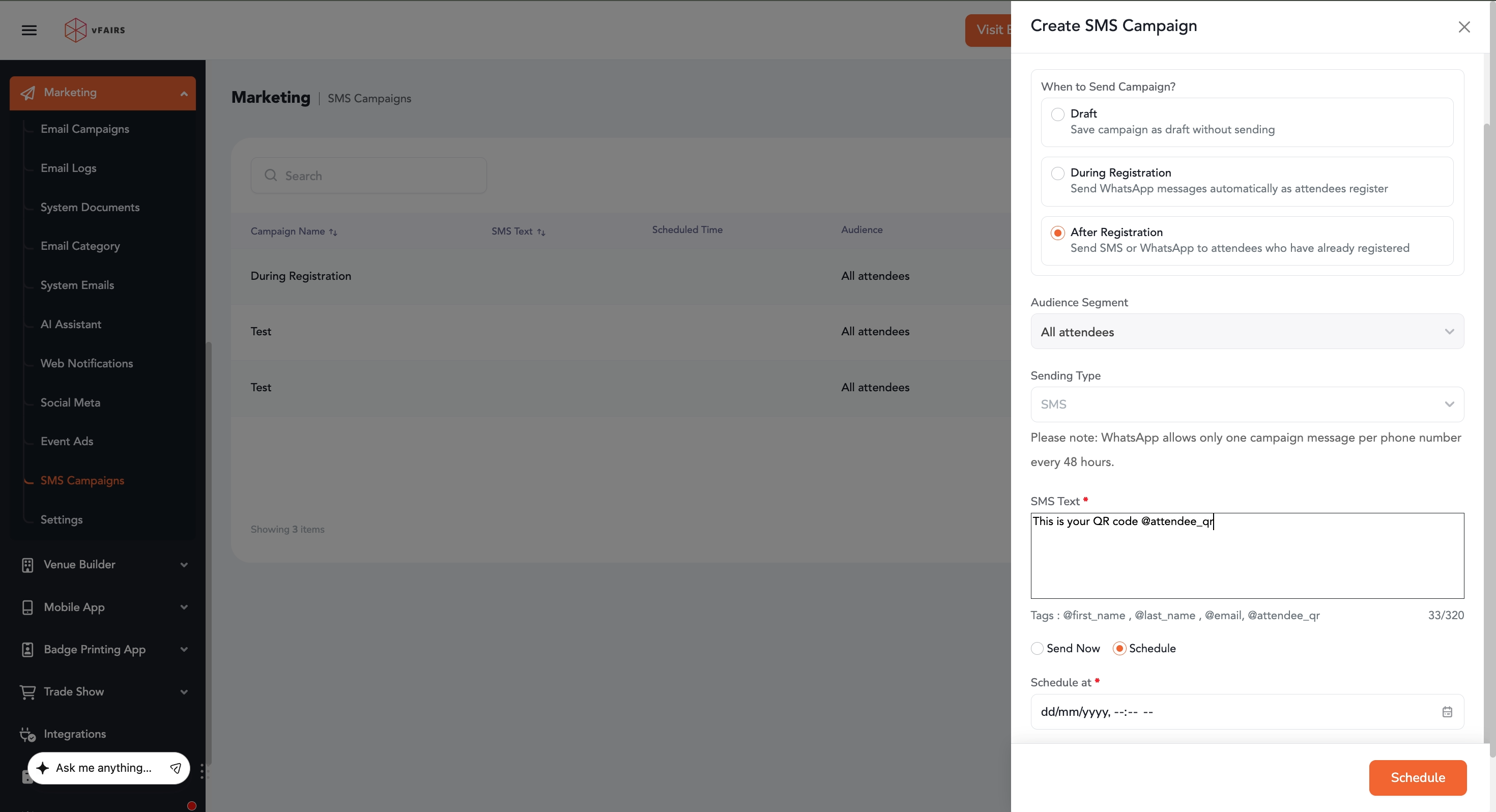
The following merge tags are available:
| Merge Tag | Description |
|---|---|
| @firstname | Displays the attendee's first name |
| @lastname | Displays the attendee's last name |
| Displays the attendee's email address | |
| @attendeeqr | Displays the attendee's unique QR code link |