-1.webp?width=150&height=63&name=vfairs-logo-landscape-gradient-5%20(2)-1.webp)
1. Navigate to the Analytics section from the left-hand menu, then select Reporting 360.
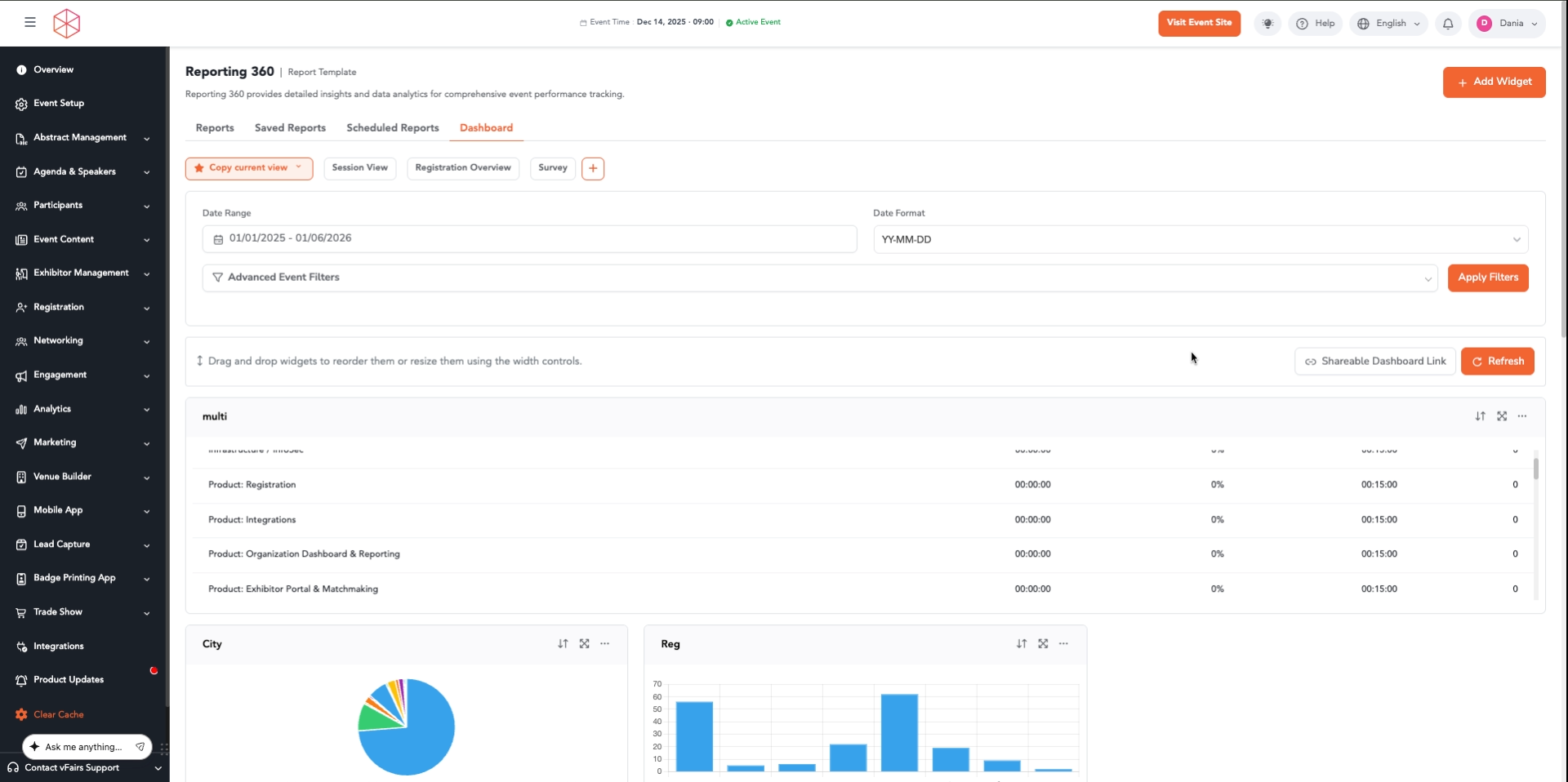
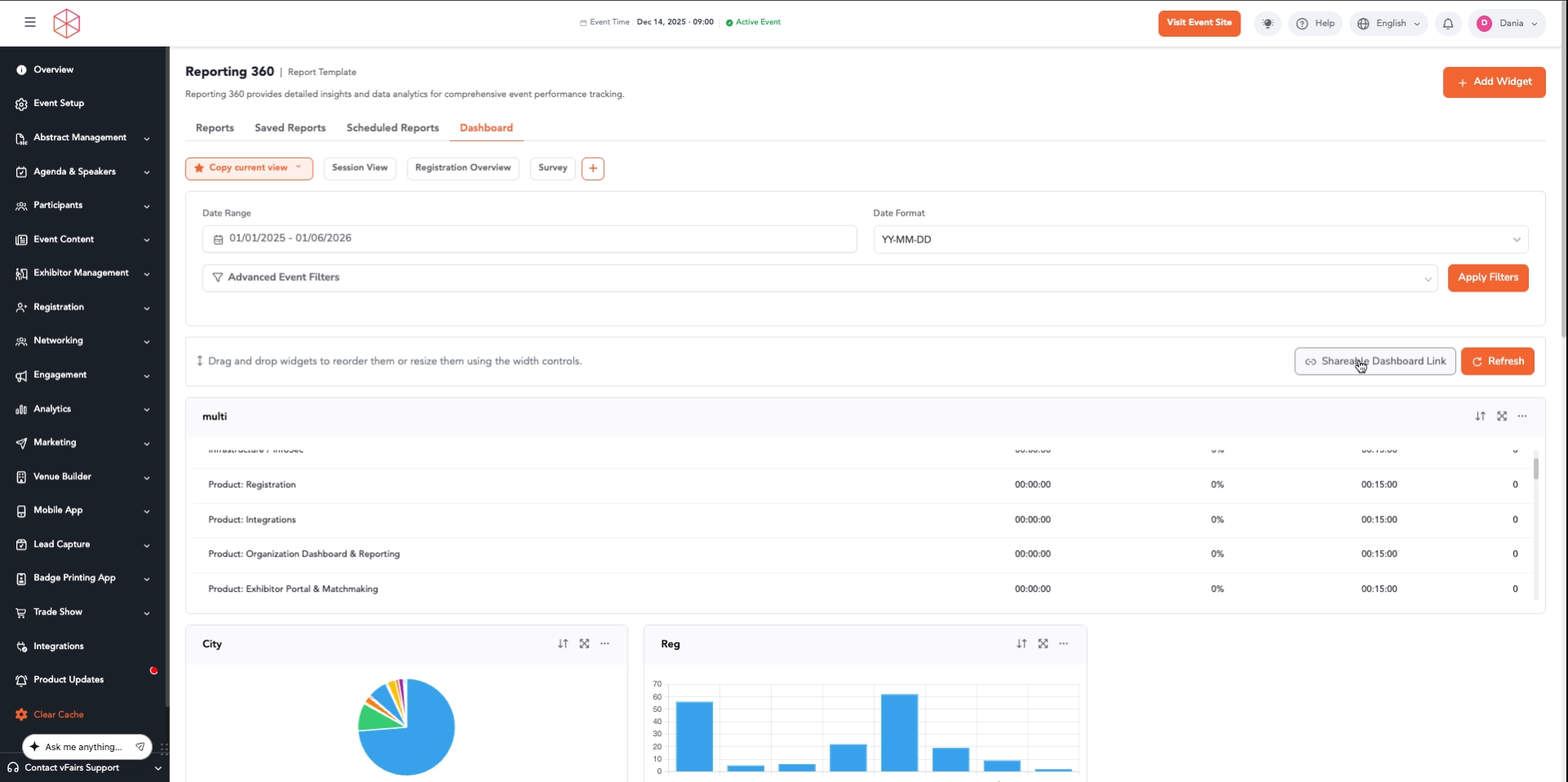
2. On the Reporting 360 page, ensure you are on the Dashboard tab. Click the Shareable Dashboard Link button located on the right side of the screen.
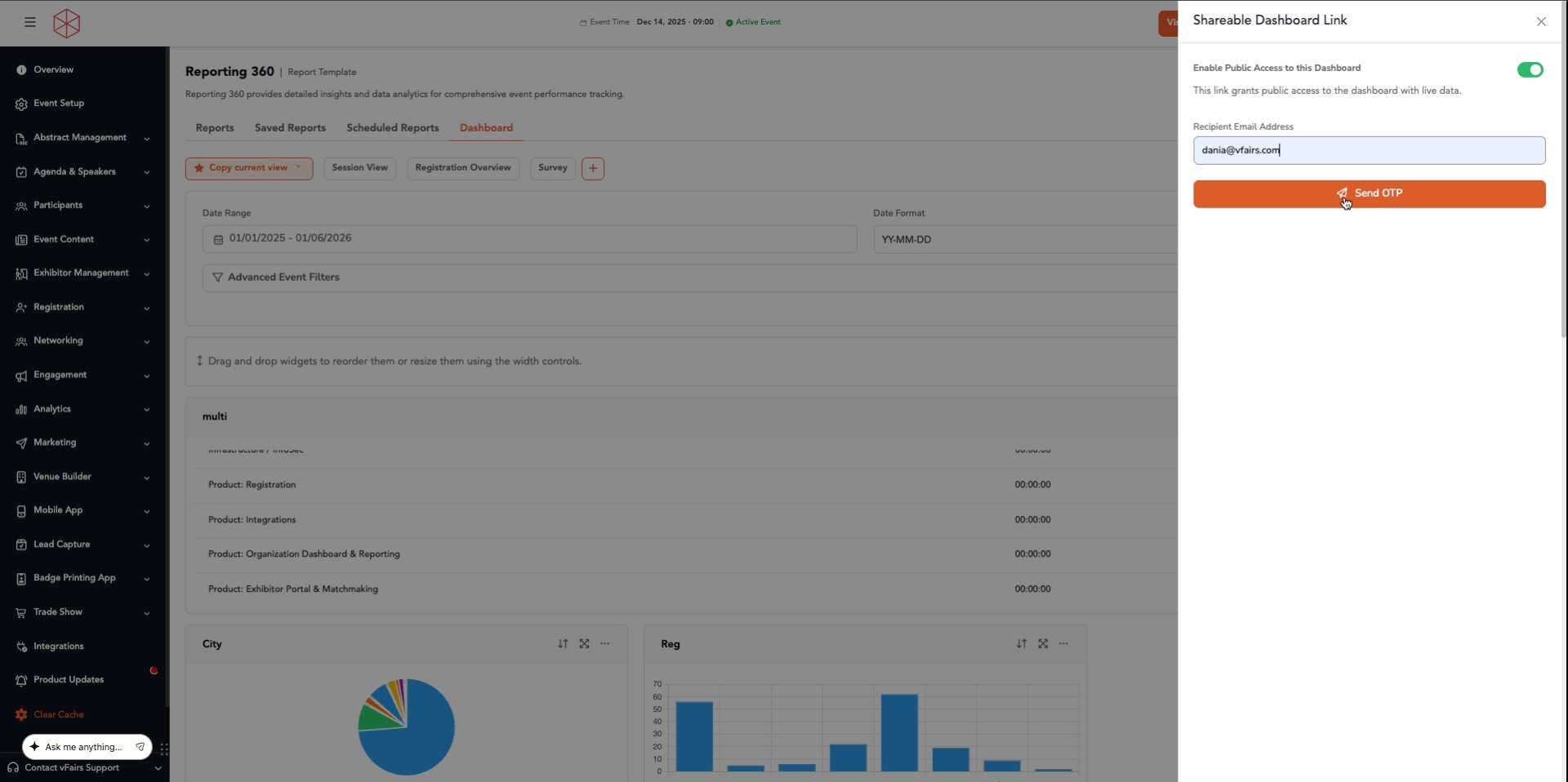
3. A Shareable Dashboard Link pop-up will appear. Ensure the Enable Public Access to this Dashboard toggle is switched on. Enter the recipient's email address in the Recipient Email Address field.
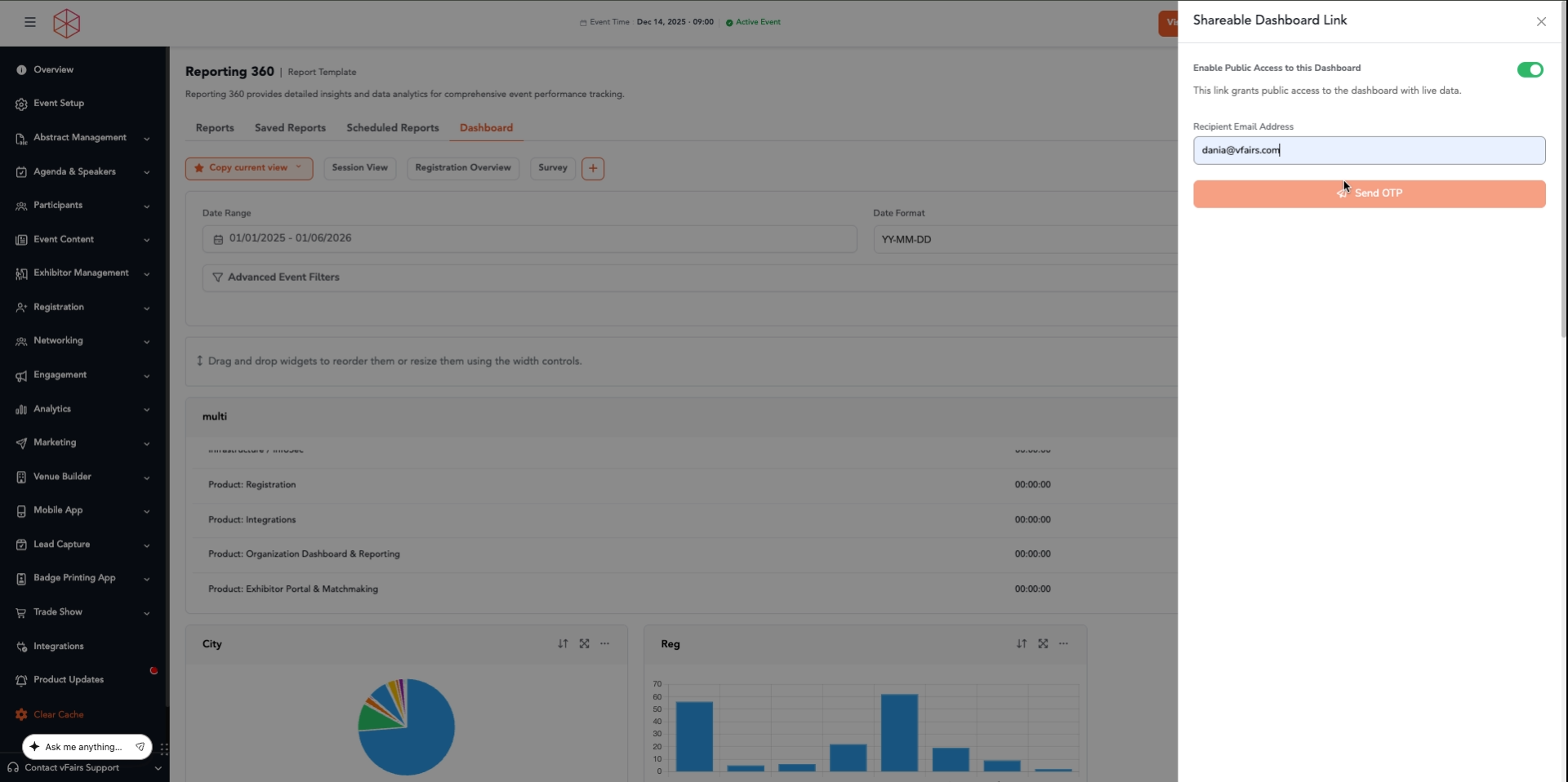
📌 Enabling public access grants the link recipient access to the dashboard with live data.
4. Click Send OTP to send a One-Time Password to the entered email address.
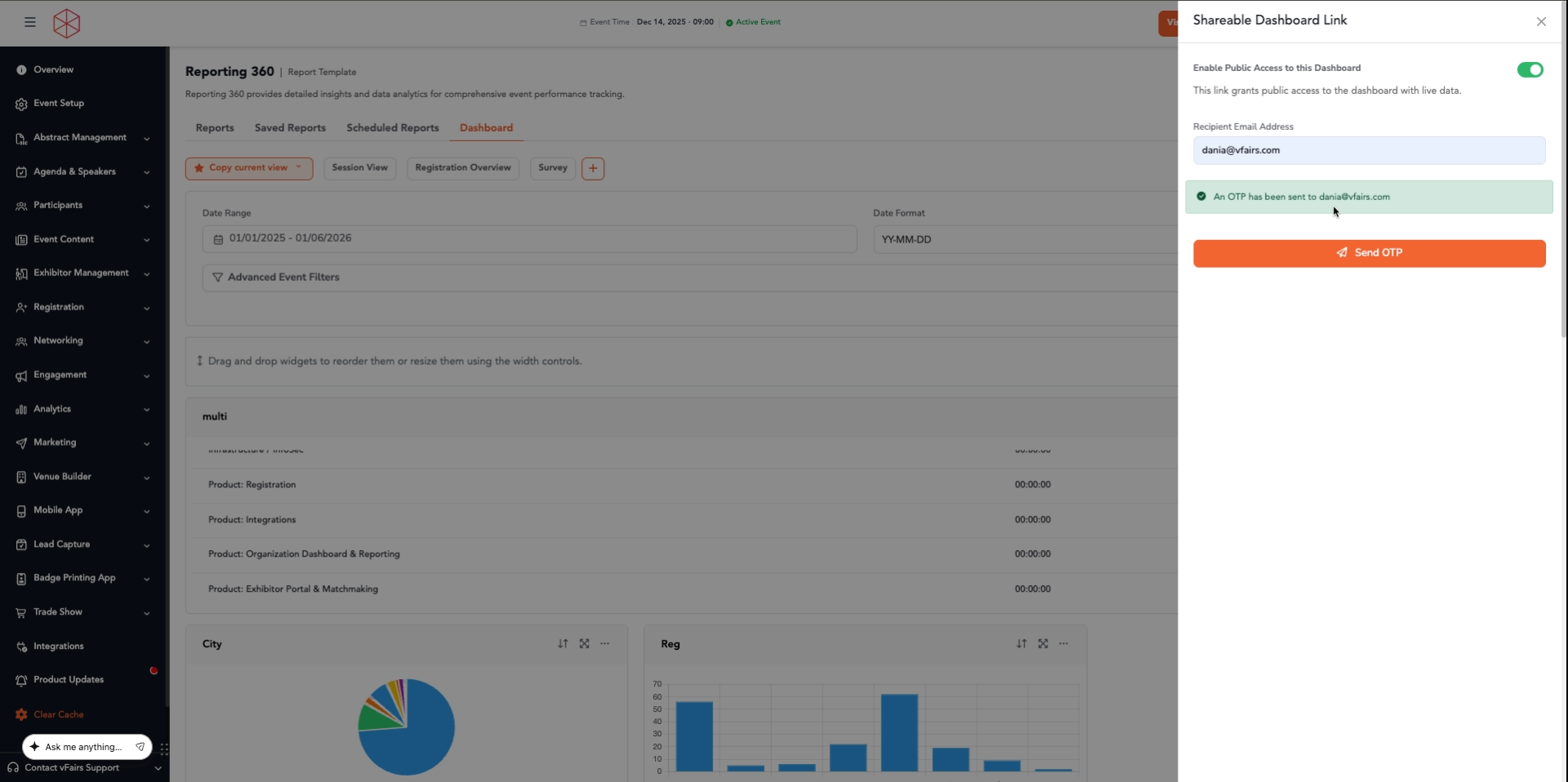
5. A confirmation message will appear, indicating that an OTP has been sent to the recipient's email.
6. The recipient will receive an email titled "Shareable Dashboard - One Time Password" containing a dashboard access code and a dashboard access link. Copy the six-digit access code.
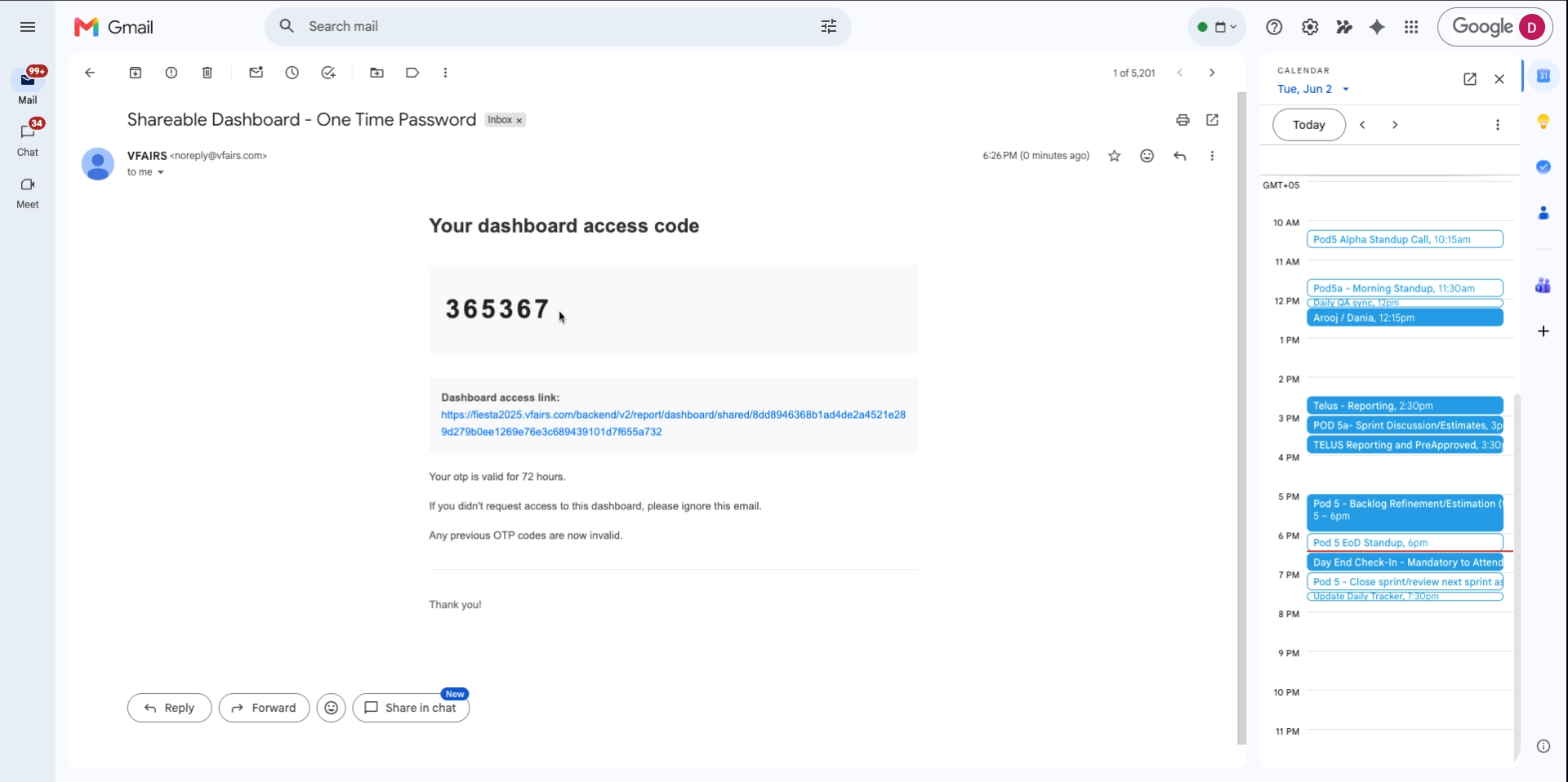
📌 The OTP is valid for 72 hours. If a new OTP is requested, previous OTP codes become invalid.
7. Click the Dashboard access link provided in the email.
8. A "Secure Access Required" page will open. Enter the recipient's email address and paste the copied One-Time Password into the respective fields.
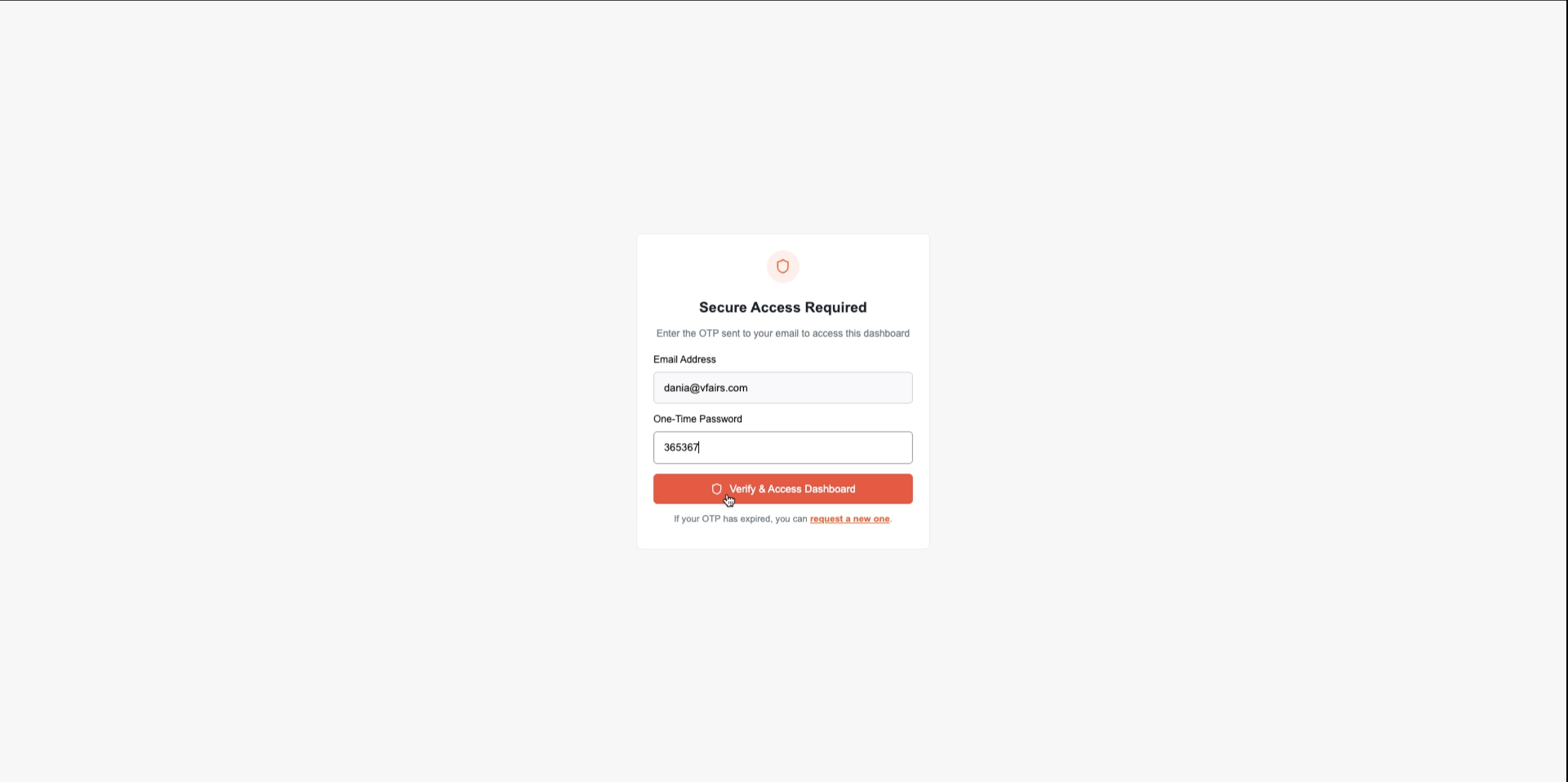
9. Click Verify & Access Dashboard.
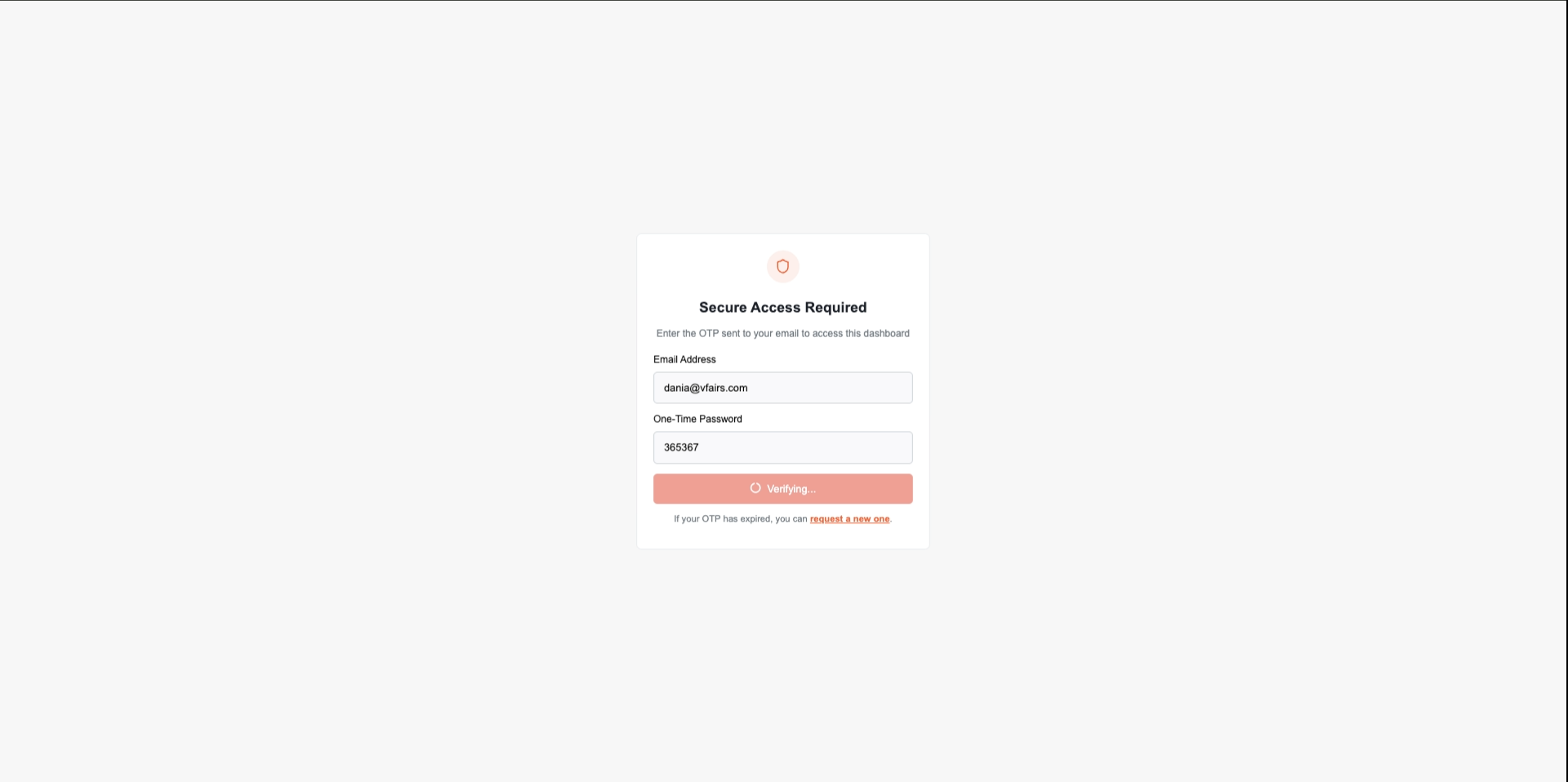
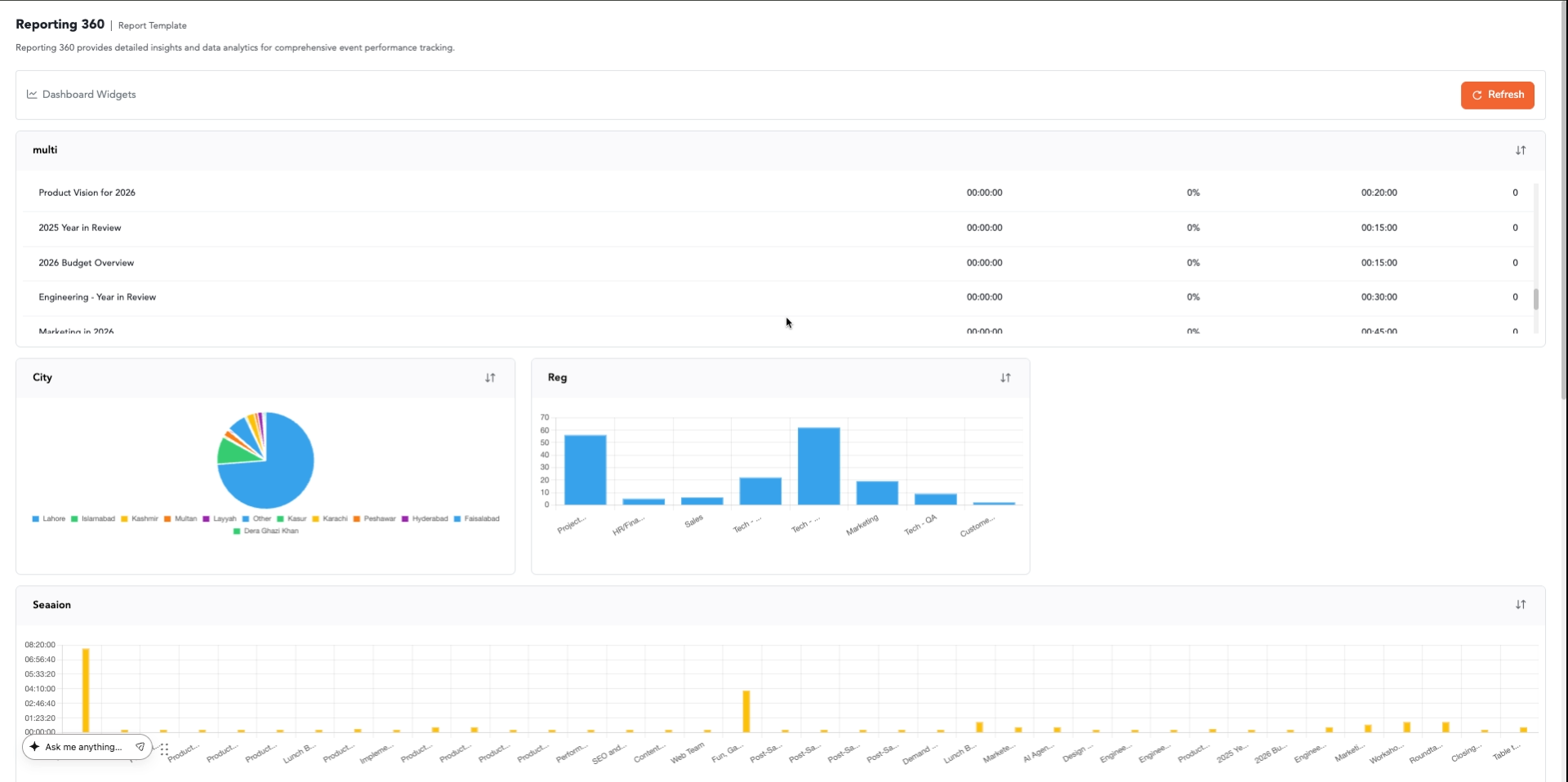
10. Upon successful verification, the Reporting 360 dashboard will be displayed.