-1.webp?width=150&height=63&name=vfairs-logo-landscape-gradient-5%20(2)-1.webp)
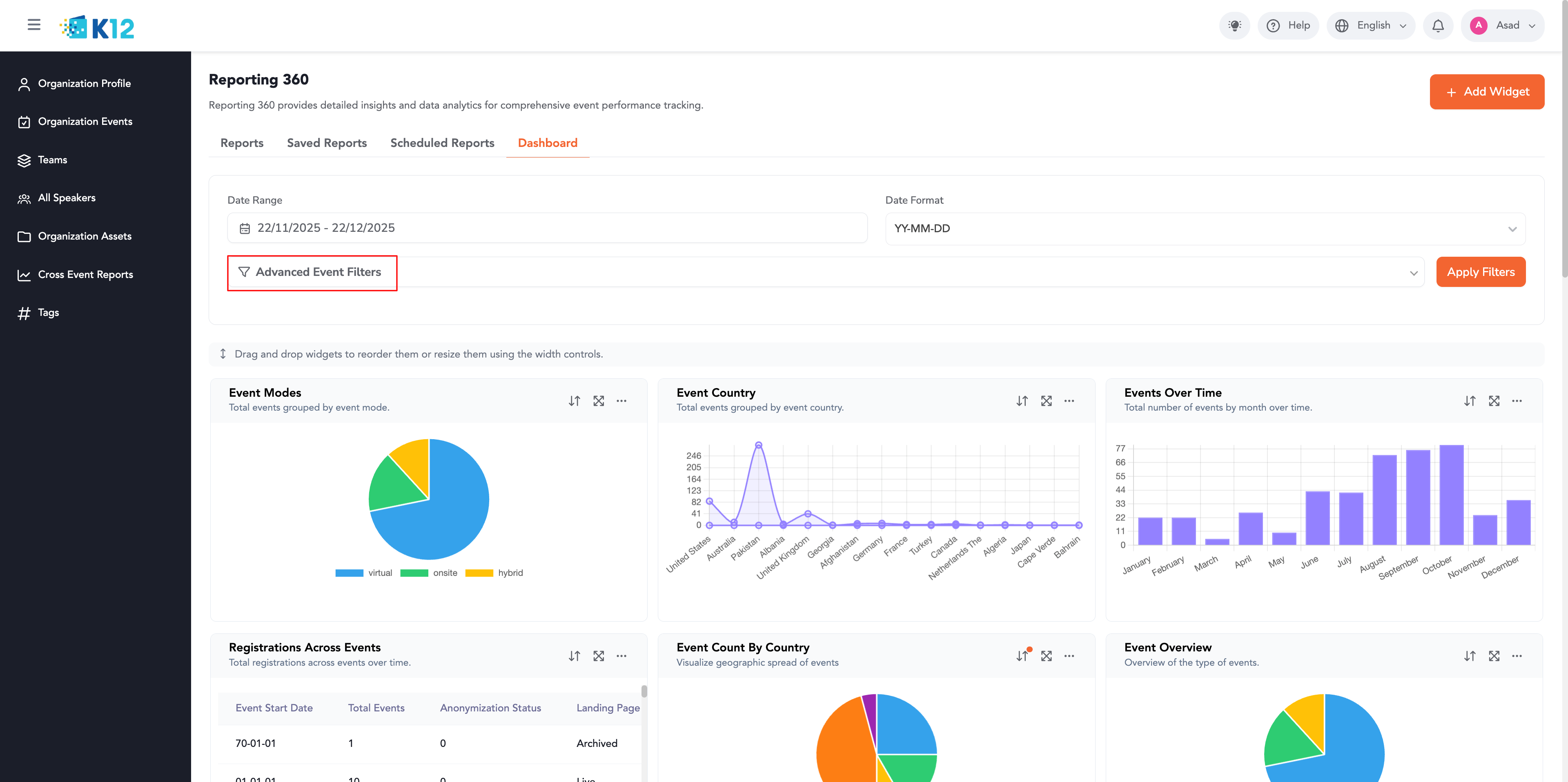
Step 1: Navigate to Reporting 360
-
Go to the Reporting 360 module from the main navigation.
-
Open the dashboard.
Step 2: Open Advanced Criteria
-
Click on Add Group
- You can now add conditions.

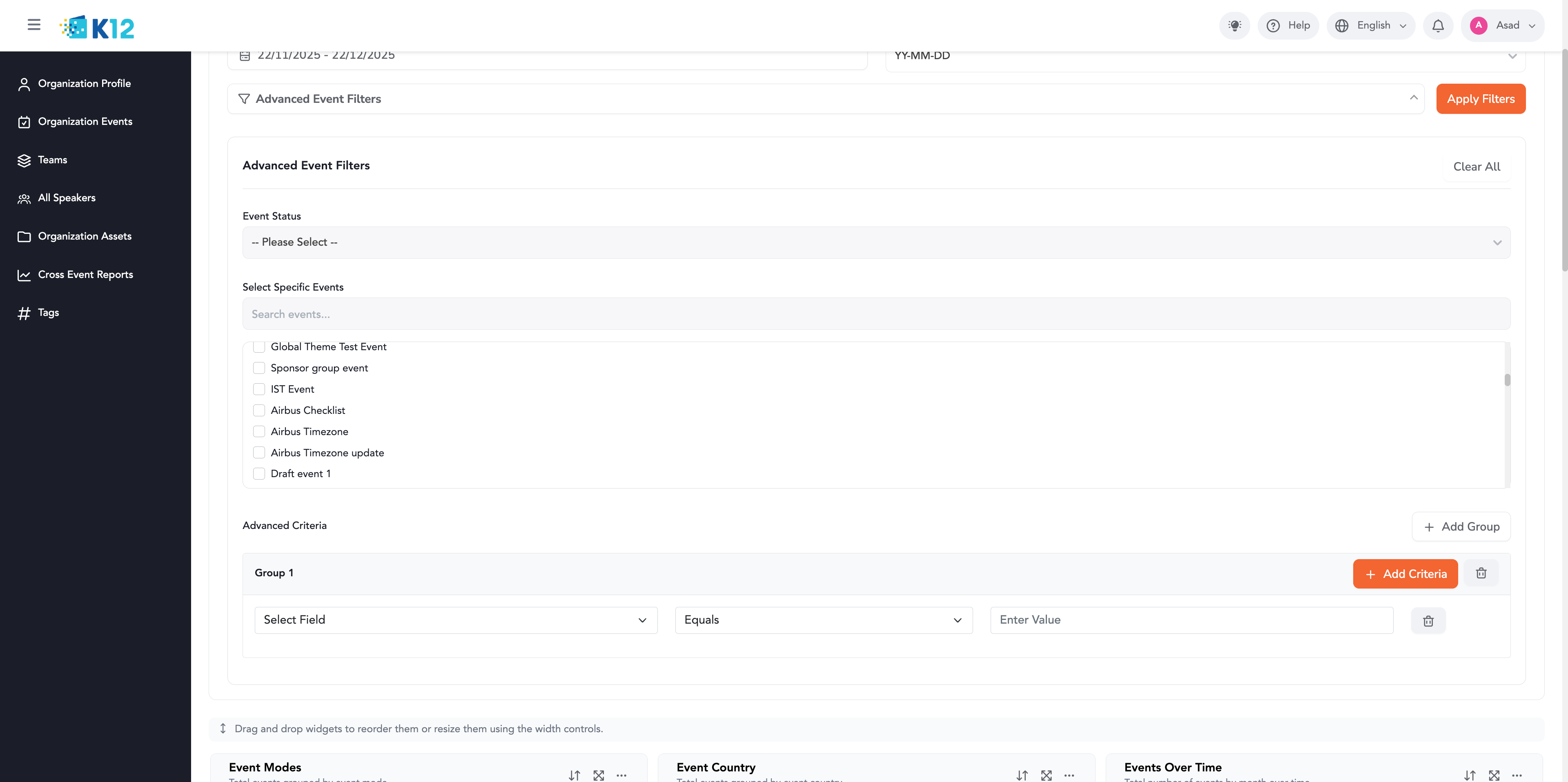
You can have two conditions per group but as many groups as you want!
Step 3: Build Your Conditions
Example Scenario
Goal: View events that meet the following logic:
-
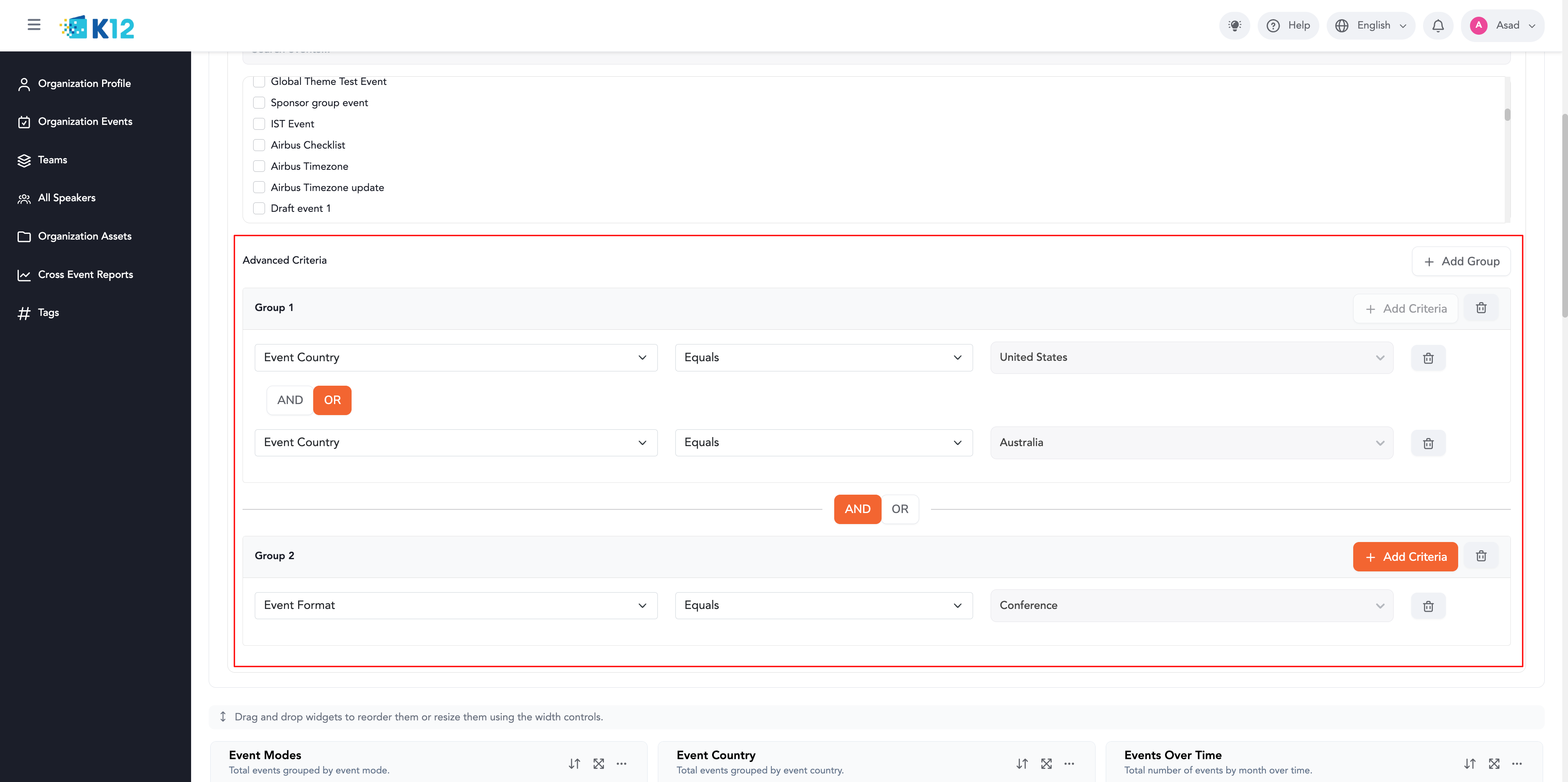
Country is US OR Australia, AND
-
Event Type is Conference
How to Set This Up
-
Group 1 – Country Conditions
-
Select the field Event Country.
-
Set Condition 1: Event Country = US.
-
Click Add Condition.
-
Set Condition 2: Event Country = Australia.
-
Change the AND/OR toggle between them to OR.
-
-
Group 2 – Event Type Condition
-
Click Add Group.
-
Set Condition: Event Type = Conference.
-
Ensure the toggle between Group 1 and Group 2 is set to AND.
-
Your logic now reads:
(Event Country = US OR Event Country = Australia) AND (Event Type = Conference)
Step 4: Save and Run the Report
-
After building your advanced criteria, click Apply Filters.
-
The data will reflect the exact logic you configured.