-1.webp?width=150&height=63&name=vfairs-logo-landscape-gradient-5%20(2)-1.webp)
How to use the badge designer to design name badges for attendees.
-
Prerequisites
To ensure a seamless and high-performance experience, please review the following requirements before signing in:
- Stable, high-speed internet connection is essential to avoid interruptions during setup or event management.
- Use an updated and compatible device, such as the latest version of Chrome, Firefox, Safari, or Edge on desktop or mobile.
- Log in through the backend of your event using the credentials provided by your assigned Project Manager.
- Ensure your browser cookies and JavaScript are enabled for full platform functionality.
- If using a corporate network or VPN, confirm that the vFairs domain is not blocked or restricted.
2. The Left Navigation Panel: Where Everything Lives
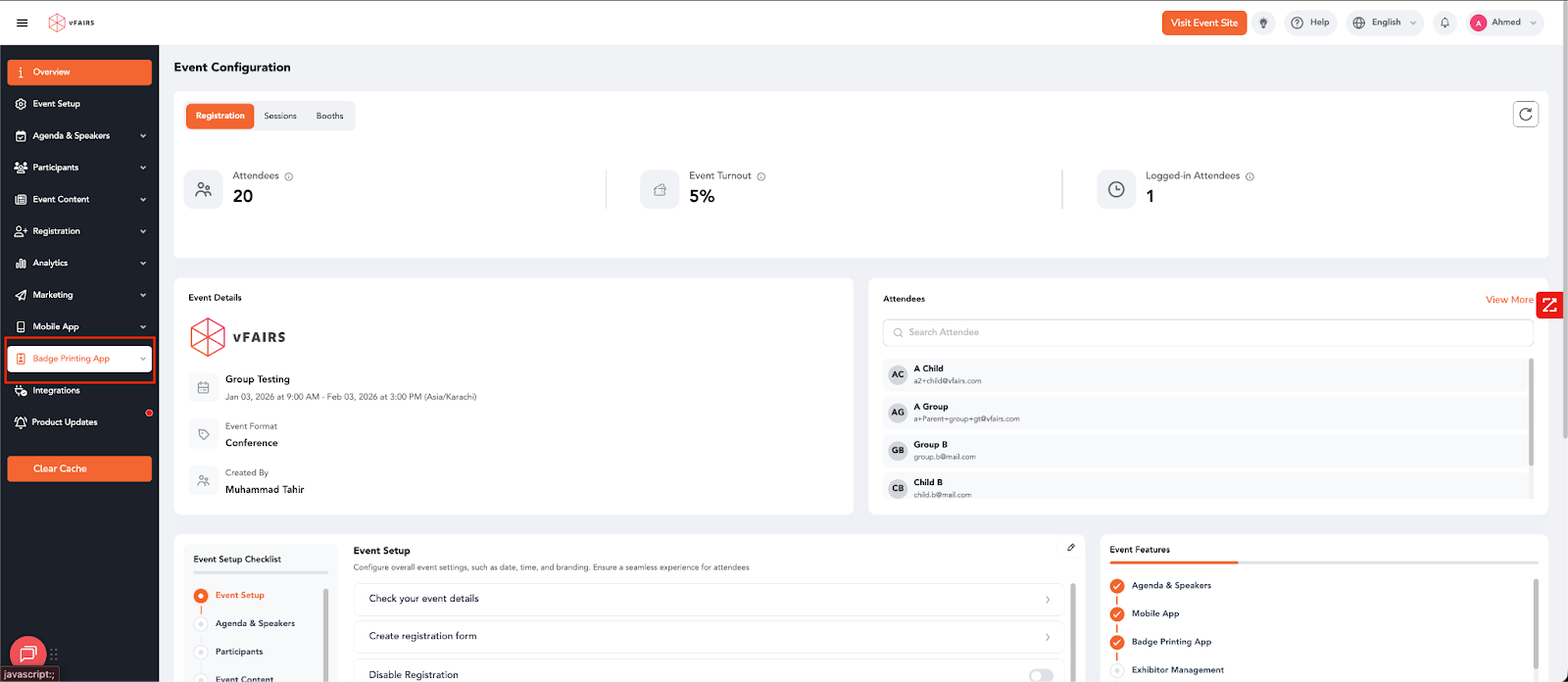
After you have logged in to the backend the space on your left is your operational command center. You’ll notice modules like Event Setup, Agenda & Speakers, Participants, Registration, and Analytics.
Badge Printing App (Highlighted Section)
- Located under Mobile App
- This is where you’ll configure badge layouts, printing rules, check-in devices, QR settings, and staff permissions.
- Think of it as the "front desk engine" for your physical event.
New User Tip:
If you don’t see this option, request your PM to enable Badge Printing App in your Event Features.
3. Left Navigation Bar — Your Event Operations Command Center
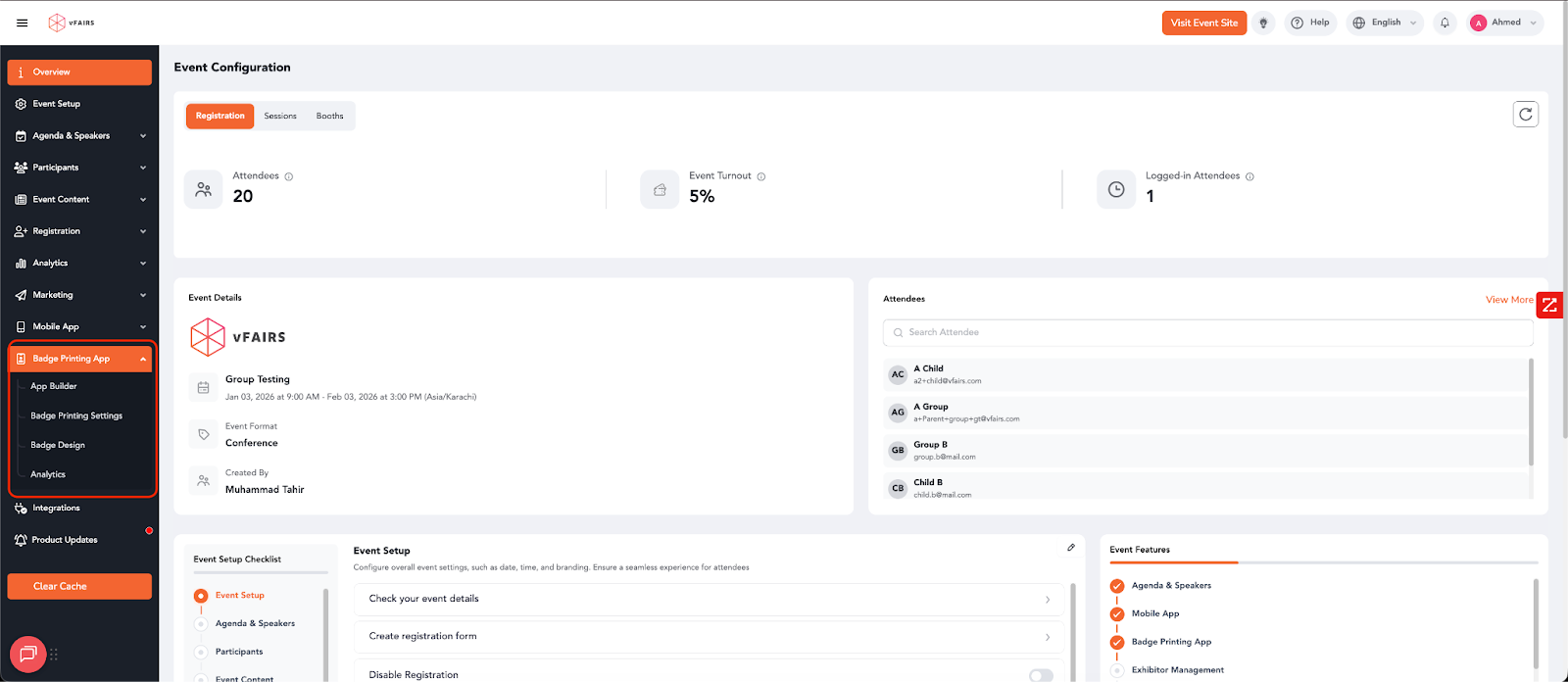
This vertical menu gives you access to every module that supports your event. The highlighted section shows that the user is currently inside the Badge Printing App.
4. Key Components of the Badge Design Screen
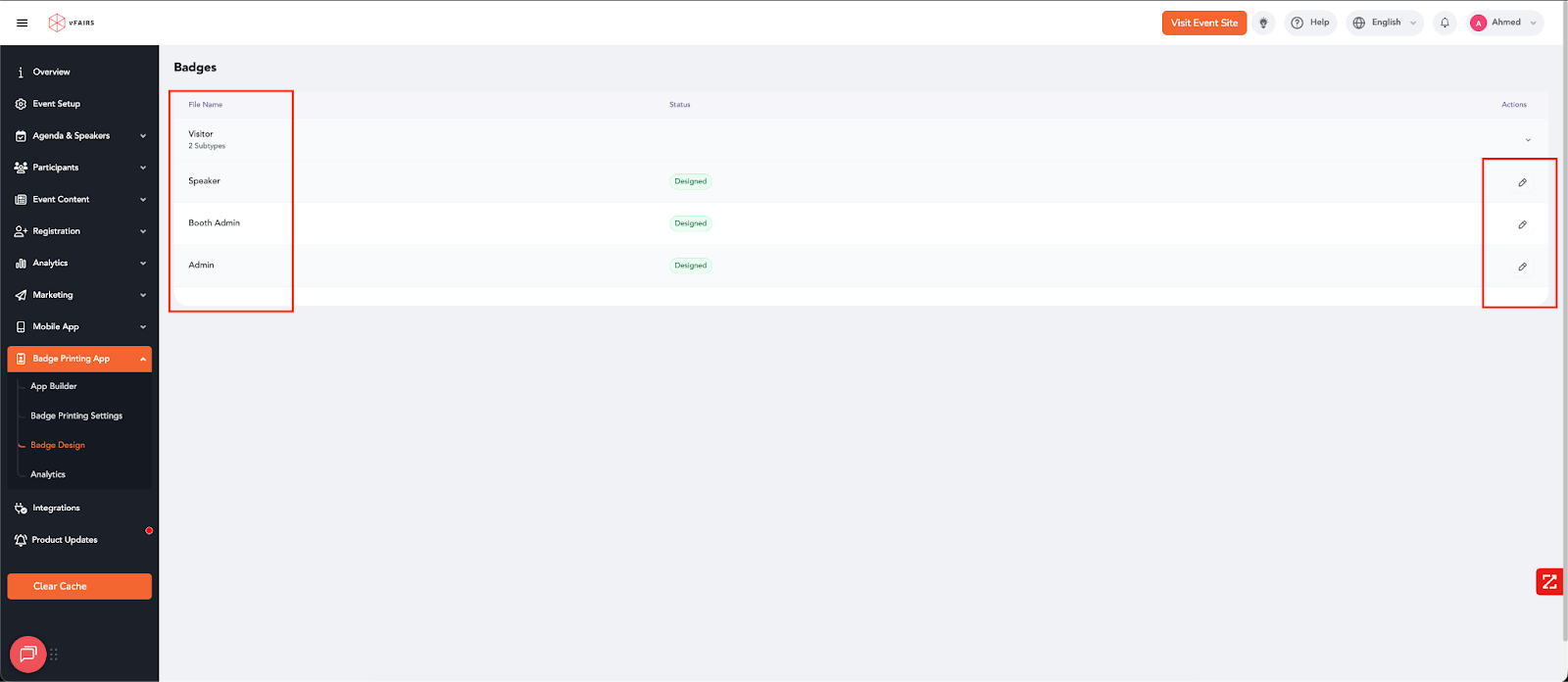
4.1 Badge Types (File Name Column)
Each row represents a badge assigned to a specific attendee role:
- Visitor (may include subtypes, e.g., VIP Visitor, Regular Visitor)
- Speaker
- Booth Admin
- Admin
These categories help ensure that each segment of your event audience receives a badge tailored to their responsibility and access rights.
4.2 Status Column
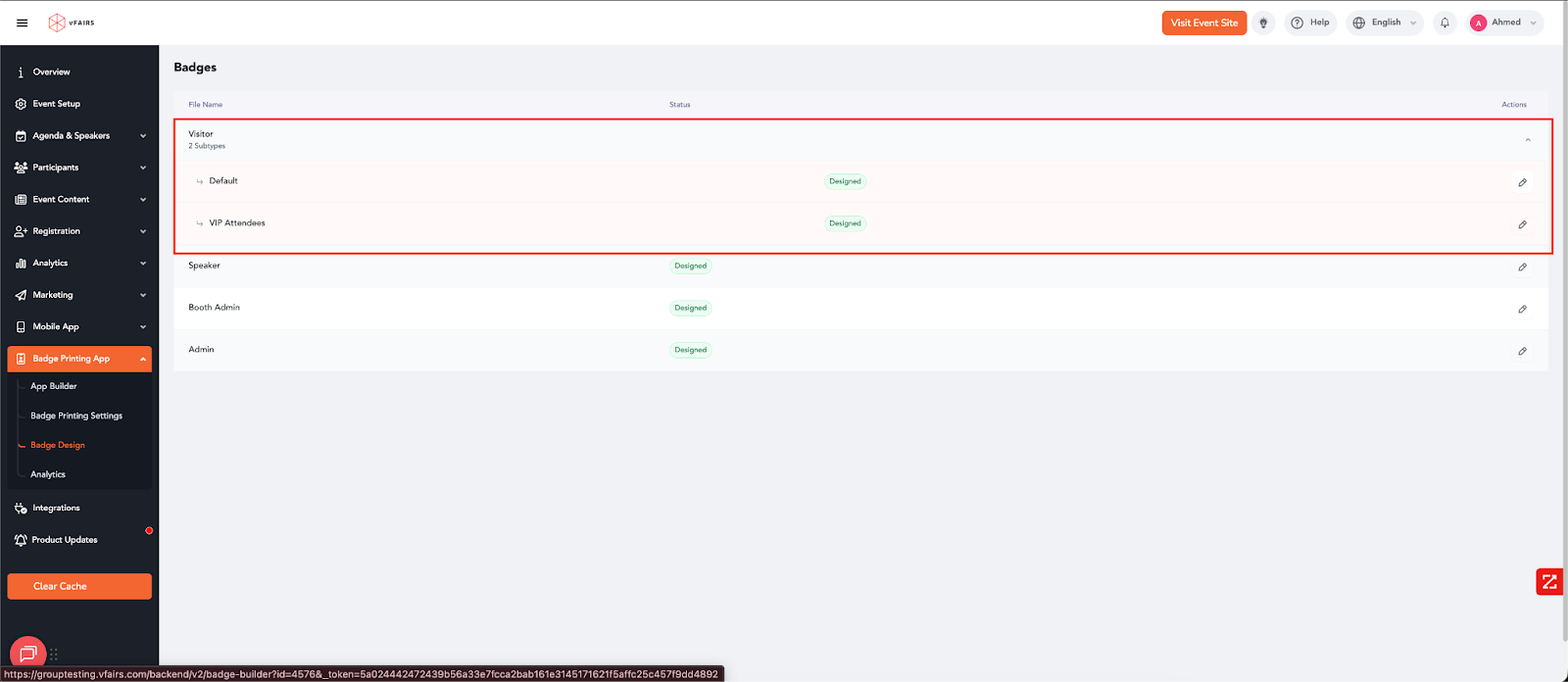
Each badge shows a status indicator such as:
- Designed
- Not Designed
- Draft
A “Designed” status confirms that the badge layout has been fully configured and is ready for printing.
4.3 Actions Column (Edit Icons)
The pencil icon on the right side of each row opens the Badge Designer interface for that specific role.
From here, you can:
- Add or remove fields (Name, Company, Title, QR Code, Profile Photo)
- Adjust badge dimensions
- Insert logos or event branding
- Apply color palettes
- Reposition text and elements
- Preview the design before publishing
*Badge Subtypes
-
Default
-
VIP Attendees
This structure ensures that different levels of visitor access or privileges can be clearly distinguished through customized badge designs.
5. Badge Designer Workspace Breakdown
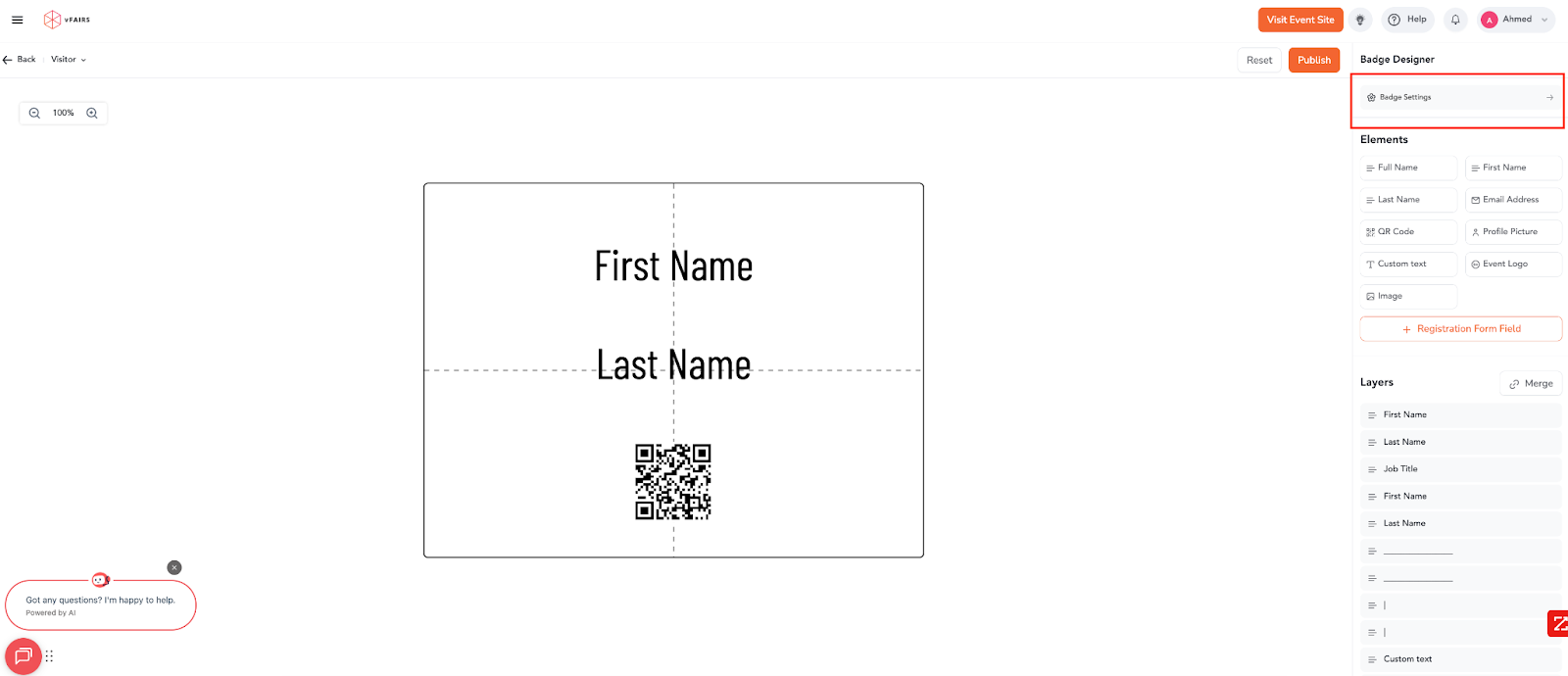
1. Locate the Badge Settings Panel
-
Go to the right-hand side of the Badge Designer interface.
-
Find the Badge Designer section.
-
Look for the Badge Settings tile (highlighted in the red box).
2. Open Badge Settings
-
Click the Badge Settings tile to open the configuration options.
This action expands the configuration panel where you can adjust the global layout and technical attributes of the badge.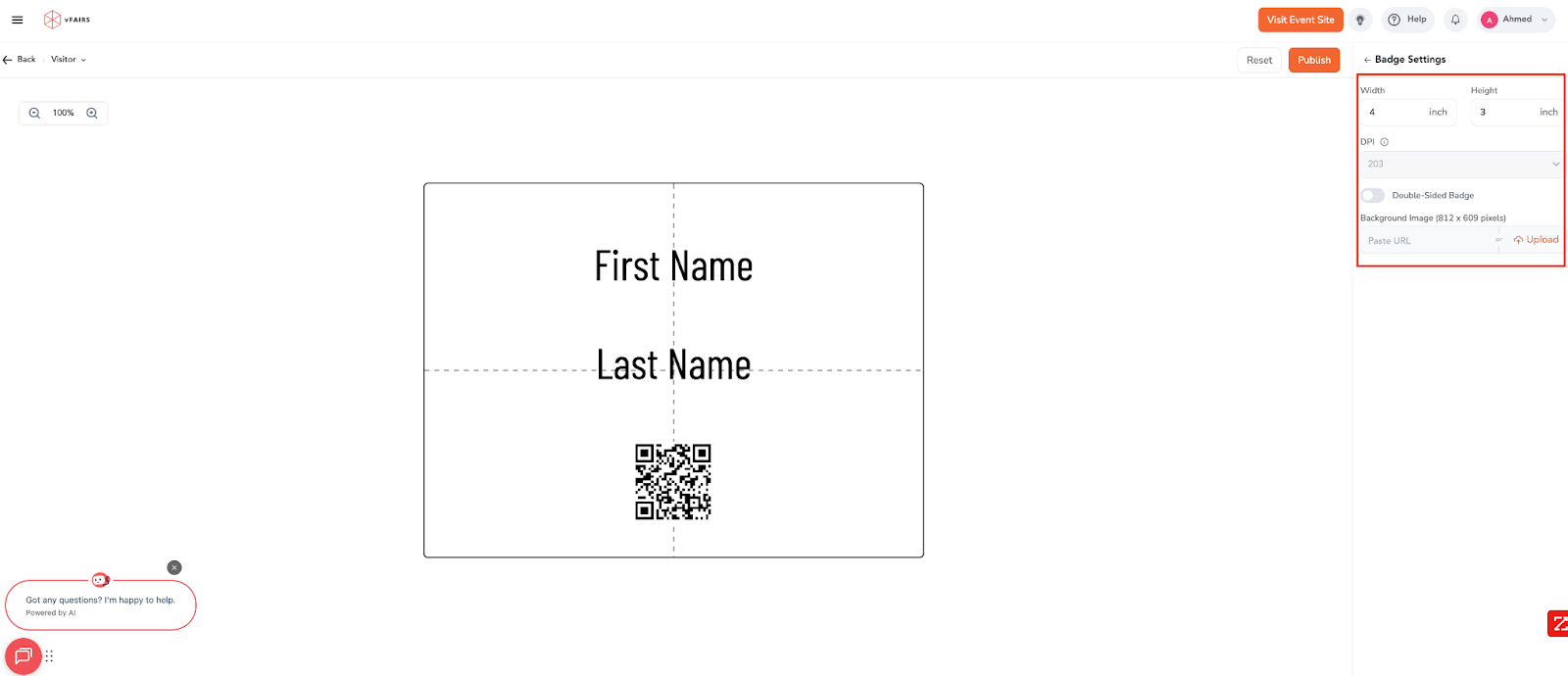
Once expanded, the panel will display options such as:
-
Badge Dimensions
-
Orientation (Portrait/Landscape)
-
Paper Layout / Printing Alignment
-
Margins and Safe Zones
These settings control the entire badge canvas and define how elements render during printing. Adjust Settings as Required. Select the appropriate size and orientation based on event requirements or printer specifications.
Update margins or safe printing zones if your printer or badge stock requires specific alignment. Apply and Validate Changes. After updating settings, visually confirm the adjustments on the badge canvas.
Once your layout parameters are finalized, click Publish (top right of screen) to apply the updated Badge Settings across the event.
6. Central Canvas (Badge Preview Area)
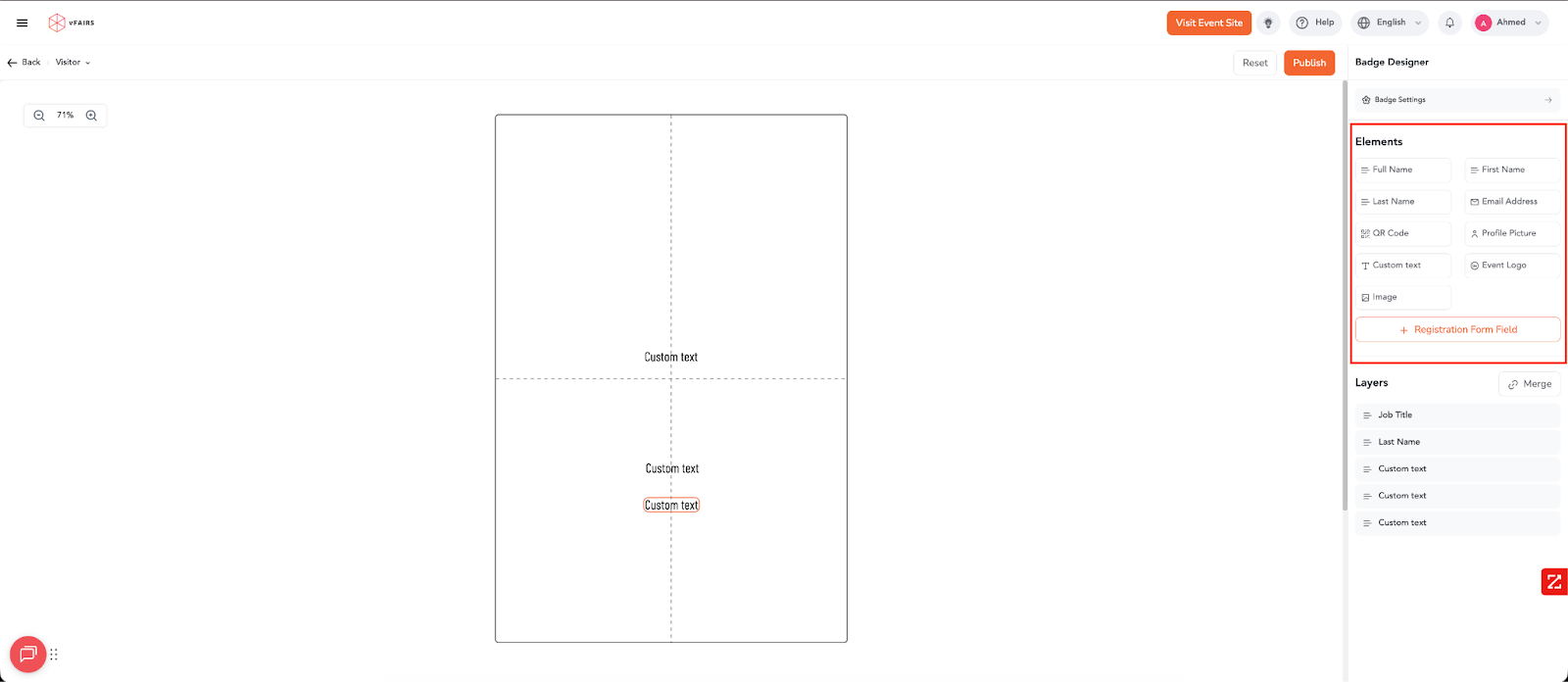
The canvas represents the actual badge that will be printed at the event. You can:
- Drag and drop fields
- Resize and reposition elements
- Add text, images, logos, and personal data
- Preview alignment, spacing, and orientation
The dotted gridlines help maintain symmetry and guide you in placing elements cleanly.
This live preview ensures that badges print exactly as designed without manual adjustments onsite.
7. Field Editing Panel (Right Side)
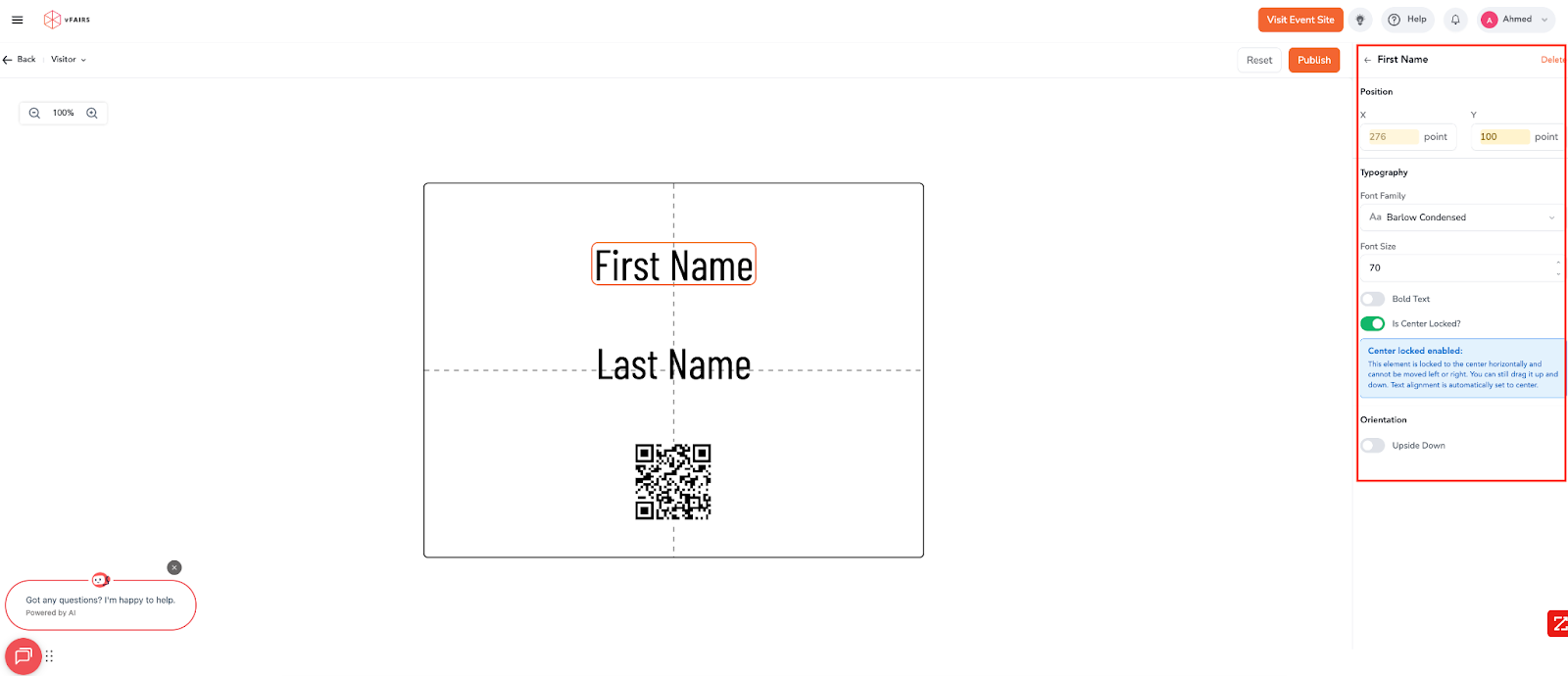
When you click any item on the badge—such as First Name, Last Name, QR code, or any other field—this panel shows the settings you can adjust.
1. Position
-
Adjust X (left/right) and Y (up/down) to place the selected item exactly where you want it.
2. Typography
-
Choose the font family and font size.
-
Enable Bold Text if you want the field to appear more prominent.
(Typography options appear for text-based fields.)
3. Center Lock
-
When turned on, the item stays perfectly centered horizontally.
-
You can still move it up or down vertically for alignment.
4. Orientation
-
Turn Upside Down on only if your printing setup requires the text to be flipped.
*All of these settings apply to every item in this same column.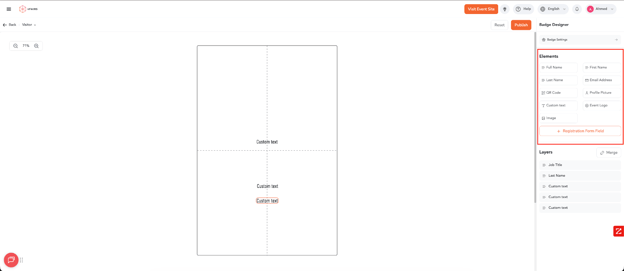
Available Elements Include:
• Full Name
Automatically pulls the attendee’s full name from registration data.
• First Name / Last Name
Separate name components for custom styling or stacked layouts.
• Email Address
Useful for internal events or badges with digital verification.
• QR Code
Generates a scannable code based on the attendee’s unique identifier.
Critical for check-in, access control, and lead retrieval.
• Profile Picture
Displays uploaded attendee photos — useful for security-screened events or corporate conferences.
• Custom Text
Allows organizers to add static labels, such as:
-
“VIP”
-
“Speaker”
-
“Exhibitor”
-
Room or track information
• Event Logo
Adds the event’s branding directly to the badge.
• Image
Supports any additional graphics, sponsor logos, or design elements.
Registration Form Field
This option pulls any custom field from the event’s registration form, such as:
-
Company Name
-
Job Title
-
Country
-
Membership ID
-
Booth Number
8. Zoom Controls (Top Left of Canvas)
The zoom percentage (e.g., 71%) allows you to adjust your viewing scale while designing.
Useful for:
- Fine-tuning text placement
- Working on small elements like QR codes
- Reviewing the overall layout
9. Merge Option
For organizers wanting to combine multiple elements into one locked position, the Merge feature simplifies the layout and prevents accidental movement.
10. Switching Between Badge Types
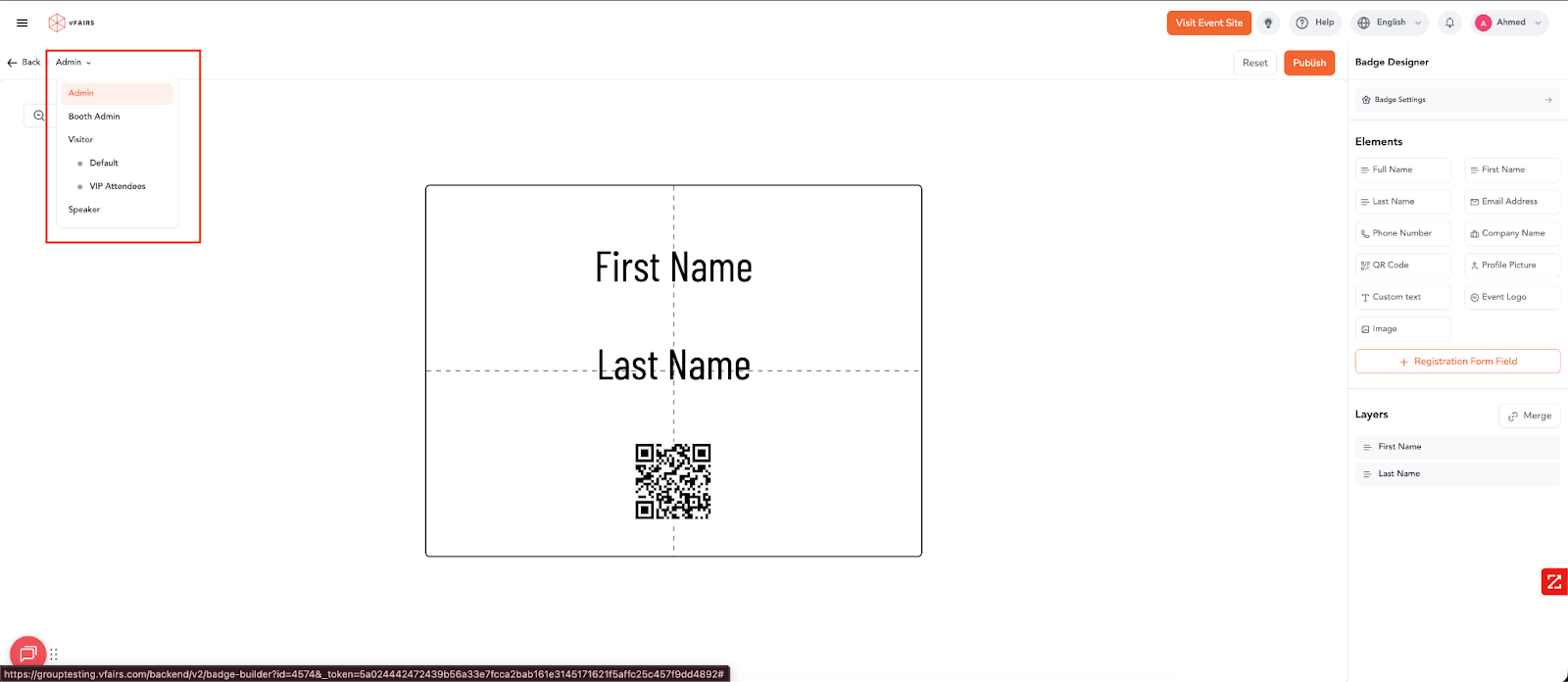
This screen allows organizers to switch between different badge types — such as Admin, Booth Admin, Visitor (and its subtypes), and Speaker — directly within the Badge Designer. Selecting a badge type loads its specific layout onto the design canvas, helping you customize each role’s badge individually. This dropdown ensures quick navigation and seamless editing across multiple badge templates.
10.1 Switch Badge Type Confirmation Popup
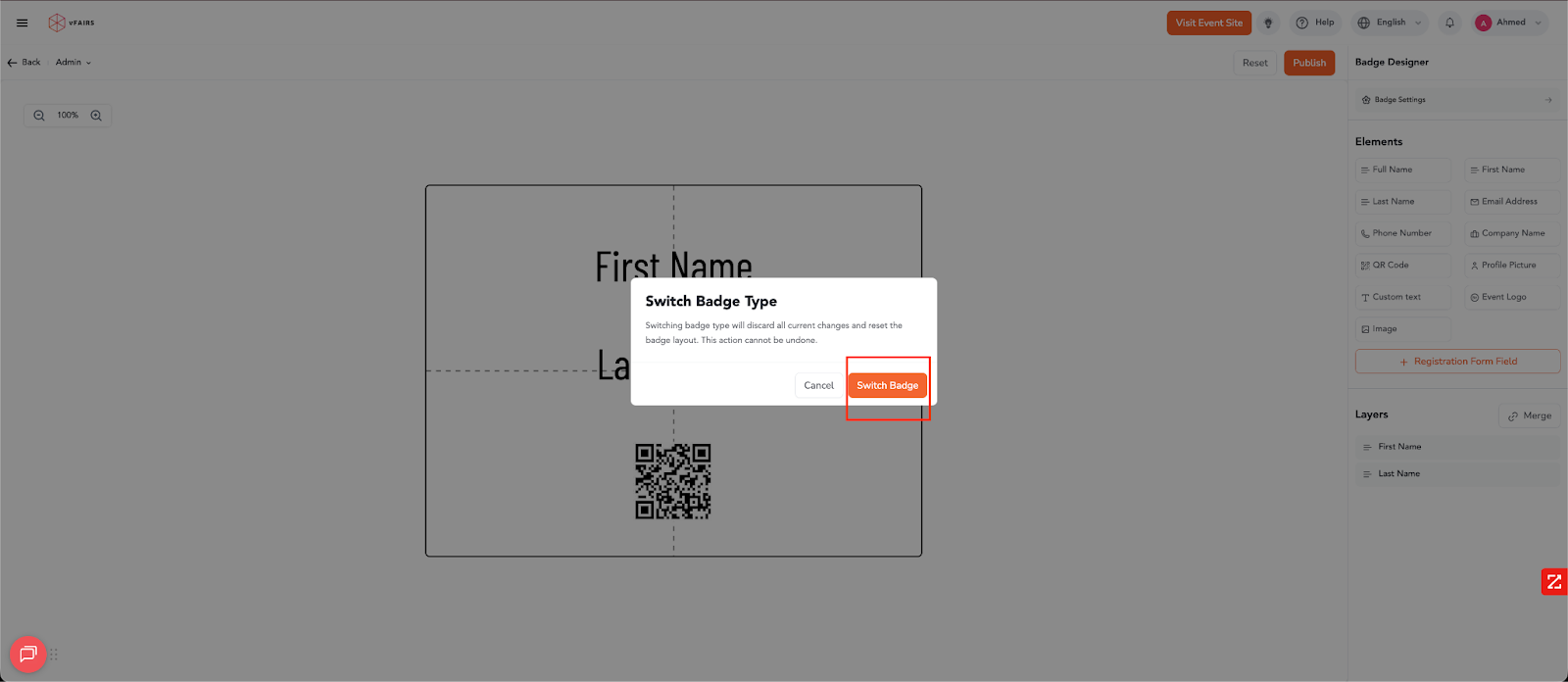
When switching to a different badge type during editing, a confirmation message appears to prevent accidental loss of work. This popup clearly warns that unsaved changes will be discarded and the layout will reset. Clicking “Switch Badge” proceeds with the change, while “Cancel” keeps the current design intact.
Publish
Finalizes your design and applies it to the badge printing system.
Attendees will print the newly published version during check-in.