-1.webp?width=150&height=63&name=vfairs-logo-landscape-gradient-5%20(2)-1.webp)
Pre-Requisites
Before downloading or using the staff app, please ensure:
- You have a stable internet connection (Wi-Fi or strong mobile data).
- Your device is fully charged or connected to power.
- You have the Event Code and staff credentials provided by your Project Manager.
- Your device’s camera and permissions (camera, notifications, storage) are enabled for the app.
These basics help ensure a smooth installation and check-in experience.
1. Searching for the vFairs Onsite App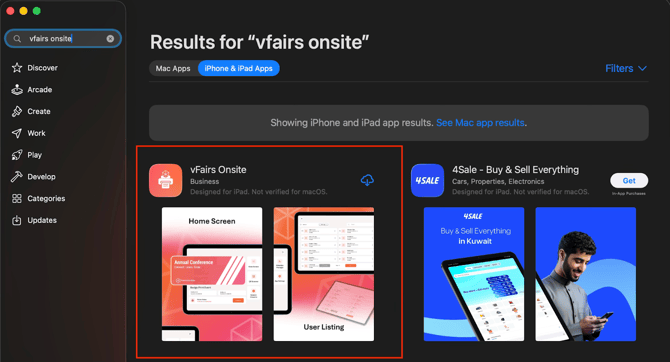
Go to the Apple/Google App Store search results for “vFairs Onsite.”
Users should confirm they are selecting the correct application — identified by the vFairs Onsite icon and the Business category.
Tap Get or the cloud download icon to install the app on your device.
2. Welcome Screen – Enter Email Address
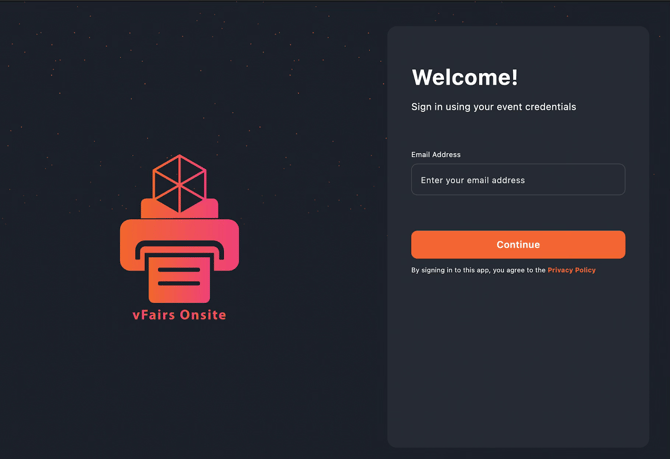
After launching the app, users are greeted with the Welcome screen.
Here, they are prompted to enter the email address provided by the vFairs Project Manager.
This email will be used to authenticate the user and verify their role-based access. Tap Continue after entering the email.
3. Sign-In Screen – Enter Password / OTP
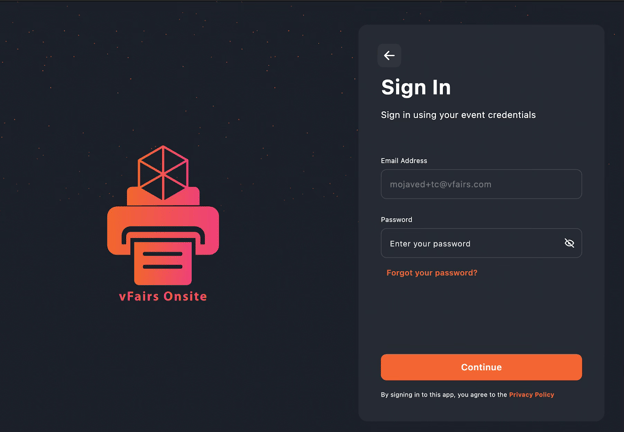
Once the email is submitted, the app navigates to the Sign In screen.
Depending on event configuration, users may be required to enter:
- Their password, or
- An OTP (One-Time Password) delivered via email or SMS
This ensures secure access to the event tools inside the application.
Tap Continue to proceed once the credentials are entered.
4. Main Application Dashboard
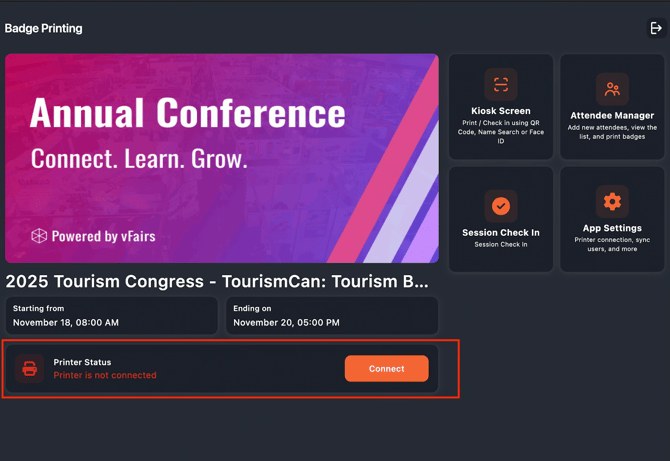 After logging in, users land on the Badge Printing Dashboard.
This area displays the following:
- Event banner and branding
- Event name and dates
- Navigation tiles such as Kiosk Screen, Attendee Manager, Session Check-In, and App Settings
At the bottom, the Printer Status displays an alert showing “Printer is not connected.”
Users must tap Connect to pair their device with the Zebra printer before printing badges.
This step is required to enable onsite badge printing functionality.
5. Session Check-In Tile on Main Dashboard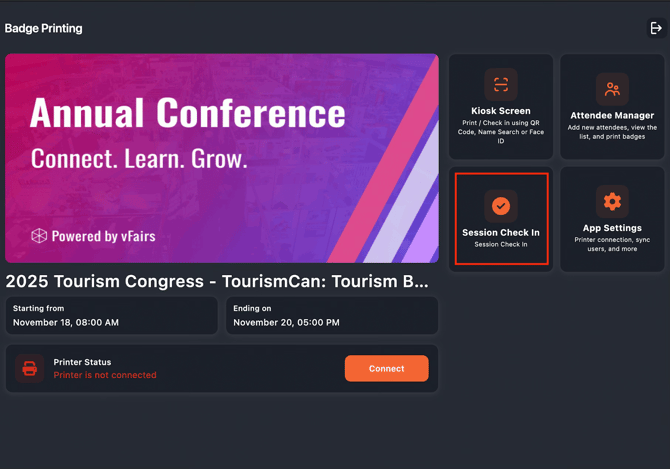
This screen shows the main event dashboard after logging into the vFairs Onsite App.
To begin managing session attendance, tap the Session Check In tile highlighted on the right. This will open the list of all sessions associated with the event.
5.1 List of Sessions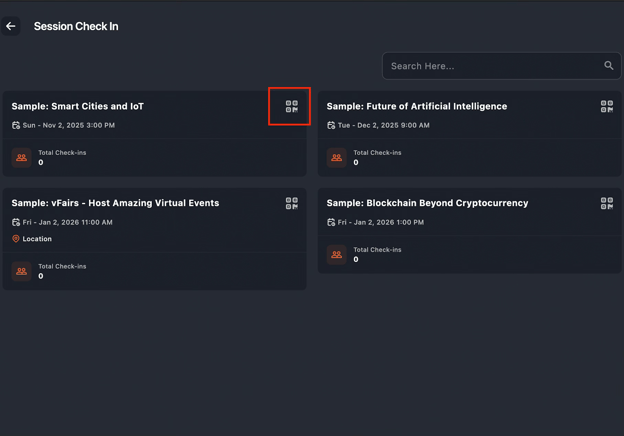
Once inside the Session Check-In module, you will see a grid of all sessions scheduled for the event.
Each session tile displays:
- Session name
- Date & time
- Location (if configured)
- Total check-ins
- A QR icon indicating scanning mode
To start scanning attendees for a session, tap the QR icon next to the session you want to manage.
You can also use the Search bar at the top to quickly filter sessions by name.
5.2 Camera Permission Request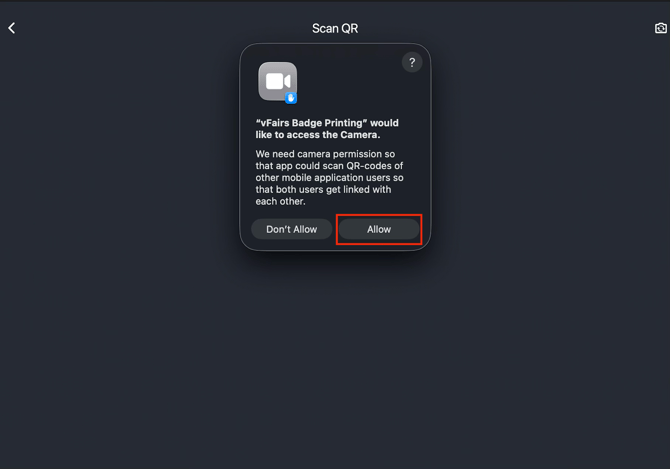
Before you can scan attendee badges, the app must access the device camera.
This system pop-up appears asking for your permission.
Tap Allow to enable QR scanning.
Note: If “Don’t Allow” is selected, the app will not be able to scan badges until permission is granted in device settings.
5.3 QR Scanning Interface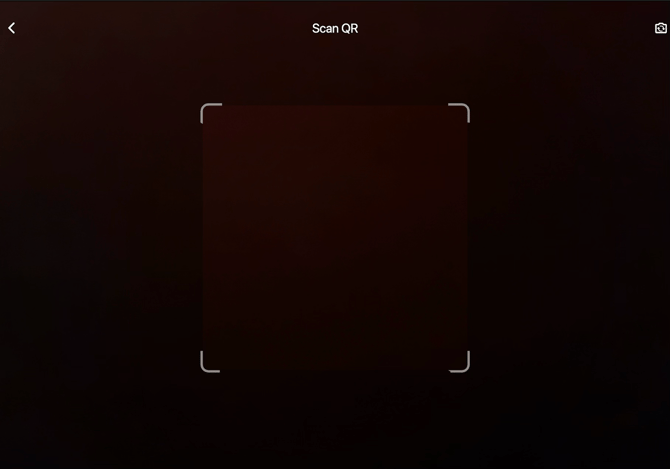
After permissions are granted, you are taken into the QR scanner view.
This interface allows staff to scan attendee badges using the device camera.
- Position the attendee’s badge QR code within the square frame.
- The app will automatically detect and register the check-in.
- No need to press any button; scanning is fully automatic.
5.4 Searching for a Specific Session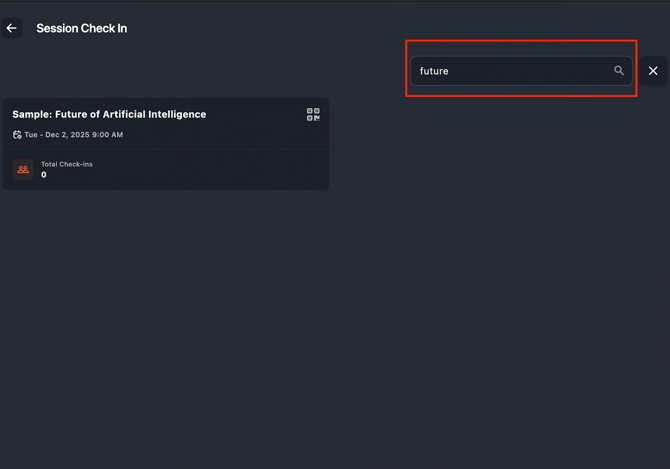 In the event of many sessions, staff can use the Search bar to quickly locate the required session.
Typing a keyword (e.g., “future”) will instantly filter the sessions and show only matching entries.
This is particularly helpful for large conferences with dozens of breakout sessions.
6.1 Navigating to App Settings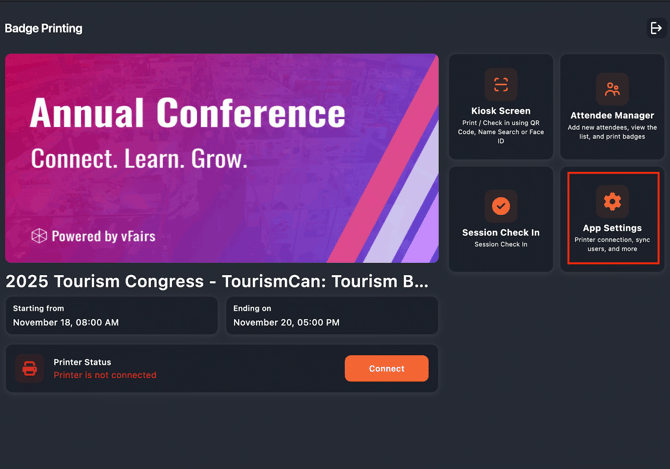 This screen shows the main dashboard, where multiple operational tools are displayed.
To configure printer settings, sync users, or adjust badge-printing messages, tap the App Settings tile (highlighted on the right).
This module is essential for preparing the app before attendee check-ins begin.
6.1.1 App Settings Overview (Badge Printing)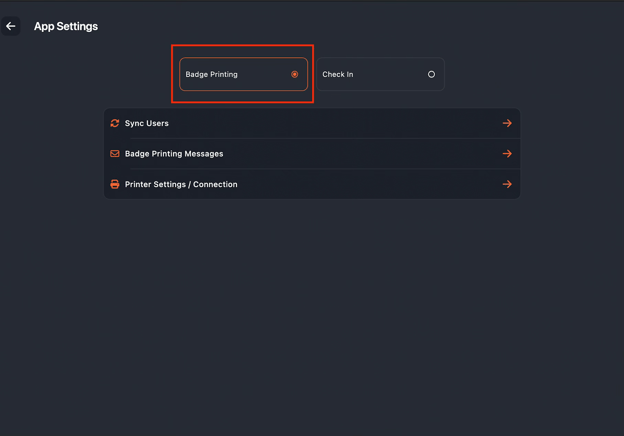 Inside App Settings, you will see two primary modes:
- Badge Printing
- Check-In
For printing activities, ensure Badge Printing is selected (highlighted above).
Below this selector, you’ll find key configuration options:
- Sync Users
- Badge Printing Messages
- Printer Settings / Connection
These settings help ensure that attendee data, messaging, and printer connectivity are all properly configured.
6.1.2 Sync Users Screen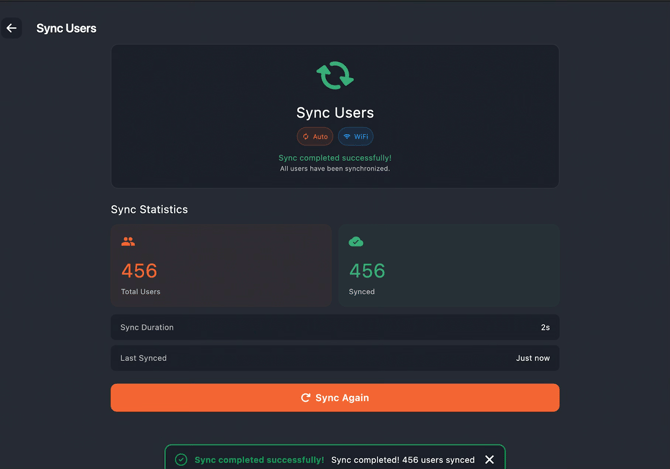 This This Screen displays the Sync Users module.
Here, staff can retrieve the latest attendee list from the vFairs backend.
- Total users
- Number of users successfully synced
- Sync duration
- Timestamp of the last sync
A green “Sync completed successfully” message confirms everything is up to date.
Tap Sync Again if new registrations or edits have been added since your last sync.
6.1.3 Badge Printing Messages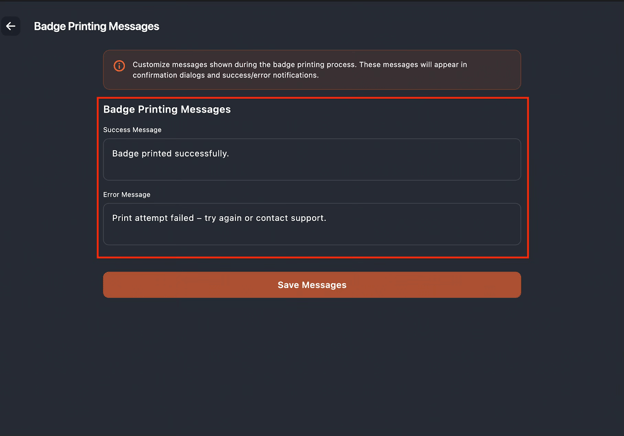 This screen allows you to customize printing feedback messages that appear during badge printing.
Two message fields are available:
- Success Message → Shown after a badge prints successfully
- Error Message → Displayed when printing fails
These messages appear in popup confirmations and help guide staff during high-volume check-in operations.
Be sure to tap Save Messages after updating text.
6.1.4 Printer Discovery & Connection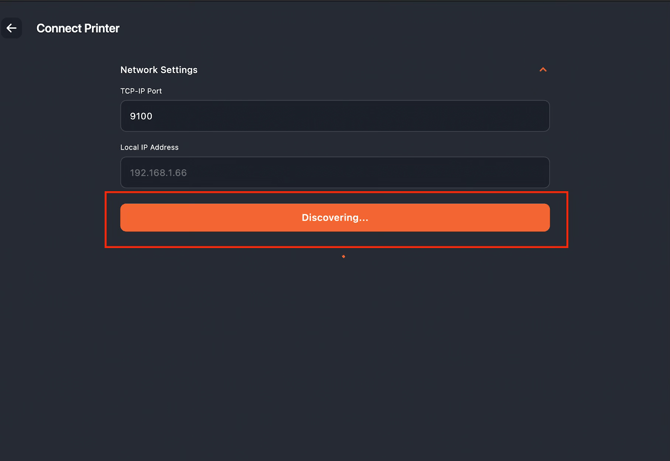 This This is the Connect Printer interface, where the app attempts to discover Zebra printers on the network.
Key sections include:
- TCP-IP Port (default: 9100)
- Local IP Address (auto-detected when connected to network)
At the bottom, the Discovering… button shows that the app is scanning for available printers.
Ensure:
- The Zebra printer is powered on
- Connected to the same Wi-Fi network as the device
- Zebra Setup utility has been configured
Once the printer appears, it can be selected to complete the connection.
6.2.1 App Settings Overview (Check In)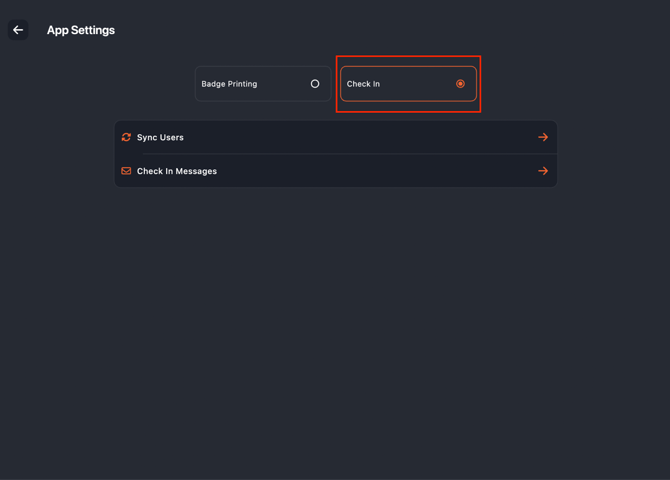
As explained earlier Inside App Settings, you will see two primary modes.
At the top, users can toggle between Badge Printing and Check-In modules, with the Check-In option currently selected (highlighted).
Below the module selector, two key configuration options are displayed:
- Sync Users — As explained earlier directs staff to manually sync attendee data from the backend.
- Check-In Messages — allows configuration of the success and error messages that appear during the check-in workflow.
6.2.2 Check-In Messages Configuration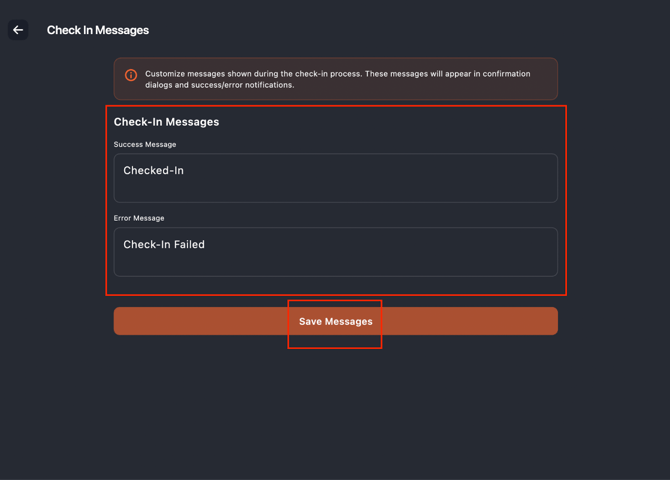 This screen displays the Check-In Messages editor, where staff can customize the system-generated messages that appear during the attendee check-in process.
At the top, an informational banner explains that these messages will show up in confirmation pop-ups and success/error notifications.
Two editable fields are included:
- Success Message — currently set to “Checked-In”
- Error Message — currently set to “Check-In Failed”
You have the ability to change the message text. When done click Save Messages button to store your customized text and instantly apply it to the check-in workflow.
7. Accessing Attendee Manager
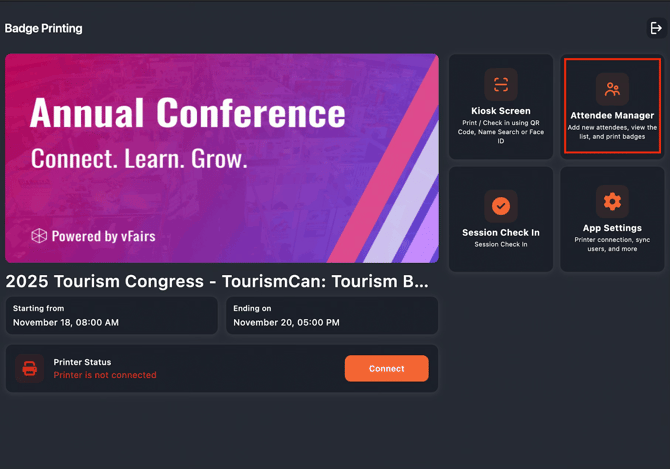 This screen shows the main dashboard once logged into the vFairs Onsite App.
To manage attendee records — including viewing, editing, adding new attendees, or printing badges — tap the Attendee Manager tile highlighted on the right.
This module is essential for onsite registration desks and manual attendee handling.
7.1 Viewing the Full Attendee List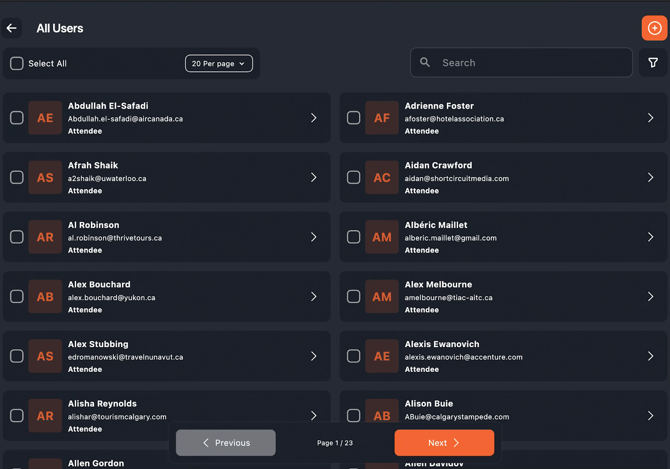
Inside Attendee Manager, you’ll see the full list of users registered for the event.
Key tools here include:
- Search Bar (top right)
- User Type Filter
- Add New User (+ button)
- Pagination controls
- Select All option for bulk actions
Each attendee tile displays:
- Name
- User Type (e.g., Attendee, Speaker, Admin)
Tap any attendee row to view or update their details, or print their badge.
7.2 Searching for an Attendee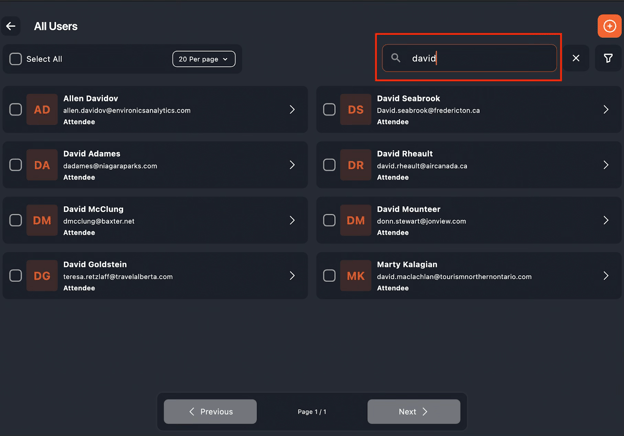 This screen demonstrates how the Search bar can be used to quickly locate an attendee.
Typing a keyword (e.g., “david”) filters the list instantly, making it easier to find individuals during busy check-in hours.
Use this during peak traffic when staff must locate an attendee efficiently without scrolling.
7.3 Adding a New Attendee (Selecting User Type)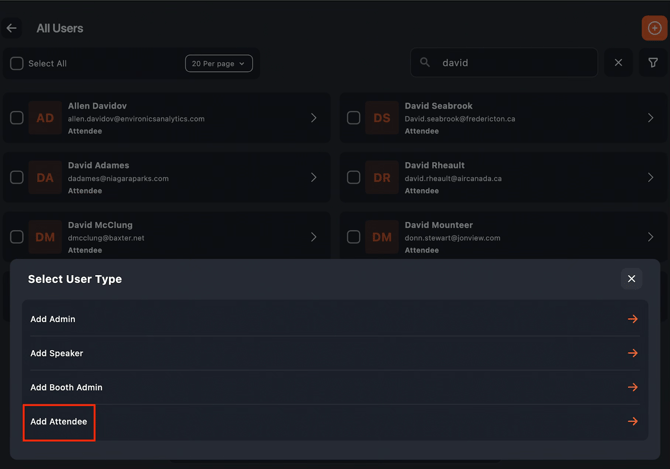 When you tap the + button, the app prompts you to choose the User Type for the new profile.
Options include:
- Add Admin
- Add Speaker
- Add Booth Admin
- Add Attendee (most common use case at onsite registration)
Select Add Attendee to proceed to the registration form.
This feature is used for:
- Walk-in attendees
- Last-minute registrations
- Manual profile creation for pre-approved guests
7.4 Registration Form for New Attendee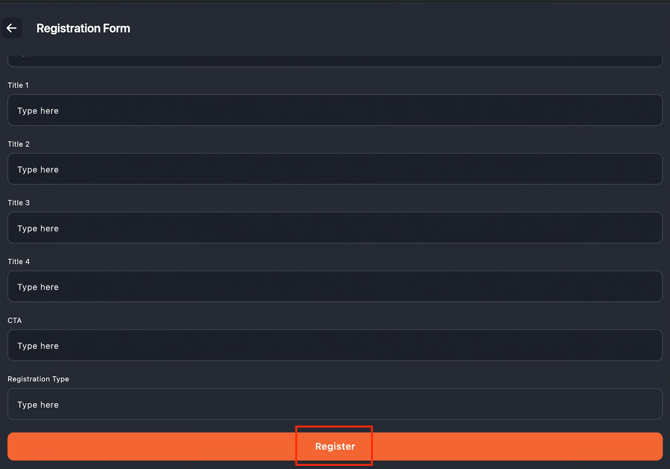 This screen is the Registration Form used to create a new attendee record.
Staff must fill out all required fields; Registration Type, or any custom fields configured for the event.
Once all fields are completed, tap the Register button to save the new attendee profile.
After registration:
- The attendee appears immediately in the list
- Their badge can be printed right away
- The profile syncs to the backend when user sync is enabled
This is essential for smooth handling of onsite walk-ins.
8. Kiosk Screen (Highlighted Option)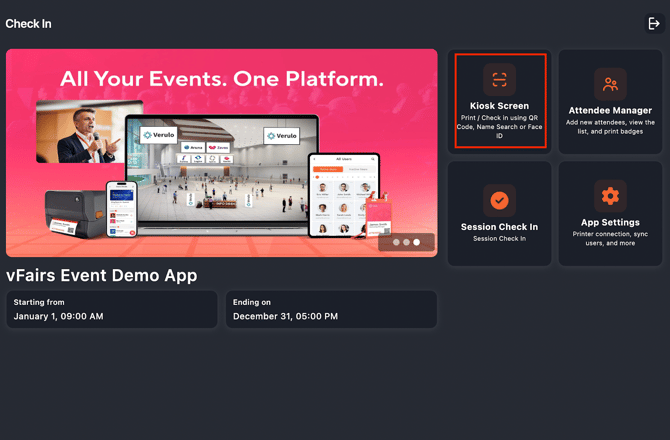
Tap Kiosk Screen from the main menu to open the main check-in interface.
8.1 Kiosk Experience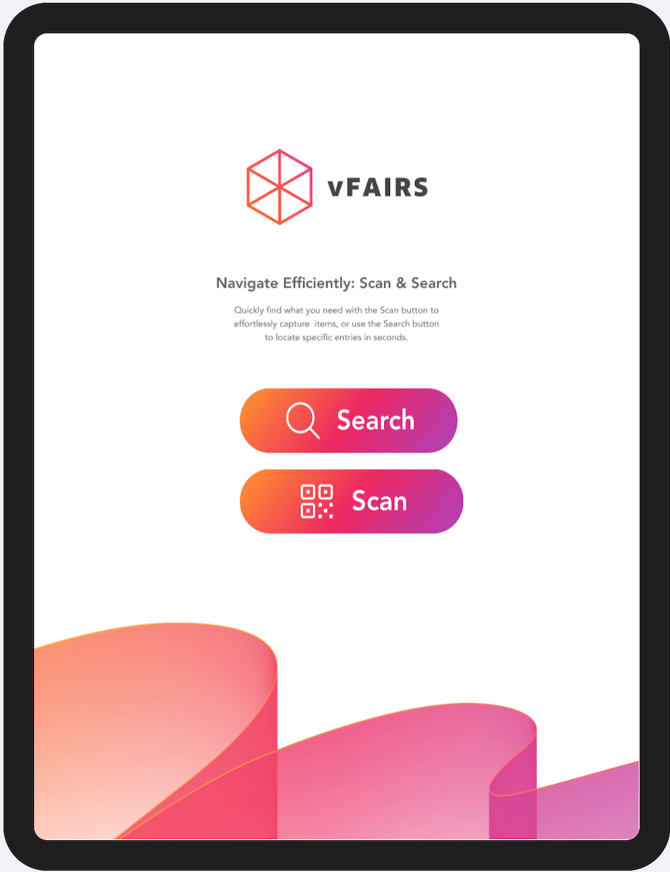
This is the main Kiosk screen of the app. You have the option to opt for your branding. Please let your project manager know.
Search
- Tap Search to manually find an attendee by name or other details.
- Ideal for quick lookups without using the camera.
Scan
- Tap Scan to open the camera and instantly scan QR codes on attendee badges.
- Perfect for fast check-ins and high-traffic scenarios.