-1.webp?width=150&height=63&name=vfairs-logo-landscape-gradient-5%20(2)-1.webp)
Open the exhibitor portal URL provided by your organizer and log in using your exhibitor credentials.
By default, you'll be taken to the Booth Management Dashboard (Overview).
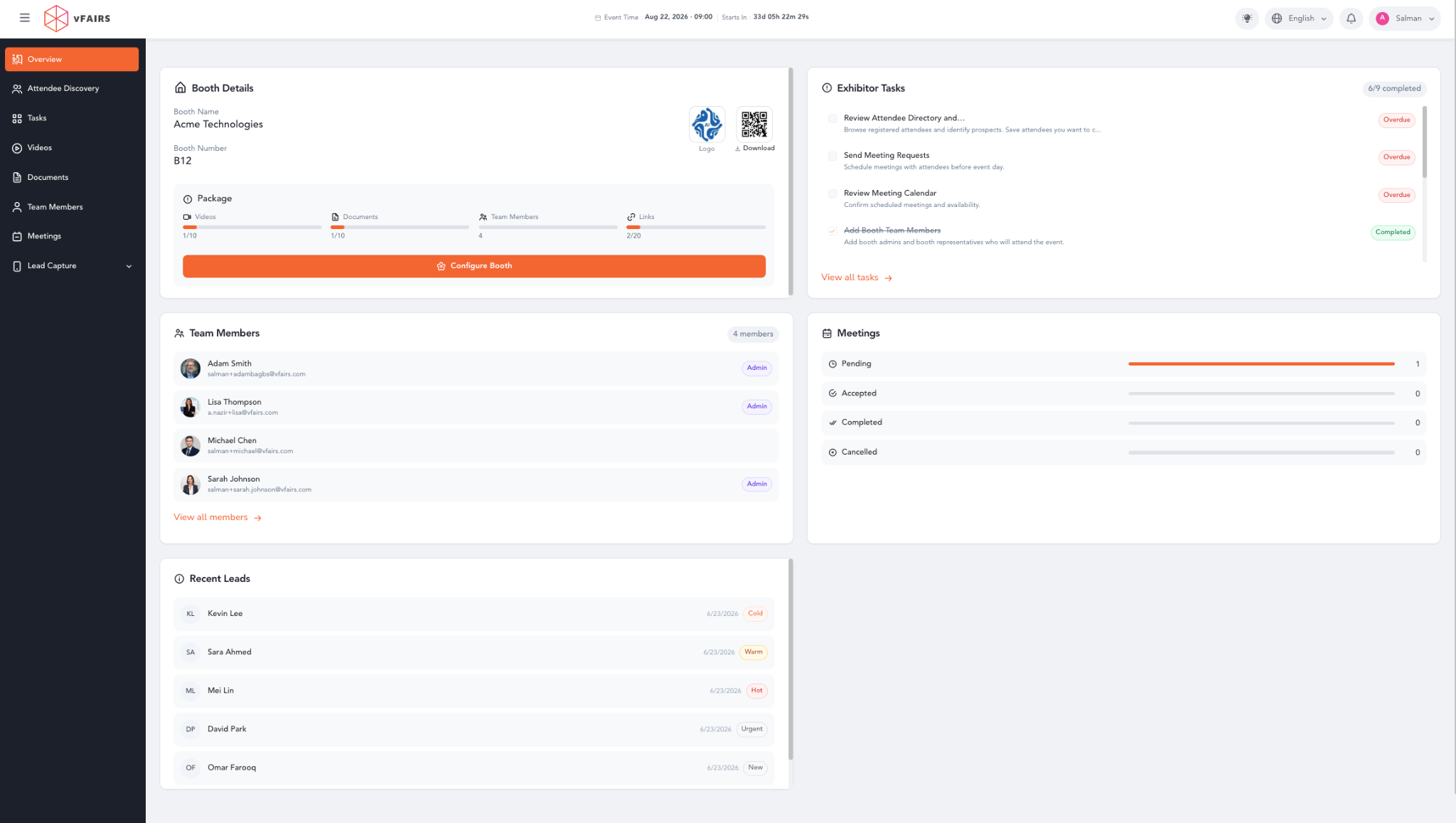
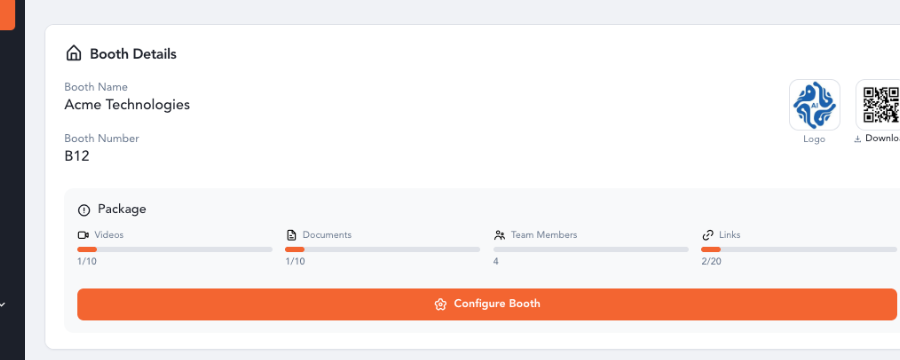
The Booth Details widget provides a quick summary of your booth information.
• Booth Name and Booth Number display your assigned booth details.
• View your booth logo.
• Download your Booth QR Code to display at your physical booth. Visitors can scan the QR code to open your booth page, and every scan is recorded for reporting.
• The Package section shows how many Videos, Documents, Team Members, and Links are included in your selected booth package, along with your current usage.
• Click Configure Booth to open the Booth Builder where you can customize your booth layout, update booth information, upload videos and documents, manage links, and configure your overall booth experience.
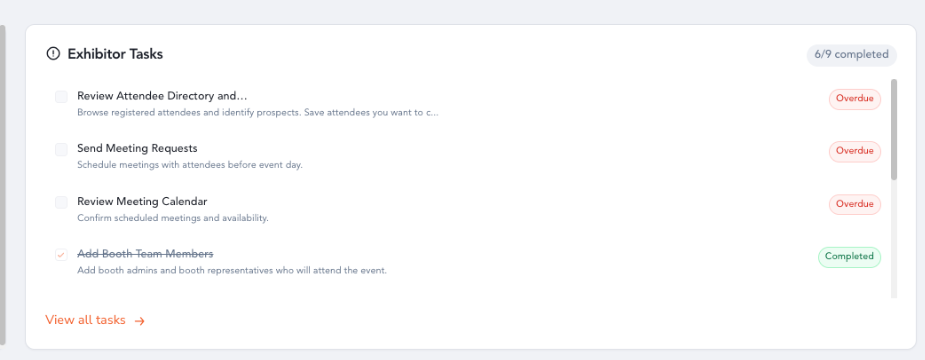
The Exhibitor Tasks widget helps you stay on track by displaying your upcoming and overdue tasks.
Tasks are automatically sorted by priority and deadline.
• Click a task to complete it.
• Use View all tasks to open the complete task list and manage outstanding activities.
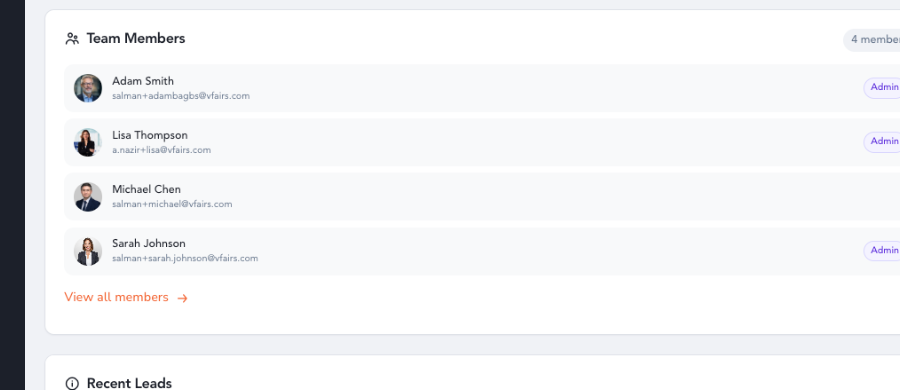
The Team Members widget displays the users currently assigned to your booth along with their roles.
From the Team Members page, you can add new booth representatives, update existing members, manage permissions, or remove users when required.
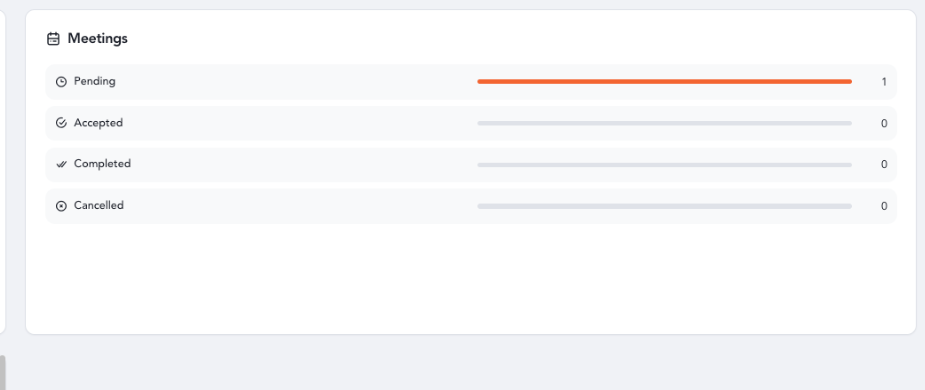
The Meetings widget provides a quick overview of your meeting requests.
It displays the number of meetings grouped by status, including Pending, Accepted, Completed, and Cancelled, allowing you to monitor your meeting activity at a glance.
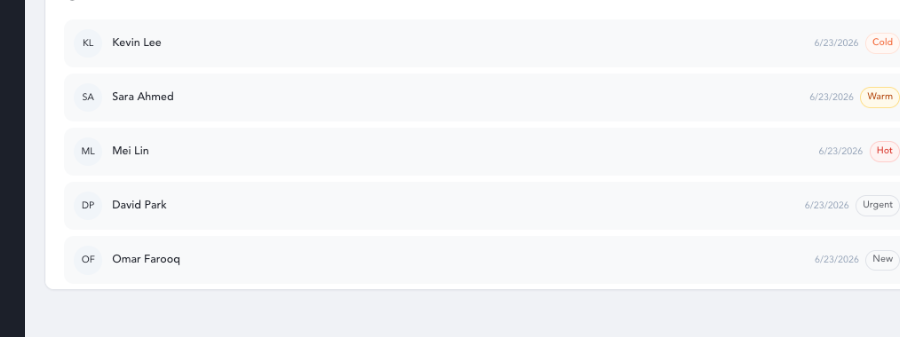
The Recent Leads widget displays the latest leads captured by your booth team.
Each lead shows its capture date and lead rating (such as Hot, Warm, Cold, or Urgent).
Click the widget to open the Lead Capture page where you can view, manage, update, and follow up with all captured leads.