The Overview page is the first screen you see when you log in to the Exhibitor Portal. It gives you a quick snapshot of your booth and its activity. This article explains each section you'll find on this page.
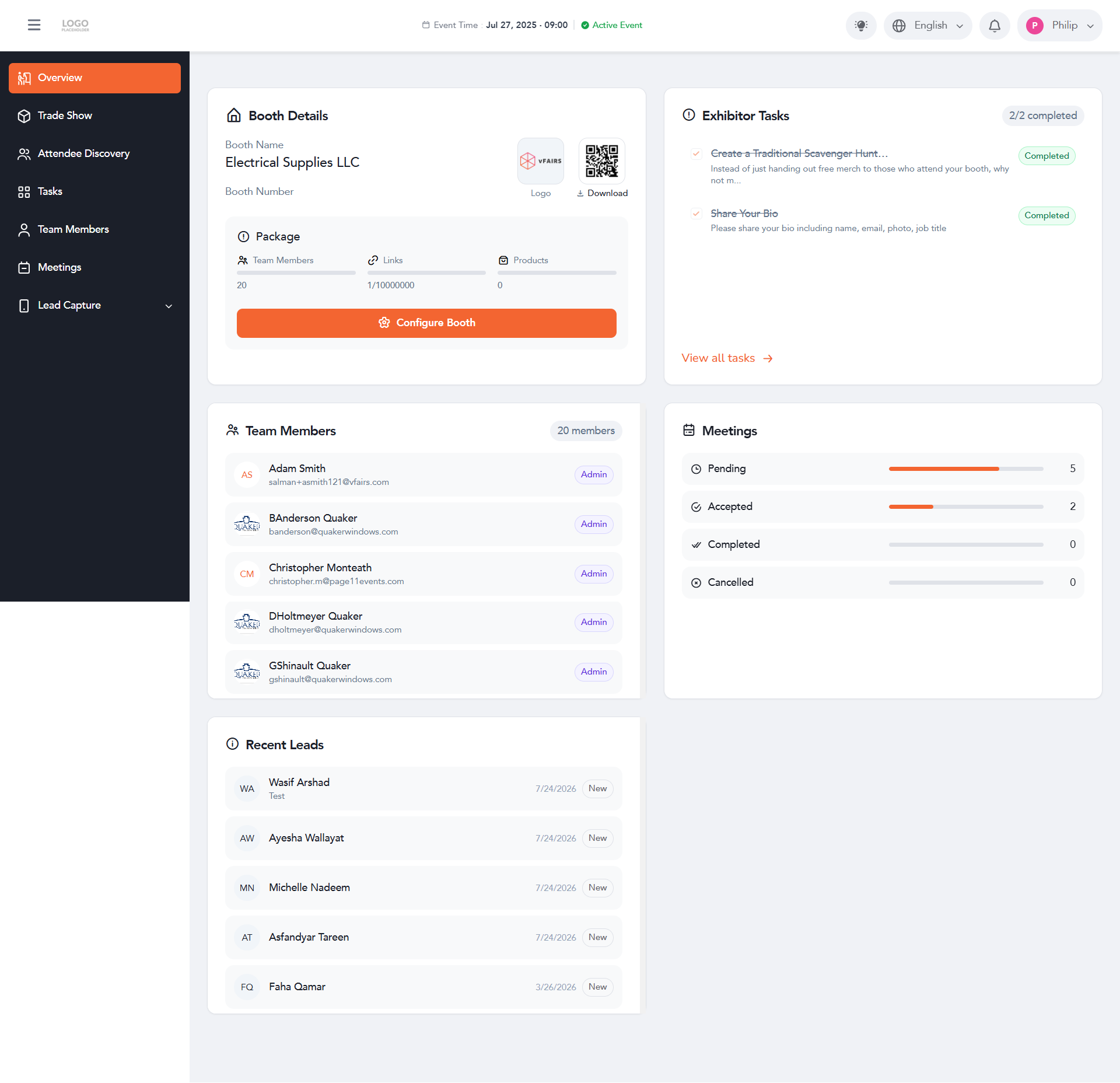
Booth Details
This section shows the core information about your booth:
- Booth Name – The name of your booth (for example, "Electrical Supplies LLC").
- Booth Number – The assigned number for your booth.
- Logo – Your booth's logo, with a Download option to save it.
Package
Within Booth Details, the Package box shows how much of your allotted package you're using:
- Team Members – Number of team members added (for example, 20).
- Links – Number of links used out of the total allowed (for example, 1/10000000).
- Products – Number of products added (for example, 0).
Below this, click the Configure Booth button to set up or update your booth.
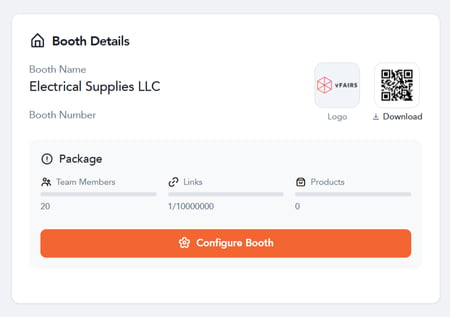
Exhibitor Tasks
This section lists the tasks assigned to you as an exhibitor, along with a completion counter (for example, "2/2 completed"). Each task shows:
- The task title (for example, "Create a Traditional Scavenger Hunt…" or "Share Your Bio").
- A short description of what the task involves.
- A status label, such as "Completed."
Click View all tasks at the bottom of this section to see the full list of tasks.
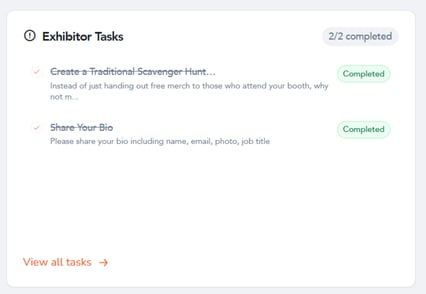
Team Members
This section displays your booth's team members, along with a total count (for example, "20 members"). For each team member, you can see:
- Their name.
- Their email address.
- Their role (for example, "Admin").
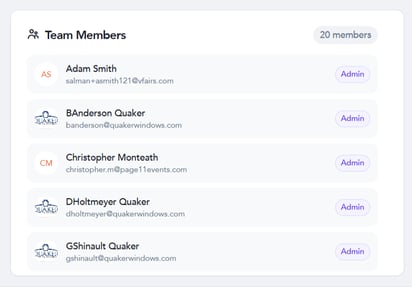
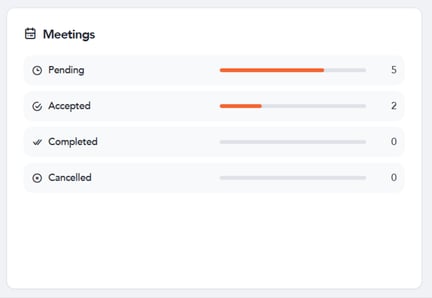
Meetings
This section gives you a quick summary of your meeting activity, broken down into four statuses, each with a count:
- Pending – Meetings awaiting a response.
- Accepted – Meetings that have been accepted.
- Completed – Meetings that have taken place.
- Cancelled – Meetings that were cancelled.
Recent Leads
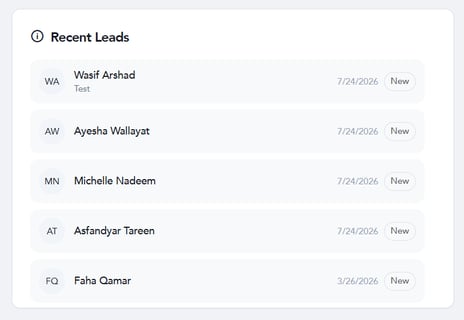
This section lists the most recent leads captured at your booth. For each lead, you can see:
- Their name.
- A short subtitle (for example, "Test").
- The date the lead was captured.
- A status label, such as "New."
The Overview page gives you a quick, at-a-glance summary of your booth's setup and performance, so you always know where things stand as soon as you log in.