Enabling this AI feature
AI-powered features in vFairs are gated behind an organization-level data consent setting, so this feature won't be available until that consent is granted.
To turn it on:
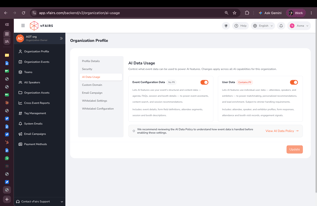
- Go to Organization Profile > AI Data Usage (in the organization's backend settings).
- You'll see two toggles:
- Event Configuration Data (No PII) — lets AI features use your event's structural and content data (agenda, FAQs, session and booth details) to power things like event assistants, content search, and session recommendations.
- User Data (Contains PII) — lets AI features use individual attendee, speaker, and exhibitor data to power things like matchmaking, personalized recommendations, and lead enrichment.
- Turning on either toggle opens a privacy consent pop-up. From here you can download the AI Data Policy, review it, and sign it before turning the toggle on.
- Once both toggles are enabled, This feature will available to the organization — across all of its events — is unlocked and ready to use.
Once, it is enabled for Organization you can enable it in any of your events
- Log in to the event backend.
- Go to Event Setup.
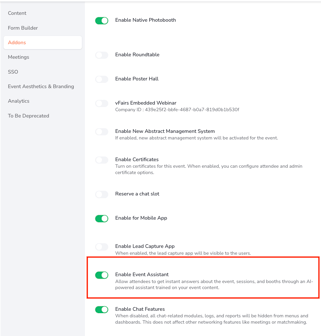
The Event Setup option is available in the left-side event navigation. - Open the Add-ons or Event Assistant configuration section.
- Enable the Event Assistant toggle.
- Save the configuration.
- Open the event front end and confirm that the assistant is available. Works on both Web and Mobile
How Event Assistant Works
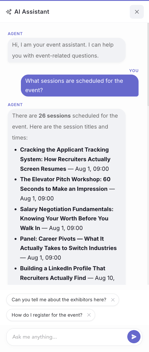
Once enabled, attendees can open the assistant from the event front end and ask questions. The assistant processes the question using the event information available to it and returns a response.
The basic flow is:
- The attendee opens Event Assistant.
- The assistant displays a welcome message.
- The attendee asks a question.
- The assistant checks the available event information.
- The assistant returns an answer.
- The attendee can ask follow-up questions.
Information Available to Event Assistant
Event Assistant can answer questions using the following information sources:
|
Source |
Examples |
|
Event content |
Public event pages, schedules, agenda, sessions, speakers, sponsors, and exhibitors. |
|
Attendee information |
Attendee-related information available in the event context. |
|
Training material |
Custom text or uploaded documents containing event-specific information. |
|
Organizer configuration |
Prompt suggestions and other Event Assistant settings. |
The quality of the response depends on how complete and up to date the event information is.
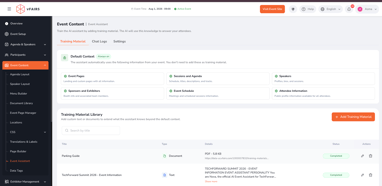
Add Training Material
Use training material for information that is not already available in the standard event content. The Loom recording gives parking information as an example.
Recommended training topics include:
- Parking locations, rates, and operating hours
- Venue access and check-in instructions
- Transportation and shuttle information
- Wi-Fi details
- Catering and refreshment information
- Accessibility information
- Help desk and support details
- Event policies and emergency instructions
Steps to add training material
- Open the event backend.
- Go to Event Setup or the Event Assistant configuration area.
- Open the training-material section.
- Add text or upload a document.
Chat Logs
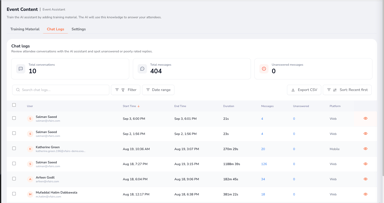
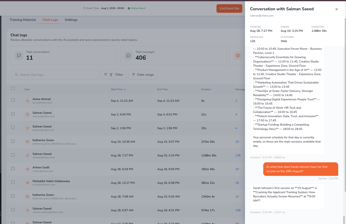
Chat Logs allow organizers to review the questions attendees ask Event Assistant and evaluate whether the assistant is providing useful answers.
Review chat logs
-
Open the event backend. Go to the Event Assistant configuration area.
-
Open Chat Logs.
-
Review attendee questions and the corresponding assistant responses.
-
Identify repeated questions, unanswered questions, or incomplete responses.
-
Add the missing information to the event content or training material.
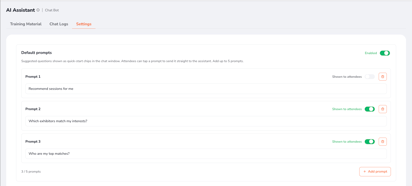
Chat Logs help organizers identify knowledge gaps and improve the Event Assistant experience before and during the event.Prompt SetupPrompt Setup allows event organizers to configure the suggested questions shown to attendees when they open Event Assistant.
Configure suggested prompts
-
Open the event backend.
-
Go to Event Setup and open the Event Assistant configuration.
-
Open Prompt Setup.
-
Add or edit the suggested prompts.
-
Use short, specific wording that matches the information available in the event.
-
Save the prompt configuration.
Open the event front end and confirm that the prompts are displayed correctly.