Purpose
This feature is designed for Organization Owners and Admins who need a "high-level" view of their audience. Use this to find specific attendees, track their activity across multiple events, or perform bulk updates without the manual labor of searching through separate event dashboards.
Step-by-Step Instructions
Accessing Attendee Management
To view your organization-wide list, log in to your organization dashboard. On the left-hand sidebar, click on Attendee Management located directly under the "Organization Events" section.
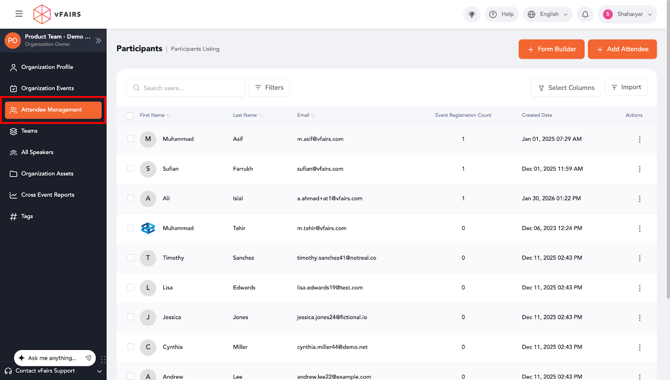
Navigating the Attendee List
The main dashboard displays every attendee who has registered or been pre-approved for any event within your organization.
- Search & Filter: Use the search bar or filters to shortlist attendees based on specific events or custom parameters.
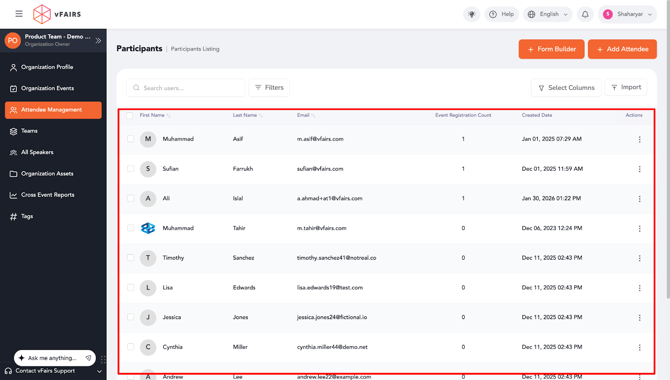
Viewing and Editing Attendee Details
To manage a specific individual:
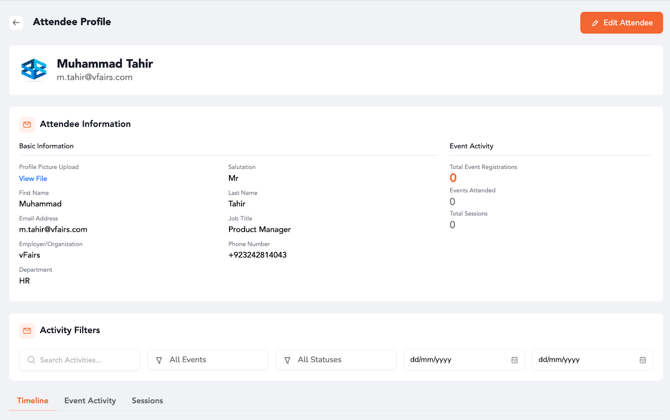
- View Details: Click the three dots (...) on the far right of the attendee’s row and select View. Here, you can see their profile information and a history of the events and sessions they attended.
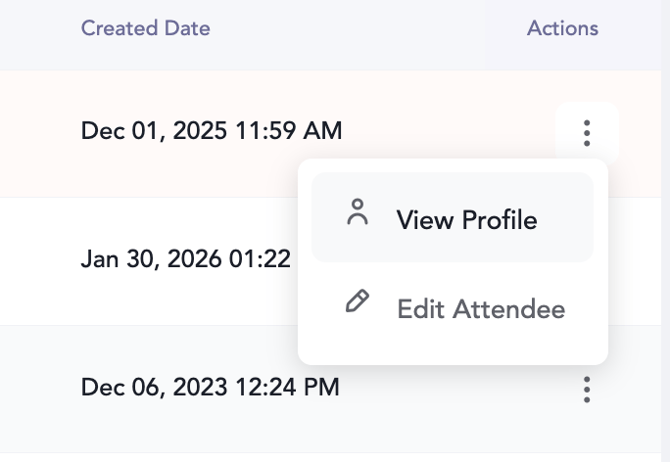
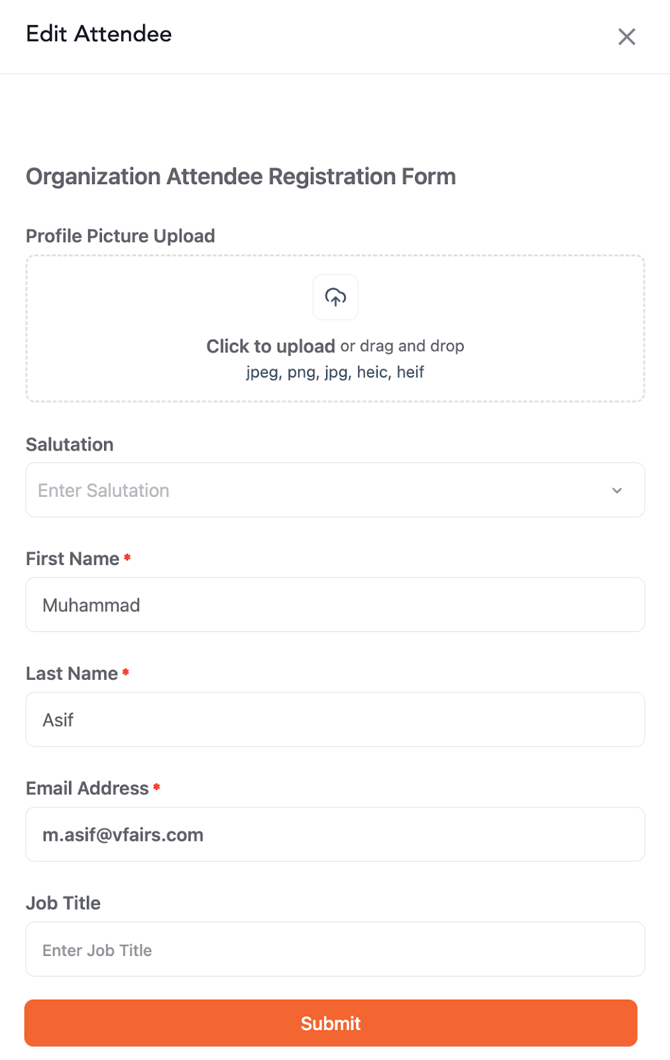
- Edit Details: To update information, click the three dots and select Edit Attendee.
Using the Form Builder
If you need to collect specific data from your attendees:
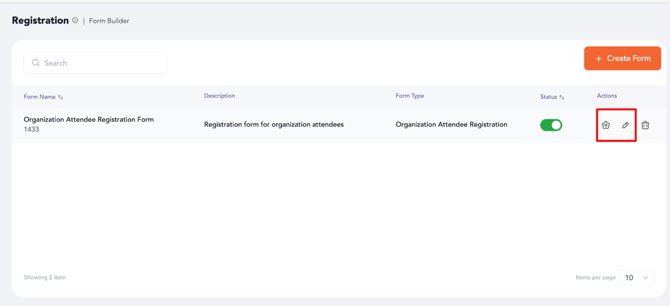
- Click the Form Builder button within the Attendee Management screen.

- Manage Existing Forms: Click the Gear icon to edit form fields or the Pen icon to change form settings (such as status).
- Create New: Use the "Create New" option to build a fresh registration or info-gathering form from scratch.
Adding Attendees (Single or Bulk)
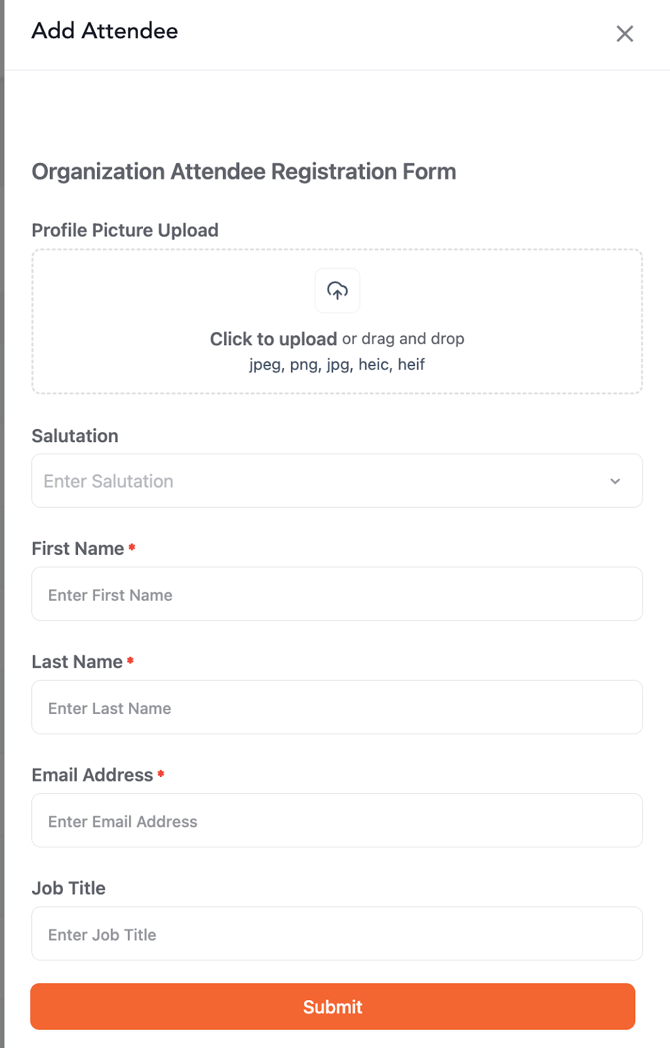
- Single Entry: Click the Add Attendee button at the top right and manually fill in their details.

- Bulk Upload (Template): Click on Import -> Download Template. Choose between "Basic Attendee Details," "Event History," or "Session History" to get a pre-formatted Excel file (XLS/XLSX).
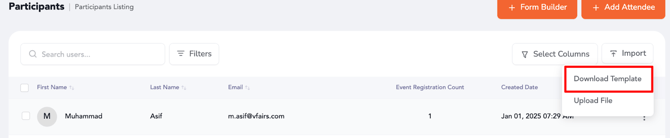
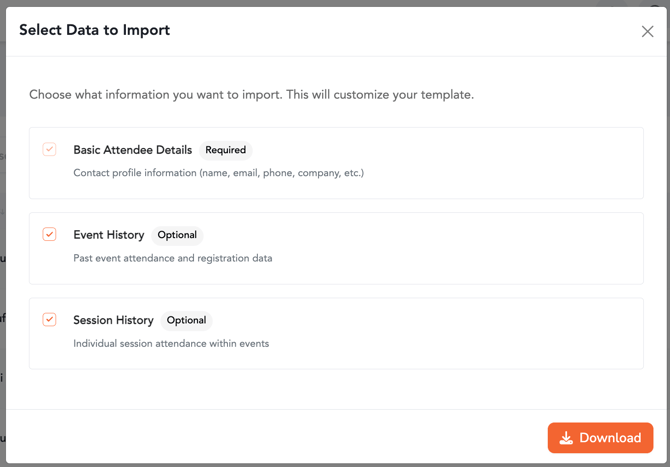
- Bulk Upload (Import): Once your file is ready, click Upload File. You must map your file columns to the platform’s user fields.

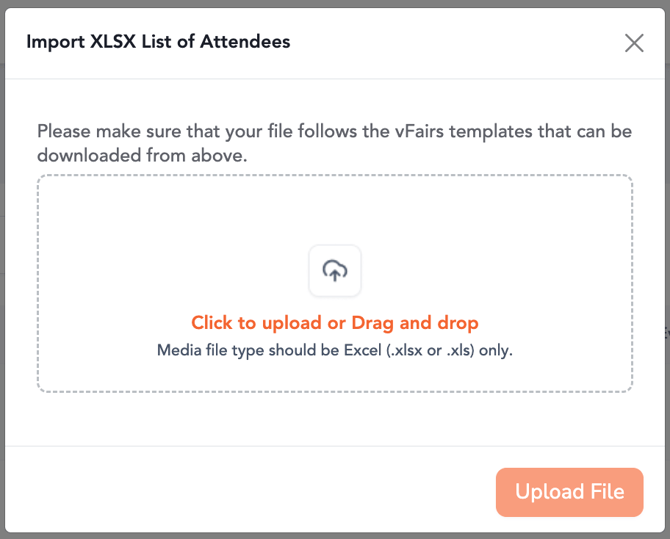
What Happens After Setup
Once you have configured your attendee list or uploaded new data:
- Organization Owners will see an updated, searchable database reflecting the latest imports.
- Profiles will automatically sync across events, ensuring that if a user's details are updated at the Org level, they remain consistent everywhere.