Setting Up Job Posting as an Organizer:
Organizers can now customize job posting fields using a Dynamic Job Creation Form. This allows you to tailor job listings based on your event requirements and collect relevant information from exhibitors when they post jobs.
How to Enable Dynamic Job Form
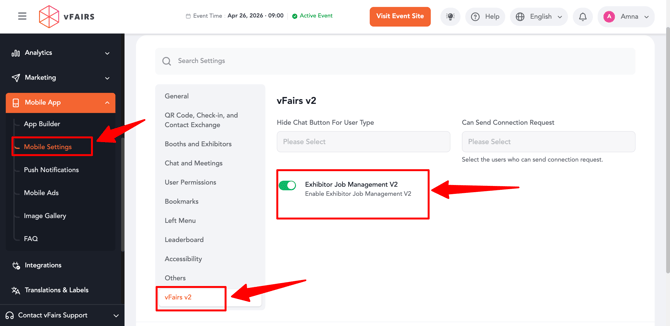
- Go to Event Backend.
- Navigate to Mobile Settings → vFairs v2.
- Enable the toggle “Exhibitor Job Management V2.”
What Happens After Enabling
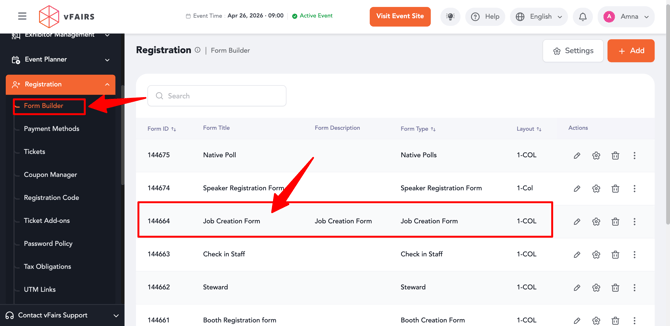
- A new form of type “Job Creation Form” will be automatically added in the Form Builder.
- This form includes predefined fields that can be customized.
How to Customize Job Fields
- Go to Form Builder.
- Open the Job Creation Form.
- Add, edit, or remove fields based on your requirements.
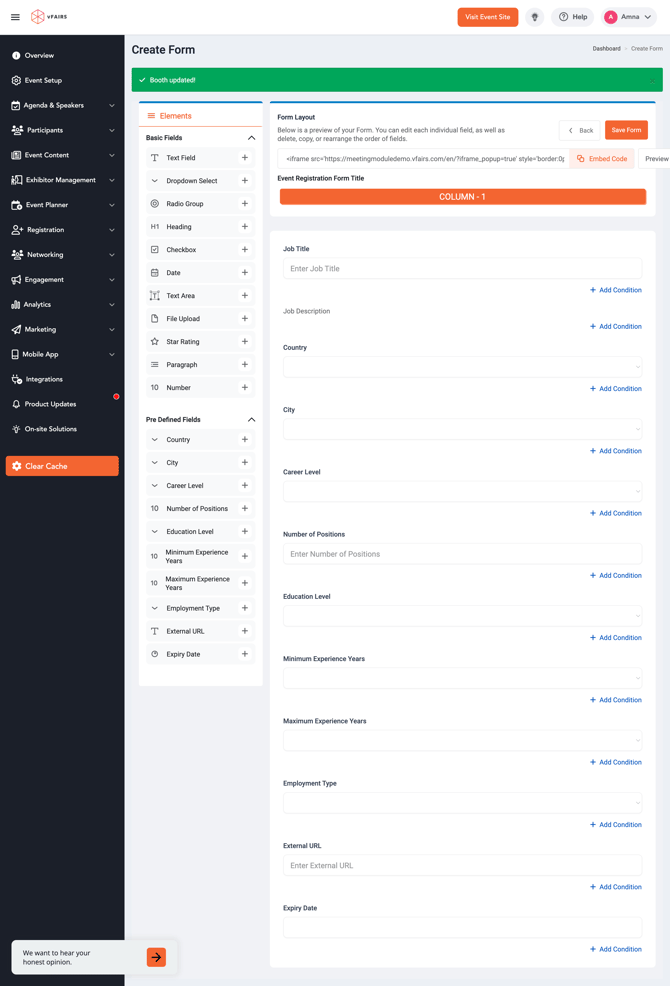
- Save your changes.
Multi-language Support
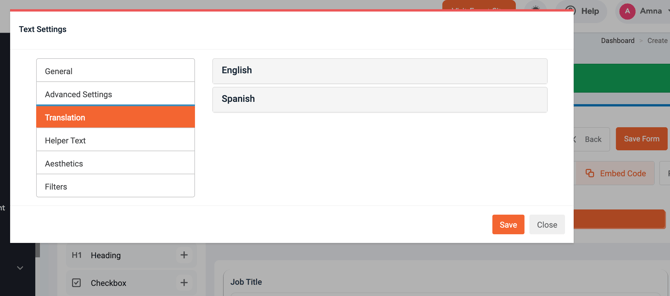
- If your event is multilingual:
- You can add translations for each field in the form.
- Use the Translations option in the Form Builder to configure different languages.
Job Posting as an Exhibitor:
The Jobs section in your exhibitor portal allows you to showcase open roles, collect applications, and screen candidates — all from within your exhibitor portal.
Steps to Add and Manage Job Postings
Step 1: Log in to the Exhibitor Portal
-
Access your event’s Exhibitor Dashboard using your provided credentials.
Step 2: Navigate to the Jobs Section
-
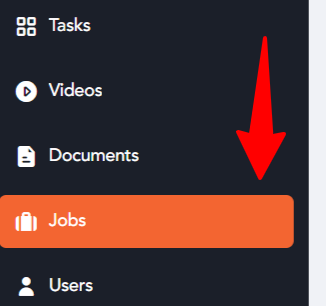
From the left navigation menu, click on “Jobs”.
-
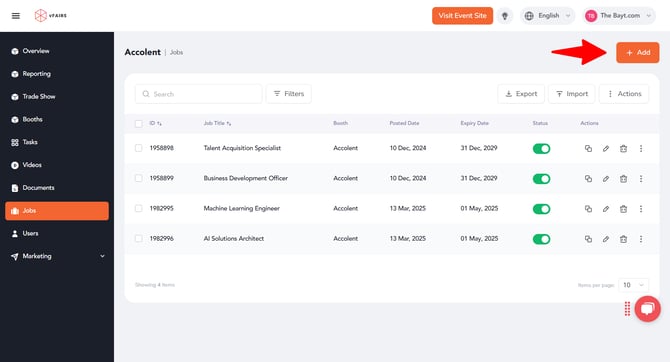
This will take you to the Jobs Dashboard where all job listings for your booth are displayed.
🔹 Step 3: Add a New Job Posting
-
Click the “Add” button at the top right.
-
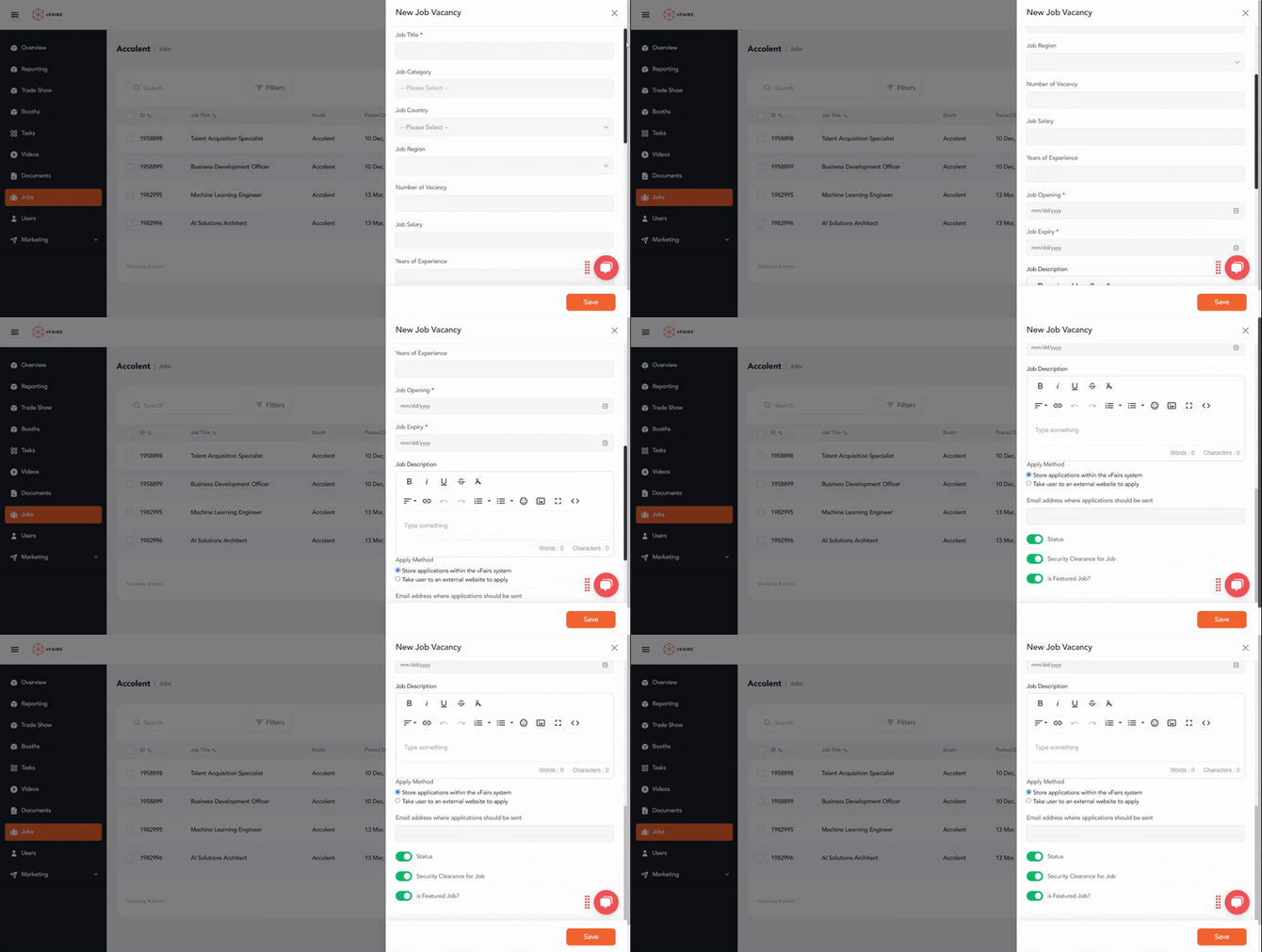
Fill in the required fields:
- They will see all the custom fields configured by the organizer.
- These fields must be filled while creating a job posting.
-
Click Save to publish the job.
Adding Translations to Job Posts
- While creating a job:
- Exhibitors can click on “Add Translations” at the bottom of the drawer.
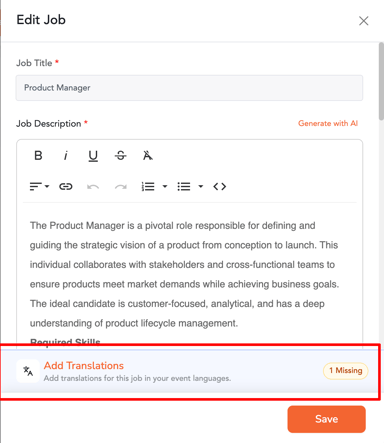
- They can provide translations for text-based fields in multiple languages.
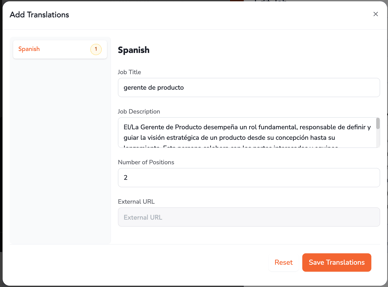
- Exhibitors can click on “Add Translations” at the bottom of the drawer.
You will now see the job listed on your Jobs Dashboard.
Add Screening Questions
-
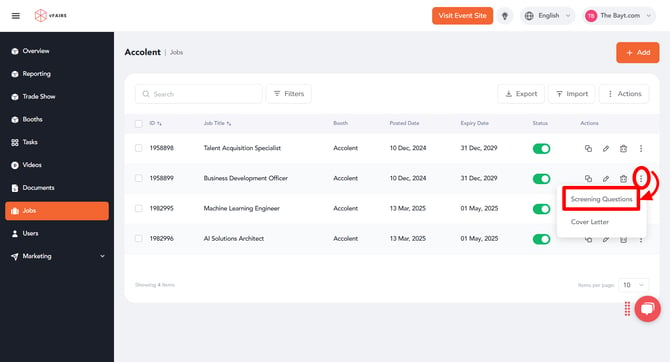
Click the three-dot menu (⋮) next to a job listing.
-
Select “Screening Questions”.
-
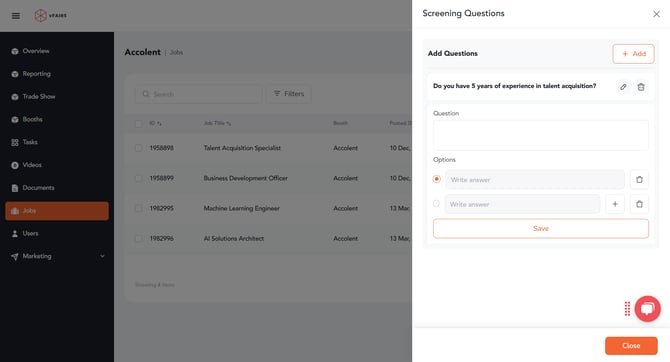
Add questions (MCQs, Yes/No, short text), then Save.
-
You can edit or delete these questions later from the same screen.
Require a Cover Letter
-
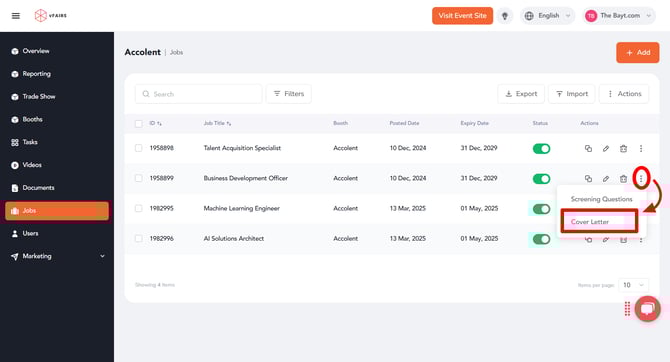
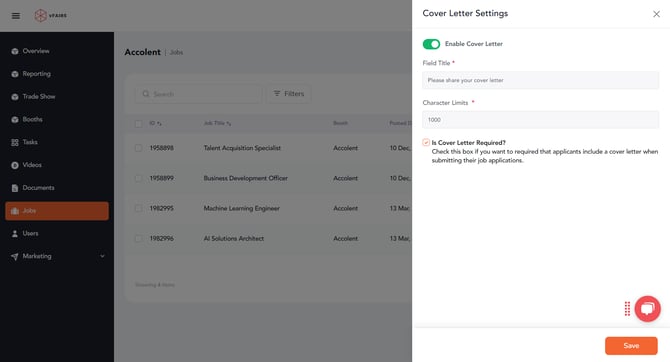
From the same three-dot menu, click “Cover Letter”.
-
Fill out the instruction fields and toggle the requirement as needed.
-
Click Save.
Edit or Duplicate a Job
-
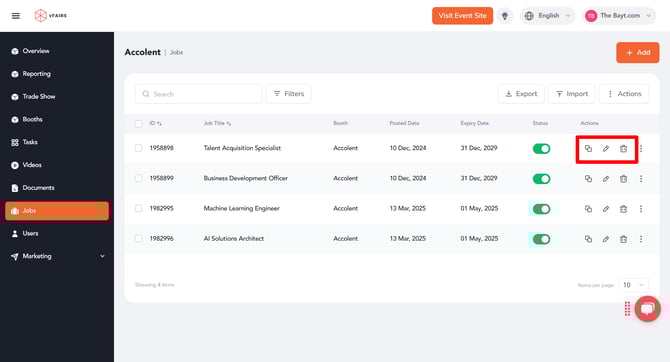
Edit: Click the pencil icon to update job details.
-
Copy: Click the copy icon to create a duplicate posting for similar roles.
Delete a Job
-
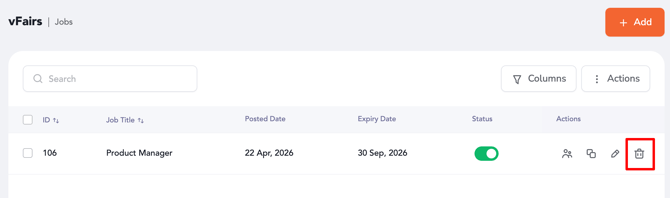
Single Delete: Click the trash icon next to a job.
-
Bulk Delete:
-
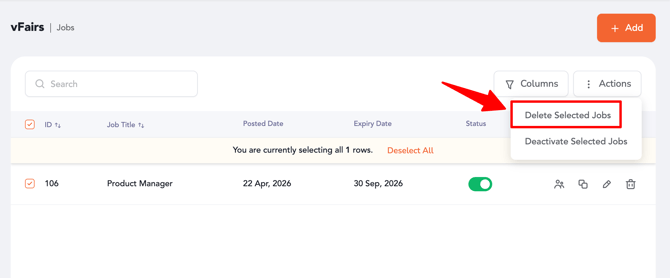
Select multiple jobs using the checkboxes.
-
Go to the Actions dropdown and click “Delete Selected Jobs”.
-
To delete all jobs, choose “Delete All Jobs” from the same menu.
-
Deactive a Job
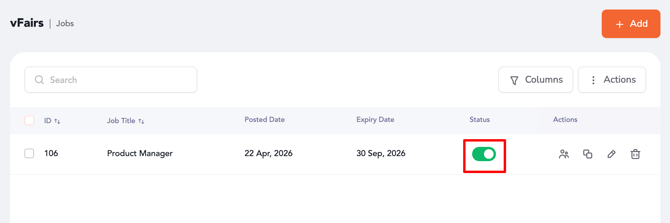
- Single Deactivate: Disable the status toggle in listing against job to deactivate it.
-
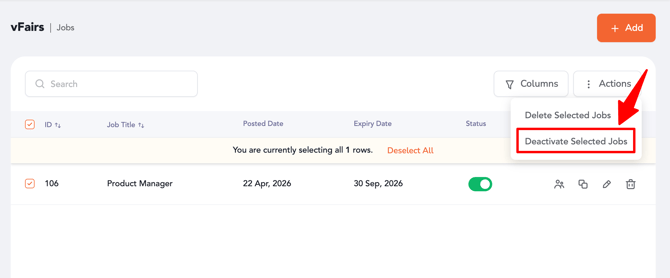
Bulk Deactivation:
-
Select single or multiple jobs using the checkboxes.
-
-
-
Go to the Actions dropdown and click “Deactivate Selected Jobs”.
-
Import & Export Jobs
-
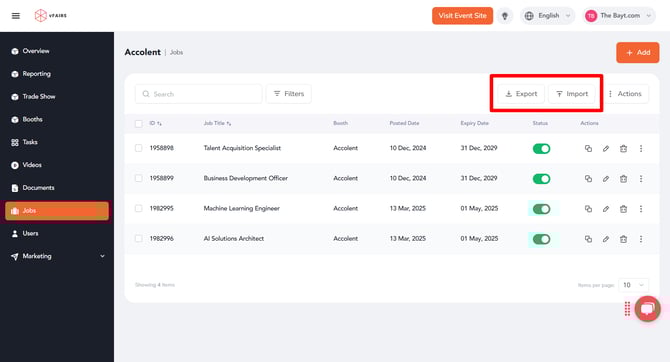
Import Jobs: Use the Import button to upload a list of job postings in bulk (CSV format).
-
Export Jobs: Use the Export button to download your current job list for review or backup.
Search & Filter Options
-
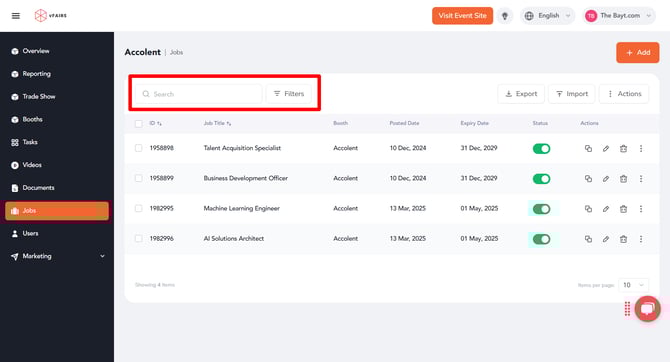
Use the Search bar to locate a job by title or keyword.
-
Use Filters to view only active or inactive jobs, or filter by status.
Tracking Candidates & Hiring Stages
- Exhibitors can track applicants for each job directly from the portal.
How to View Candidates
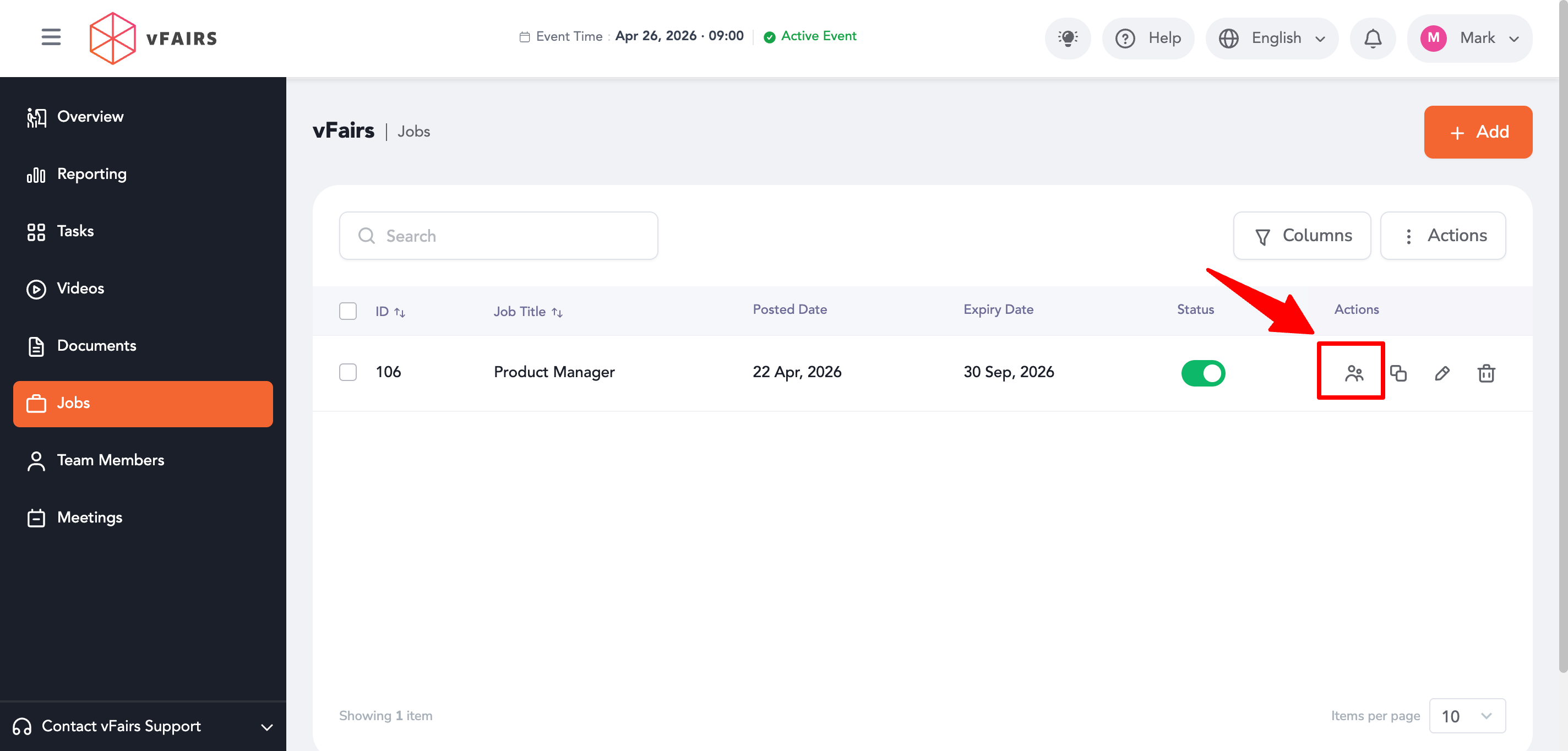
- Go to the Jobs module in the Exhibitor Portal.
- Locate the desired job.
- Click on the Candidates icon against that job.
What Exhibitors Can See
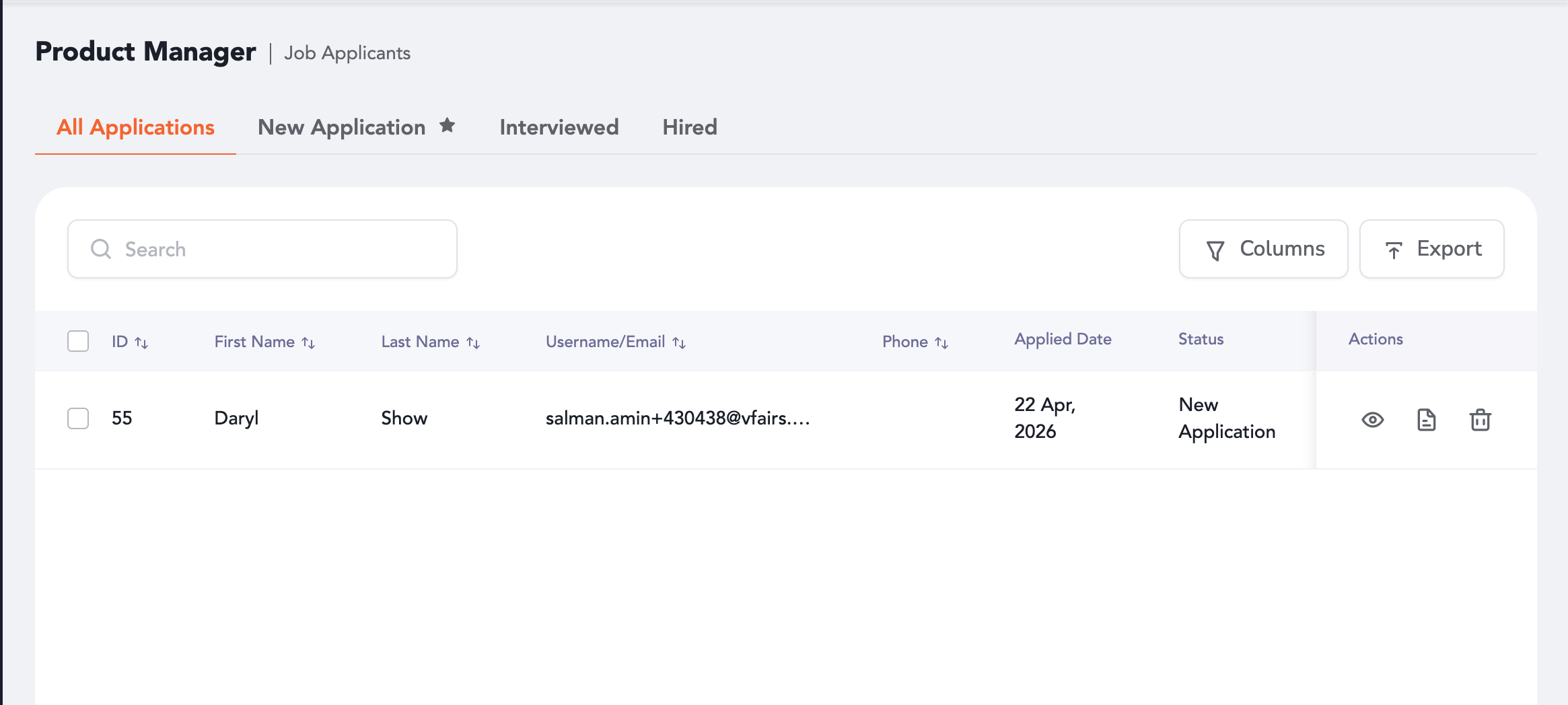
- List of all candidates who have applied.
- Current hiring stage/status of each candidate.
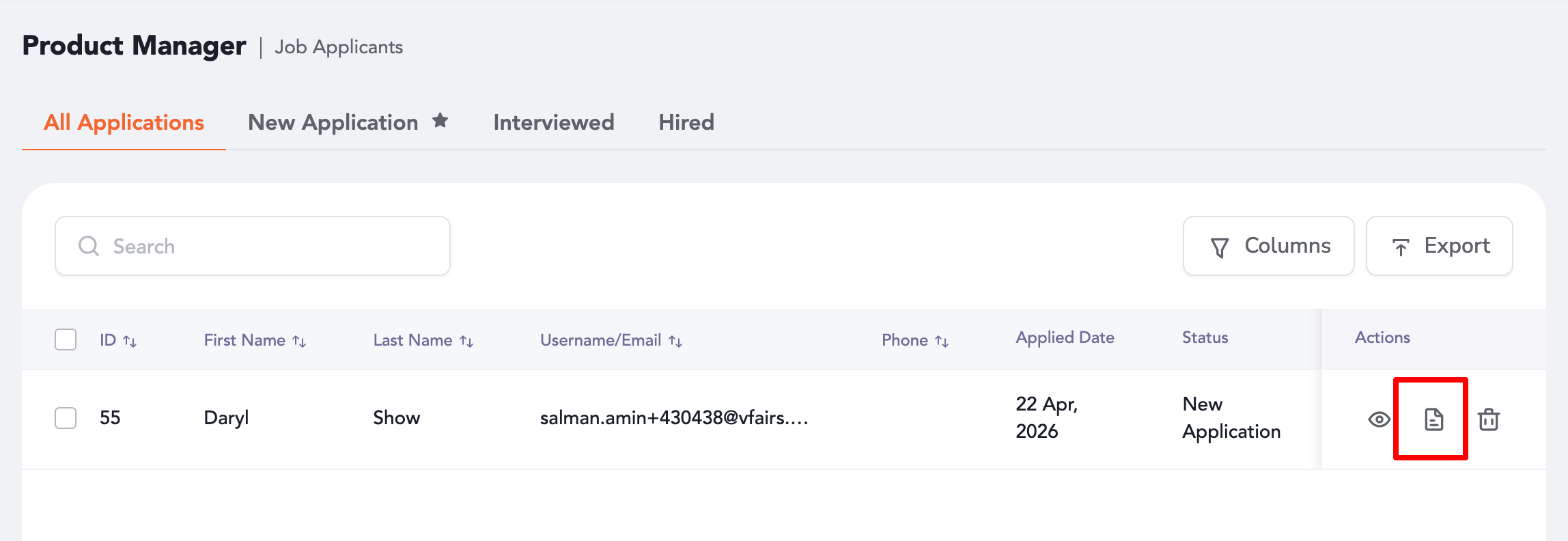
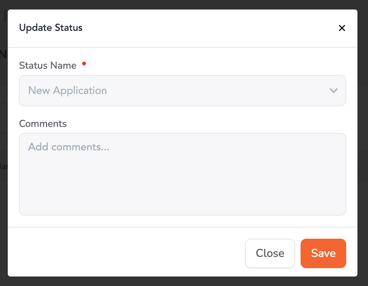
- Move candidates between stages based on their progress in the hiring process by clicking "update status" Icon.
Hiring Stages
- Stages are dynamically configured by the organizer.
- Examples:
- Applied
- Shortlisted
- Interviewed
- Offered
- Rejected
Frontend Experience
- Once jobs are published:
- Attendees and exhibitors will see all configured fields.
- Content will automatically display in the selected application language (if translations are added).
Pro Tips
-
Include job screening questions to pre-qualify candidates efficiently.
-
Use the “Copy” option to replicate similar job postings with minor changes.
-
Regularly update job statuses to keep your listing accurate and current.