---
title: How to add and manage sessions
description: Learn how to create and manage sessions on vFairs. This article also covers editing and bulk actions to manage sessions easily.
---
[Skip to content](https://help.vfairs.com/knowledge/how-to-add-and-manage-sessions#main-content)
English
Show submenu for translations
[Customer portal](https://support.vfairs.com/care?hsLang=en)
Open main navigation
Close main navigation
- English
Show submenu for translations
- [Customer portal](https://support.vfairs.com/care)
Welcome to vFairs Help Center
- There are no suggestions because the search field is empty.
1. [Help Center](https://help.vfairs.com/knowledge?hsLang=en)
2. [Agenda Management](https://help.vfairs.com/knowledge/agenda-management?hsLang=en)
3. [Session Management](https://help.vfairs.com/knowledge/agenda-management?hsLang=en#session-management)
# How to add and manage sessions
## Learn how to create and manage sessions on vFairs. This article also covers editing and bulk actions to manage sessions easily.
A **session** in vFairs is a scheduled event or presentation part of your overall event agenda. It can include keynote addresses, panel discussions, webinars, or on-demand videos. Sessions help structure the content of your event, enabling attendees to easily navigate the different segments and choose which ones to attend based on their interests.
### Table of Contents
[Adding a New Session](https://help.vfairs.com/knowledge/how-to-add-and-manage-sessions#add-session)
[Update Sessions](https://help.vfairs.com/knowledge/how-to-add-and-manage-sessions#update-session)
---
#### Adding a New Session
To add a new session to your vFairs event, follow these steps:
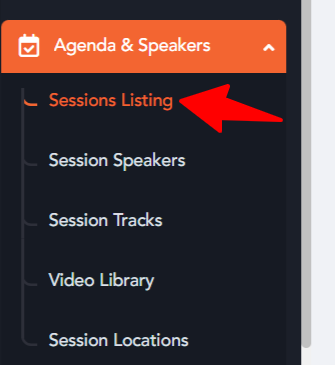
1. From the left navigation panel, select **Session Listing** under the Agenda and Speakers section.
#### 
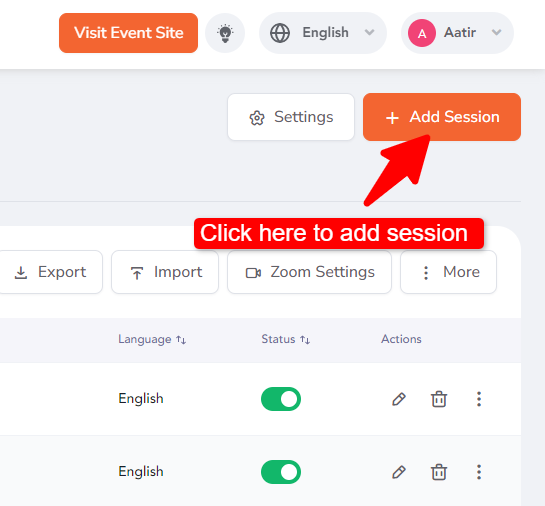
2. Click the **+ Add Session** button to start creating a new session.
3. Use the form to input details for your session.
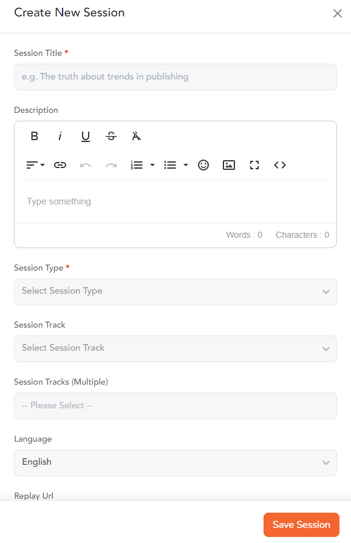
**Refer to the table below for descriptions of each field:**
| **Field** | **Description** |
| --- | --- |
| **Session Title** | The name of the session displayed to attendees. |
| **Description** | A brief summary of what the session will cover. Formatting tools are available for customization. |
| **Session Type** | Defines the format of the session (On-Demand Video, Webinar, etc.). |
| **Session Track** | Group the session under a specific theme or track (optional). By default, an "All Sessions" track exists in every event which is auto-selected upon creation of session. This can however be edited as per an event's requirement. |
| **Language** | The language the session will be held in. |
| **Replay URL** | If the session is available on demand, provide a link to the session recording. |
| **Video Library** | Select an uploaded video from your existing media library for on-demand or semi-live sessions. |
**Automated Zoom Webinar:** A live Zoom webinar accessible to attendees during the scheduled session time, offering either an embedded experience within the platform or an external redirection to Zoom.
**Automated Zoom Meeting:** A live Zoom meeting accessible to attendees during the scheduled session time, offering either an embedded experience within the platform or an external redirection to Zoom.
**On-Demand Session**: A pre-recorded session that attendees can watch at any time during the event.
**Semi-Live Session**: A pre-recorded session that is scheduled to play at a specific time, simulating a live experience for attendees.
**Message/Title:** Used to display plain messages within the sessions listing area. For example: To highlight “Breaks” in the agenda.
4\. Upload a session video file, provide a replay URL, or link content from the **Video Library**.
5\. In the **Advanced Settings**, there are additional options to fine-tune the session:
| **Field** | **Description** |
| --- | --- |
| **Handouts** | Attach downloadable files such as PDFs or presentations for attendees to access during the session. 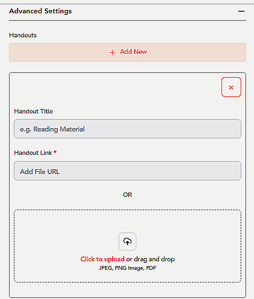 |
| **Session Tabs** | Add interactive tabs for additional content, resources, or Q&A features during the session. |
| **Session ID** | A unique identifier for the session, automatically generated or manually entered for tracking purposes. |
| **Survey** | Attach a survey to gather attendee feedback post-session. |
| **Poll (Mobile Only)** | Add a poll that mobile users can interact with during the session. |
| **No. of Seats** | Set a limit on the number of participants allowed to attend the session (optional). **Note**: "Enable Save a Seat for Sessions" toggle has to be enabled from the sessions specific settings for the functionality to show up in the sessions creation drawer. |
| **Keywords** | Assign relevant keywords to the session to help attendees search and find it more easily. |
| **Location Name** | Specify a physical or virtual location name for the session if applicable. |
| **Location URL** | Provide a URL link for the session’s virtual or external location. |
| **Upload File** | Upload additional materials for the session such as videos or documents. |
| **Floor Plan** | Link the session to a specific location on the event’s virtual venue floor plan (if applicable). |
| **Status** | Toggle the session’s status (active or inactive). |
| **Show in Landing Page Agenda** | Enable or disable whether the session appears in the event’s public agenda on the landing page. |
| **Enable Q&A** | Enable Q&A functionality for the session, allowing attendees to ask questions. |
| **Show Q&A In Listing** | Show Q&A for the session directly in the event’s session listings. |
| **Open URL in App Webview** | Opens the provided URL within the event’s mobile app for easy access by attendees. |
**6\.** Once all fields are complete, click **Save Session** to finalize and add it to the event.
#### How to Edit a Session
Here's how you can edit a session:
1. In the list of sessions, search for the session you want to update.
2. Click the pencil icon next to the session title.
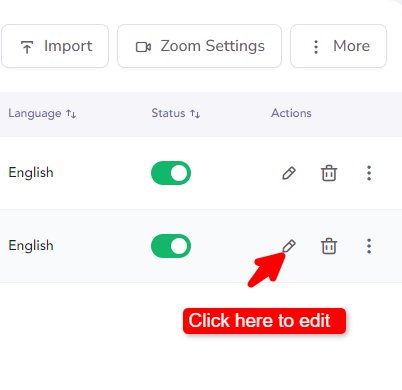
3. This will open the **Update Session** form.
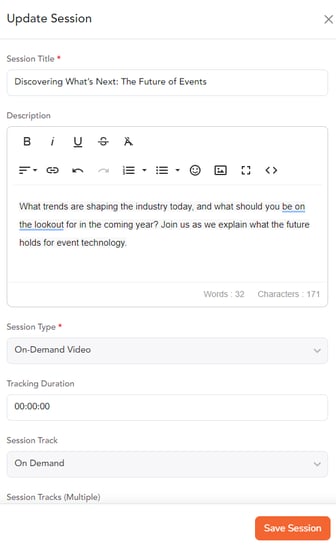
4. Modify the session title, description, session type, and session track.
5. Adjust the advanced settings as needed (e.g. handouts, session tabs, surveys, etc.)
6. Click "Save" to apply your changes.
---
### Managing Sessions
Here are some actions you can take to manage your sessions
#### **Reorder Sessions**
Here's how you can reorder the sequence of your sections:
- Locate the **Reorder** button at the top of the session listing.
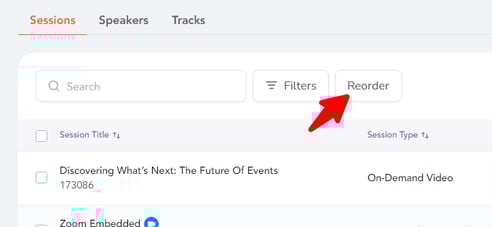
- Click the **Reorder** button to enable the drag-and-drop function.
- Drag sessions into the desired order by clicking and holding on the session name, then moving it up or down the list.
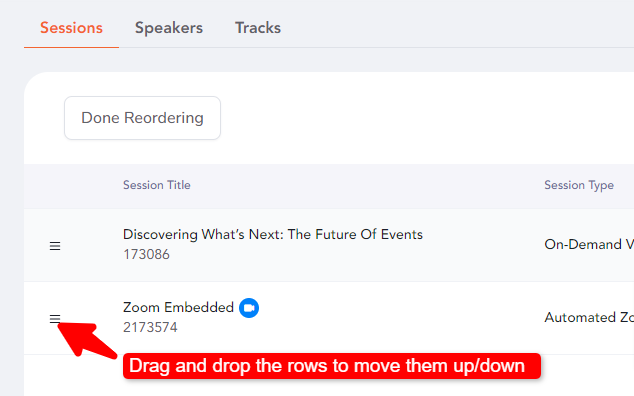
- Once satisfied with the order, click the "Done Reordering" button on the top.
#### **Search & filter Sessions**
If you need to find sessions quickly, you can use the search bar to search by keywords.
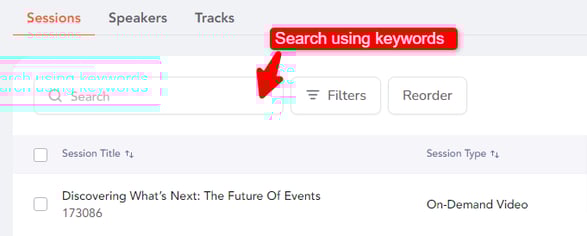
Alternatively, you can filter sessions.
- Click on the **Filters** button located next to the search bar.
- From the drop-down menu, select the relevant filters:
- **Session Type**: Choose between live, on-demand, or pre-recorded sessions.
- **Track**: Select specific tracks to view sessions associated with that track.
- **Language**: Filter by the language of the session.
- **Status**: Filter sessions by status (e.g., active, inactive).
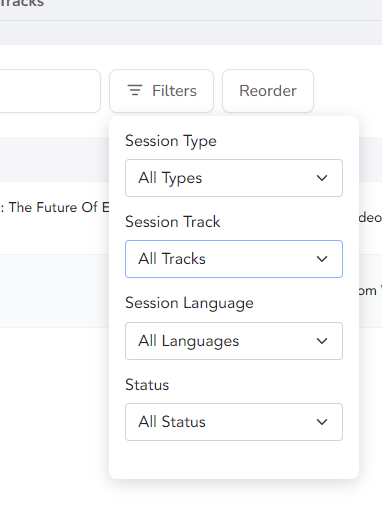
- The list will update as you select a drop-down option.
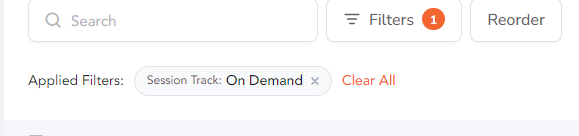
- Clear the filters if needed by clicking the **Clear all** link next to the "Applied Filters" list.
#### **Bulk editing sessions**
You can also take some bulk actions on the sessions. These are:
- **Delete**: Permanently remove the selected sessions.
- **Deactivate**: Remove the sessions from the active agenda.
- **Export**: Download details of the selected sessions in CSV format.
- **Generate QR Codes**: Create QR codes for the selected sessions.
- **Set Sequence by Start Time**: Reorder sessions automatically by start time.
Here's how to go about it:
- Select multiple sessions by checking the box next to each session title.
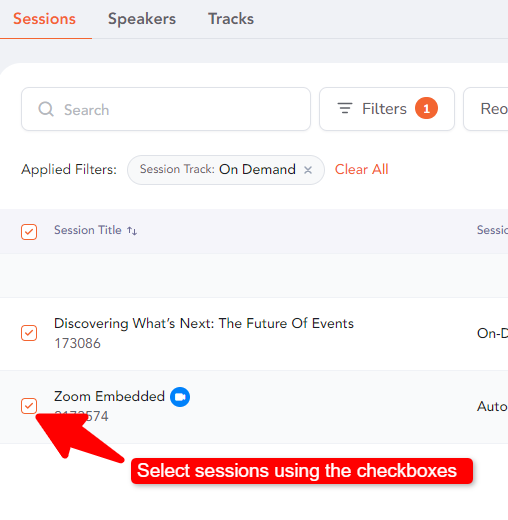
- Once you’ve selected the sessions, click on "More" to reveal the bulk actions:
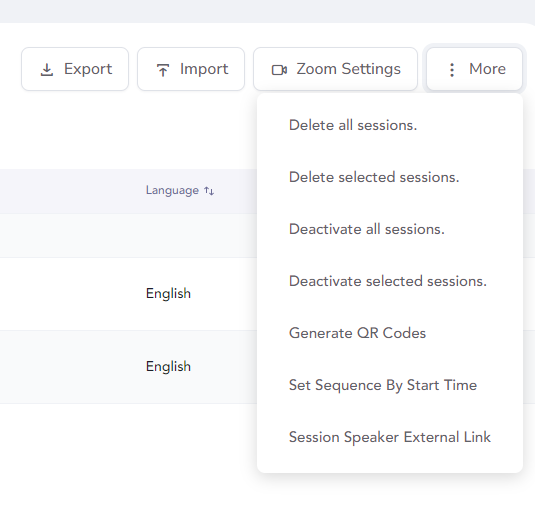
- Click on the desired bulk action.
- Confirm the action when prompted (e.g., confirm deletion or deactivation).
- [Organization Management](https://help.vfairs.com/knowledge/organization-management?hsLang=en)
- [Event Setup & Navigation](https://help.vfairs.com/knowledge/event-setup-navigation?hsLang=en#main-content)
- [Document Library](https://help.vfairs.com/knowledge/event-setup-navigation?hsLang=en#document-library)
- [Translations And Labels](https://help.vfairs.com/knowledge/event-setup-navigation?hsLang=en#translations-and-labels)
- [Attendee Management](https://help.vfairs.com/knowledge/attendee-management?hsLang=en)
- [Agenda Management](https://help.vfairs.com/knowledge/agenda-management?hsLang=en#main-content)
- [Session Management](https://help.vfairs.com/knowledge/agenda-management?hsLang=en#session-management)
- [Speaker Management](https://help.vfairs.com/knowledge/agenda-management?hsLang=en#speaker-management)
- [Speaker Management](https://help.vfairs.com/knowledge/speaker-management?hsLang=en)
- [Event Website & Landing Pages](https://help.vfairs.com/knowledge/event-website-landing-pages?hsLang=en#main-content)
- [Web Page Management](https://help.vfairs.com/knowledge/event-website-landing-pages?hsLang=en#web-page-management)
- [Registration & Ticketing](https://help.vfairs.com/knowledge/registration-ticketing?hsLang=en#main-content)
- [Registration](https://help.vfairs.com/knowledge/registration-ticketing?hsLang=en#registration)
- [Ticketing](https://help.vfairs.com/knowledge/registration-ticketing?hsLang=en#ticketing)
- [Payments](https://help.vfairs.com/knowledge/registration-ticketing?hsLang=en#payments)
- [Exhibitor Management](https://help.vfairs.com/knowledge/exhibitor-management?hsLang=en#main-content)
- [Booth Negotiation](https://help.vfairs.com/knowledge/exhibitor-management?hsLang=en#booth-negotiation)
- [Task Management](https://help.vfairs.com/knowledge/exhibitor-management?hsLang=en#task-management)
- [Booth Management](https://help.vfairs.com/knowledge/exhibitor-management?hsLang=en#booth-management)
- [Document / Video](https://help.vfairs.com/knowledge/exhibitor-management?hsLang=en#document-video)
- [Jobs](https://help.vfairs.com/knowledge/exhibitor-management?hsLang=en#jobs)
- [Sponsor Management](https://help.vfairs.com/knowledge/sponsor-management?hsLang=en)
- [Networking](https://help.vfairs.com/knowledge/networking?hsLang=en#main-content)
- [Chat](https://help.vfairs.com/knowledge/networking?hsLang=en#chat)
- [Chat Queue](https://help.vfairs.com/knowledge/networking?hsLang=en#chat-queue)
- [Video Matchmaking](https://help.vfairs.com/knowledge/networking?hsLang=en#video-matchmaking)
- [Reports](https://help.vfairs.com/knowledge/networking?hsLang=en#reports)
- [Meeting](https://help.vfairs.com/knowledge/networking?hsLang=en#meeting)
- [Engagement](https://help.vfairs.com/knowledge/engagement?hsLang=en#main-content)
- [Certificate Management](https://help.vfairs.com/knowledge/engagement?hsLang=en#certificate-management)
- [Scavenger Hunt](https://help.vfairs.com/knowledge/engagement?hsLang=en#scavenger-hunt)
- [Notifications](https://help.vfairs.com/knowledge/engagement?hsLang=en#notifications)
- [Survey](https://help.vfairs.com/knowledge/engagement?hsLang=en#survey)
- [LeaderBoard](https://help.vfairs.com/knowledge/engagement?hsLang=en#leaderboard)
- [Quiz](https://help.vfairs.com/knowledge/engagement?hsLang=en#quiz)
- [Reports & Analytics](https://help.vfairs.com/knowledge/reports-analytics?hsLang=en#main-content)
- [Registration and Ticketing](https://help.vfairs.com/knowledge/reports-analytics?hsLang=en#registration-and-ticketing)
- [User Journey Tracker](https://help.vfairs.com/knowledge/reports-analytics?hsLang=en#user-journey-tracker)
- [Post Event PDF Report](https://help.vfairs.com/knowledge/reports-analytics?hsLang=en#post-event-pdf-report)
- [Survey](https://help.vfairs.com/knowledge/reports-analytics?hsLang=en#survey)
- [Cross Event Report & Reporting 360](https://help.vfairs.com/knowledge/reports-analytics?hsLang=en#cross-event-report-reporting-360)
- [Marketing](https://help.vfairs.com/knowledge/marketing?hsLang=en#main-content)
- [Email Campaigns](https://help.vfairs.com/knowledge/marketing?hsLang=en#email-campaigns)
- [System Emails](https://help.vfairs.com/knowledge/marketing?hsLang=en#system-emails)
- [SMS Campaign](https://help.vfairs.com/knowledge/marketing?hsLang=en#sms-campaign)
- [AI Assistant](https://help.vfairs.com/knowledge/marketing?hsLang=en#ai-assistant)
- [Social Meta](https://help.vfairs.com/knowledge/marketing?hsLang=en#social-meta)
- [Web Notifications](https://help.vfairs.com/knowledge/marketing?hsLang=en#web-notifications)
- [Accommodation & Budget Management](https://help.vfairs.com/knowledge/accommodation-budget-management?hsLang=en#main-content)
- [Accommodation](https://help.vfairs.com/knowledge/accommodation-budget-management?hsLang=en#accommodation)
- [Attendee Mobile App](https://help.vfairs.com/knowledge/attendee-mobile-app?hsLang=en#main-content)
- [Event Assistant](https://help.vfairs.com/knowledge/attendee-mobile-app?hsLang=en#event-assistant)
- [Getting Started & App Access](https://help.vfairs.com/knowledge/attendee-mobile-app?hsLang=en#getting-started-app-access)
- [Build & Customize Your App](https://help.vfairs.com/knowledge/attendee-mobile-app?hsLang=en#build-customize-your-app)
- [Legacy App](https://help.vfairs.com/knowledge/attendee-mobile-app?hsLang=en#legacy-app)
- [Sessions & Event Content](https://help.vfairs.com/knowledge/attendee-mobile-app?hsLang=en#sessions-event-content)
- [Engagement & Networking](https://help.vfairs.com/knowledge/attendee-mobile-app?hsLang=en#engagement-networking)
- [Event Operations & Insights](https://help.vfairs.com/knowledge/attendee-mobile-app?hsLang=en#event-operations-insights)
- [Lead Capture App](https://help.vfairs.com/knowledge/lead-capture-app?hsLang=en#main-content)
- [Reporting 360](https://help.vfairs.com/knowledge/lead-capture-app?hsLang=en#reporting-360)
- [Badge Printing & Check-in App](https://help.vfairs.com/knowledge/badge-printing-check-in-app?hsLang=en#main-content)
- [Printers](https://help.vfairs.com/knowledge/badge-printing-check-in-app?hsLang=en#printers)
- [Badge Design](https://help.vfairs.com/knowledge/badge-printing-check-in-app?hsLang=en#badge-design)
- [Integrations](https://help.vfairs.com/knowledge/integrations?hsLang=en#main-content)
- [Custom Workflow](https://help.vfairs.com/knowledge/integrations?hsLang=en#custom-workflow)
- [E-commerce](https://help.vfairs.com/knowledge/e-commerce?hsLang=en#main-content)
- [Product Management](https://help.vfairs.com/knowledge/e-commerce?hsLang=en#product-management)
- [Allowance Negotiation](https://help.vfairs.com/knowledge/e-commerce?hsLang=en#allowance-negotiation)
- [Venue Builder](https://help.vfairs.com/knowledge/venue-builder?hsLang=en)
- [Abstract Management](https://help.vfairs.com/knowledge/abstract-management?hsLang=en)
- [Group Meeting](https://help.vfairs.com/knowledge/group-meeting?hsLang=en)
- [Exhibitor Portal](https://help.vfairs.com/knowledge/exhibitor-portal?hsLang=en#main-content)
- [Booth](https://help.vfairs.com/knowledge/exhibitor-portal?hsLang=en#booth)
- [Search Attendee](https://help.vfairs.com/knowledge/search-attendee?hsLang=en)
- [Data Tags](https://help.vfairs.com/knowledge/data-tags?hsLang=en)
- [Organization Website](https://help.vfairs.com/knowledge/organization-website?hsLang=en)
- [AI Tools](https://help.vfairs.com/knowledge/ai-tools?hsLang=en)
[-1.webp?width=107&height=44&name=vfairs-logo-landscape-gradient-5%20(3)-1.webp "vfairs-logo-landscape-gradient-5 (3)-1")](http://vfairs.com)
vfairs.com Help Center
Copyright © 2026, vFairs LLC