Prerequisites
Before adding Video Matchmaking to the mobile app, ensure:
- Engagement Module is enabled during event creation
- Video Matchmaking rooms are already created
→ Refer to: How to Set Up Video Matchmaking
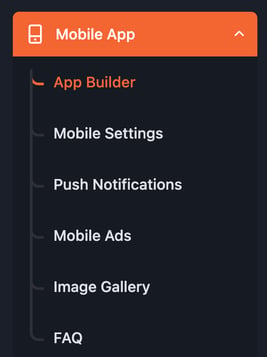
Access App Builder
- Go to your Event Backend
- From the left navigation, click Mobile App
- Select App Builder
Add Video Matchmaking to Quick Links
- In the right panel, expand the Quick Links section
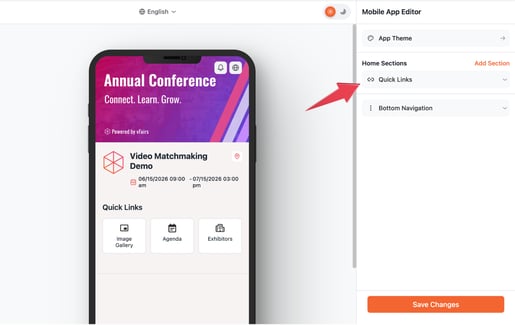
- Click Add Link
- Search for Video Matchmaking
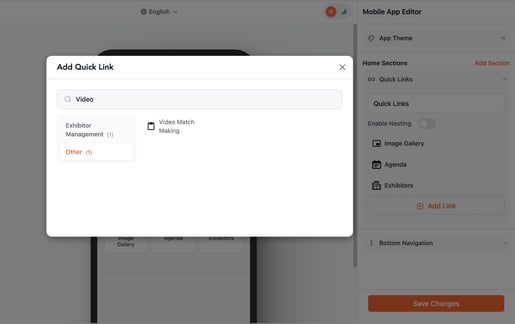
- Click to add it
Select a Matchmaking Room
Once the menu item is added:
- The settings panel will open on the right side
- Locate the dropdown: Choose Room
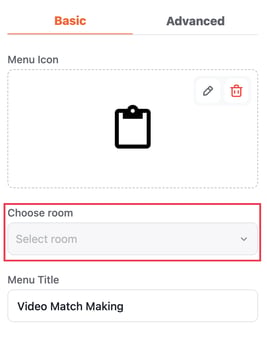
- Select the matchmaking room you want to link
Save Changes
- Click Save Changes to apply your configuration
Final Step
- Open the vFairs Mobile App
- Locate the Video Matchmaking menu item on the home screen
- Tap it to access the selected room
Conclusion
With Video Matchmaking added to your mobile app, attendees can quickly join curated networking sessions, making interactions more engaging and meaningful.