Table of Contents
1. Create a New Organization Website
2. Configure the Event Showcase Section
3. Manage Website Settings
Step 1: Login to your Organization and navigate to the Organization Profile section from the left-hand menu.
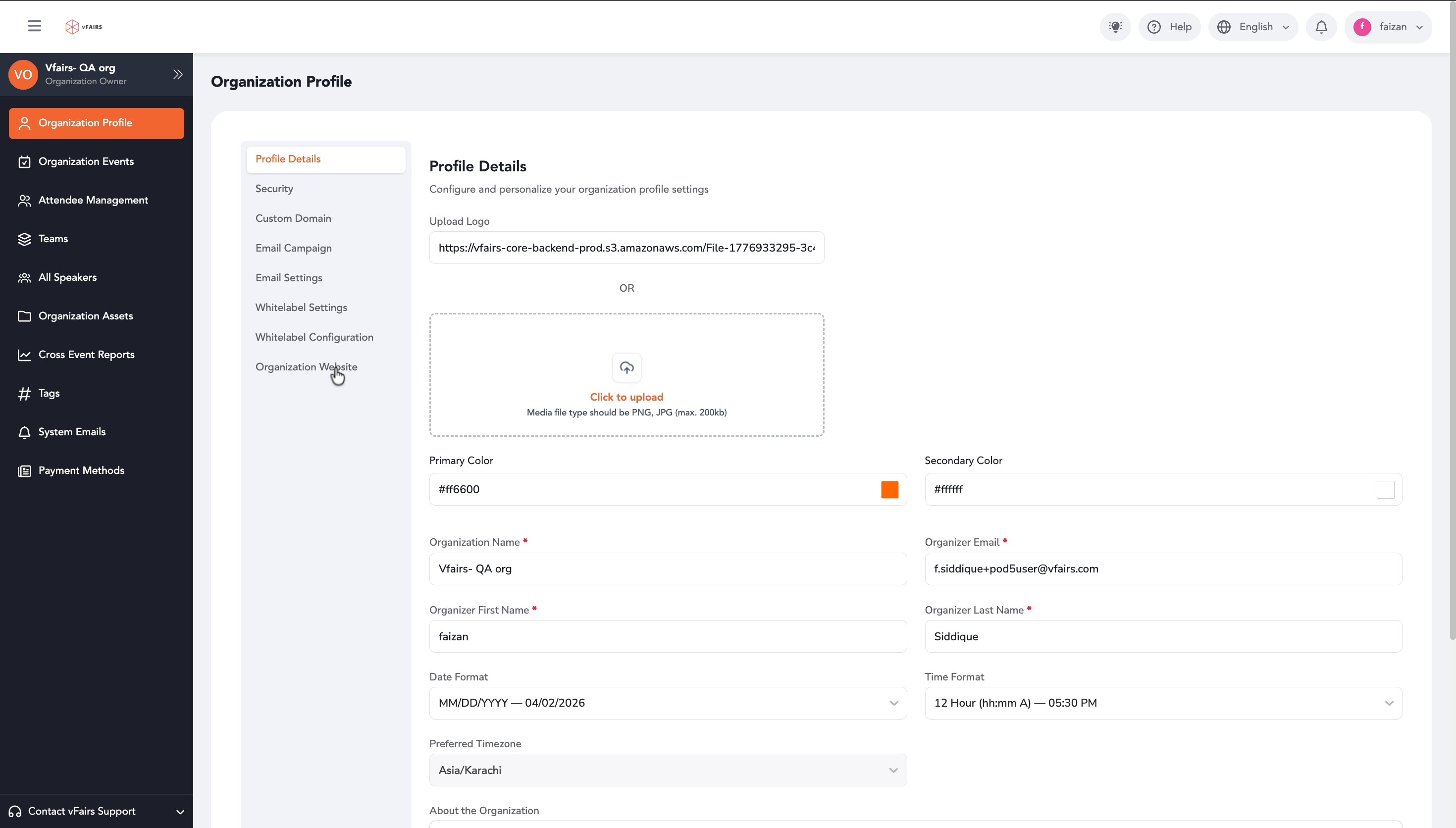
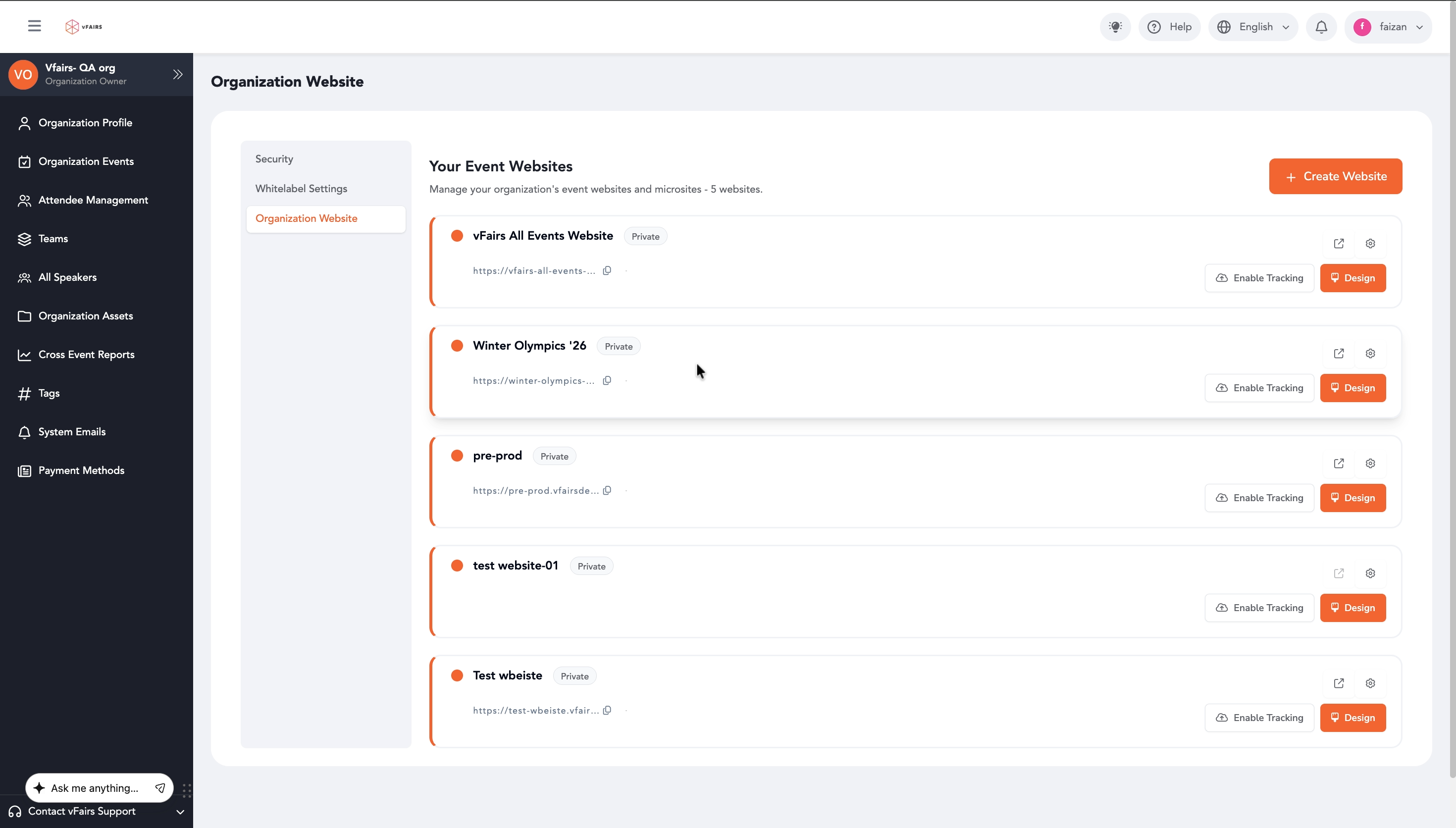
Step 2: Click on Organization Website in the sub-menu under Organization Profile to view Your Event Websites.
Step 3: Click the + Create Website button in the top right corner.
Step 4: In the "Create Website" pop-up, enter a Website Name for your new organization website.
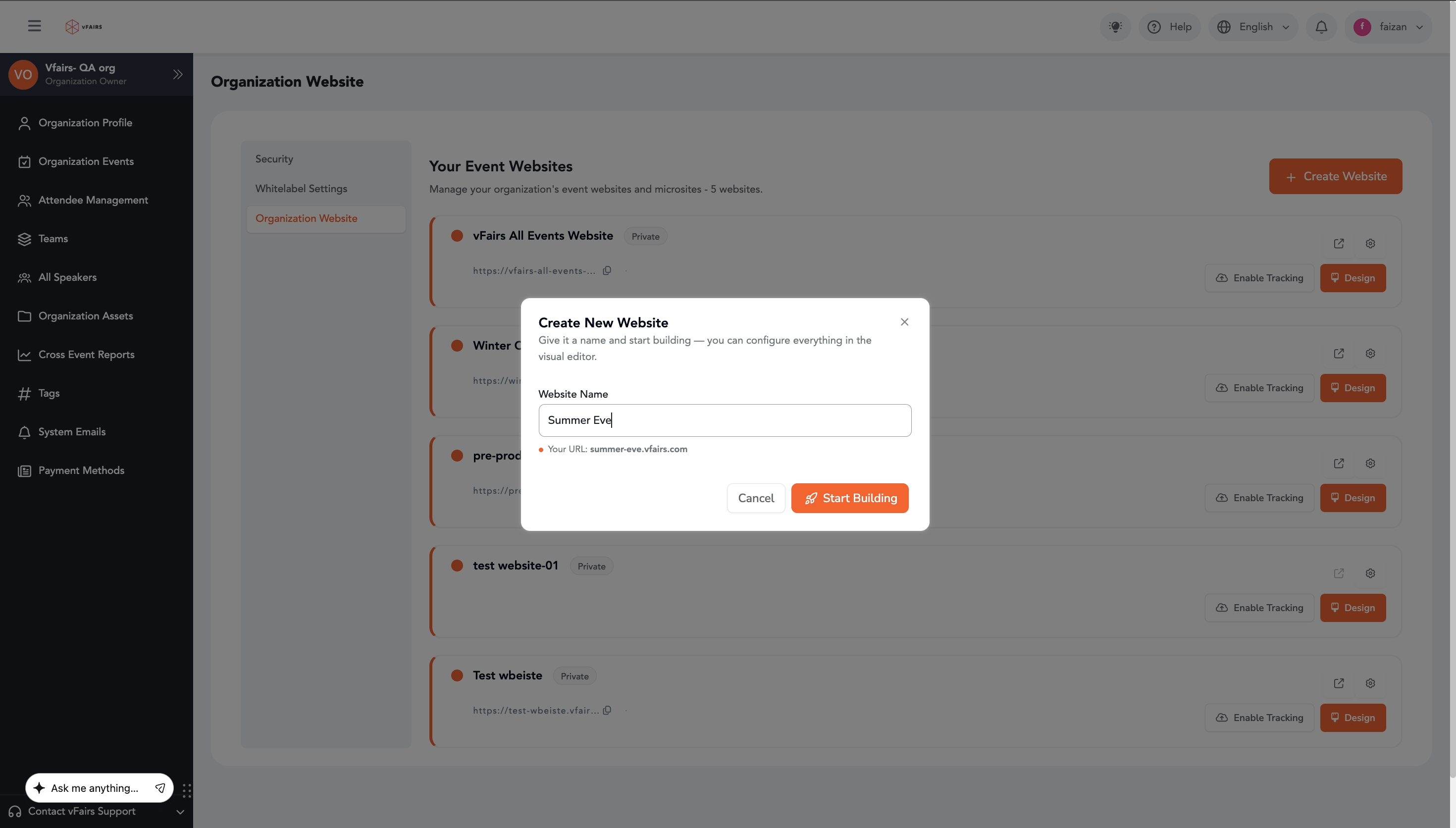
📌 Note: The URL will automatically generate based on the website name.
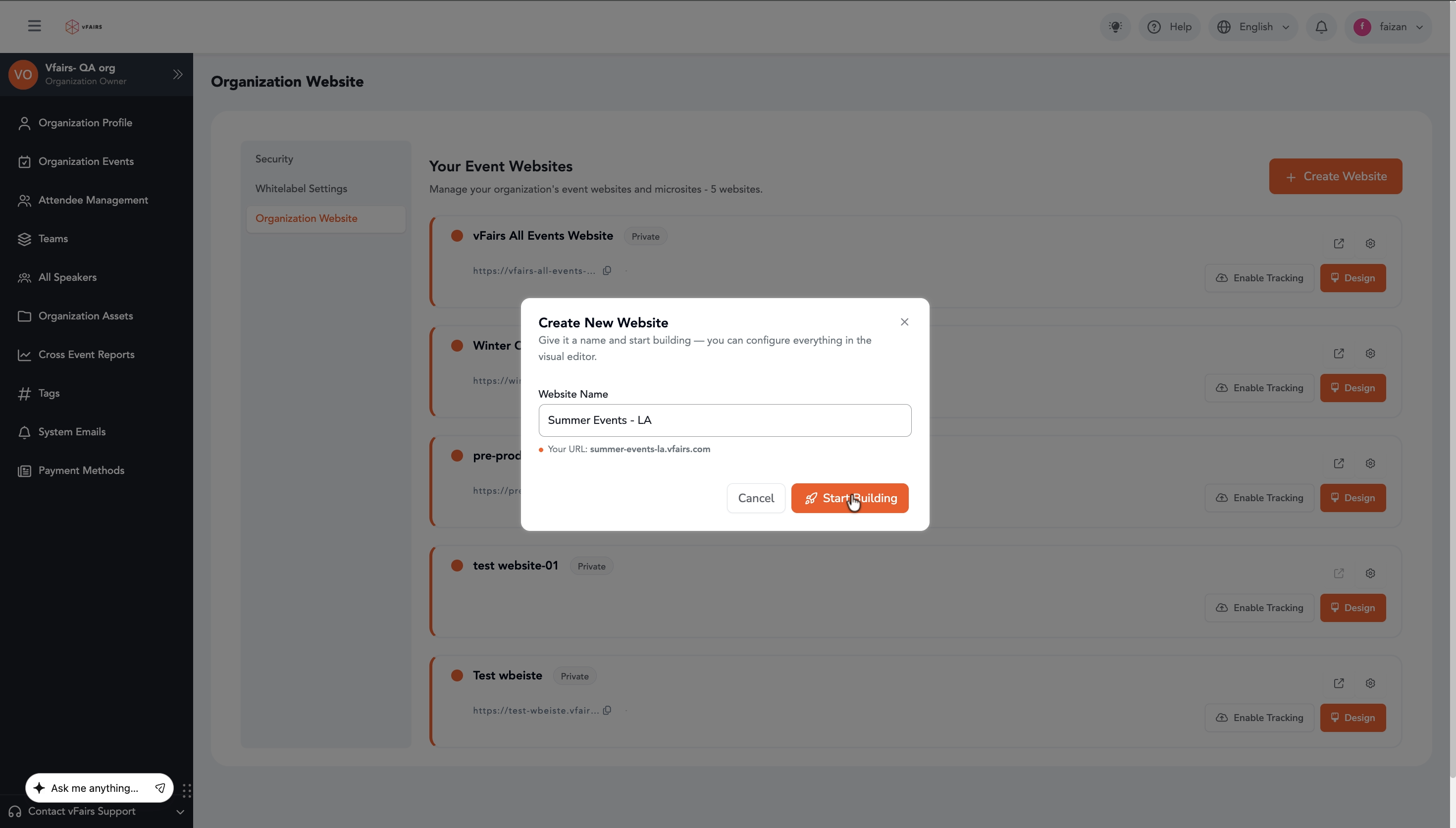
Step 5: Click Start Building to create the website and open the Page Builder. Once you have created your website, click on Design in your newly created Website card.
Step 6: In the Page Builder, locate the Event showcase section in the right-hand panel and click on it to expand its settings.
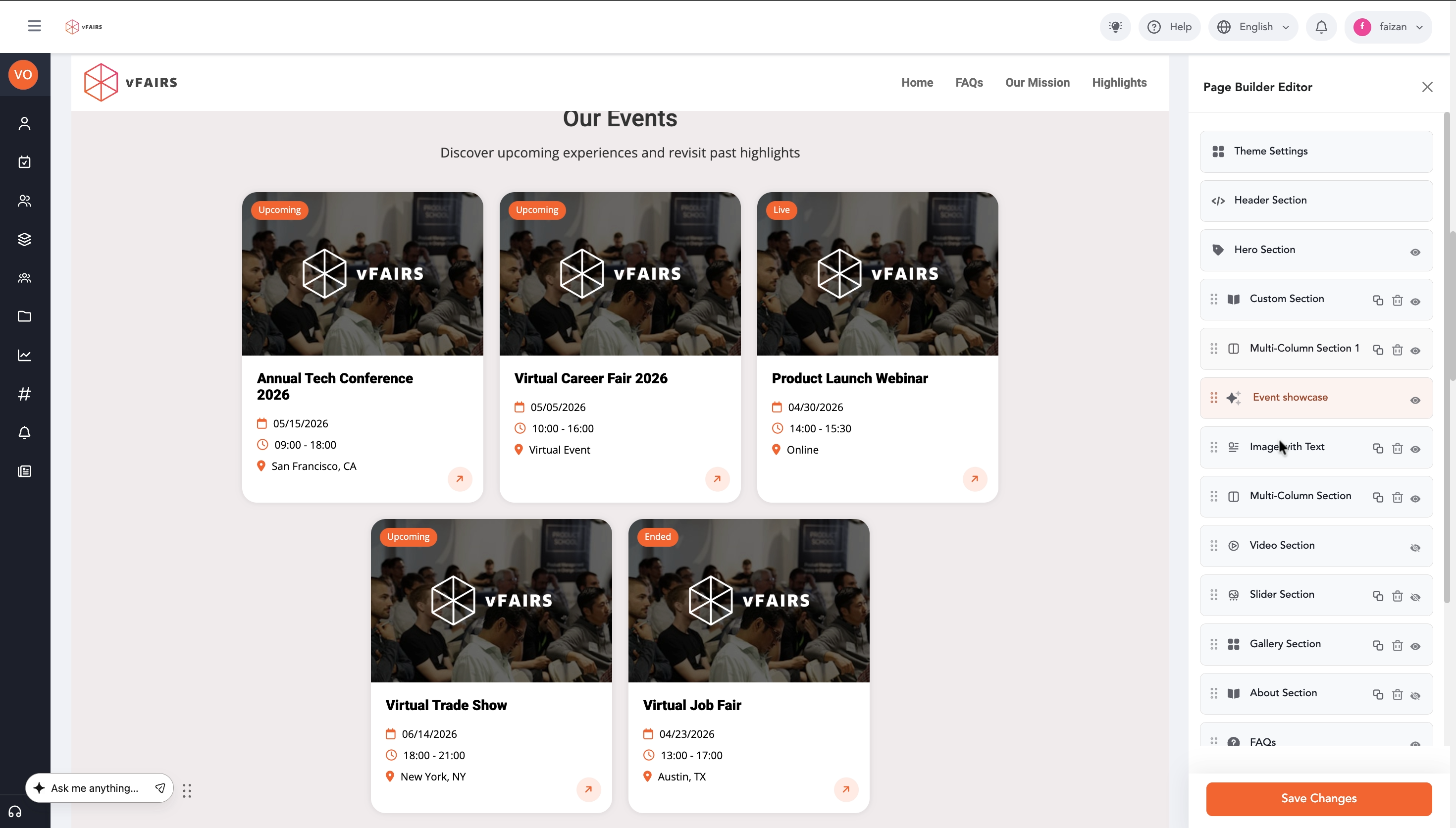
Step 7: Under Data Source, click the dropdown menu next to Event Filter. Select form "All", "Active & Upcoming Events" or "Past Events" to display desired events on your website.
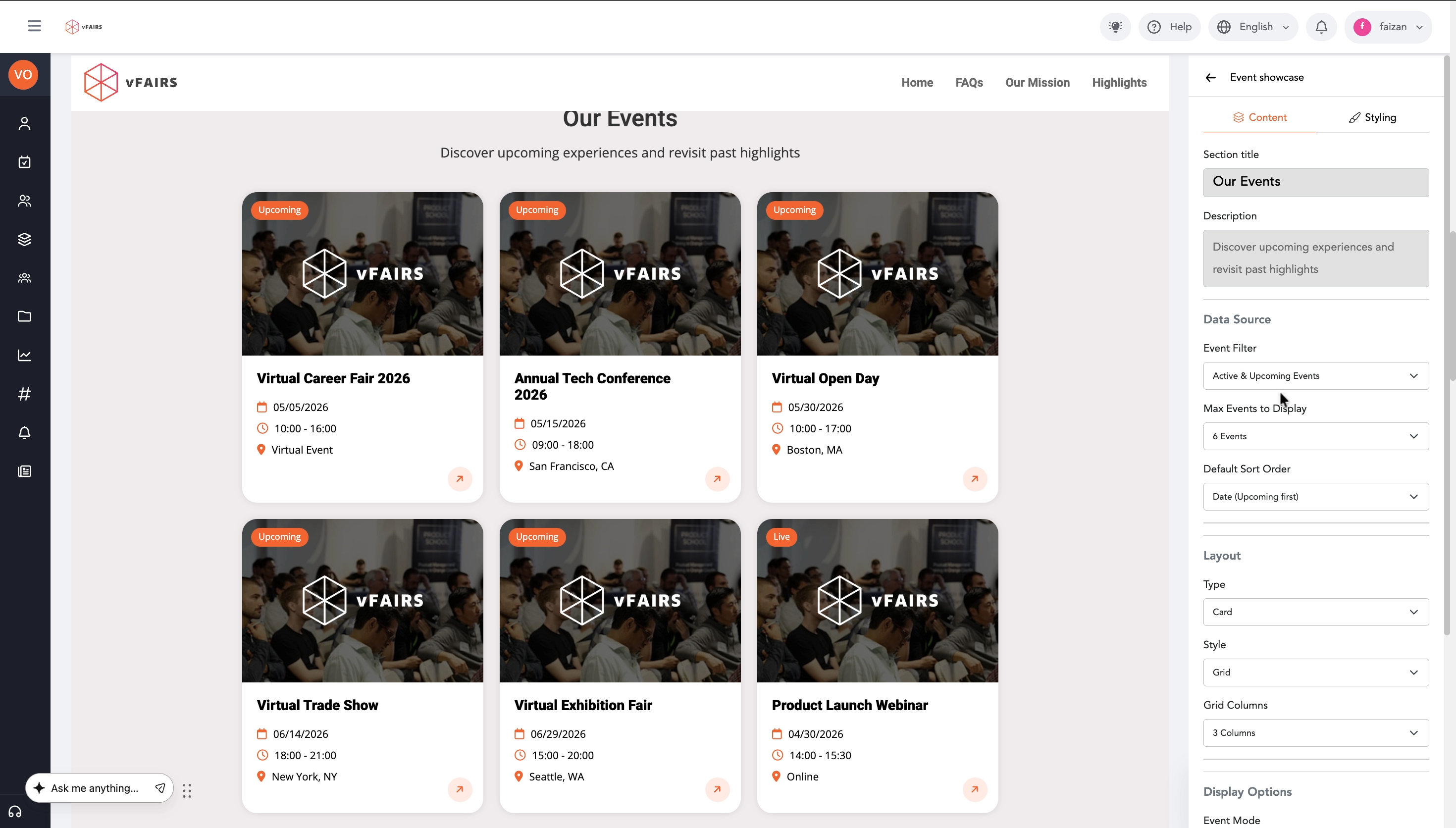
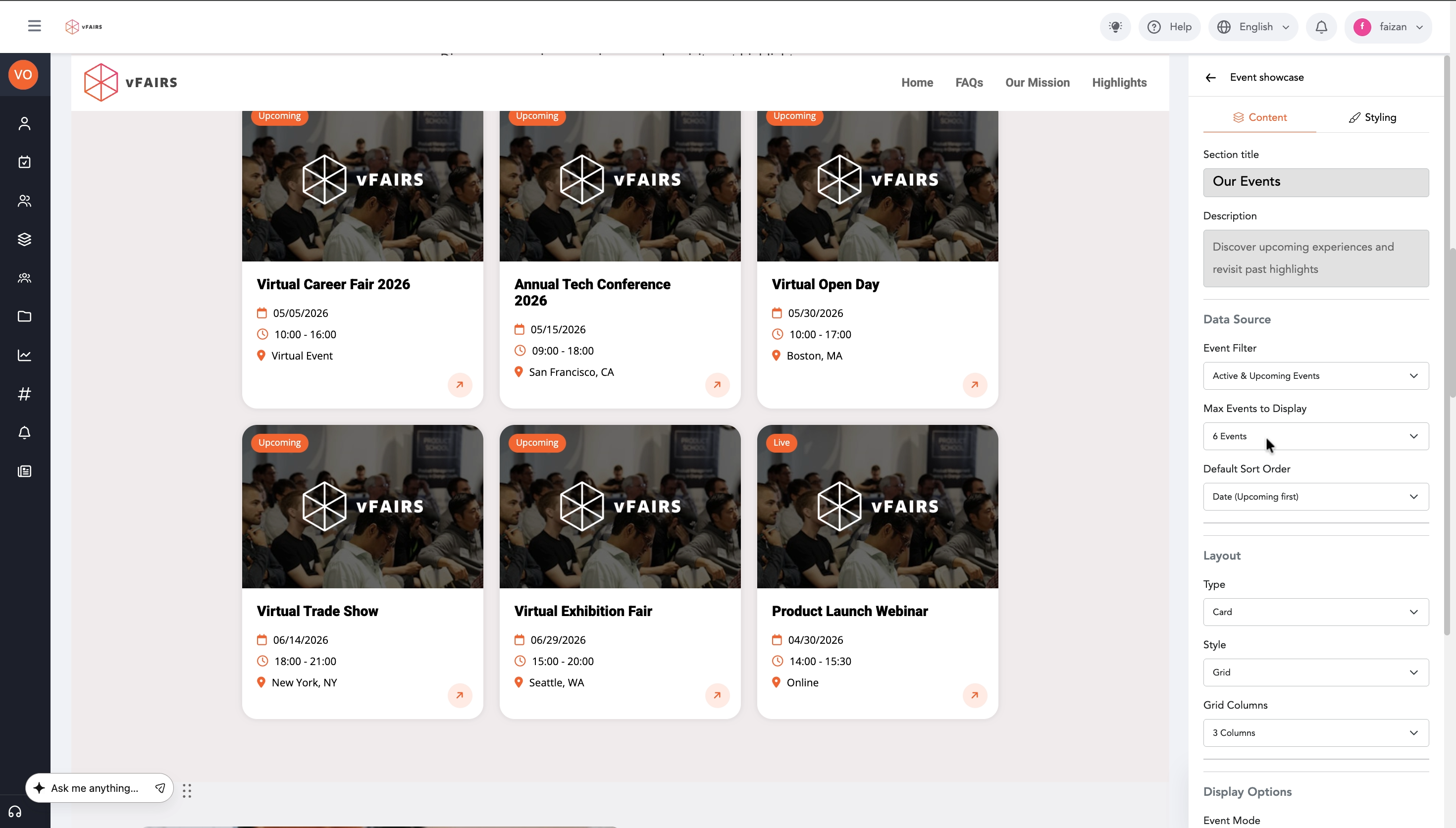
Step 8: Adjust the Max Events to Display using the dropdown menu. For example, select "6 Events" to show up to six events at a time.
Step 9: Choose a Default Sort Order from the dropdown, such as "Date (upcoming first)" to prioritize events happening soon.
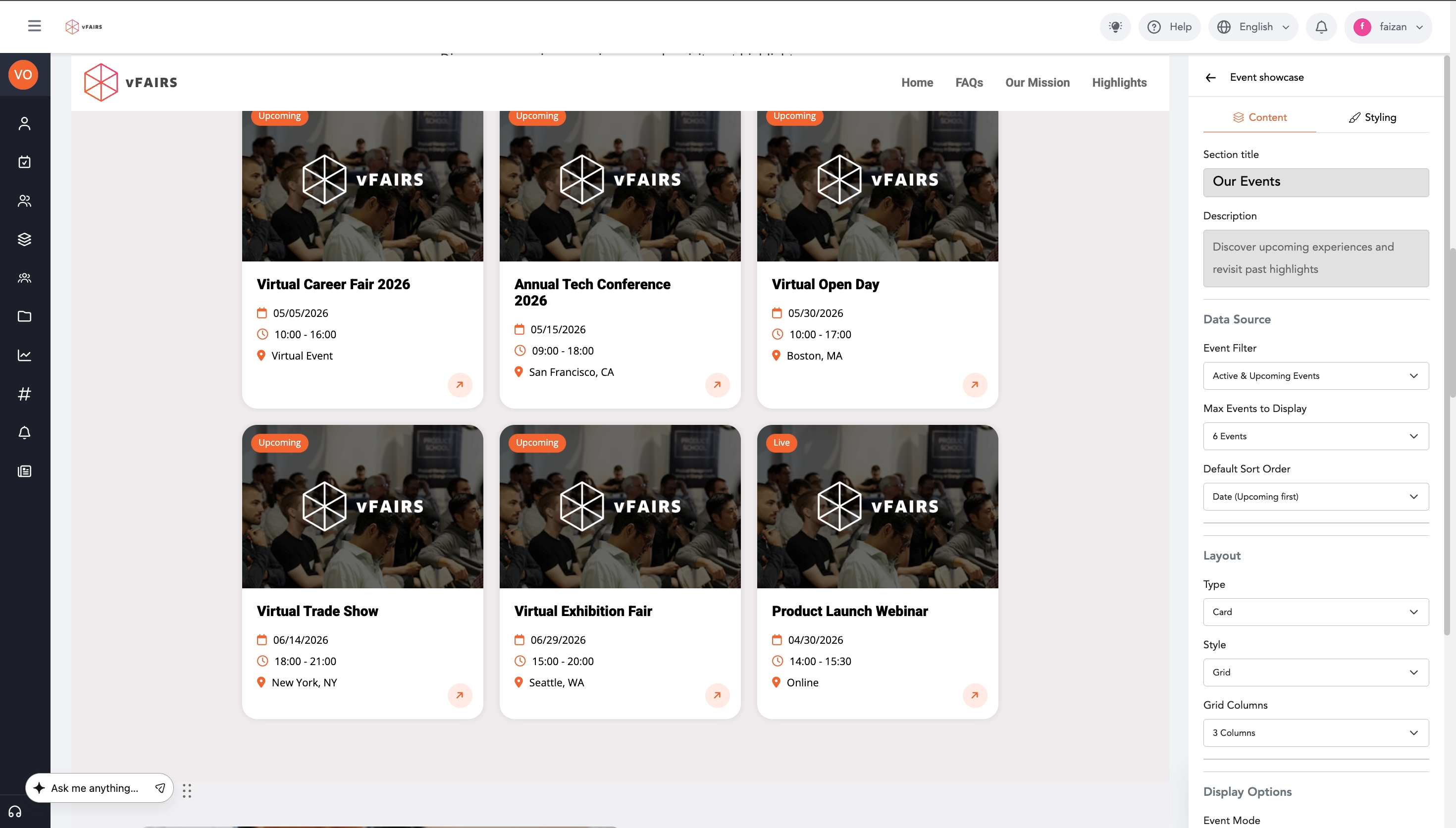
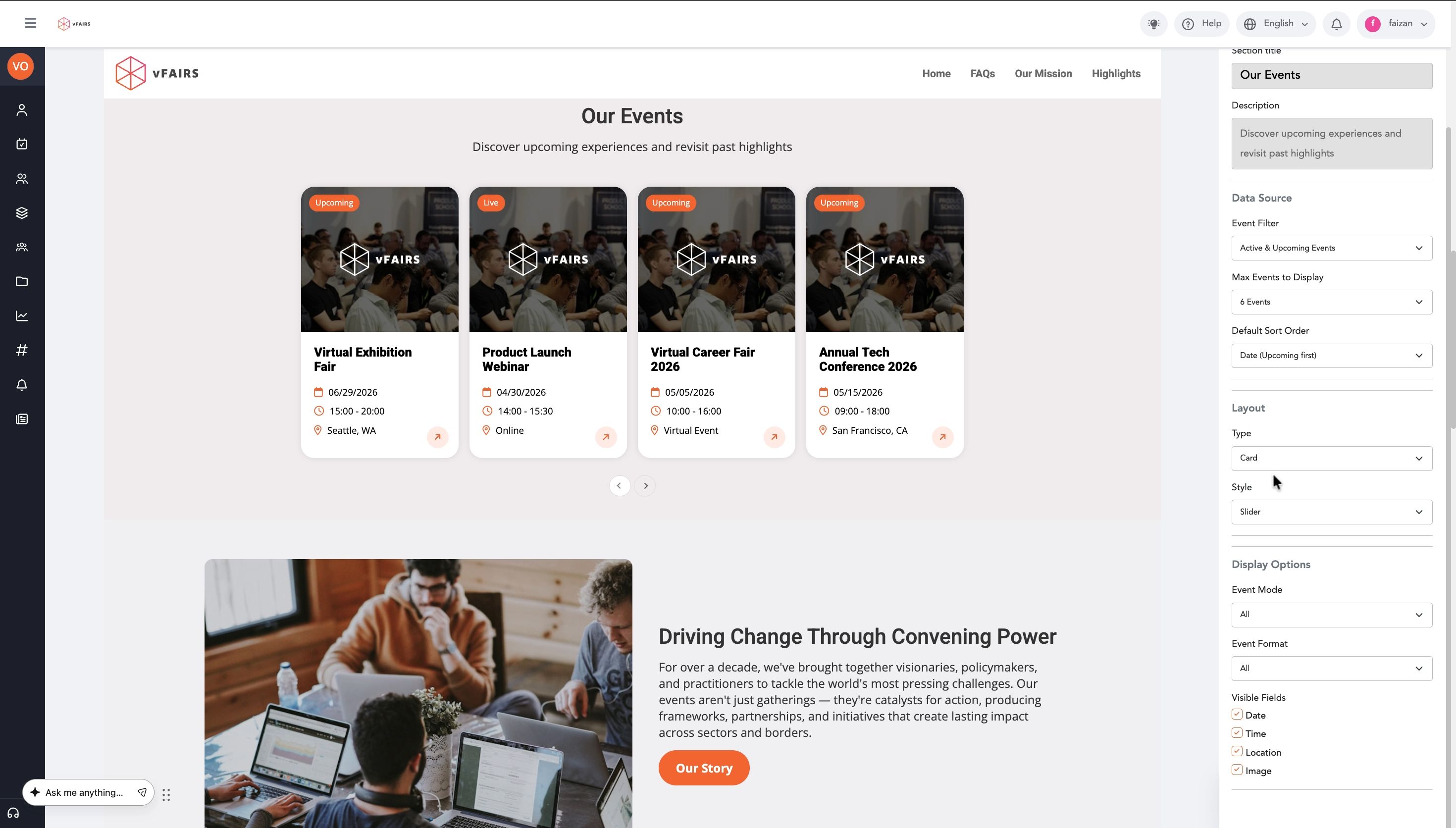
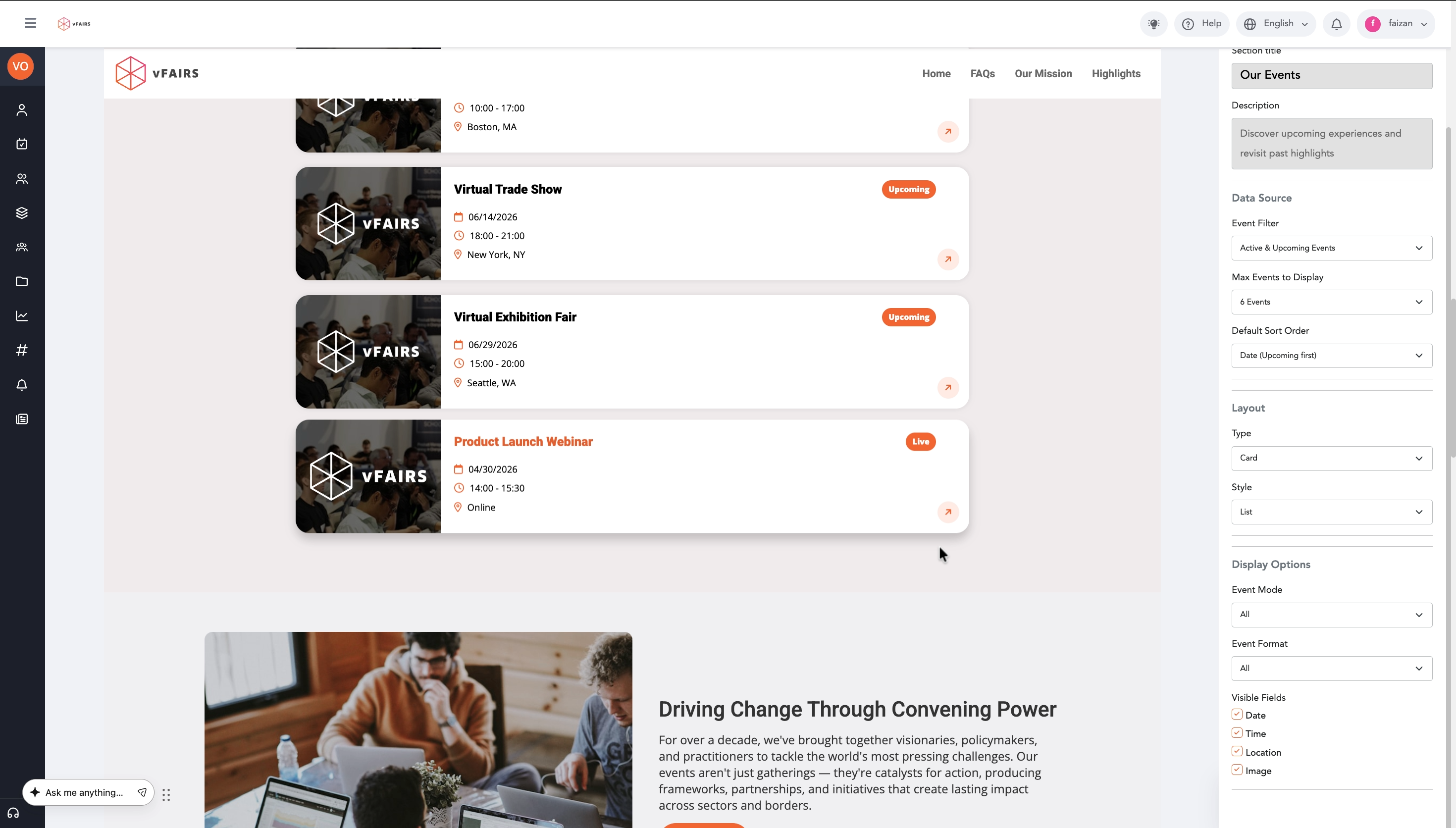
Step 10: Select a Style for the layout. Options include "Grid", "Slider", "List", or "Calendar". For a grid display, choose "Grid".
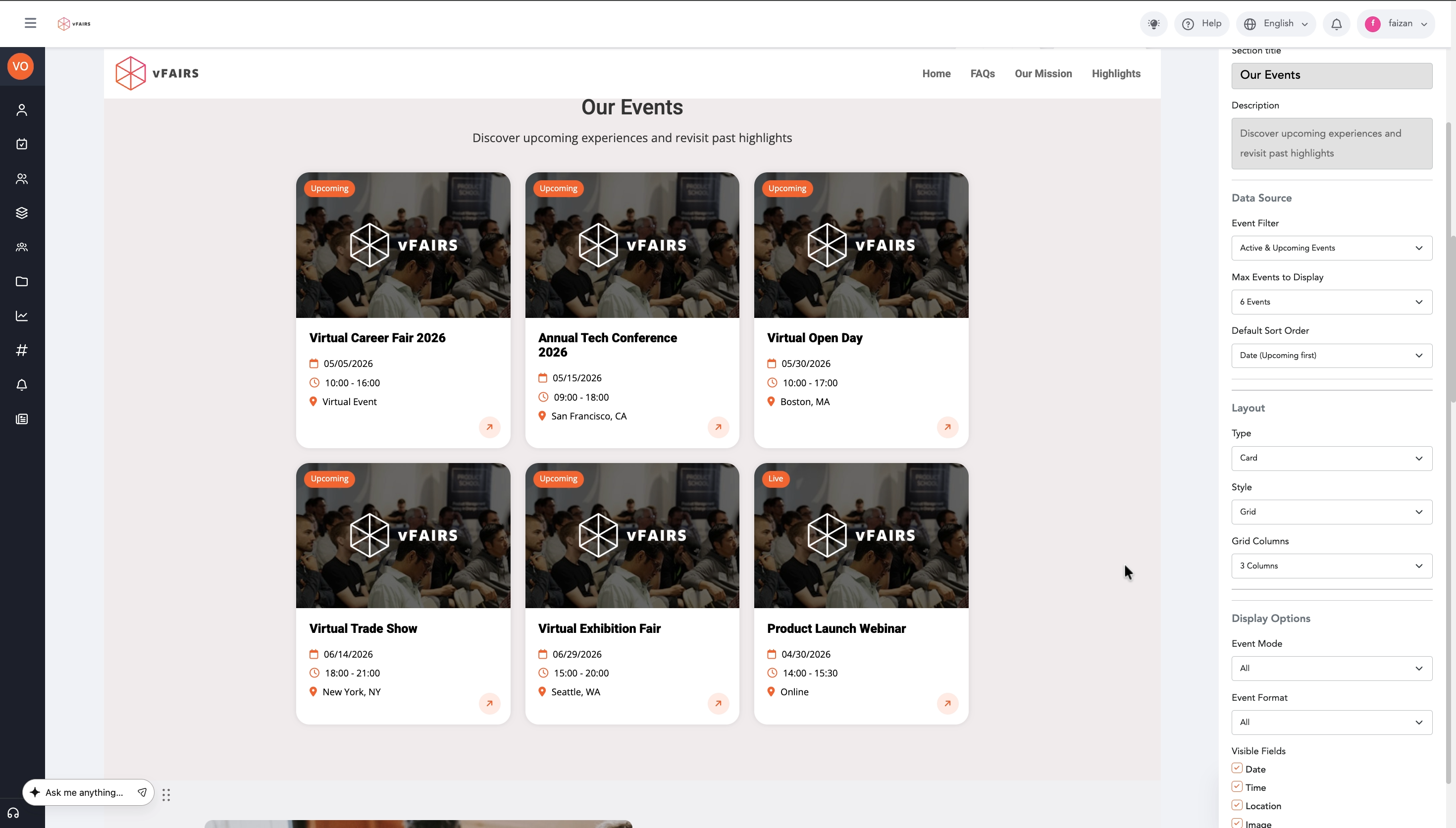
Step 11: If using the "Grid" style, select the number of Grid Columns from the dropdown menu, such as "3 Columns".
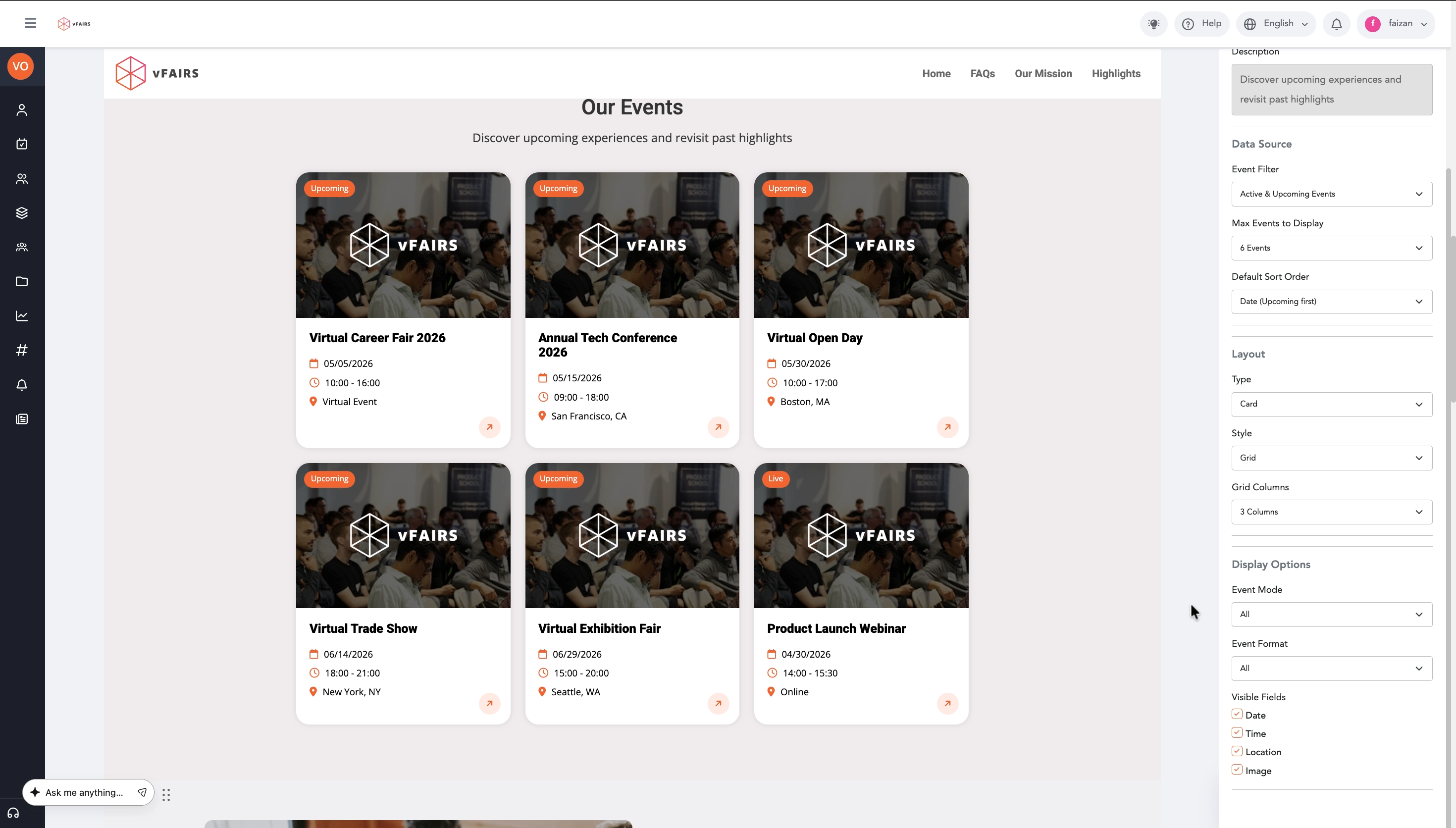
Step 12: Under Display Options, you can customize which event details are visible. Check or uncheck the boxes next to Date, Time, Location, and Image to show or hide these fields.
📌 Note: Unchecking Image will remove event images from the display.
Step 13: Once you have configured the event showcase, click the Save Changes button at the bottom right of the Page Builder.
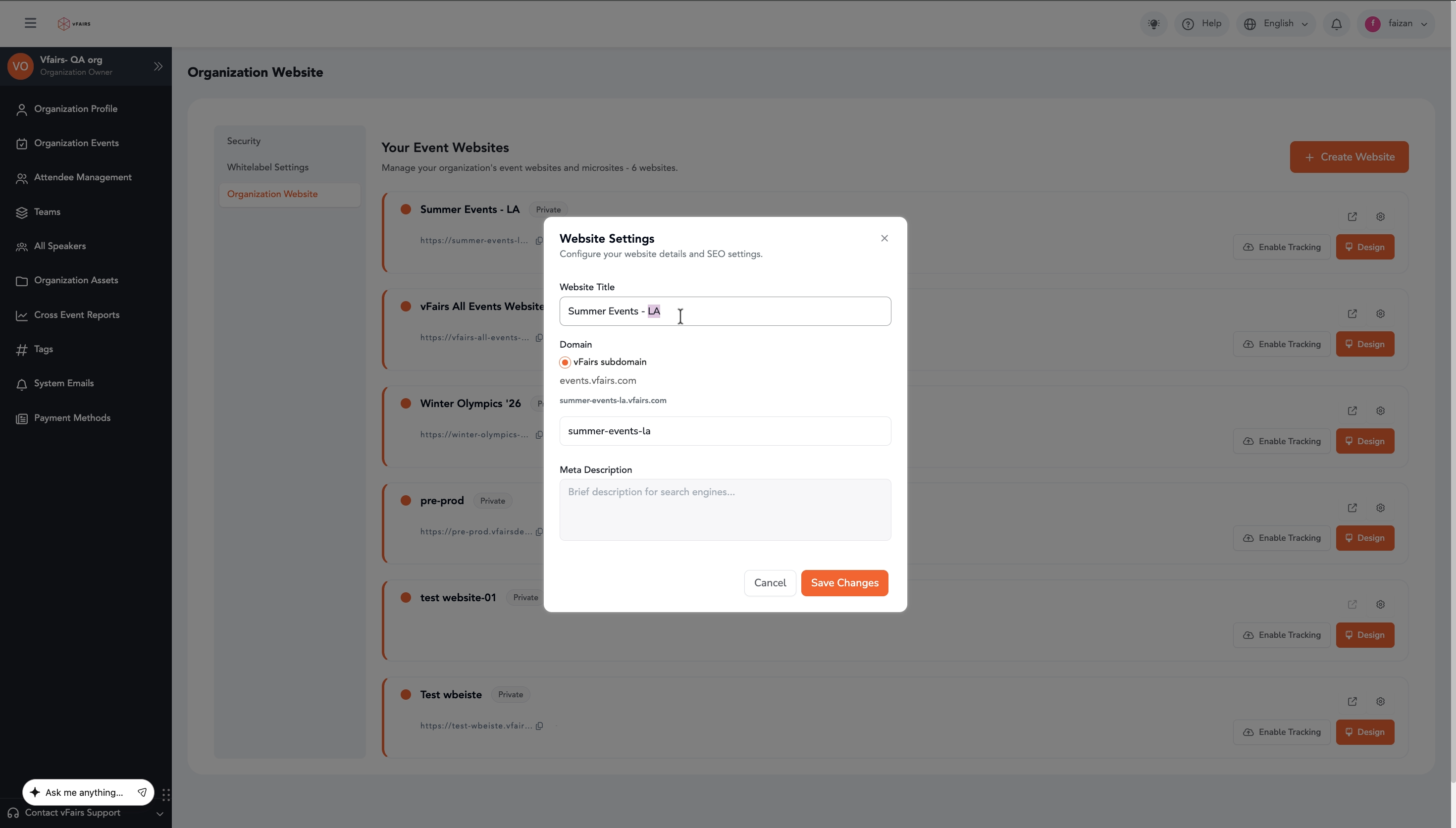
Step 14: To modify the website's title or URL, click the Settings icon (gear icon) next to your website's name.
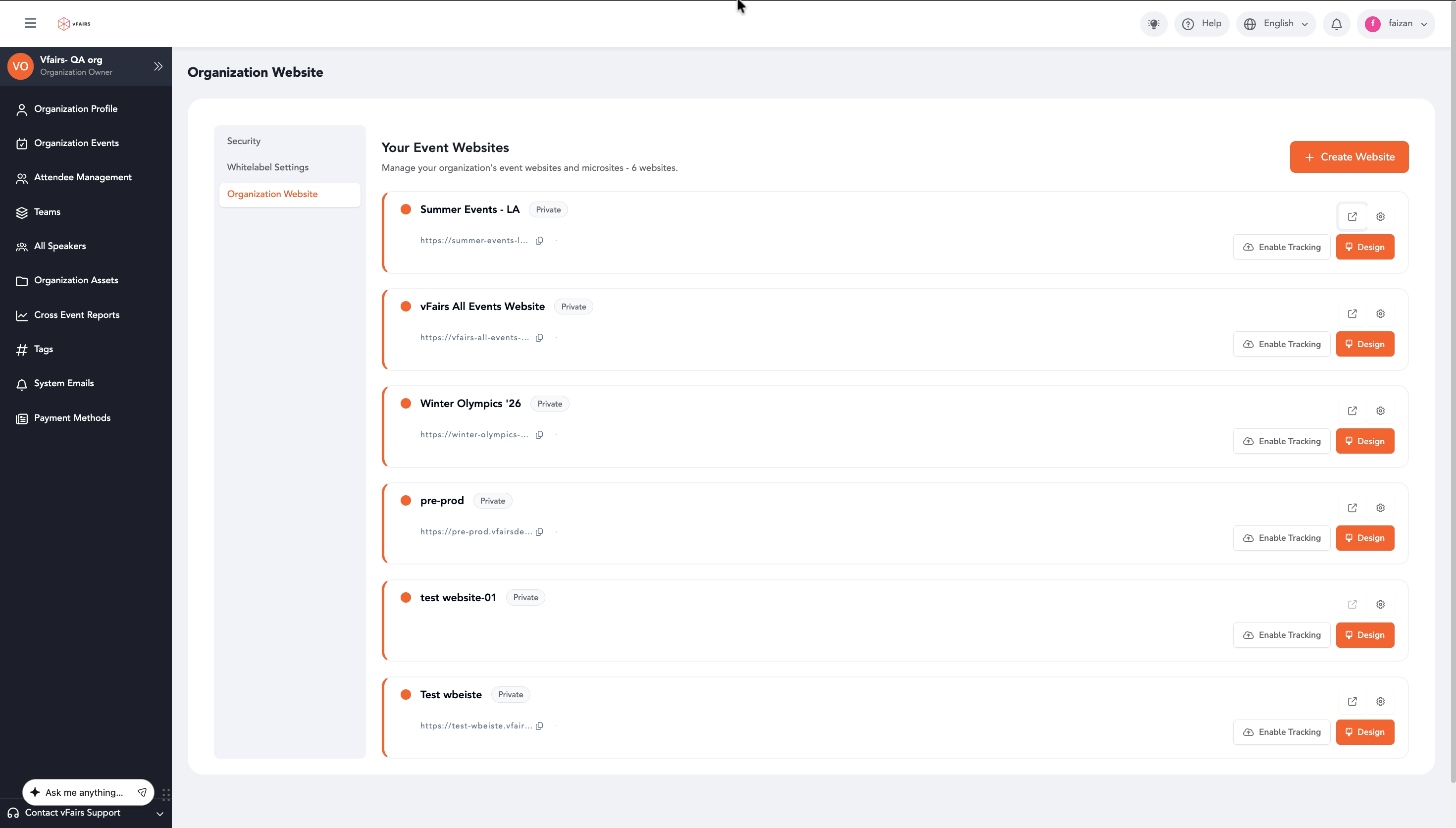
Step 15: Now you can view your website by clicking on the 'Open' button next to the gear icon.
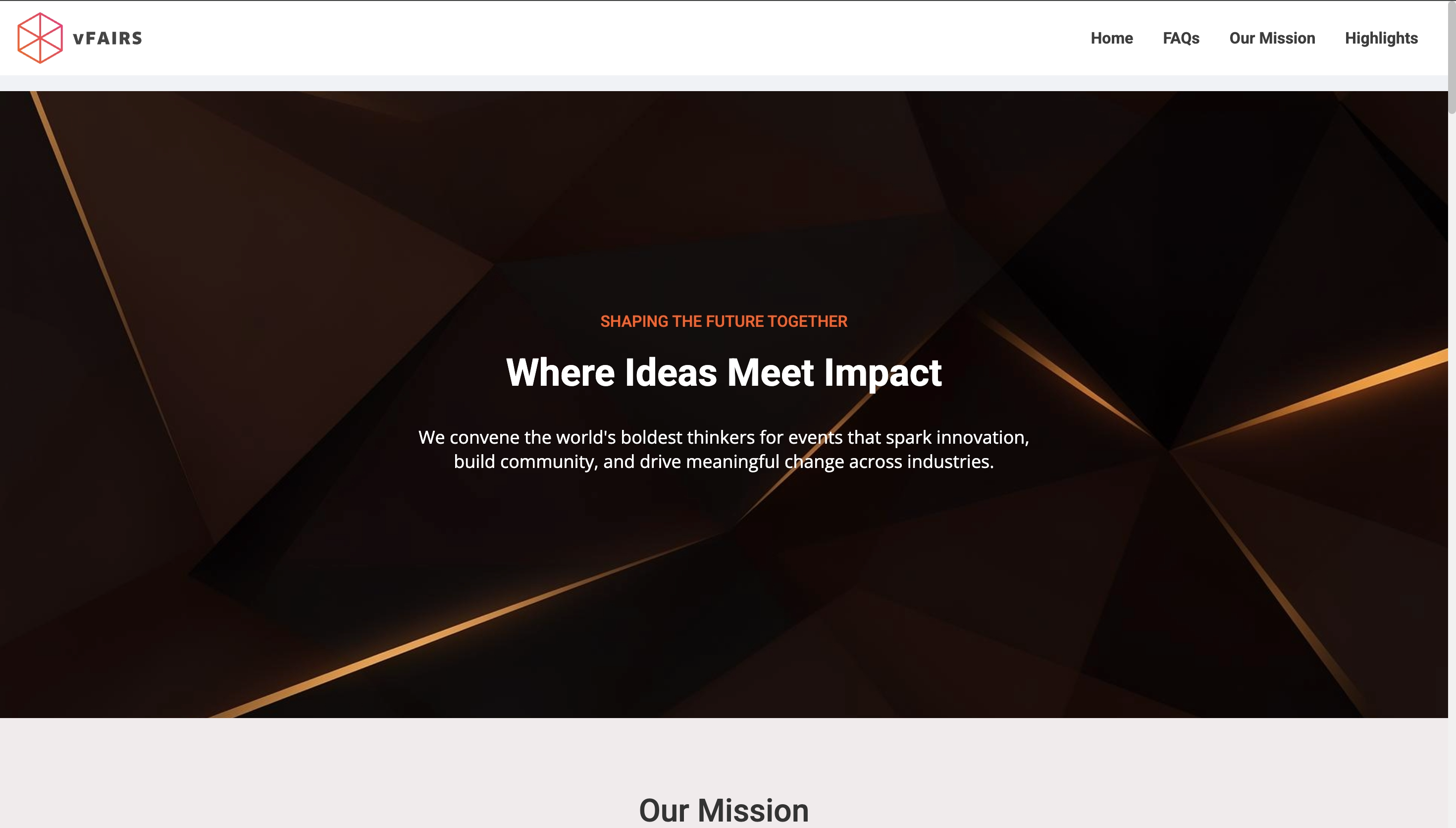
Step 16: Preview your website in a new tab and have a look at the changes you have made using the page builder.
Create New Website Fields
|
Field |
Description |
|
Website Name |
The name of your organization website. This will also be used to generate the website's URL. |
Event Showcase Settings (Content Tab)
|
Field |
Description |
|
Section Title |
The heading displayed for the event showcase section on your website (e.g., "Our Events"). |
|
Description |
A brief description that appears below the section title. |
|
Event Filter |
Determines which events are displayed. Options include "All Events" or "Active & Upcoming Events". |
|
Max Events to Display |
Sets the maximum number of events to show in the showcase. |
|
Default Sort Order |
Defines the order in which events are displayed, such as "Date (upcoming first)". |
|
Type |
The overall layout type for the event display. The only visible option is "Card". |
|
Style |
The visual style of the event display. Options include "Grid", "Slider", "List", or "Calendar". |
|
Grid Columns |
If the "Grid" style is selected, this determines the number of columns for events (e.g., "3 Columns"). |
|
Event Mode |
The mode of events to display. The only visible option is "All". |
|
Event Format |
The format of events to display. The only visible option is "All". |
|
Visible Fields |
Checkboxes to select which event details (Date, Time, Location, Image) are displayed for each event. |
Website Settings
|
Field |
Description |
|
Website Title |
The title of your organization website. |
|
Domain |
Displays the full domain of your website. |
|
vFairs subdomain |
The customizable part of your website's URL within the vFairs domain. |
|
Meta Description |
A brief description for search engines to help with SEO. |
Important Notes
After creating a website, it will initially be private. You can enable tracking or design it further from the Organization Website page.