How to Update Document and Video Labels
- Go to Translations and Labels in the event backend.
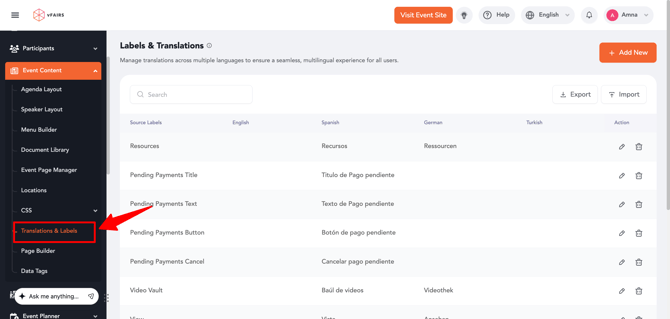
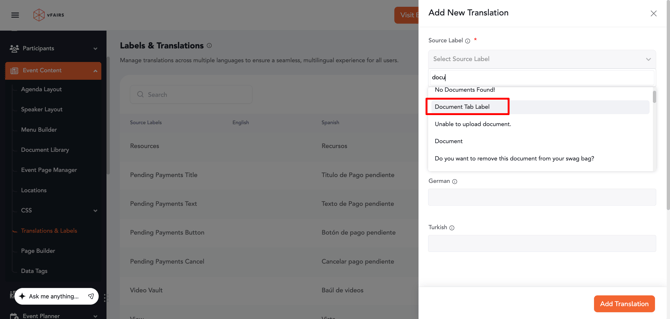
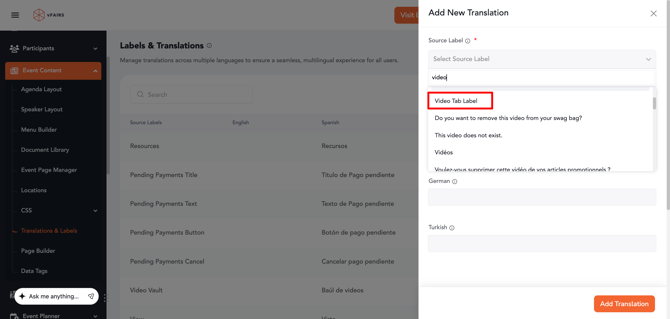
- Use the search bar to locate the following source labels:
- Document Tab Label
- Video Tab Label
- Document Tab Label
- Add the desired terminology or translations for the required language(s).
- Save your changes.
Where the Updated Labels Will Appear
Once the terminology is updated, the new labels will automatically be displayed in:
- The Booth Builder for document and video sections.
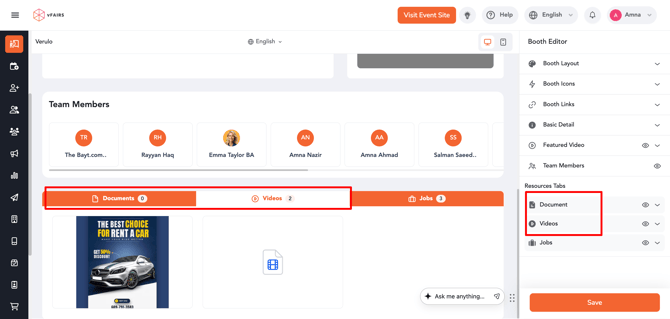
- The attendee-facing web frontend for the Documents and Videos tabs.
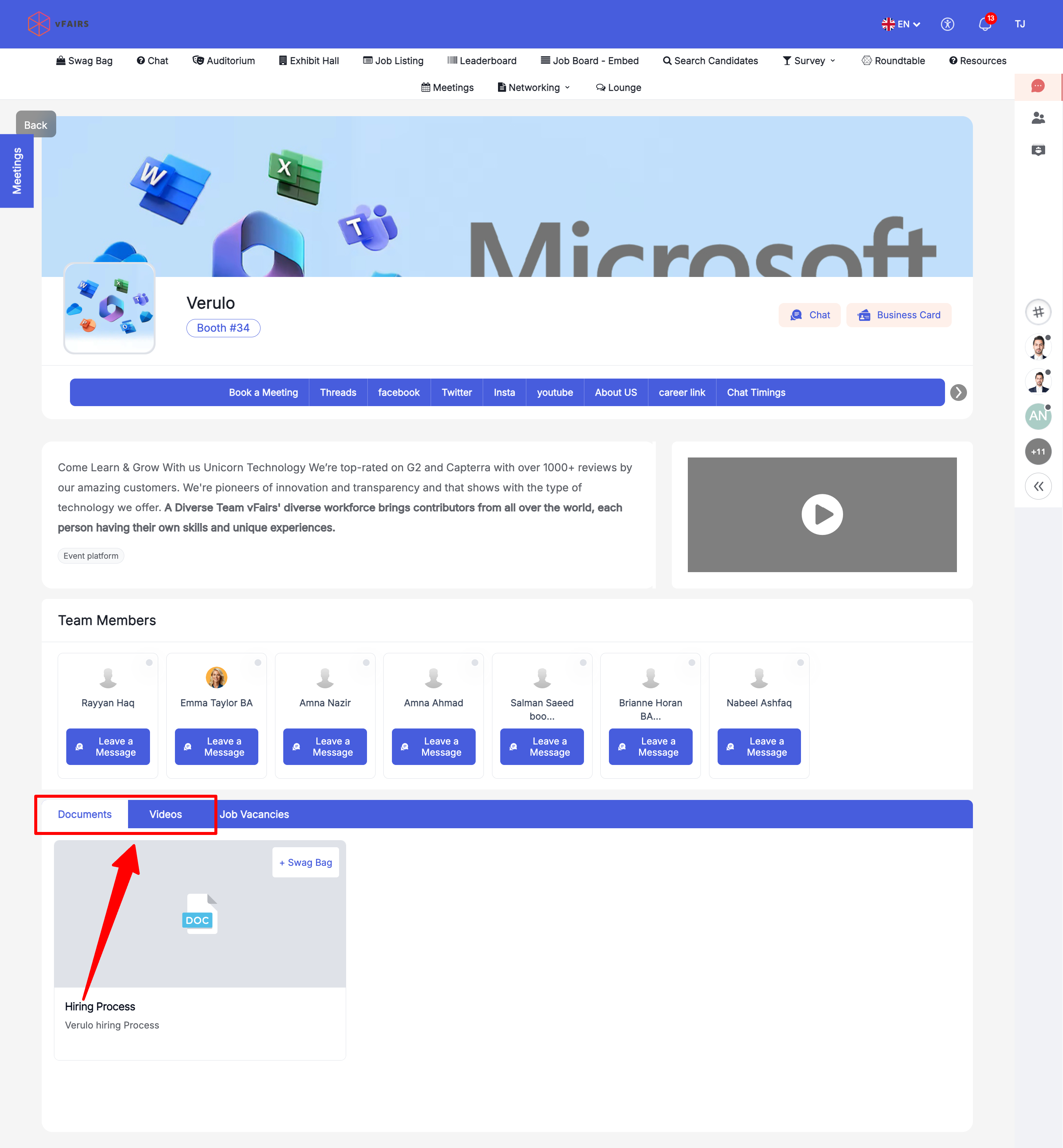
- Any enabled language versions where translations have been provided.
Notes
- If your event supports multiple languages, make sure translations are added for each language you want to customize.
- Changes are applied globally across the event wherever the Documents and Videos labels are used.