Steps to Change the Logo to the Correct Size
- Resize the Logo
- First, resize the logo to the desired dimensions of 200x120 pixels using an image editor or online tool.
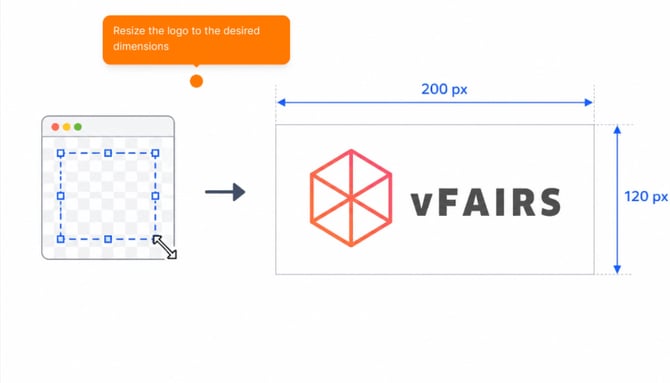
- First, resize the logo to the desired dimensions of 200x120 pixels using an image editor or online tool.
- Navigate to Event Content
- Log in to your vFairs backend and go to the Event Content section.
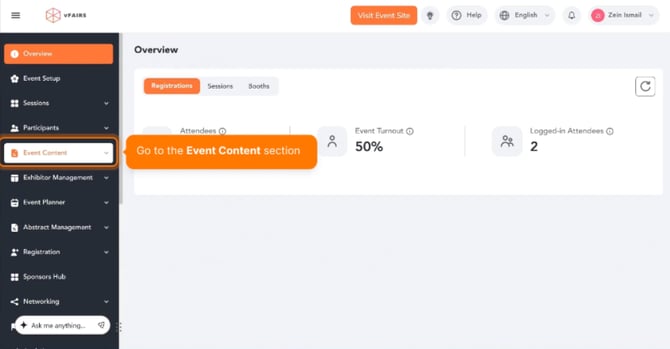
- Log in to your vFairs backend and go to the Event Content section.
- Open the Page Builder
- In the Event Content section, click on Page Builder.
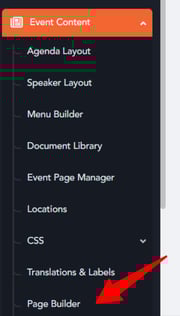
- In the Event Content section, click on Page Builder.
- Edit Page Settings
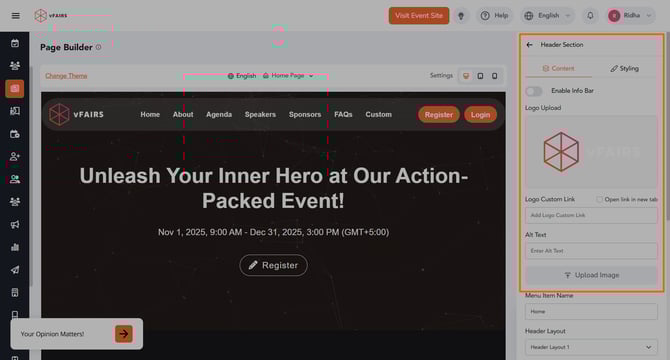
- Once inside the Page Builder, look for the Header Section on the right side of the screen.
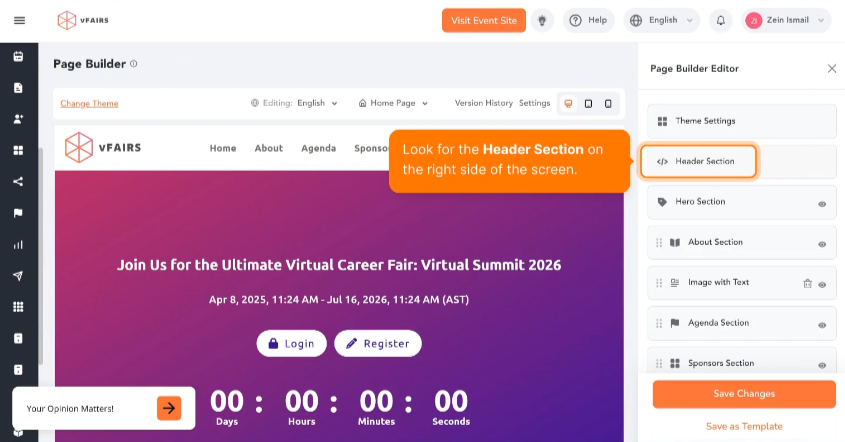
- Once inside the Page Builder, look for the Header Section on the right side of the screen.
- Upload the Logo
- In the Page Settings section, you will see an option to upload Image.
- Click on the option to upload your resized 200x120 logo, and save the changes.
Benefits of Correct Logo Sizing
- Professional Appearance: Ensures the logo fits perfectly within the event's layout.
- Consistency: Maintaining a uniform size for the logo ensures consistency across event pages.
- Improved Aesthetics: A correctly sized logo enhances the overall look of your event page.