1. Require File Uploads
- In the Create Task drawer, below Assign To, turn on Require File Upload For Organizers.
- Enter the Minimum files required. Organizers must upload at least this many files before they can mark the task complete.
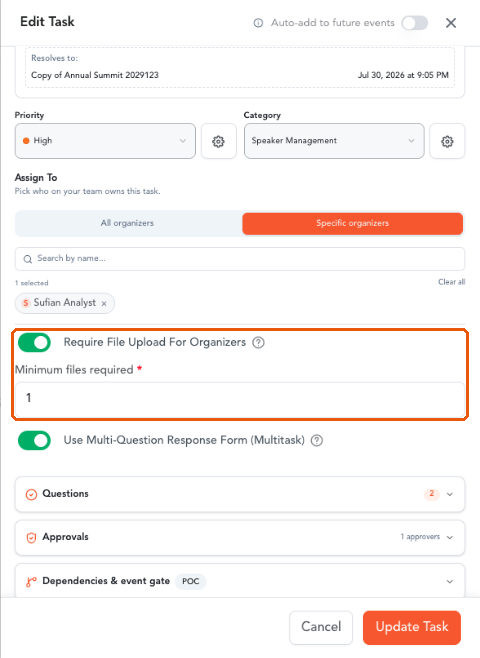
Require File Upload with minimum files · 26-require-file-upload.png
2. Turn On the Multi-Question Response Form- Turn on Use Multi-Question Response Form (Multitask). This replaces the simple completion action with a structured questionnaire.
- A Questions section appears below the toggle. Click on it to expand it.
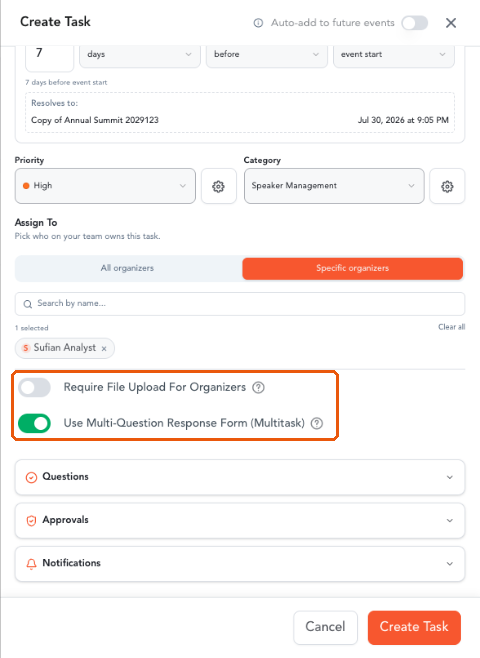
Response options and the Questions section · 08-response-options.png
3. Add Questions- Click on + Add question.
- Enter the question text in the Question field.
- Choose a Type: Short text, Long text, Single choice or Multiple choice.
- For choice questions, enter the answer options in the Options box, one per line.
- Turn on Required if the question must be answered before submission.
- Repeat to add more questions. Use the up and down arrows to reorder them, or the bin icon to delete one.
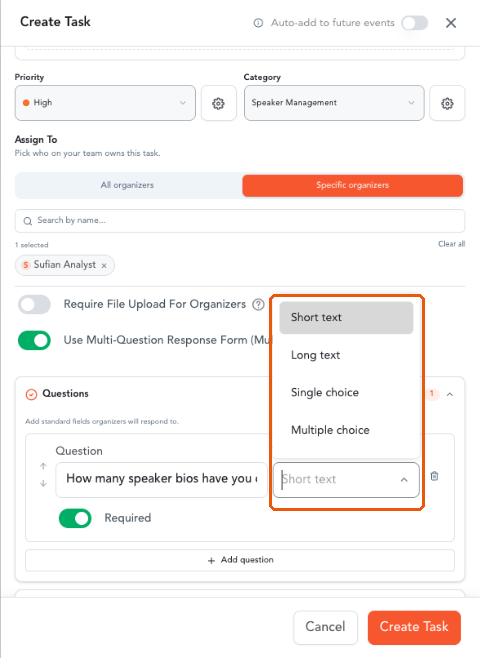
Question type options · 09-question-types.png
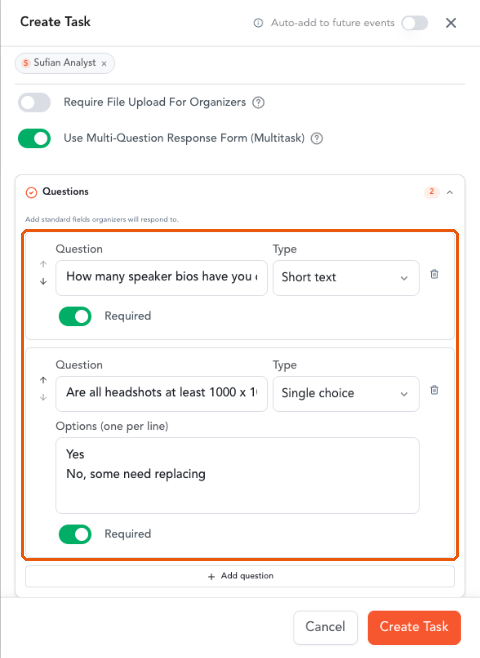
Two questions, one short text and one single choice · 10-questions-built.png
Note: The number next to the Questions header shows how many questions the task has.
OutcomeBy following these steps, you can make sure completed tasks come back with the files and answers you asked for, which you can then review per organizer on the task’s submissions page.