---
title: How to configure a leaderboard for various activities
description: Learn how to configure and manage the leaderboard feature, allowing attendees to earn points for completing tasks during events. This guide covers enabling the leaderboard, setting up tasks, managing team scores, and customizing achievement popups.
---
[Skip to content](https://help.vfairs.com/knowledge/how-to-configure-a-leaderboard-for-various-activities#main-content)
English
Show submenu for translations
[Customer portal](https://support.vfairs.com/care?hsLang=en)
Open main navigation
Close main navigation
- English
Show submenu for translations
- [Customer portal](https://support.vfairs.com/care)
Welcome to vFairs Help Center
- There are no suggestions because the search field is empty.
1. [Help Center](https://help.vfairs.com/knowledge?hsLang=en)
2. [Engagement](https://help.vfairs.com/knowledge/engagement?hsLang=en)
# How to configure a leaderboard for various activities
## Learn how to configure and manage the leaderboard feature, allowing attendees to earn points for completing tasks during events. This guide covers enabling the leaderboard, setting up tasks, managing team scores, and customizing achievement popups.
### Enabling the Leaderboard
To enable the leaderboard, follow these steps:
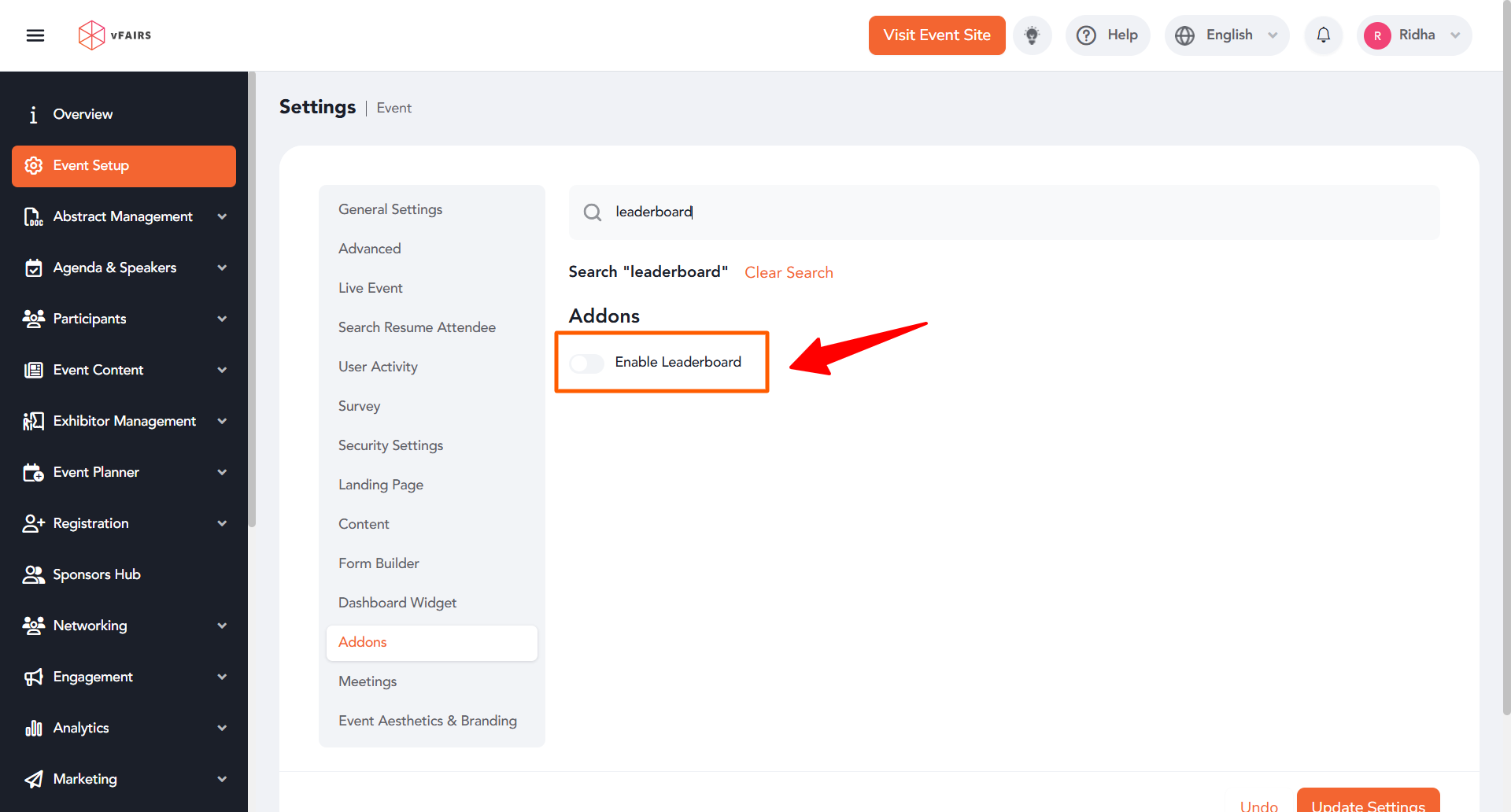
1. Navigate to **Event Setup**.

2. Under **Event Setup**, toggle on **‘Enable Leaderboard’** toggle present under **Addons**.
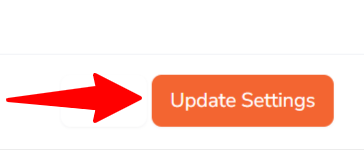
3. Click **Update** to save the changes.
### Leaderboard Settings and Preferences
In **Event Setup** under **General Settings**, you can configure the following leaderboard preferences:
#### Basic Settings
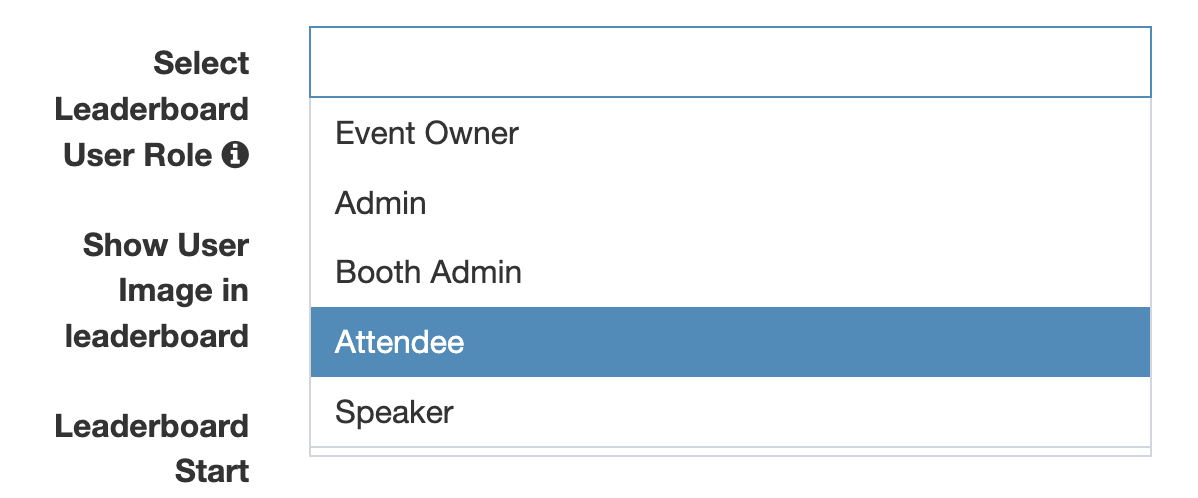
- **Select Leaderboard User Role**: Choose the user roles that will participate in the leaderboard.
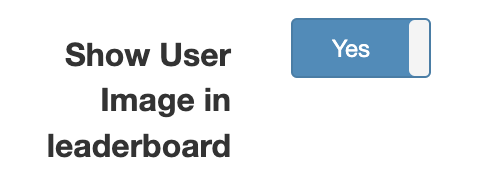
- **Show User Image in Leaderboard**: Toggle this on to display user images on the leaderboard points page.
- **Set Date Range**: Specify the period during which the leaderboard will be active for users.

- **Top Users Display**: Choose how many top users you want to display on the leaderboard points page in the virtual platform or event mobile app.

### Leaderboard Achievement Popup
Event organizers can enable achievement popups when attendees reach specific point milestones. To enable this feature:
1. Toggle on **‘Enable Leaderboard Achievement Popup’**.

2. Set the **minimum number of points** required for the achievement popup to appear.

3. To allow users to continue earning points after reaching the achievement milestone, toggle on **‘Keep Increasing Points After Achievement’**. This ensures ongoing competition for top positions on the leaderboard.

### Creating a Custom Achievement Popup:
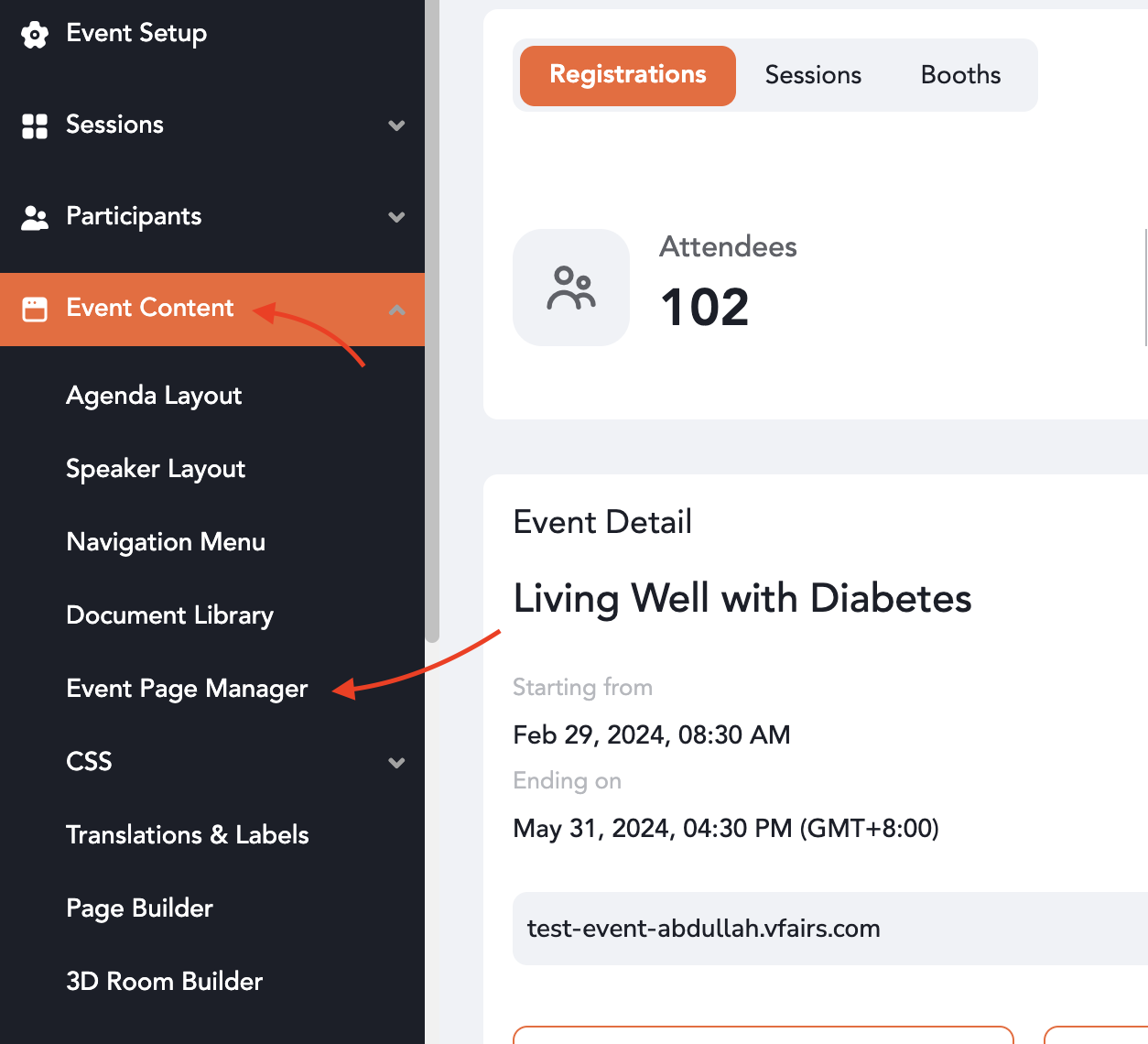
1. Navigate to **Event Content** from the left navigation menu, and select **Event Page Manager**.
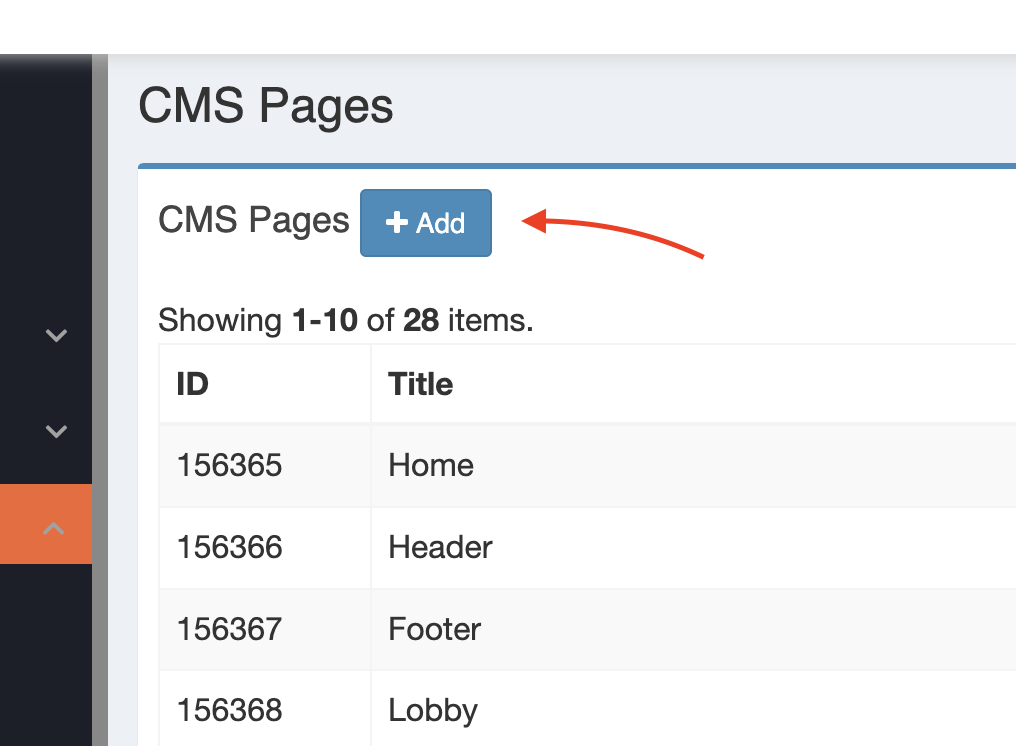
2. Click **+ Add** to create a new CMS page.
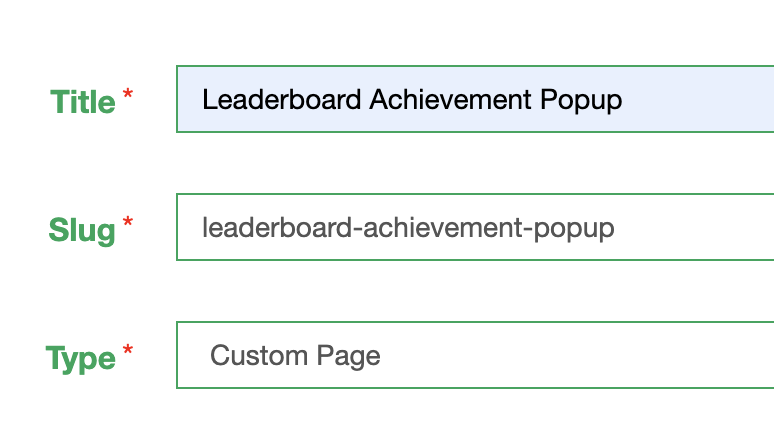
3. Enter a **page title** and select **Custom Page** as the type.
4. Click **Save** to proceed.

5. Under **CMS Page Widgets**, click **+ Add**.

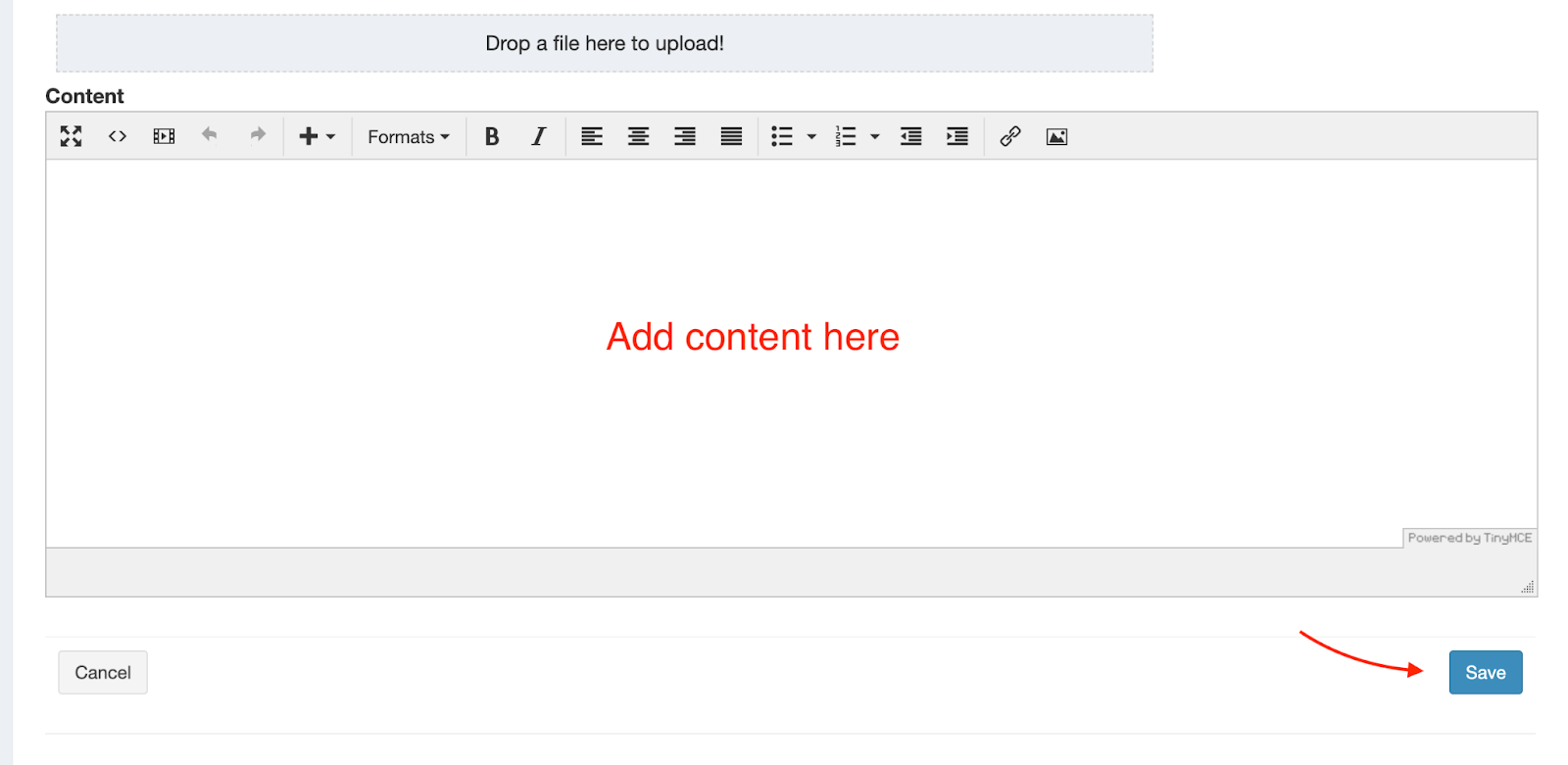
6. Add the desired content for the achievement popup in the content section and click **Save**.
7. Go to **Event Setup → General Settings**, and select the newly created CMS page from the dropdown in the **Leaderboard Achievement Popup Page Selector**. This CMS page will be displayed in a popup when users reach the required points.

### Enabling and Setting Up the Team Leaderboard
Users can be divided into teams, allowing team scores to be displayed on the leaderboard in the Virtual Platform or Event Mobile App. To set up the team leaderboard, follow these steps:
1. In the attendee registration form, create a **dropdown field** to assign users to teams. Ensure this field is set as mandatory.
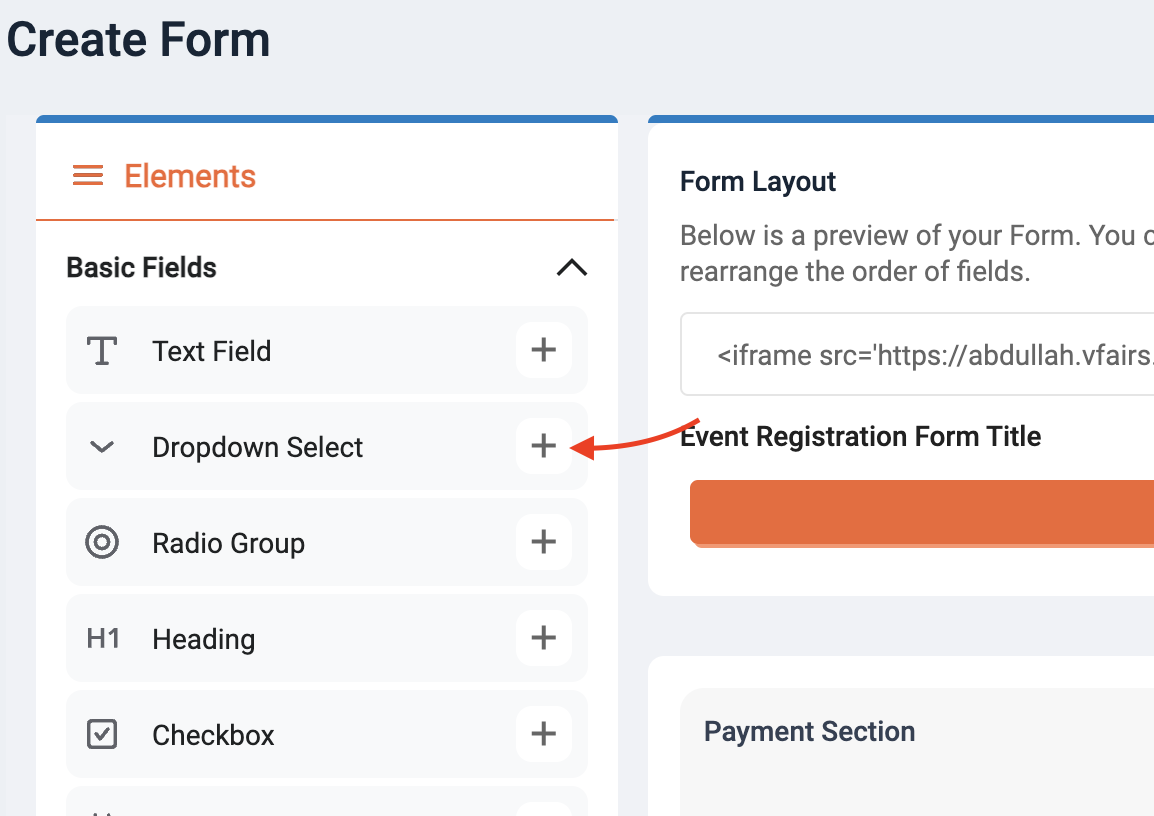

2. Go to **Event Setup → General Settings** and toggle on **‘Enable Team Leaderboard’**.

3. Select the **team field** created in the attendee registration form under **Team Field Mapping**.

4. Team scores will now be grouped by team names. The leaderboard points page will display the teams and can expand to show individual scores of top users in each team.
### Setting Up Leaderboard Tasks and Assigning Points
Event organizers can create tasks and assign points for each completed task. Follow these steps to configure tasks and point allocation:
1. From the left navigation menu, go to **Engagement → Leaderboard Settings**.
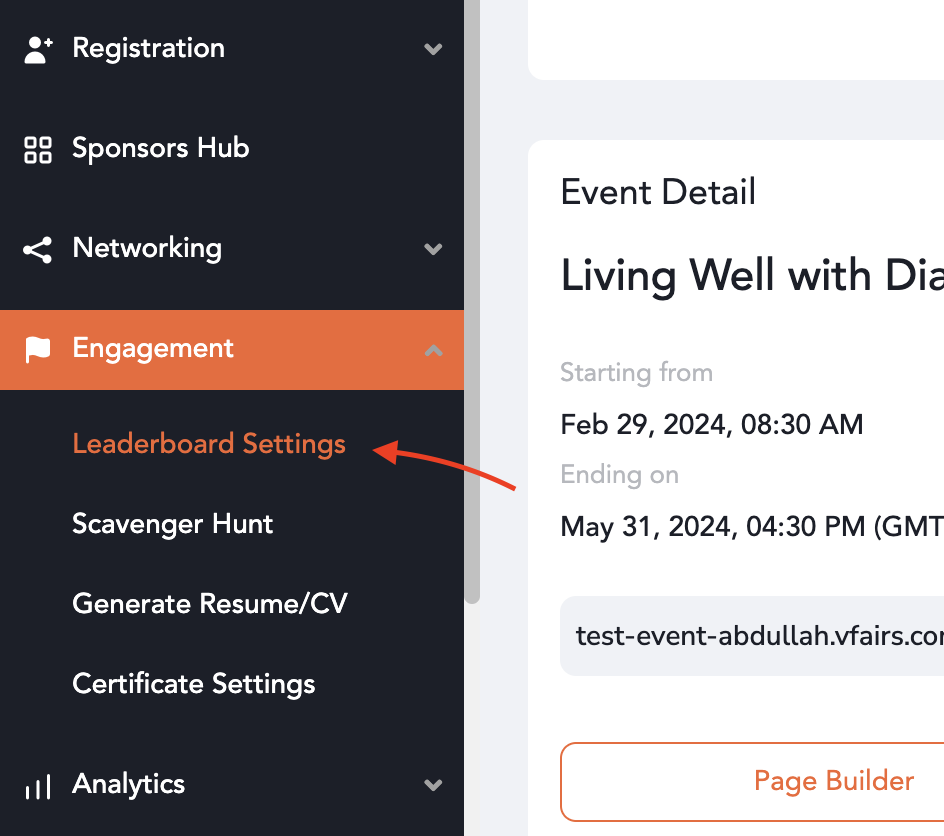
2. Click **+ Add New**.

3. A form will open with the following fields:
1. **Score:** Enter points that you wish the attendee receive after he performs the activity
2. **Max Score Limit:** Sets the maximum total points a user can earn from this activity, regardless of how many times it's completed. Leave blank for no limit.
3. **Language:** Select the language. Normally, it is your event language but if your event is in multiple languages, you can select different points for each language.
4. **Activity Type:** There are two types, Mobile and Web. You can select your audience based on the mobile or web application they will use for specific activities. Some activities are limited to mobile or web that is mentioned along with the activity name.
5. **Reference IDs:** Reference IDs allow you to link specific activities to the points system. Based on the selected activity, you can associate one or more reference IDs to determine when points should be awarded.
For example, if the activity is booth visit, you can assign reference IDs for specific booths. When a user visits those booths, the corresponding points will be awarded.
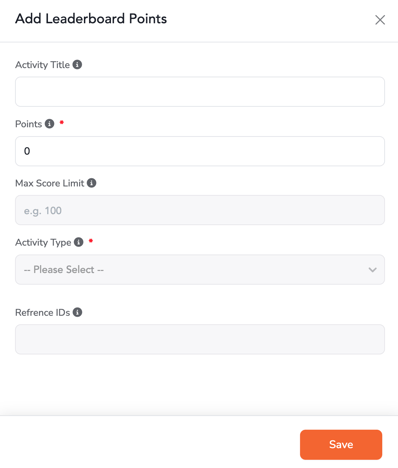
4. Click **Save** to finalize the task.
- [Organization Management](https://help.vfairs.com/knowledge/organization-management?hsLang=en)
- [Event Setup & Navigation](https://help.vfairs.com/knowledge/event-setup-navigation?hsLang=en#main-content)
- [Document Library](https://help.vfairs.com/knowledge/event-setup-navigation?hsLang=en#document-library)
- [Translations And Labels](https://help.vfairs.com/knowledge/event-setup-navigation?hsLang=en#translations-and-labels)
- [Attendee Management](https://help.vfairs.com/knowledge/attendee-management?hsLang=en)
- [Agenda Management](https://help.vfairs.com/knowledge/agenda-management?hsLang=en#main-content)
- [Session Management](https://help.vfairs.com/knowledge/agenda-management?hsLang=en#session-management)
- [Speaker Management](https://help.vfairs.com/knowledge/agenda-management?hsLang=en#speaker-management)
- [Speaker Management](https://help.vfairs.com/knowledge/speaker-management?hsLang=en)
- [Event Website & Landing Pages](https://help.vfairs.com/knowledge/event-website-landing-pages?hsLang=en#main-content)
- [Web Page Management](https://help.vfairs.com/knowledge/event-website-landing-pages?hsLang=en#web-page-management)
- [Registration & Ticketing](https://help.vfairs.com/knowledge/registration-ticketing?hsLang=en#main-content)
- [Registration](https://help.vfairs.com/knowledge/registration-ticketing?hsLang=en#registration)
- [Ticketing](https://help.vfairs.com/knowledge/registration-ticketing?hsLang=en#ticketing)
- [Payments](https://help.vfairs.com/knowledge/registration-ticketing?hsLang=en#payments)
- [Exhibitor Management](https://help.vfairs.com/knowledge/exhibitor-management?hsLang=en#main-content)
- [Booth Negotiation](https://help.vfairs.com/knowledge/exhibitor-management?hsLang=en#booth-negotiation)
- [Task Management](https://help.vfairs.com/knowledge/exhibitor-management?hsLang=en#task-management)
- [Booth Management](https://help.vfairs.com/knowledge/exhibitor-management?hsLang=en#booth-management)
- [Document / Video](https://help.vfairs.com/knowledge/exhibitor-management?hsLang=en#document-video)
- [Jobs](https://help.vfairs.com/knowledge/exhibitor-management?hsLang=en#jobs)
- [Sponsor Management](https://help.vfairs.com/knowledge/sponsor-management?hsLang=en)
- [Networking](https://help.vfairs.com/knowledge/networking?hsLang=en#main-content)
- [Chat](https://help.vfairs.com/knowledge/networking?hsLang=en#chat)
- [Chat Queue](https://help.vfairs.com/knowledge/networking?hsLang=en#chat-queue)
- [Video Matchmaking](https://help.vfairs.com/knowledge/networking?hsLang=en#video-matchmaking)
- [Reports](https://help.vfairs.com/knowledge/networking?hsLang=en#reports)
- [Meeting](https://help.vfairs.com/knowledge/networking?hsLang=en#meeting)
- [Engagement](https://help.vfairs.com/knowledge/engagement?hsLang=en#main-content)
- [Certificate Management](https://help.vfairs.com/knowledge/engagement?hsLang=en#certificate-management)
- [Scavenger Hunt](https://help.vfairs.com/knowledge/engagement?hsLang=en#scavenger-hunt)
- [Notifications](https://help.vfairs.com/knowledge/engagement?hsLang=en#notifications)
- [Survey](https://help.vfairs.com/knowledge/engagement?hsLang=en#survey)
- [LeaderBoard](https://help.vfairs.com/knowledge/engagement?hsLang=en#leaderboard)
- [Quiz](https://help.vfairs.com/knowledge/engagement?hsLang=en#quiz)
- [Reports & Analytics](https://help.vfairs.com/knowledge/reports-analytics?hsLang=en#main-content)
- [Registration and Ticketing](https://help.vfairs.com/knowledge/reports-analytics?hsLang=en#registration-and-ticketing)
- [User Journey Tracker](https://help.vfairs.com/knowledge/reports-analytics?hsLang=en#user-journey-tracker)
- [Post Event PDF Report](https://help.vfairs.com/knowledge/reports-analytics?hsLang=en#post-event-pdf-report)
- [Survey](https://help.vfairs.com/knowledge/reports-analytics?hsLang=en#survey)
- [Cross Event Report & Reporting 360](https://help.vfairs.com/knowledge/reports-analytics?hsLang=en#cross-event-report-reporting-360)
- [Marketing](https://help.vfairs.com/knowledge/marketing?hsLang=en#main-content)
- [Email Campaigns](https://help.vfairs.com/knowledge/marketing?hsLang=en#email-campaigns)
- [System Emails](https://help.vfairs.com/knowledge/marketing?hsLang=en#system-emails)
- [SMS Campaign](https://help.vfairs.com/knowledge/marketing?hsLang=en#sms-campaign)
- [AI Assistant](https://help.vfairs.com/knowledge/marketing?hsLang=en#ai-assistant)
- [Social Meta](https://help.vfairs.com/knowledge/marketing?hsLang=en#social-meta)
- [Web Notifications](https://help.vfairs.com/knowledge/marketing?hsLang=en#web-notifications)
- [Accommodation & Budget Management](https://help.vfairs.com/knowledge/accommodation-budget-management?hsLang=en#main-content)
- [Accommodation](https://help.vfairs.com/knowledge/accommodation-budget-management?hsLang=en#accommodation)
- [Attendee Mobile App](https://help.vfairs.com/knowledge/attendee-mobile-app?hsLang=en#main-content)
- [Event Assistant](https://help.vfairs.com/knowledge/attendee-mobile-app?hsLang=en#event-assistant)
- [Getting Started & App Access](https://help.vfairs.com/knowledge/attendee-mobile-app?hsLang=en#getting-started-app-access)
- [Build & Customize Your App](https://help.vfairs.com/knowledge/attendee-mobile-app?hsLang=en#build-customize-your-app)
- [Legacy App](https://help.vfairs.com/knowledge/attendee-mobile-app?hsLang=en#legacy-app)
- [Sessions & Event Content](https://help.vfairs.com/knowledge/attendee-mobile-app?hsLang=en#sessions-event-content)
- [Engagement & Networking](https://help.vfairs.com/knowledge/attendee-mobile-app?hsLang=en#engagement-networking)
- [Event Operations & Insights](https://help.vfairs.com/knowledge/attendee-mobile-app?hsLang=en#event-operations-insights)
- [Lead Capture App](https://help.vfairs.com/knowledge/lead-capture-app?hsLang=en#main-content)
- [Reporting 360](https://help.vfairs.com/knowledge/lead-capture-app?hsLang=en#reporting-360)
- [Badge Printing & Check-in App](https://help.vfairs.com/knowledge/badge-printing-check-in-app?hsLang=en#main-content)
- [Printers](https://help.vfairs.com/knowledge/badge-printing-check-in-app?hsLang=en#printers)
- [Badge Design](https://help.vfairs.com/knowledge/badge-printing-check-in-app?hsLang=en#badge-design)
- [Integrations](https://help.vfairs.com/knowledge/integrations?hsLang=en#main-content)
- [Custom Workflow](https://help.vfairs.com/knowledge/integrations?hsLang=en#custom-workflow)
- [E-commerce](https://help.vfairs.com/knowledge/e-commerce?hsLang=en#main-content)
- [Product Management](https://help.vfairs.com/knowledge/e-commerce?hsLang=en#product-management)
- [Allowance Negotiation](https://help.vfairs.com/knowledge/e-commerce?hsLang=en#allowance-negotiation)
- [Venue Builder](https://help.vfairs.com/knowledge/venue-builder?hsLang=en)
- [Abstract Management](https://help.vfairs.com/knowledge/abstract-management?hsLang=en)
- [Group Meeting](https://help.vfairs.com/knowledge/group-meeting?hsLang=en)
- [Exhibitor Portal](https://help.vfairs.com/knowledge/exhibitor-portal?hsLang=en#main-content)
- [Booth](https://help.vfairs.com/knowledge/exhibitor-portal?hsLang=en#booth)
- [Search Attendee](https://help.vfairs.com/knowledge/search-attendee?hsLang=en)
- [Data Tags](https://help.vfairs.com/knowledge/data-tags?hsLang=en)
- [Organization Website](https://help.vfairs.com/knowledge/organization-website?hsLang=en)
- [AI Tools](https://help.vfairs.com/knowledge/ai-tools?hsLang=en)
[-1.webp?width=107&height=44&name=vfairs-logo-landscape-gradient-5%20(3)-1.webp "vfairs-logo-landscape-gradient-5 (3)-1")](http://vfairs.com)
vfairs.com Help Center
Copyright © 2026, vFairs LLC