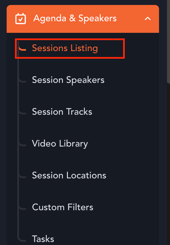
- Navigate to the event Backend and go to Agenda & Speakers → Sessions Listing.
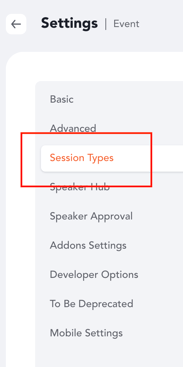
- Click Settings on the Sessions Listing page and open the Session Types tab.
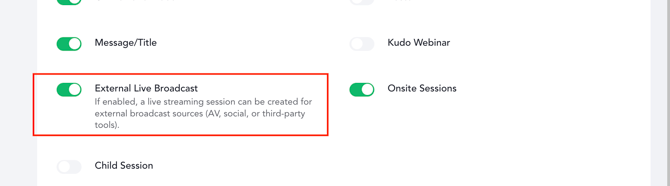
- Enable the External Live Broadcast session type.
- Return to the Sessions Listing and click Add Session.
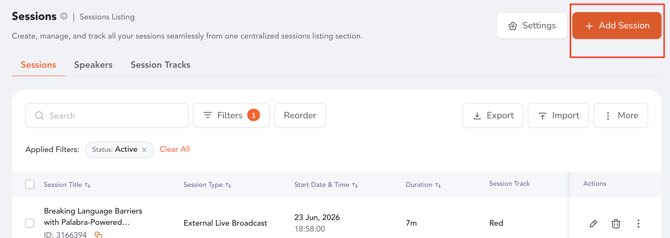
- Complete the session creation form and configure the following settings:
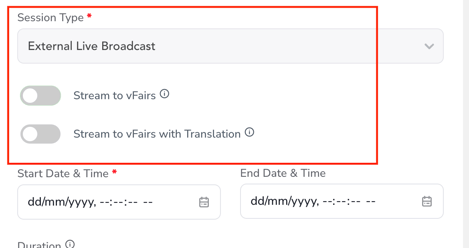
- Session Type: External Live Broadcast
- Stream to vFairs: Enable if only live streaming is required.
- Stream to vFairs with Translation: Enable if the session requires live streaming along with audio and text translations.
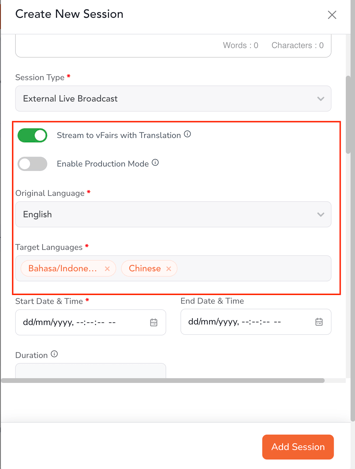
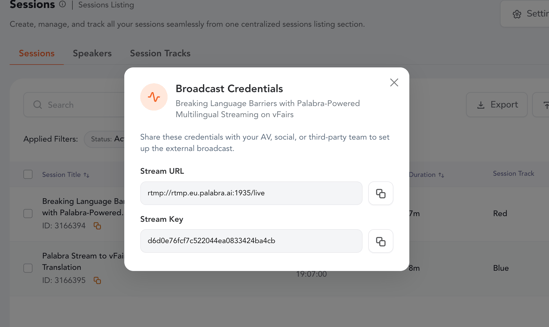
- Save the session. Once configured, the session will be ready to stream on the vFairs platform. Note: For both Stream to vFairs and Stream to vFairs with Translation, click the three-dot (⋮) menu under the Actions column and select the option to retrieve the broadcast credentials. Share these credentials with your A/V team to configure the live stream.
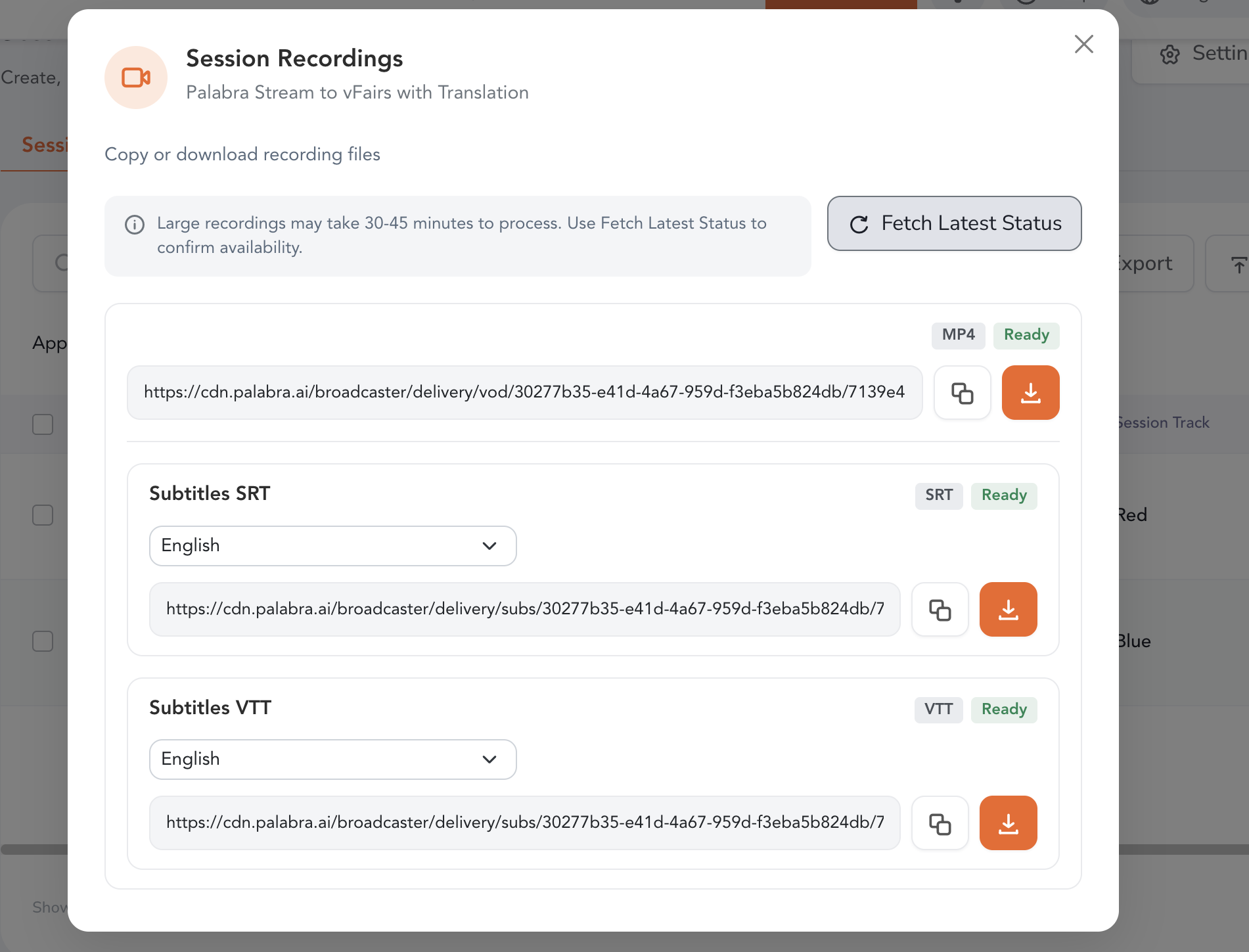
- After the session concludes, the recording is automatically processed and made available in the vFairs backend. Note: If Stream to vFairs with Translation was enabled, the generated recording package includes:
- MP4 recording
- SRT subtitle file
- VTT subtitle file
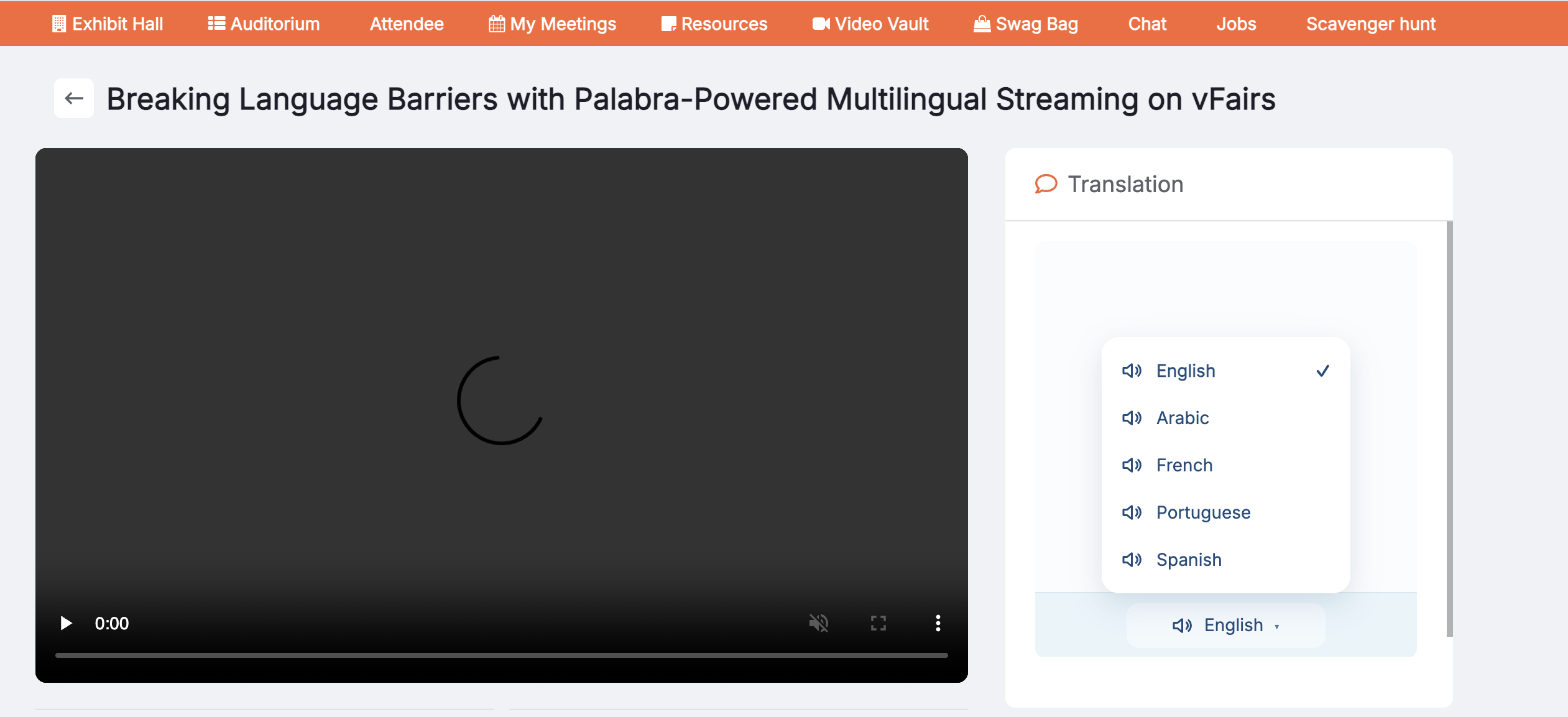
The streaming sessions once scheduled, will start showing up on the platform.