---
title: How to Configure Exhibit Hall Booth Views
description: The Booth View Settings allow organizers to control how attendees explore booths in the Exhibit Hall. By selecting the most suitable view(s), you can enhance navigation, improve engagement, and align the experience with your event format.
---
[Skip to content](https://help.vfairs.com/knowledge/how-to-configure-exhibit-hall-booth-views#main-content)
English
Show submenu for translations
[Customer portal](https://support.vfairs.com/care?hsLang=en)
Open main navigation
Close main navigation
- English
Show submenu for translations
- [Customer portal](https://support.vfairs.com/care)
Welcome to vFairs Help Center
- There are no suggestions because the search field is empty.
1. [Help Center](https://help.vfairs.com/knowledge?hsLang=en)
2. [Exhibitor Management](https://help.vfairs.com/knowledge/exhibitor-management?hsLang=en)
3. [Booth Management](https://help.vfairs.com/knowledge/exhibitor-management?hsLang=en#booth-management)
# How to Configure Exhibit Hall Booth Views
## Event organizers can customize how booths are displayed in the Exhibit Hall by selecting different Booth View Settings. This allows you to tailor the browsing experience for attendees based on your event type (in-person, hybrid, or virtual).
#### **How to Configure Booth View Settings**
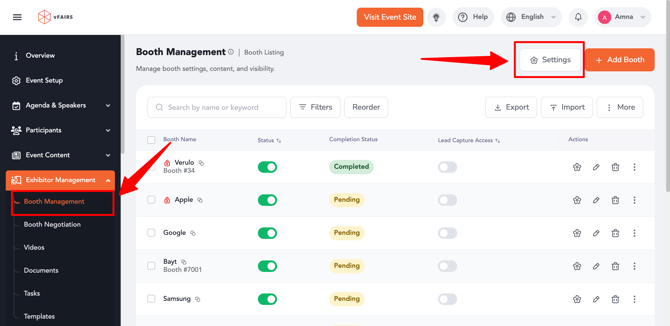
1. Go to your **Event Backend**.
2. Navigate to **Exhibitor Management → Booth Management**.
3. Click on **Settings**.
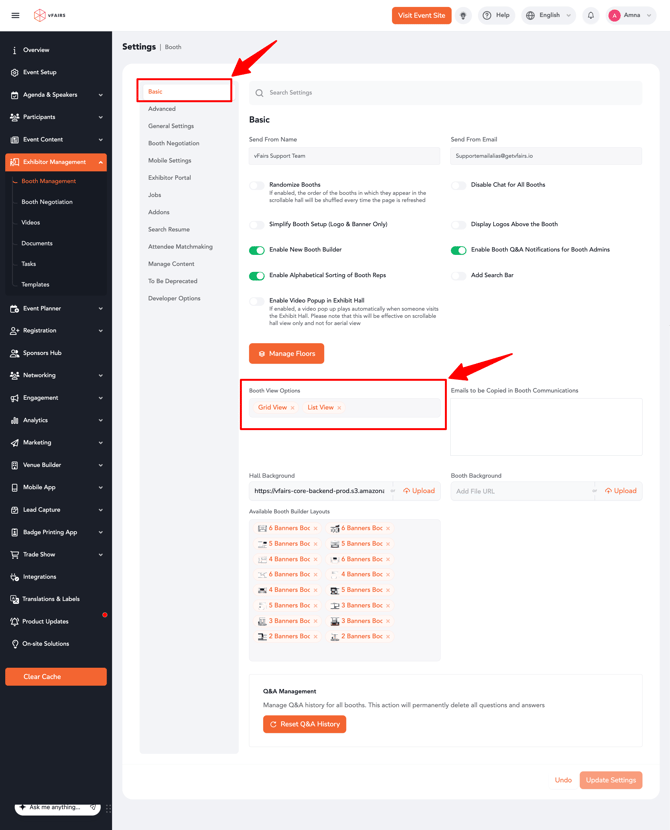
4. Under **Basic Settings**, locate **“Booth View Settings.”**
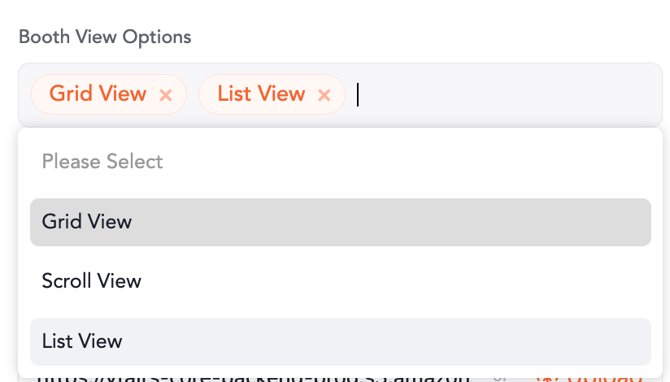
5. From the dropdown, select one or more view options:
- **List View**
- **Grid View**
- **Scroll View**
6. Save your changes.
**Note:** At least **one view must be selected**. You can enable multiple views to give attendees flexibility.
#### **Available Booth Views**
### **1. List View**
- Displays booths in a structured list format.
- Ideal for quick scanning and detailed information display.
- **Best for:** In-person events
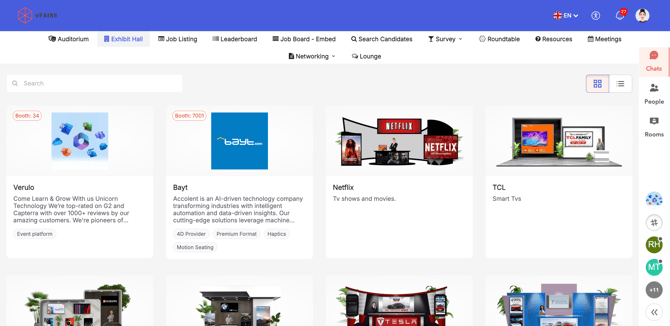
### **2. Grid View**
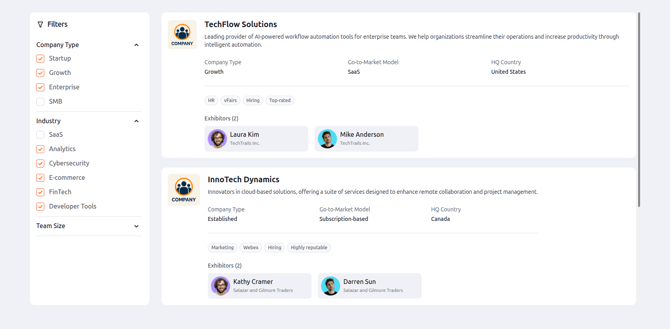
- Displays booths in a card-style grid layout.
- Provides a visual browsing experience with booth thumbnails.
- **Best for:** Hybrid events
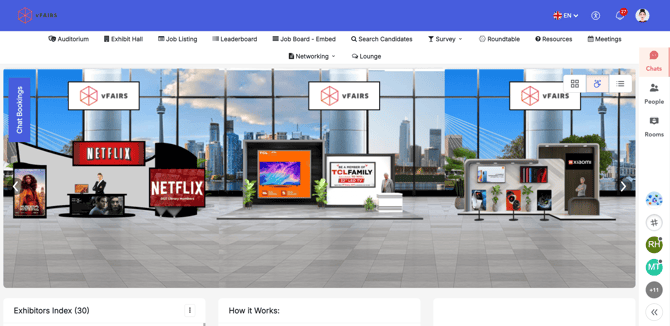
### **3. Scroll View**
- Displays booths in a continuous scrolling layout.
- Offers an immersive, seamless browsing experience.
- **Best for:** Virtual events
#### **Default View Settings**
When a new event is created, the system automatically selects default views based on the event type:
| Event Type | Default Views |
| --- | --- |
| **In-Person** | List View + Grid View |
| **Hybrid** | Scroll View + List View |
| **Virtual** | Grid View + Scroll View |
- [Organization Management](https://help.vfairs.com/knowledge/organization-management?hsLang=en)
- [Event Setup & Navigation](https://help.vfairs.com/knowledge/event-setup-navigation?hsLang=en#main-content)
- [Document Library](https://help.vfairs.com/knowledge/event-setup-navigation?hsLang=en#document-library)
- [Translations And Labels](https://help.vfairs.com/knowledge/event-setup-navigation?hsLang=en#translations-and-labels)
- [Attendee Management](https://help.vfairs.com/knowledge/attendee-management?hsLang=en)
- [Agenda Management](https://help.vfairs.com/knowledge/agenda-management?hsLang=en#main-content)
- [Session Management](https://help.vfairs.com/knowledge/agenda-management?hsLang=en#session-management)
- [Speaker Management](https://help.vfairs.com/knowledge/agenda-management?hsLang=en#speaker-management)
- [Speaker Management](https://help.vfairs.com/knowledge/speaker-management?hsLang=en)
- [Event Website & Landing Pages](https://help.vfairs.com/knowledge/event-website-landing-pages?hsLang=en#main-content)
- [Web Page Management](https://help.vfairs.com/knowledge/event-website-landing-pages?hsLang=en#web-page-management)
- [Registration & Ticketing](https://help.vfairs.com/knowledge/registration-ticketing?hsLang=en#main-content)
- [Registration](https://help.vfairs.com/knowledge/registration-ticketing?hsLang=en#registration)
- [Ticketing](https://help.vfairs.com/knowledge/registration-ticketing?hsLang=en#ticketing)
- [Payments](https://help.vfairs.com/knowledge/registration-ticketing?hsLang=en#payments)
- [Exhibitor Management](https://help.vfairs.com/knowledge/exhibitor-management?hsLang=en#main-content)
- [Booth Negotiation](https://help.vfairs.com/knowledge/exhibitor-management?hsLang=en#booth-negotiation)
- [Task Management](https://help.vfairs.com/knowledge/exhibitor-management?hsLang=en#task-management)
- [Booth Management](https://help.vfairs.com/knowledge/exhibitor-management?hsLang=en#booth-management)
- [Document / Video](https://help.vfairs.com/knowledge/exhibitor-management?hsLang=en#document-video)
- [Jobs](https://help.vfairs.com/knowledge/exhibitor-management?hsLang=en#jobs)
- [Sponsor Management](https://help.vfairs.com/knowledge/sponsor-management?hsLang=en)
- [Networking](https://help.vfairs.com/knowledge/networking?hsLang=en#main-content)
- [Chat](https://help.vfairs.com/knowledge/networking?hsLang=en#chat)
- [Chat Queue](https://help.vfairs.com/knowledge/networking?hsLang=en#chat-queue)
- [Video Matchmaking](https://help.vfairs.com/knowledge/networking?hsLang=en#video-matchmaking)
- [Reports](https://help.vfairs.com/knowledge/networking?hsLang=en#reports)
- [Meeting](https://help.vfairs.com/knowledge/networking?hsLang=en#meeting)
- [Engagement](https://help.vfairs.com/knowledge/engagement?hsLang=en#main-content)
- [Certificate Management](https://help.vfairs.com/knowledge/engagement?hsLang=en#certificate-management)
- [Scavenger Hunt](https://help.vfairs.com/knowledge/engagement?hsLang=en#scavenger-hunt)
- [Notifications](https://help.vfairs.com/knowledge/engagement?hsLang=en#notifications)
- [Survey](https://help.vfairs.com/knowledge/engagement?hsLang=en#survey)
- [LeaderBoard](https://help.vfairs.com/knowledge/engagement?hsLang=en#leaderboard)
- [Quiz](https://help.vfairs.com/knowledge/engagement?hsLang=en#quiz)
- [Reports & Analytics](https://help.vfairs.com/knowledge/reports-analytics?hsLang=en#main-content)
- [Registration and Ticketing](https://help.vfairs.com/knowledge/reports-analytics?hsLang=en#registration-and-ticketing)
- [User Journey Tracker](https://help.vfairs.com/knowledge/reports-analytics?hsLang=en#user-journey-tracker)
- [Post Event PDF Report](https://help.vfairs.com/knowledge/reports-analytics?hsLang=en#post-event-pdf-report)
- [Survey](https://help.vfairs.com/knowledge/reports-analytics?hsLang=en#survey)
- [Cross Event Report & Reporting 360](https://help.vfairs.com/knowledge/reports-analytics?hsLang=en#cross-event-report-reporting-360)
- [Marketing](https://help.vfairs.com/knowledge/marketing?hsLang=en#main-content)
- [Email Campaigns](https://help.vfairs.com/knowledge/marketing?hsLang=en#email-campaigns)
- [System Emails](https://help.vfairs.com/knowledge/marketing?hsLang=en#system-emails)
- [SMS Campaign](https://help.vfairs.com/knowledge/marketing?hsLang=en#sms-campaign)
- [AI Assistant](https://help.vfairs.com/knowledge/marketing?hsLang=en#ai-assistant)
- [Social Meta](https://help.vfairs.com/knowledge/marketing?hsLang=en#social-meta)
- [Web Notifications](https://help.vfairs.com/knowledge/marketing?hsLang=en#web-notifications)
- [Accommodation & Budget Management](https://help.vfairs.com/knowledge/accommodation-budget-management?hsLang=en#main-content)
- [Accommodation](https://help.vfairs.com/knowledge/accommodation-budget-management?hsLang=en#accommodation)
- [Attendee Mobile App](https://help.vfairs.com/knowledge/attendee-mobile-app?hsLang=en#main-content)
- [Event Assistant](https://help.vfairs.com/knowledge/attendee-mobile-app?hsLang=en#event-assistant)
- [Getting Started & App Access](https://help.vfairs.com/knowledge/attendee-mobile-app?hsLang=en#getting-started-app-access)
- [Build & Customize Your App](https://help.vfairs.com/knowledge/attendee-mobile-app?hsLang=en#build-customize-your-app)
- [Legacy App](https://help.vfairs.com/knowledge/attendee-mobile-app?hsLang=en#legacy-app)
- [Sessions & Event Content](https://help.vfairs.com/knowledge/attendee-mobile-app?hsLang=en#sessions-event-content)
- [Engagement & Networking](https://help.vfairs.com/knowledge/attendee-mobile-app?hsLang=en#engagement-networking)
- [Event Operations & Insights](https://help.vfairs.com/knowledge/attendee-mobile-app?hsLang=en#event-operations-insights)
- [Lead Capture App](https://help.vfairs.com/knowledge/lead-capture-app?hsLang=en#main-content)
- [Reporting 360](https://help.vfairs.com/knowledge/lead-capture-app?hsLang=en#reporting-360)
- [Badge Printing & Check-in App](https://help.vfairs.com/knowledge/badge-printing-check-in-app?hsLang=en#main-content)
- [Printers](https://help.vfairs.com/knowledge/badge-printing-check-in-app?hsLang=en#printers)
- [Badge Design](https://help.vfairs.com/knowledge/badge-printing-check-in-app?hsLang=en#badge-design)
- [Integrations](https://help.vfairs.com/knowledge/integrations?hsLang=en#main-content)
- [Custom Workflow](https://help.vfairs.com/knowledge/integrations?hsLang=en#custom-workflow)
- [E-commerce](https://help.vfairs.com/knowledge/e-commerce?hsLang=en#main-content)
- [Product Management](https://help.vfairs.com/knowledge/e-commerce?hsLang=en#product-management)
- [Allowance Negotiation](https://help.vfairs.com/knowledge/e-commerce?hsLang=en#allowance-negotiation)
- [Venue Builder](https://help.vfairs.com/knowledge/venue-builder?hsLang=en)
- [Abstract Management](https://help.vfairs.com/knowledge/abstract-management?hsLang=en)
- [Group Meeting](https://help.vfairs.com/knowledge/group-meeting?hsLang=en)
- [Exhibitor Portal](https://help.vfairs.com/knowledge/exhibitor-portal?hsLang=en#main-content)
- [Booth](https://help.vfairs.com/knowledge/exhibitor-portal?hsLang=en#booth)
- [Search Attendee](https://help.vfairs.com/knowledge/search-attendee?hsLang=en)
- [Data Tags](https://help.vfairs.com/knowledge/data-tags?hsLang=en)
- [Organization Website](https://help.vfairs.com/knowledge/organization-website?hsLang=en)
- [AI Tools](https://help.vfairs.com/knowledge/ai-tools?hsLang=en)
[-1.webp?width=107&height=44&name=vfairs-logo-landscape-gradient-5%20(3)-1.webp "vfairs-logo-landscape-gradient-5 (3)-1")](http://vfairs.com)
vfairs.com Help Center
Copyright © 2026, vFairs LLC