How to Configure Access via RBAC
Follow the steps below to manage module access:
- Go to Organization Dashboard
- Log in to your Organization Dashboard.
- Navigate to Roles & Permissions
- Go to Teams → Roles & Permissions.
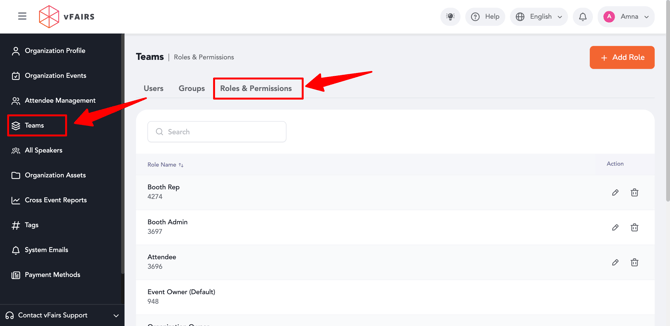
- Go to Teams → Roles & Permissions.
- Select the Role to Edit
- Choose the role you want to configure (e.g., Booth Admin or Booth Rep).
- Click Edit.
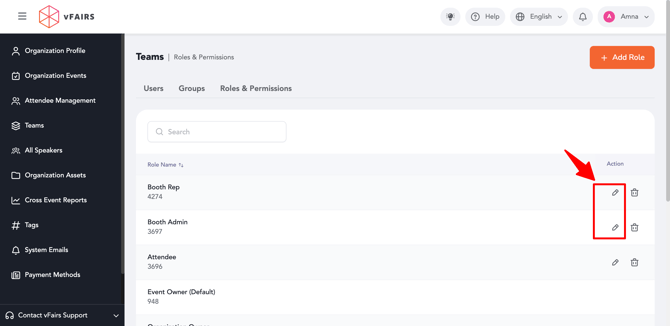
- Open Event Permissions
- Navigate to the Events tab.
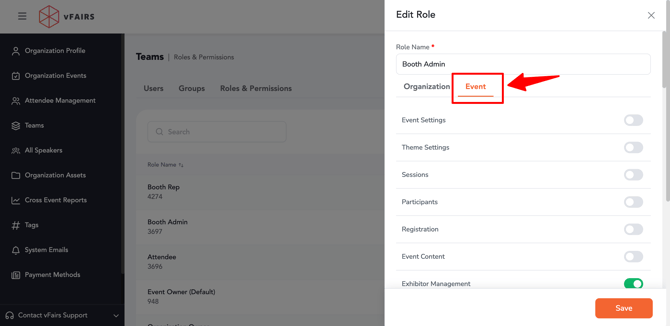
- Navigate to the Events tab.
- Access Exhibitor Management Settings
- Locate the Exhibitor Management section.
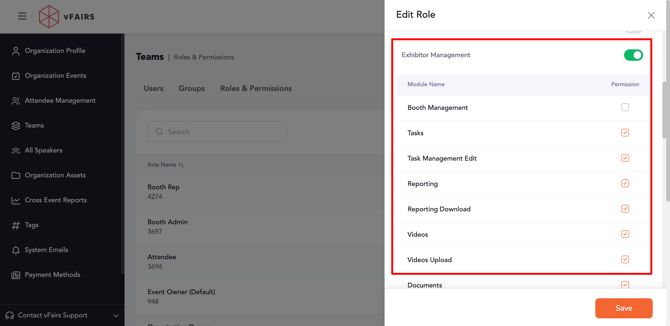
- Locate the Exhibitor Management section.
- Enable or Disable Modules
- Toggle ON/OFF the modules you want this role to access, such as:
- Booth Management
- Tasks
- Documents/Videos
- Meetings
- Toggle ON/OFF the modules you want this role to access, such as:
-
-
- Reports
- Team Members
- Marketing
- Attendee Discovery
- Custom Pages
- Booth Negotation
- Lead Capture
- And other available modules
-
- Save Changes
- Click Save to apply the updated permissions.
How It Works
- Each role (Booth Admin / Booth Rep) can have different access levels.
- Changes apply across the Exhibitor Portal for users assigned to that role.
- Modules disabled via RBAC will not be visible to that role in the portal.