Types of Meeting Locations
There are three types of locations you can configure:
1. Parent Location
- Used when you want to define a main area (e.g., Hall A) that contains multiple rooms within it.
2. Child Location
- Sub-locations under a parent location (e.g., Room A1 inside Hall A).
3. Standalone Location
- Independent locations with no parent-child relationship.

How to Add Meeting Locations
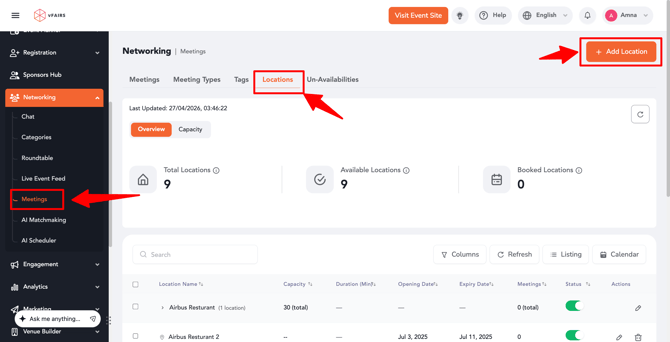
- Go to Event Backend.
- Navigate to Networking → Meetings → Locations.
- Click Create Location.
Creating a Parent Location
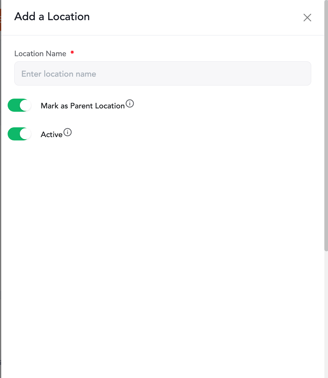
- Enter Location Name (e.g., Hall A).
- Enable the “Mark as Parent Location” toggle.
- Save the location.
Creating a Child Location
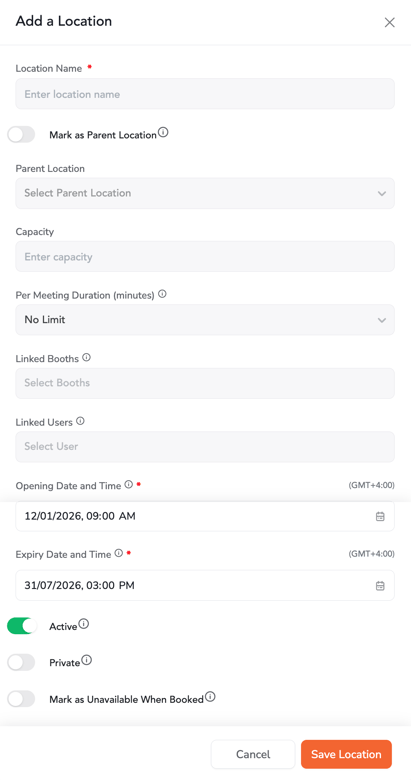
- Click Create Location.
- Enter Location Name (e.g., Room A1).
- Select a Parent Location from the dropdown.
Additional Settings:
- Capacity
- Define the maximum number of participants allowed at a time.
- Per Meeting Duration
- Restrict all meetings in this location to a fixed duration.
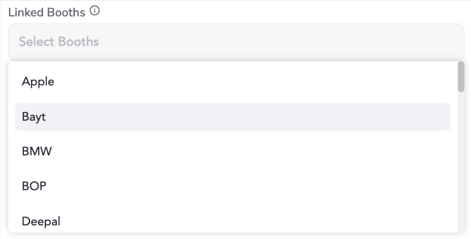
- Linked Booths
- Associate specific booths with this location.
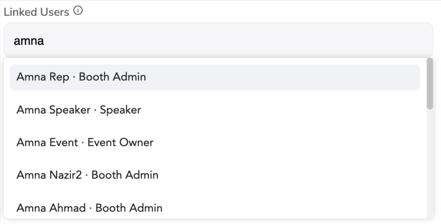
- Linked Users
- Associate specific users with this location.
- Opening & Expiry Date/Time
- Define when the location is available for booking.
- Active Toggle
- Enabled by default. Disable to make the location unavailable.
- Private Toggle
- When enabled:
- Only accessible to event organizers and admins.
- Hidden from web and mobile attendees.
- When enabled:
- Mark as Unavailable When Booked
- When enabled:
- The room becomes unavailable after one booking, regardless of capacity.
- When disabled:
- Multiple meetings can occur simultaneously until capacity is reached.
- Multiple meetings can occur simultaneously until capacity is reached.
- When enabled:
Standalone Location
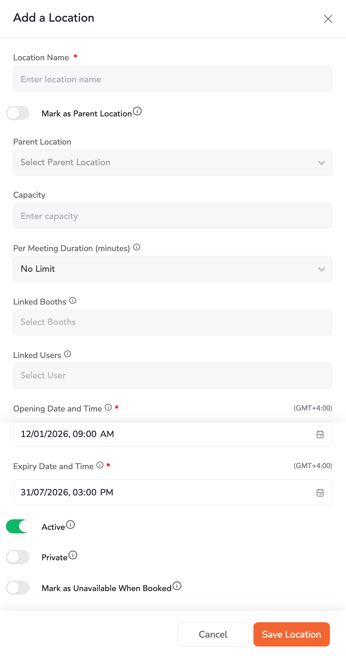
- Create a location without selecting a parent.
- Configure all other settings (capacity, duration, availability, etc.) as needed.
Location Associations
1. Associate Location with Booths
- You can manually link locations to specific booths.
Behavior:
- When booking a meeting from a booth or with a booth representative:
- The system will auto-select the associated location by default.
Default Behavior:
- When a new booth is created:
- A standalone location is automatically created and linked to that booth.
2. Associate Location with Users
- You can manually link locations to specific users.
Behavior:
- When booking a meeting with that user:
- The system will auto-select the associated location.
Best Practices
- Use Parent + Child locations for large venues with multiple rooms.
- Use Standalone locations for simple setups or booth-specific meetings.
- Configure capacity and duration to avoid scheduling conflicts.
- Use Private locations for internal or VIP meetings.