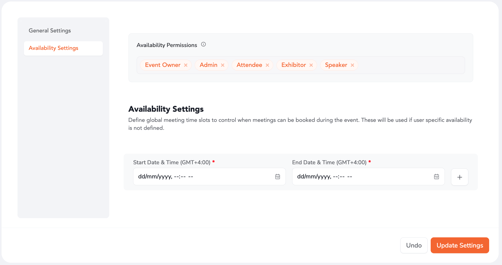
Step 1: Enable Meeting Module
- Go to Event Backend.
- Navigate to Event Settings → Meetings.
- Enable “Group Meeting v2.”
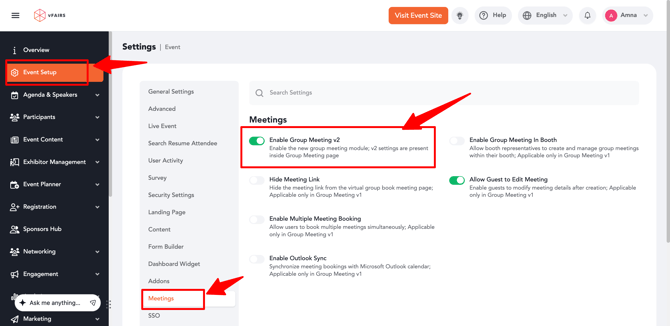
Step 2: Access Meeting Settings
- Go to Networking → Meetings.
- Click on Settings.
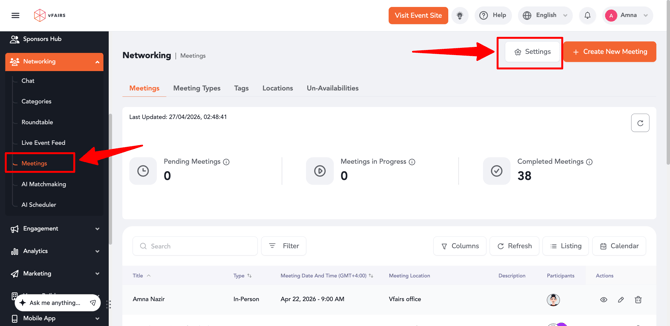
Meeting Configuration Settings
1. Allowed Roles for Meeting Booking
- Multi-select dropdown with roles:
- Event Owner, Admin, Attendee, Exhibitor, Speaker
- Default: All roles selected
You can configure:
- Allowed roles for Attendees
- Allowed roles for Booth Reps
- Allowed roles for Admins
- Allowed roles for Event Owners
- Allowed roles for Speakers
Behavior:
- Users can only book meetings with the selected roles.
- In participant selection and user listings:
- Only eligible users will appear.
- “Book Meeting” button will only show for allowed role.
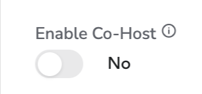
2. Enable Co-host
- Default: Disabled
- When enabled:
- Users can add co-hosts while creating or editing meetings.
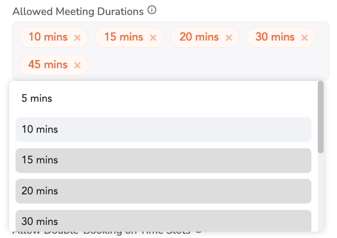
3. Allowed Meeting Durations
- Multi-select dropdown (e.g., 5 mins, 10 mins, 15 mins, 30 mins, 1 hr, etc.)
- Determines which duration options are available during booking.
4. Max Participants Count
- Type: Numeric field
- Default: 2
- Defines the maximum number of participants, including the host.

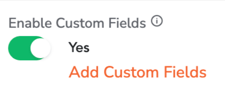
5. Enable Custom Fields
- Default: Disabled
- When enabled:
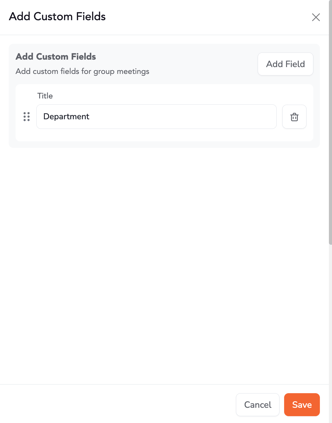
- A link appears to configure up to 10 custom text fields.
- These fields will be used during meeting creation.
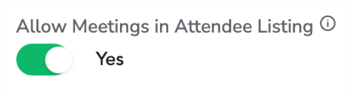
6. Allow Meetings in Attendee Listing
- Default: Enabled
- Displays the “Create Meeting” button in attendee listings (web & mobile).
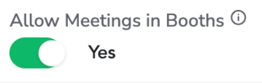
7. Allow Meetings in Booths
- Default: Enabled
- Displays the “Create Meeting” button on booth profiles.
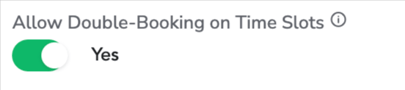
8. Allow Double-Booking on Time Slots
- Default: Disabled
- When enabled:
- Users can book meetings on already booked slots.
- System checks:
- User availability
- Networking hours
- Event timings
- System does not check existing booked meetings.
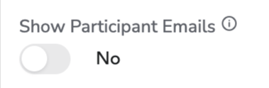
9. Show Participant Emails
- Default: Disabled
- When enabled:
- Participant email addresses will be visible during:
- Booking
- Editing
- Viewing meetings
- Participant email addresses will be visible during:
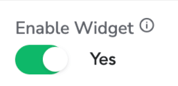
10. Enable Meeting Widget
- Default: Enabled
- Displays the Meeting Widget on the event frontend.
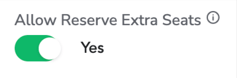
11. Allow Reserve Extra Seats
- Default: Disabled
- When enabled:
- Shows the option to reserve additional seats during meeting creation.
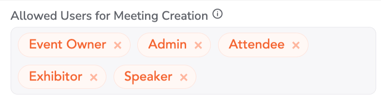
12. Allow Meeting Creation from Meeting Module
- Default: Enabled
- Select user roles from the drodpow and based on which only allowed users will be able to create meetings directly from the Meetings module.
Availability Settings
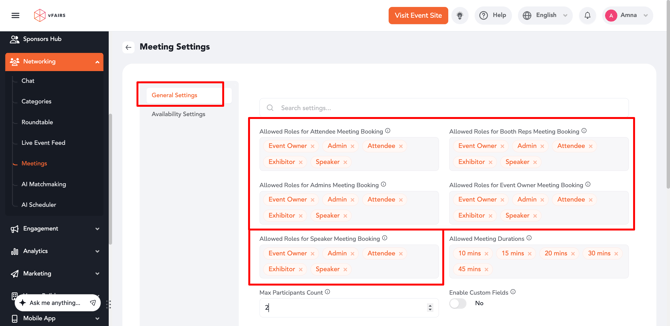
1. Availability Permissions
- Select which roles can define their custom availability.
2. Networking Hours
- Define the time window (within event timings) during which meetings can be booked.