This guide walks you through opening the Task Manager, filling in a task, and saving it.
1. Access the Task Manager- Log in to the Event Management Dashboard.
- In the left navigation, click on Organizer Tasks.
- The Task Manager opens on the Created by Me tab, listing the tasks you have created.
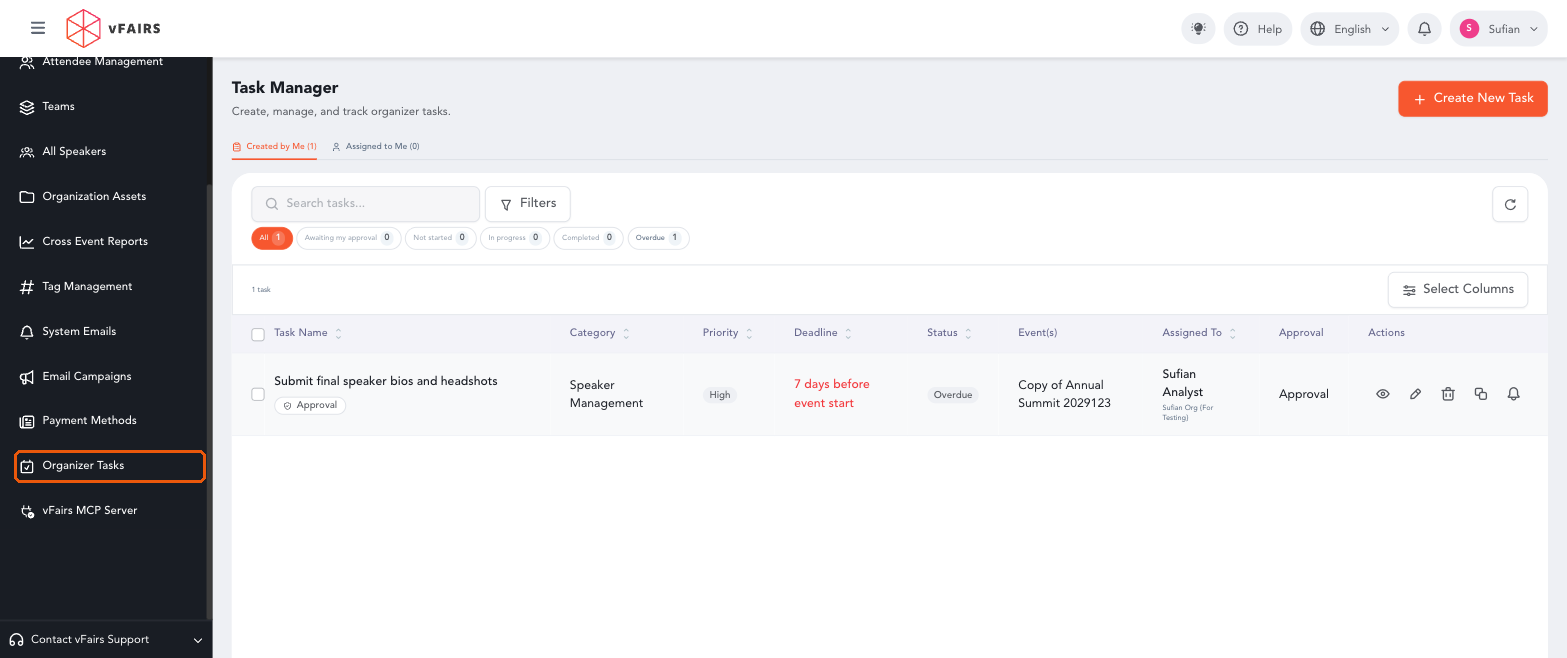
Organizer Tasks in the left navigation · 00-navigation.png
- Click on the Create New Task button at the top right. The Create Task drawer opens on the right side of the screen.
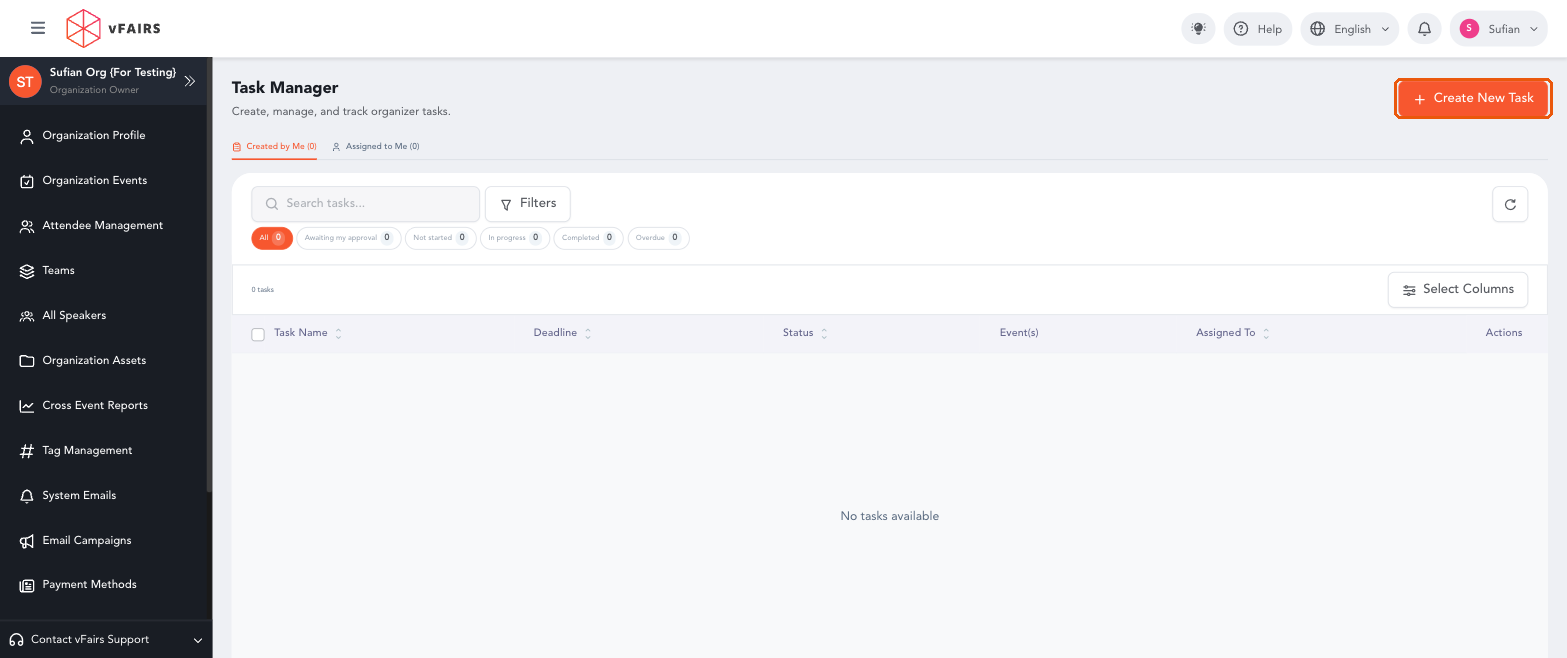
Create New Task button · 01-task-manager-empty.png
2. Add the Task Basics- Enter a Task Name (up to 200 characters; the counter below the field shows how many are left).
- Enter a Task Description. Use the toolbar to format text with bold, italics, underline, headings, lists and links.
- Under Attachments, paste a URL or click on Upload to attach files. You can add multiple files or links.
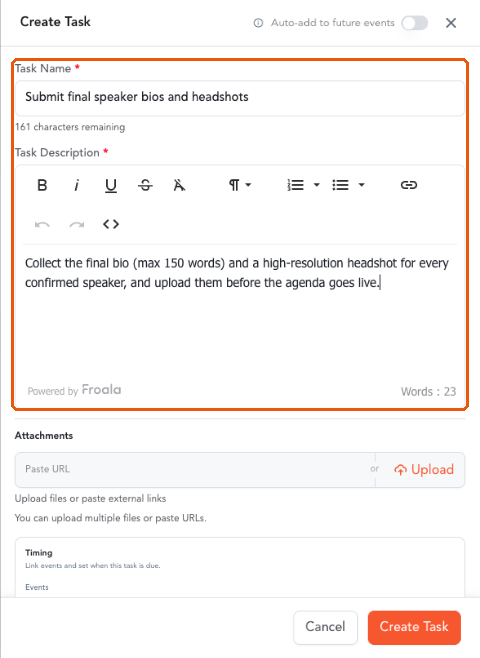
Task name, description and attachments · 02-create-task-basics.png
Note: Task Name and Task Description are both required. The task cannot be saved until both are filled in.
3. Set the Priority and Category- Click on the Priority dropdown and select a priority (for example, High, Medium or Low). Click on + Add priority to create a new one.
- Click on the Category dropdown and select a category. Click on + Add category to create a new one.
- Use the gear icon next to either dropdown to manage (rename or remove) your list of priorities or categories.
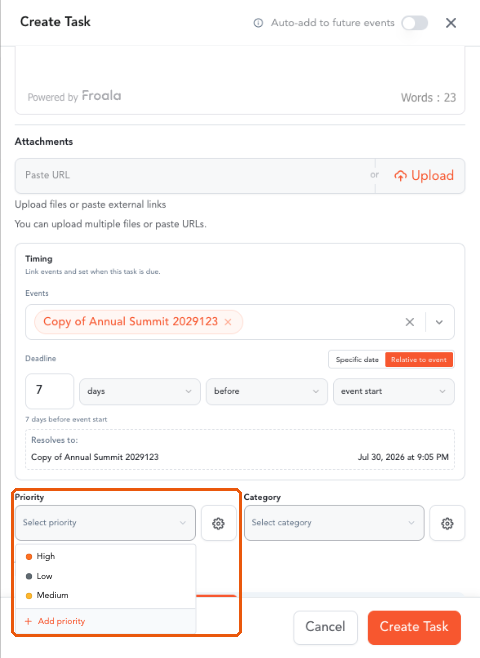
Priority dropdown with Add priority · 05-priority.png
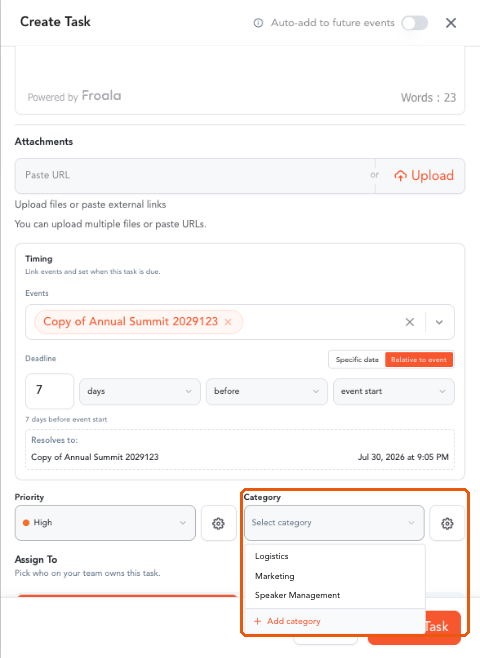
Category dropdown with Add category · 06-category.png
4. Complete the Remaining SectionsThe rest of the drawer is optional and can be completed as needed. Each section has its own guide:
- Timing: link events and set a deadline. See How to Set Task Deadlines.
- Assign To: choose who owns the task. See How to Assign Tasks to Organizers.
- Response options and Questions: ask for files or answers on completion. See How to Collect Responses on a Task.
- Approvals: require sign-off before the task counts as complete. See How to Set Up Task Approvals.
- Notifications: automatic reminders and overdue notices. See How to Set Up Task Reminders and Overdue Notices.
- Auto-add to future events (switch in the drawer header). See How to Auto-Add Tasks to Future Events.
- Click on the Create Task button at the bottom of the drawer.
- The Confirm assignment pop-up shows how many users the task will be assigned to. Click on Create task to confirm.
- A Task created confirmation appears and the task is added to the Created by Me list.
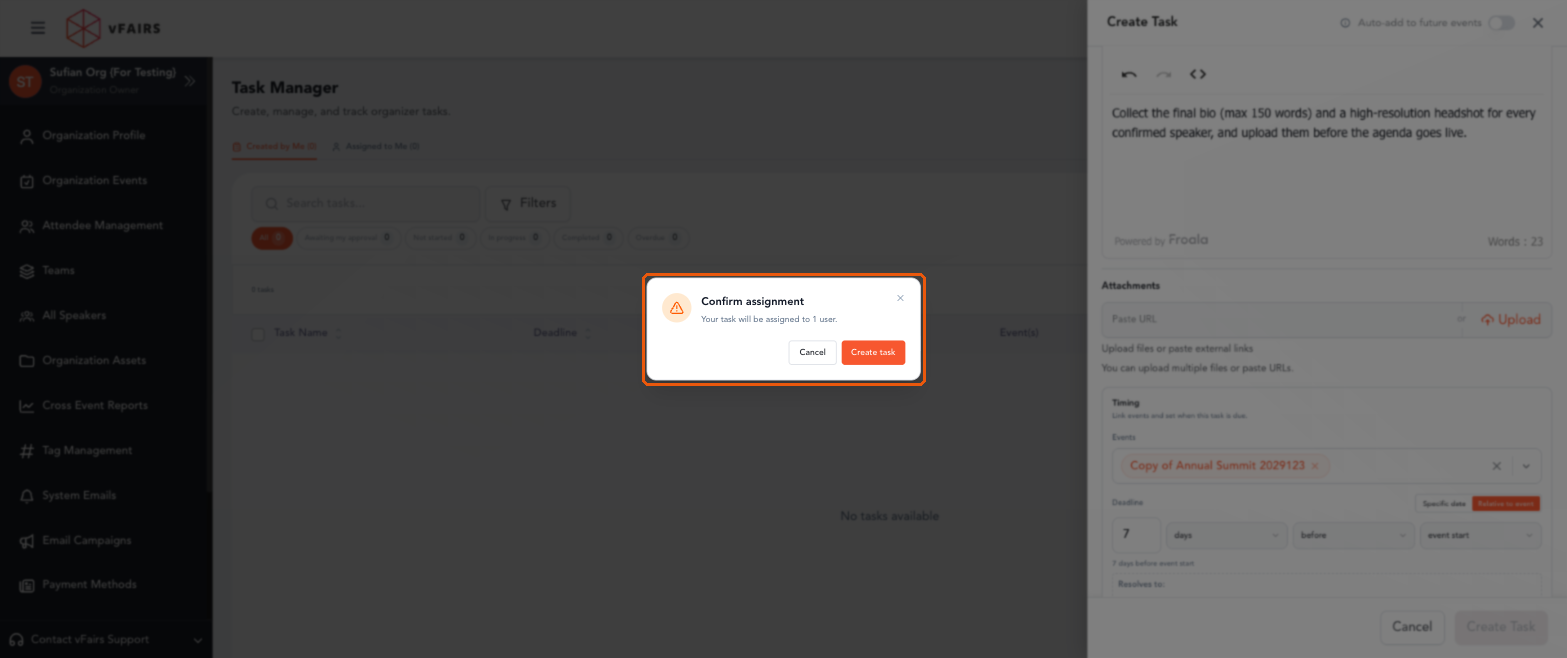
Confirm assignment pop-up · 15-confirm-assignment.png
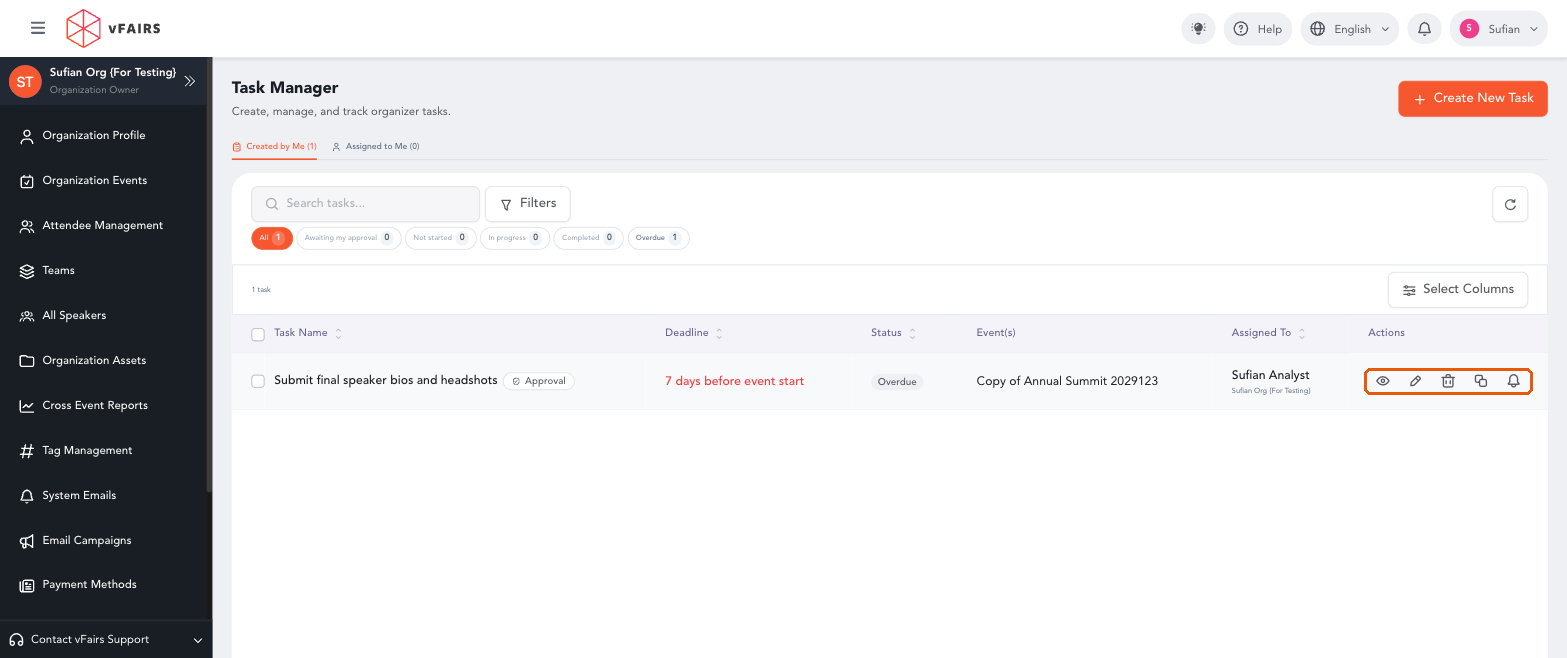
New task in the listing with row actions · 16-task-listing.png
6. Edit or Duplicate a Task- In the task row, click on the pencil icon (Edit task). The same drawer opens as Edit Task, pre-filled with the saved details.
- Make your changes and click on Update Task.
- To create a copy of a task, click on the Duplicate task icon in the row.
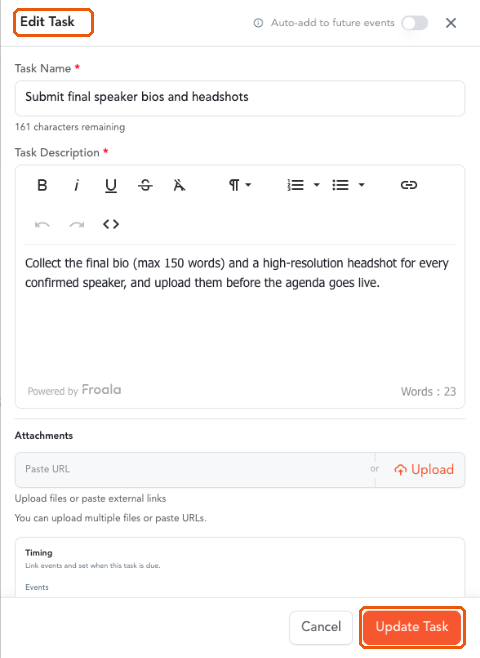
Edit Task drawer with Update Task · 25-edit-task.png
Note: Click on Cancel or the close (X) icon to leave the drawer without saving your changes.
OutcomeBy following these steps, you can create a complete organizer task in a single pass, from its name and description through to priority, category and assignment, and update it later from the same drawer.
How to Assign Tasks to Organizers
Each task is owned by one or more organizers on your team. You can assign a task to everyone at once or to specific people, and the assignment is confirmed before the task is saved.
1. Choose Who Owns the Task
- In the Create Task drawer, scroll to the Assign To section.
- Select All organizers to assign the task to every organizer on your team. The line below confirms the number of organizers included.
- Select Specific organizers to choose individual people instead.
2. Select Specific Organizers
- With Specific organizers selected, click on the Search by name field and type a name.
- Tick the checkbox next to each organizer you want to assign. Groups, where available, are listed above individual organizers.
- Selected organizers appear as chips with a count (for example, 1 selected). Click on the x on a chip to remove someone, or Clear all to start again.
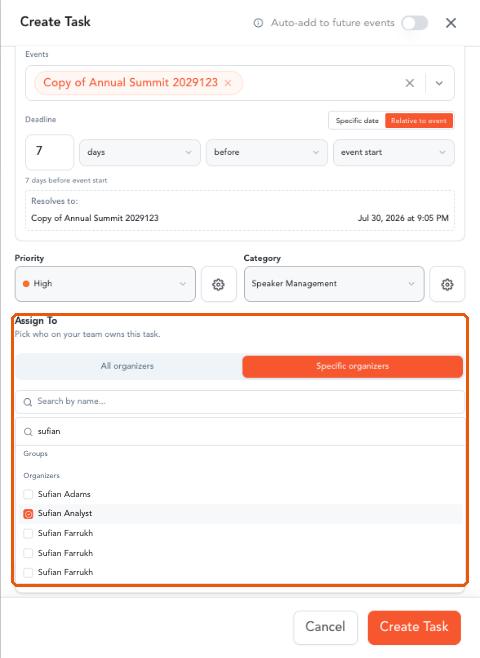
Specific organizers with search and selected chips · 07-assign-specific.png
3. Confirm the Assignment
- Click on Create Task.
- The Confirm assignment pop-up states how many users will receive the task. Click on Create task to confirm, or Cancel to go back and adjust.
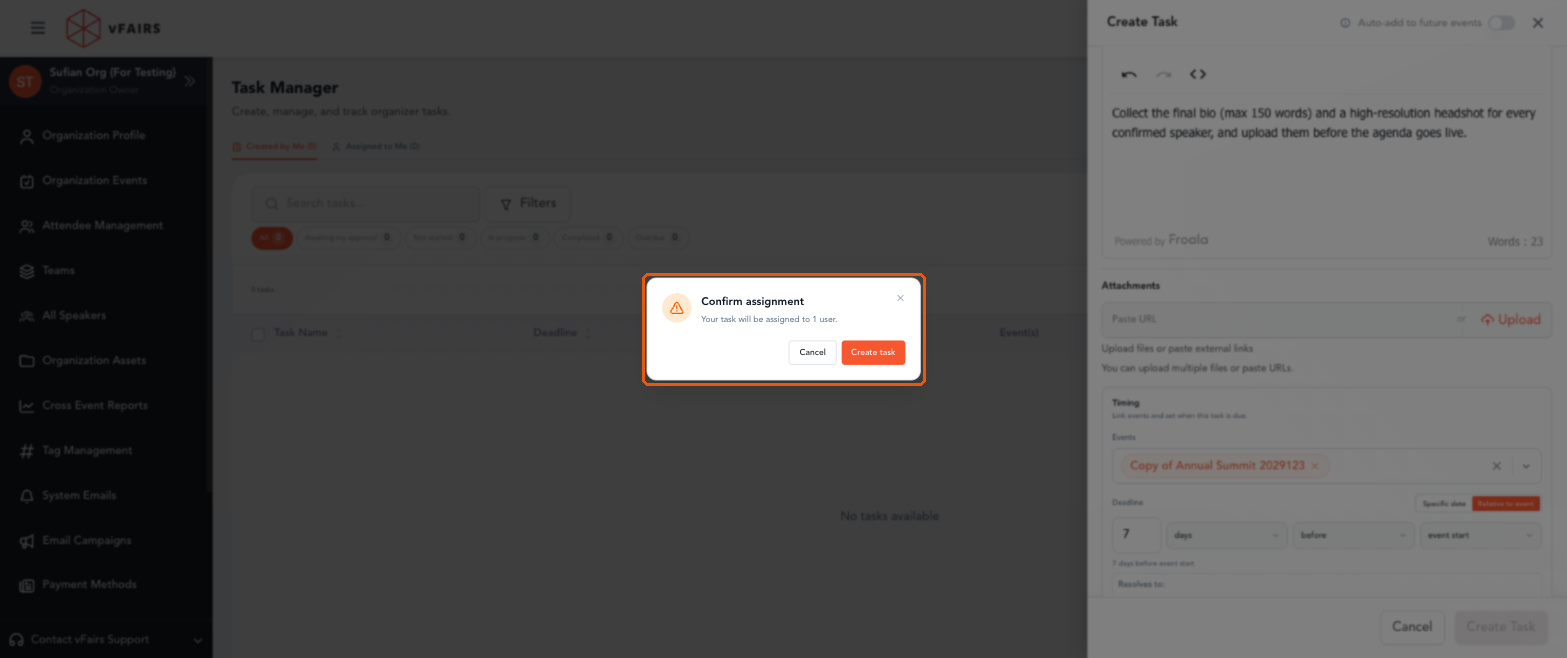
Confirm assignment pop-up · 15-confirm-assignment.png
Note: All organizers are selected by default. Check the organizer count before saving, especially on large teams.
Outcome
By following these steps, you can decide who owns each task in a single step and confirm the number of recipients before anyone is notified. Each assignee then appears on the task’s submissions page.