Create the task
1. Open Task Manager and click Create Task. The Create Task drawer opens.
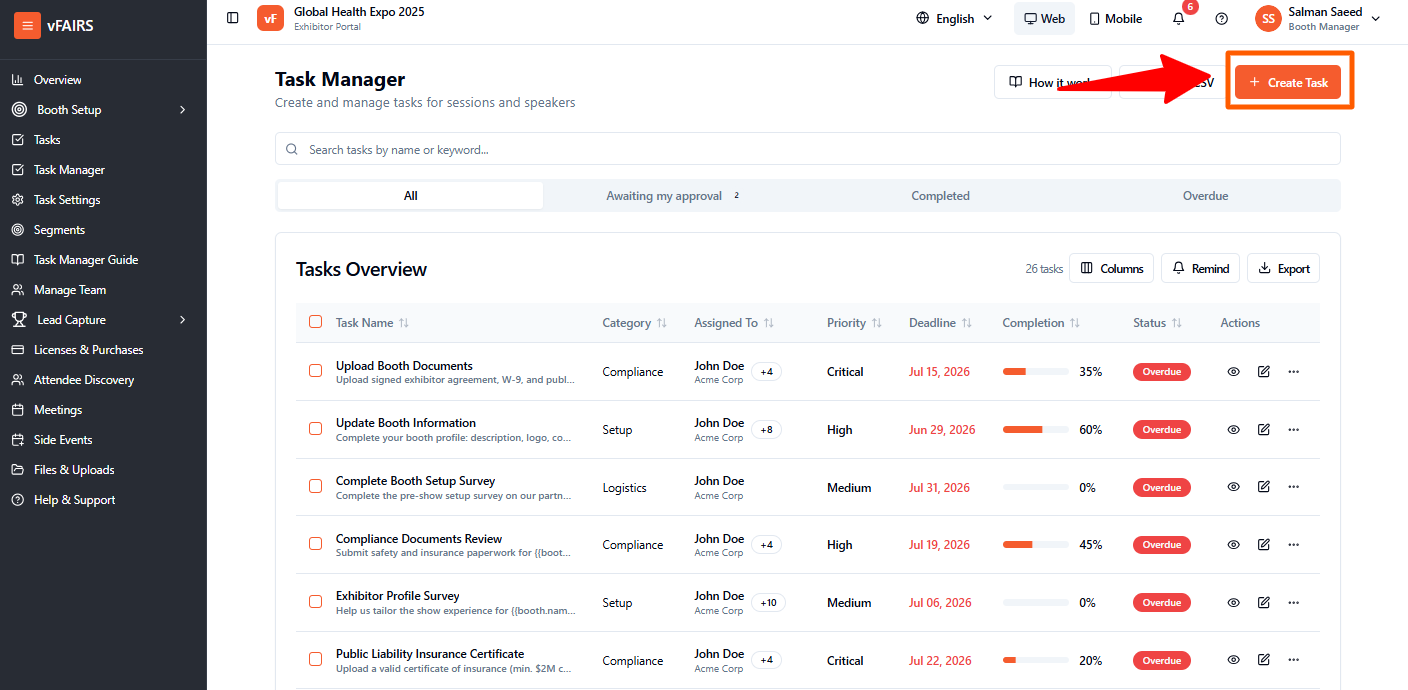
2. Enter a clear, action-based Task Name, such as Upload insurance certificate.
3. Enter a Task Description that explains what exhibitors must do. The editor supports text formatting, headings, lists, links, images, and tables.
4. To personalize instructions, place your cursor in the description and select Insert field. Choose from Booth name, Stand number, Build type, Admin name, Event name, Event date, or Task deadline.
5. Set the Deadline date and time. Past dates cannot be selected. The default time is 23:59 in the event time zone.
6. Optionally select a Priority and Category. You can manage their available options from the dropdowns.
Required fields: Task Name, Task Description, and Deadline.
Choose which booths receive the task
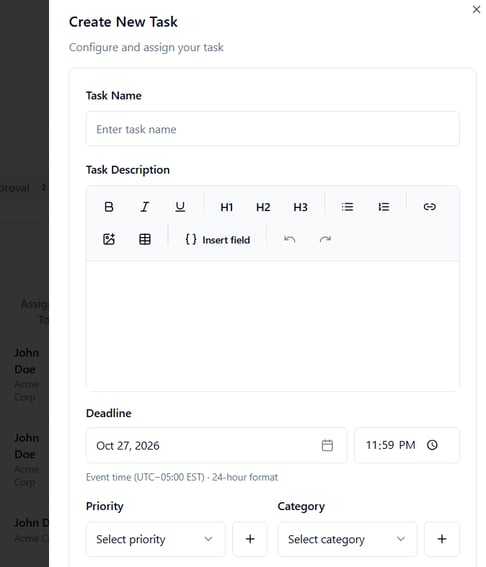
1. In Assign To, choose All Booths to send the task to every booth, or Specific Booths to select individual booths.
2. If you select Specific Booths, select Select booths..., search for booths, and tick the booths you want. Selected booths appear as chips.
3. If you select All Booths and want new booths to receive the task later, turn on Automatically Assign Task to New Booths.
4. Under Recipient Role, choose Booth Admins (the default) or All Booth Users (admins and booth representatives).
5. If Booth Admins is selected, you can expand Narrow to specific admins and choose named recipients. When targeting specific booths, the admin list is limited to those booths.
Save the task
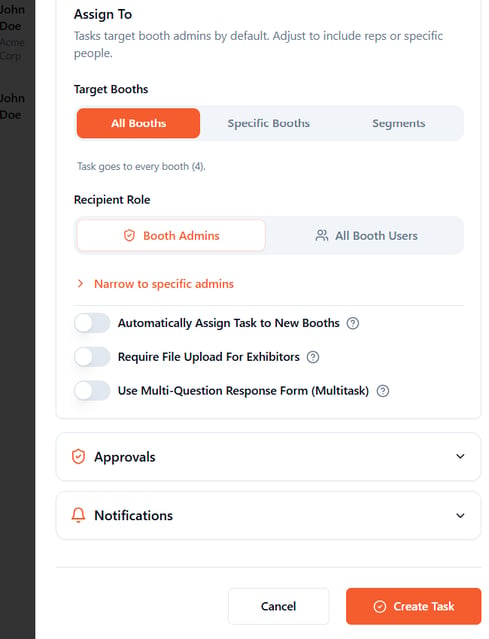
1. Review the assignment and any optional response, approval, or notification settings.
2. Click Create Task button at the bottom of the drawer to save all the details.