Summary
The Seat Plan Builder tool provides event organizers with the flexibility to customize seating arrangements or reservation tables to match the precise requirements of their event. This tool enables organizers to easily add labels, colors, and additional spaces, allowing every detail to be tailored to fit the event’s specific needs.
This guide covers the step-by-step process to set up seat plans, enabling a seamless experience for both organizers and attendees when managing seat reservations.
STEPS FOLLOWED BY EVENT ORGANIZERS
Steps Followed by Event Organizers
1. Enable Seat Plan Builder
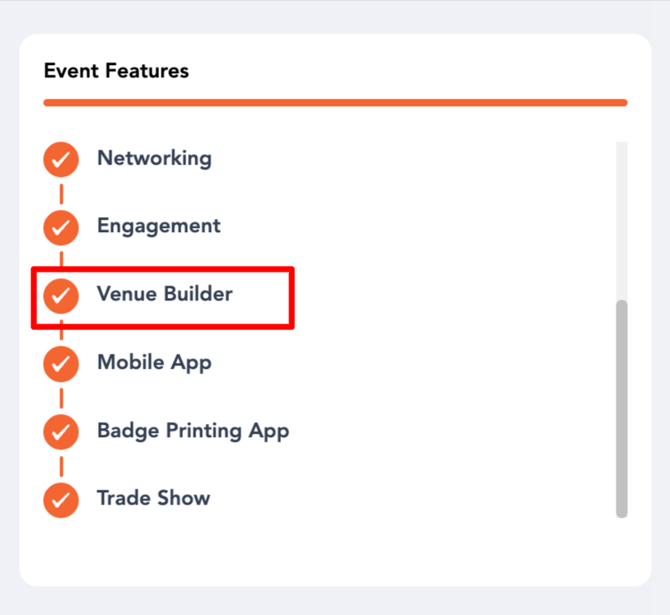
Ensure that the “Enable Venue Builder” toggle is enabled so that the “Venue Builder” option appears in the main navigation along with the “Seat Plan” sub-section.
2. Access Seat Plan Listing
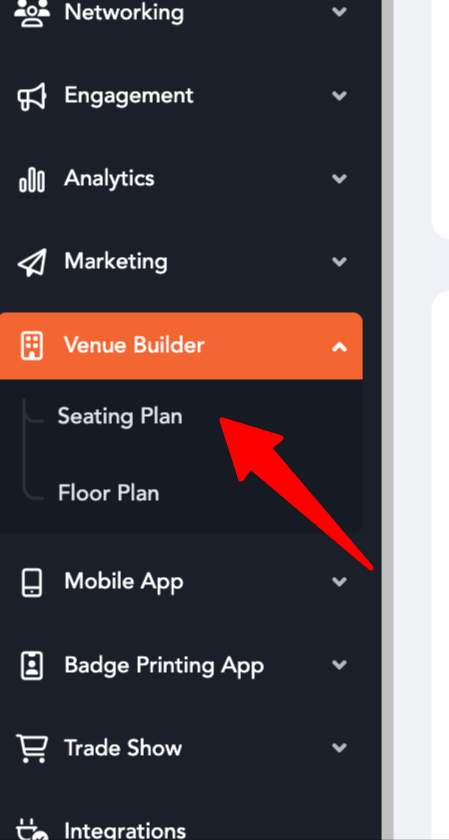
Click on “Seat Plan” from the menu.
This redirects users to the listing page where they can:
- Add a new seating plan
- Edit existing plans
- Search for specific plans
3. Create a New Seating Plan
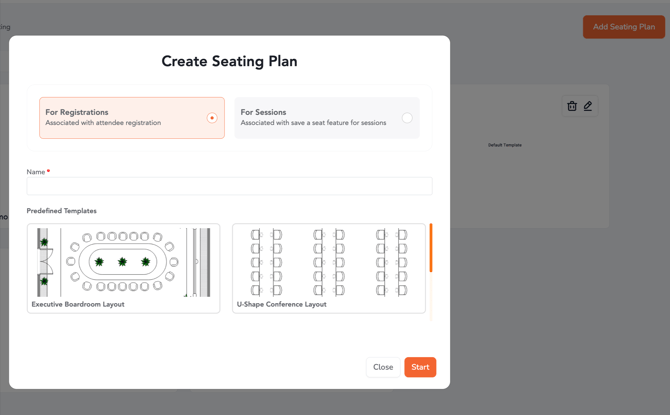
Click on “Add Seat Plan” to open the configuration popup.
Users must define:
- Plan Name
- Purpose of Plan
For Registrations
Associated with attendee registration. Seats are mapped with ticket types and can be reserved during registration.
For Sessions
Used for session-based seating (Save-a-Seat). Attendees select seats within sessions after logging in.
4. Select or Upload Layout (Templates)
Users can either:
- Choose from Predefined Templates (e.g., Boardroom, U-Shape, Auditorium, Table Talks)
- Upload a custom layout (JPG, PNG, PDF)
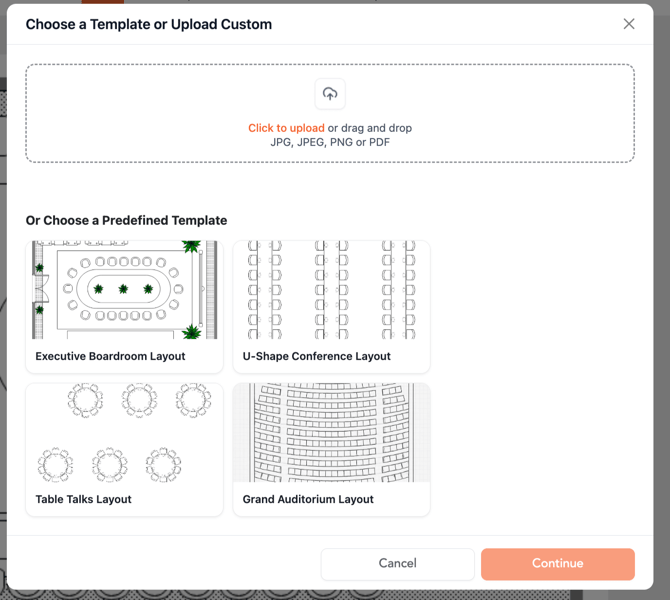
Predefined Template Capabilities
- Quick-start layouts for common event formats
- Supports single seat mapping directly on template
- Enables structured seating without manual setup
5. Design the Seating Plan
Using the top toolbar:
- Seat / Seat Rows → Create individual seats or rows
- Table → Add reservation tables
- Shape / Label → Add structural elements and text
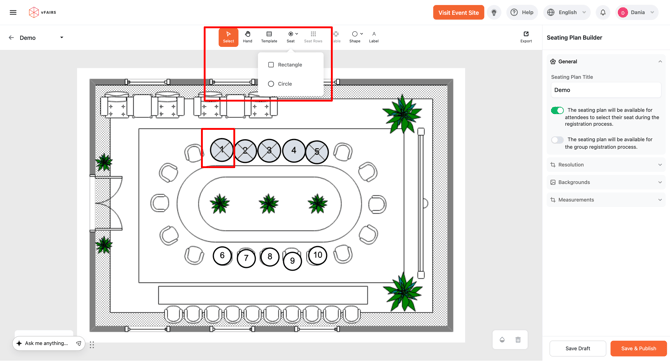
Users can drag across the canvas to generate seats and arrange them as needed.
6. Seat Assignment & Configuration
From the right-side panel, organizers can configure each seat:
Assignment Options
- Category Mapping
- Categories are derived from Segments / Registration Categories
- Helps group attendees based on predefined classifications
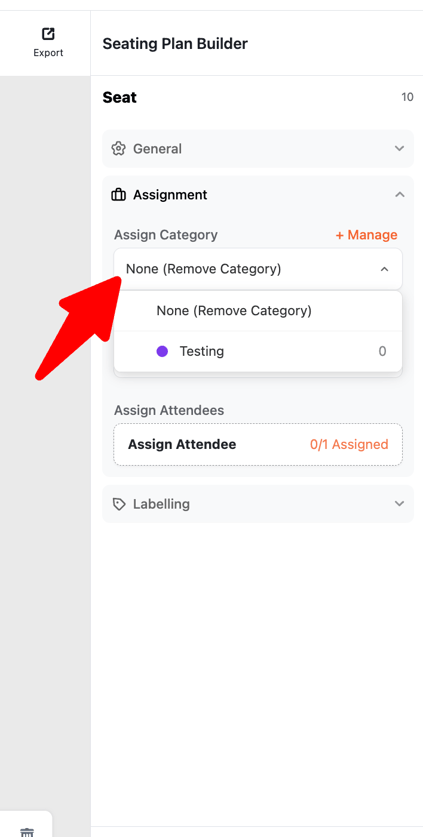
- Ticket Type Mapping
- Assign specific ticket packages to seats
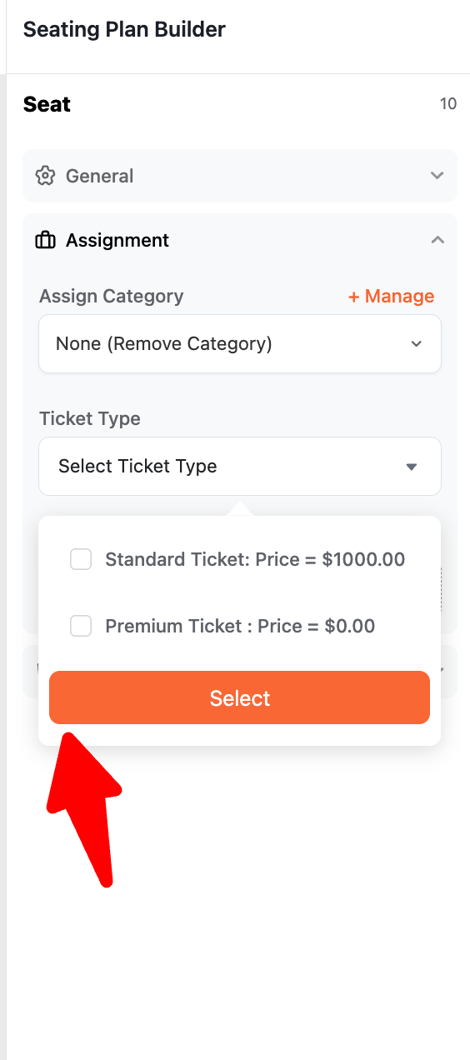
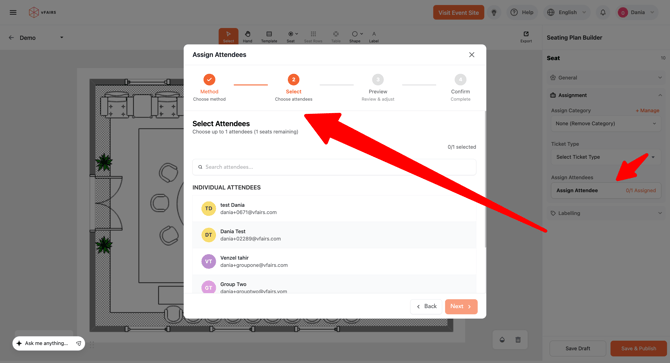
- Assign Attendees
- Single seat mapping for manual assignment
- Bulk assignment for multiple seats at once
- Group registration assignment to automatically place attendees from the same group together
7. Labeling Options
Seats, rows, and zones support two labeling formats:
- Compact Labeling
- Minimal view for cleaner UI
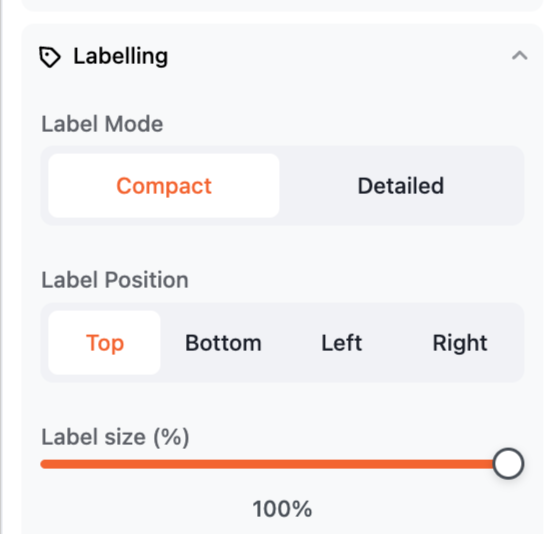
- Minimal view for cleaner UI
- Detailed Labeling
- Displays full information (seat ID, attendee details, etc.)
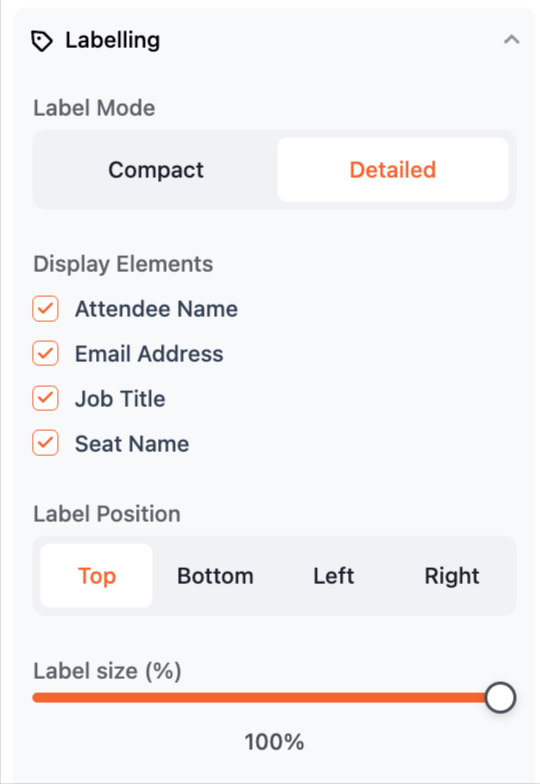
- Displays full information (seat ID, attendee details, etc.)
8. Advanced Customization
Additional features include:
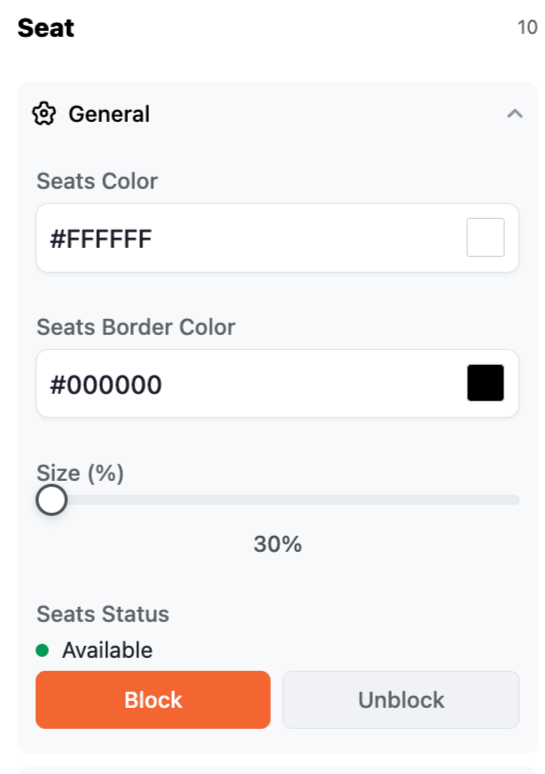
- Color coding seats and categories
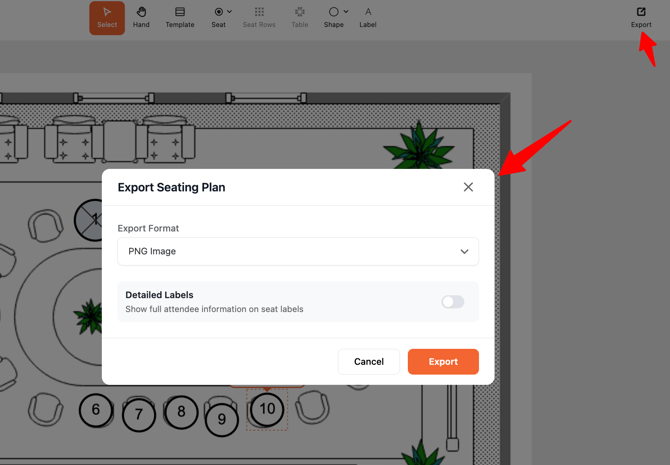
- Exporting seating plans as Image or PDF
9. Table-Based Seating
Organizers can also:
- Add tables with multiple seats
- Assign reservations at:
- Table level
- Individual seat level
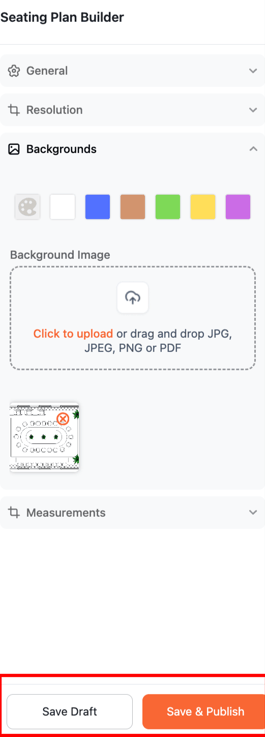
10. Save and Publish
Once the setup is complete:
- Click “Save Draft” to store progress
- Click “Save & Publish” to make the plan live