Table of Contents
- Understanding Image Gallery vs Photo Booth
- Prerequisite
- Creating Image Categories
- Adding Images
- Adding Image Gallery to the Mobile App
- Multi-Language Support
- How It Appears on the Mobile App
Understanding Image Gallery vs Photo Booth
- Image Gallery: Used by Event Organizers to display curated images such as event highlights, sponsors, or team photos
- Photo Booth: Allows attendees to capture and share images or GIFs
Prerequisite
- Ensure the Engagement Module is enabled during event creation
Once enabled:
- Go to Event Backend → Engagement → Image Gallery
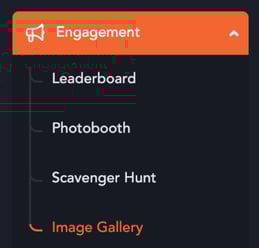
Creating Image Categories
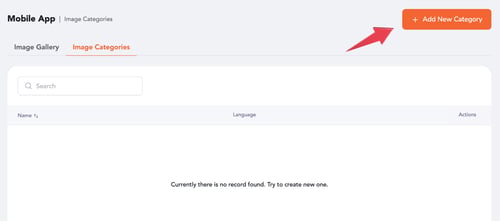
- Navigate to Image Gallery from the left menu
- Open the Image Categories tab
- Click Add New Category
- Fill in the details:
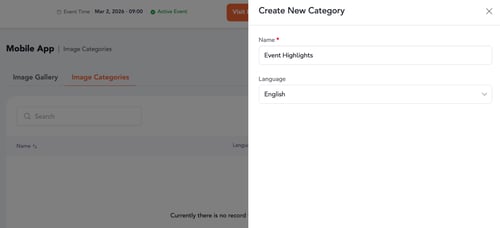
- Category Name (e.g., Event Highlights, Speakers, Sponsors, Behind the Scenes)
- Language (This dropdown will only appear if your event is multi-lingual)
- Click Create New Category button at the bottom of the form
Adding Images
- Go to the Image Gallery tab
- Click Add Images
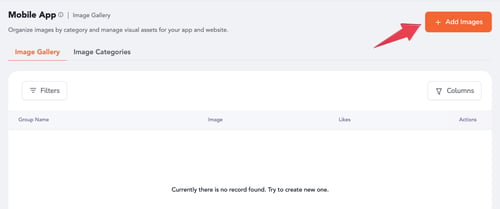
- Fill in the details:
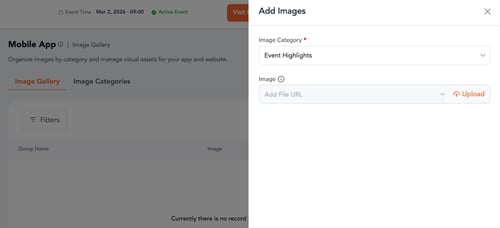
- Select a Category
- Upload an image or provide an image URL
- Click Save
You can add multiple images across different categories.
Adding Image Gallery to the Mobile App
- Go to Mobile App → App Builder
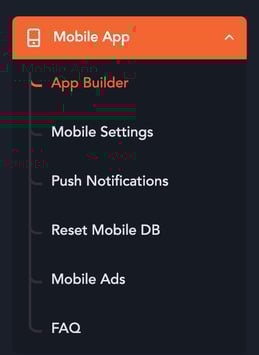
- In the right panel, expand Quick Links
-png.png?width=500&height=314&name=App%20Builder%20(2)-png.png)
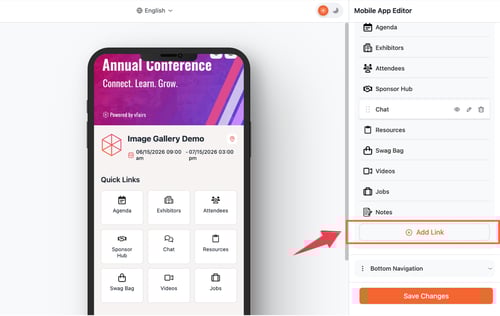
- Click Add Link
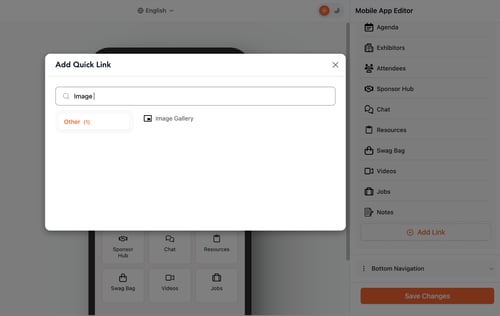
- Search and select Image Gallery
- Click Save Changes
You can drag and drop to reorder the menu item as needed.
Multi-Language Support
- By default, Image Gallery is added for the primary language
- Use the language dropdown in App Builder (top center)
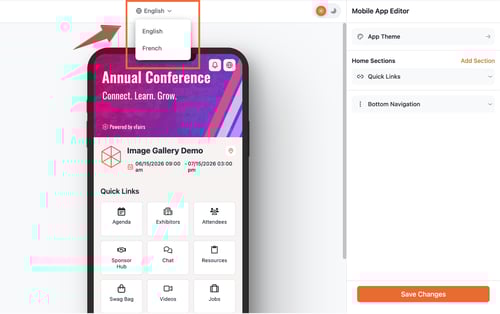
- You will be prompted to replicate existing menu items:
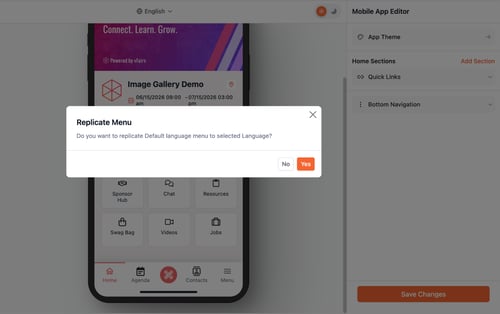
- Click Yes to automatically copy all menu items into the selected language
- Click No to manually add menu items for that language
- This allows you to control which menu items appear for each language.
How It Appears on the Mobile App
- Log in to the mobile app and scroll to find Image Gallery
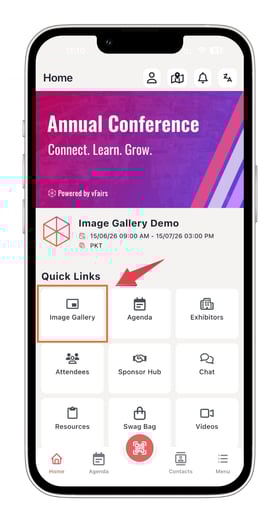
- Images will appear under their respective categories
Behavior:
- If only one category exists:
- The category name is not displayed
- The category name is not displayed

- If multiple categories exist:
- They appear as tabs
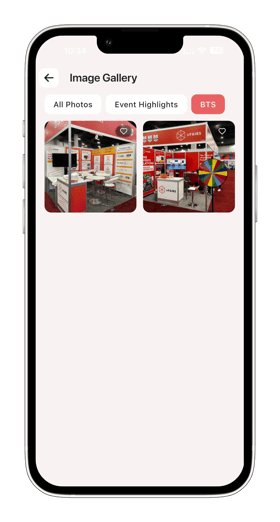
- For multi-lingual events:
- Changing the app language will display images specific to that language