How to Create Meeting Tags
- Go to your Event Backend.
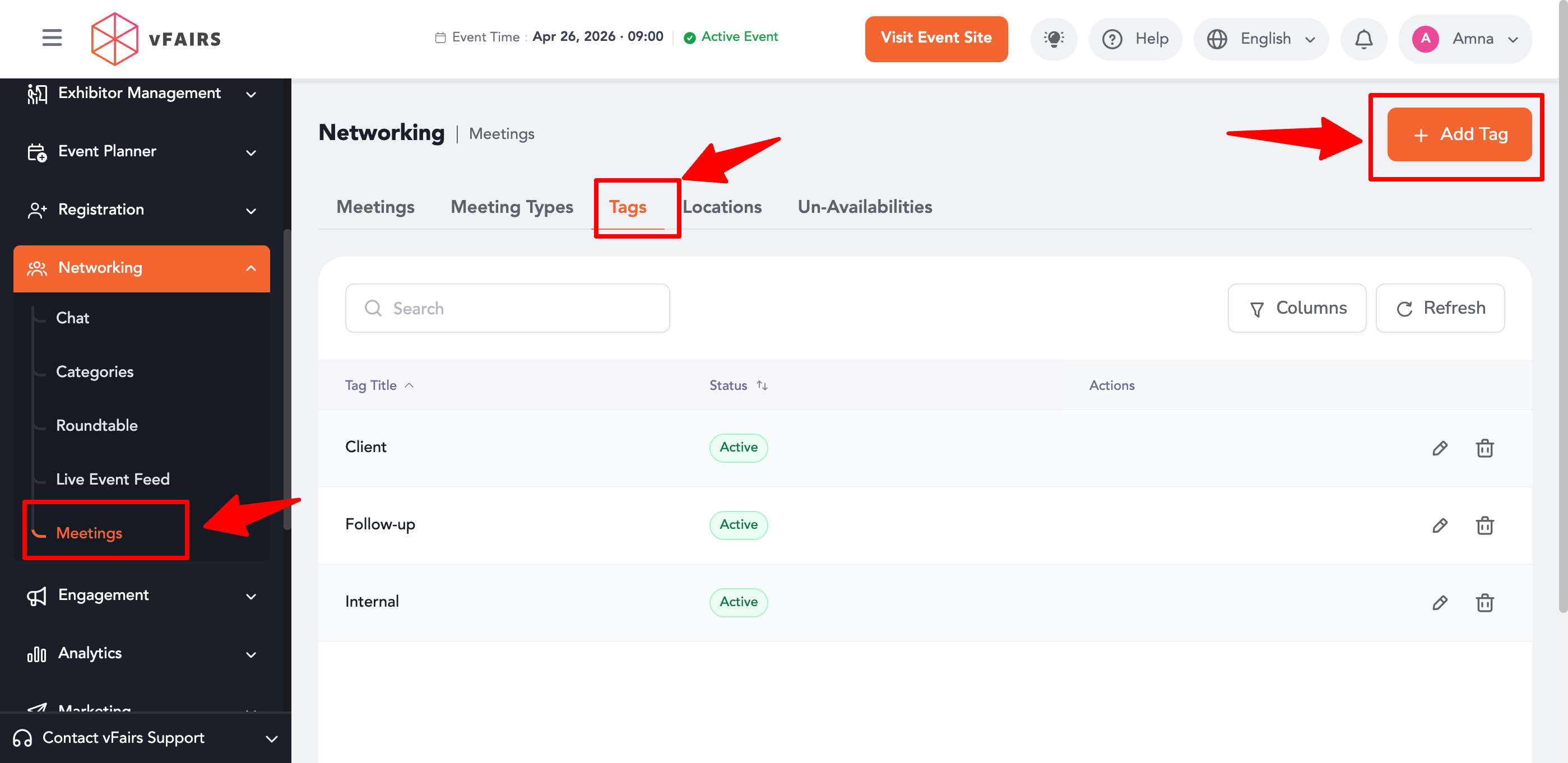
- Navigate to Networking → Meetings → Tags.
- Click Add New Tag.
- Enter the Tag Title (e.g., VIP, Interview, Demo, Follow-up).
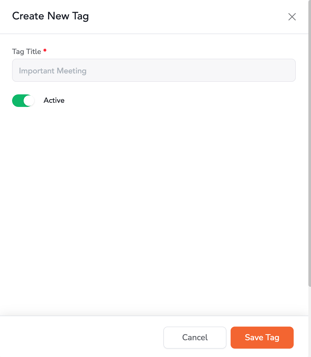
- Click Save.
You can create multiple tags based on your event requirements.
How Tags Work
- Once tags are created:
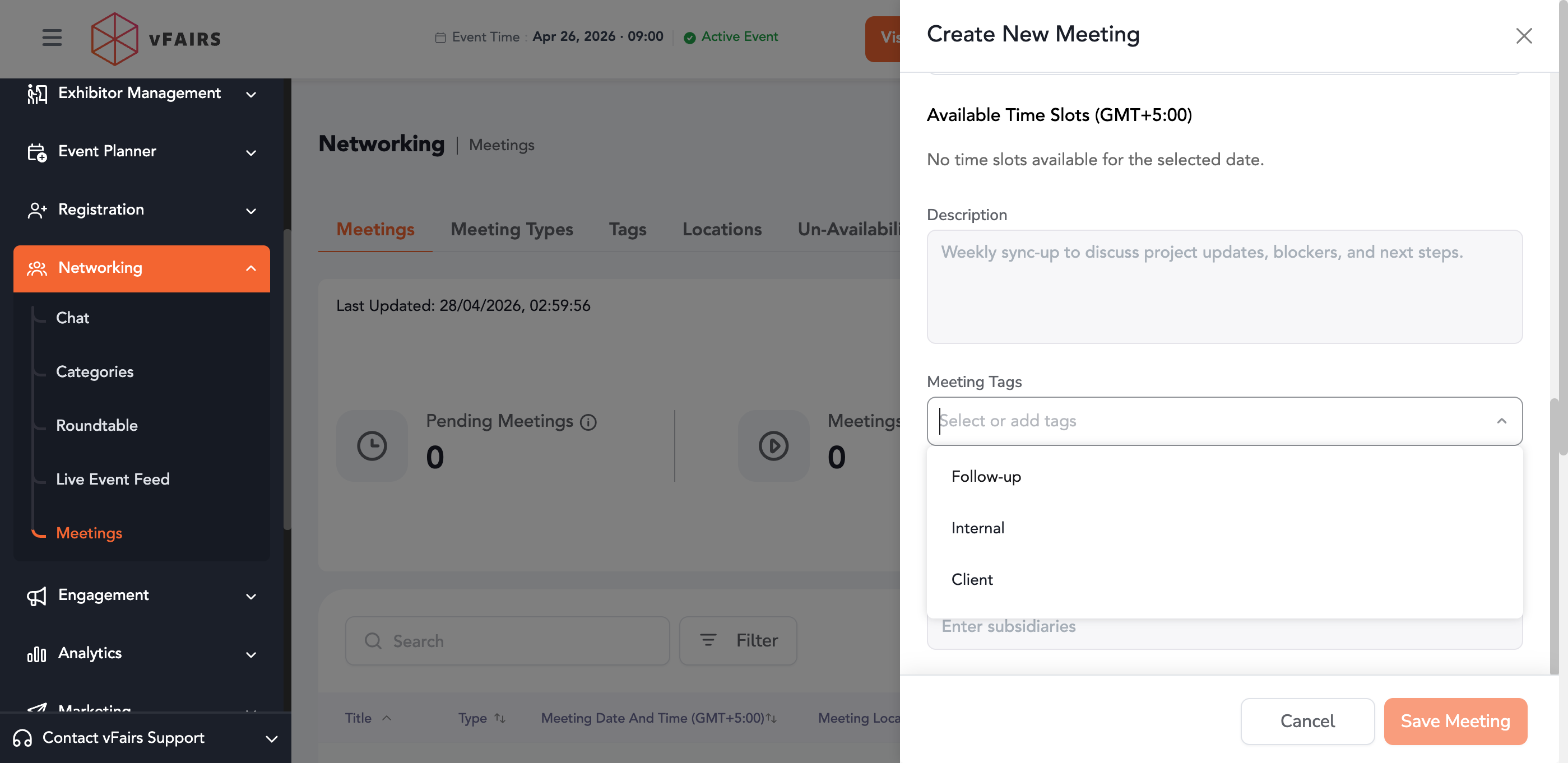
- A Tags field will appear during meeting creation and editing.
- Users can select one or more tags for each meeting.
- If no tags are created:
- The Tags field will remain hidden in the meeting form.
Where Tags Are Visible
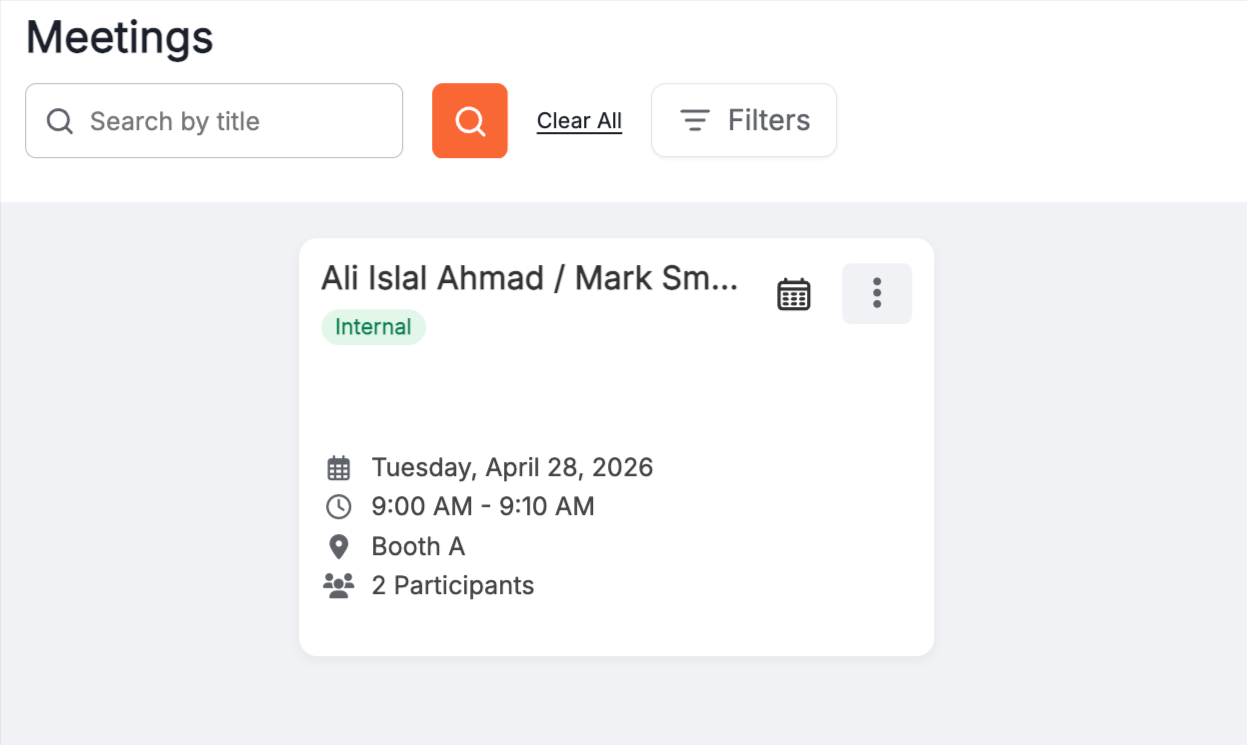
- Tags assigned to a meeting will appear:
- On the meeting card
- On both web and mobile views
- Tags are typically displayed at the top of the meeting card, making them easy to identify.
Use Cases for Tags
- Categorize meetings by purpose:
- Interview
- Networking
- Sales Demo
- VIP Meeting
- Help teams quickly identify and prioritize meetings.
- Improve organization for large-scale events with high meeting volume.