Step 1: Access Session Settings
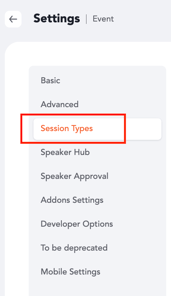
Navigate to the backend and go to Session Settings. From there, open the Session Types sub-section.
Step 2: Enable Table Talks
Locate and enable the “Table Talks” toggle.

Enabling this option will automatically trigger the following:
-
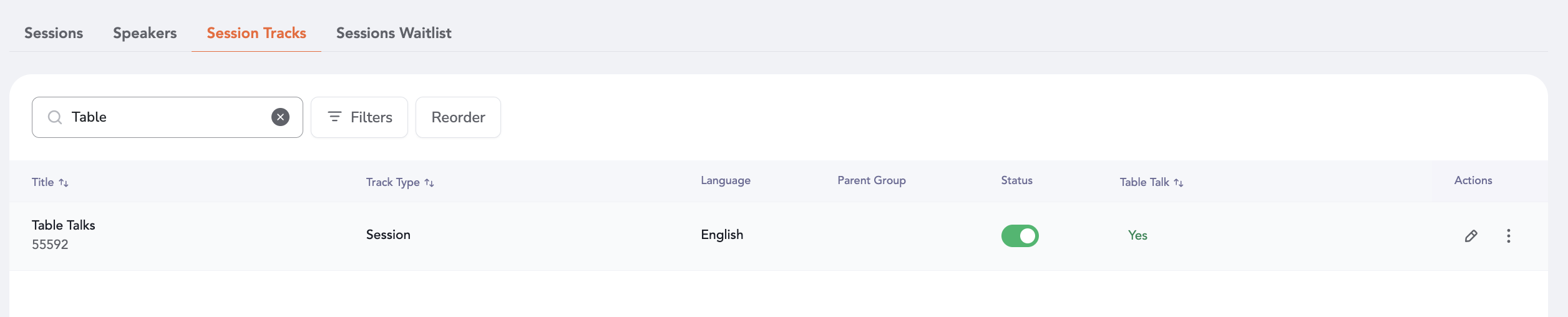
A default “Table Talk” track will be created under Session Tracks
-
The Seat Reservation toggle will be enabled in Basic Settings
-
A “Table Talks” menu tab will be added to the web platform
-
A “Table Talks” menu tile will be added to the mobile app
-
The Seat Reservation Report will be updated to reflect table talk assignments
Step 3: Create a Table Talk Session
Go to the Sessions Listing section and click Add Session.
Step 4: Select Session Type
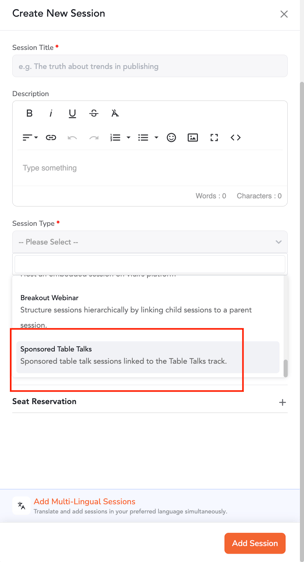
Enter the basic session details and choose “Sponsored Table Talks” from the Session Type dropdown.
Step 5: Configure Advanced Settings
Fill in the required fields under the type-specific Advanced Settings section.
Step 6: Set Up Seat Reservations
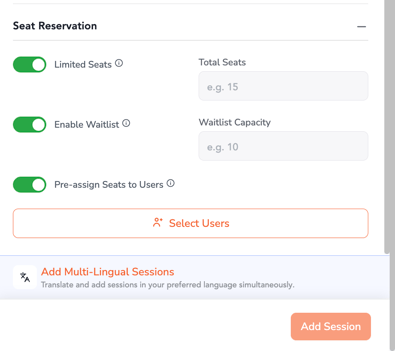
Expand the Seat Reservation section and provide the following details:
-
Total Seating Capacity
-
Waitlist Capacity
-
Pre-assignment of Seats (optional)
Pre-Assignment of Seats
Step 1: Enable Pre-Assignment
Toggle on the Pre-assign Seats option.
Step 2: Select Users
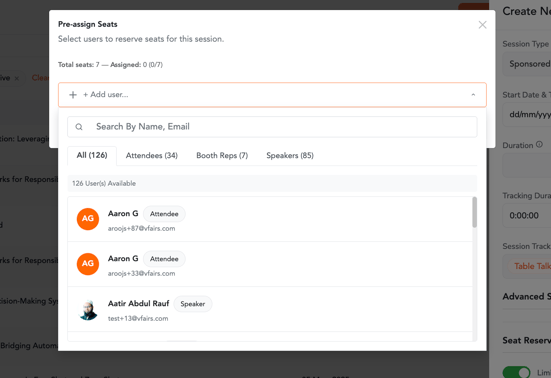
Click on Select Users to assign participants.
Step 3: Choose from User Groups
A pop-up will appear with categorized user groups:
-
Attendees
-
Booth Representatives
-
Speakers
Select the desired users.
Step 4: Confirm Assignment
Once users are selected:
-
The pop-up will close
-
The session will be created successfully
-
Selected users will receive seat reservation confirmation emails
Notes
-
Table Talks do not support parent/child track assignments
-
The feature supports segmentation and segment rules, which can be applied to these sessions
-
Table Talk sessions are displayed separately and are not merged with other sessions in the Sessions Listing; they appear under their own dedicated menu and tracks