- In the session creation drawer, open the Session Track dropdown.
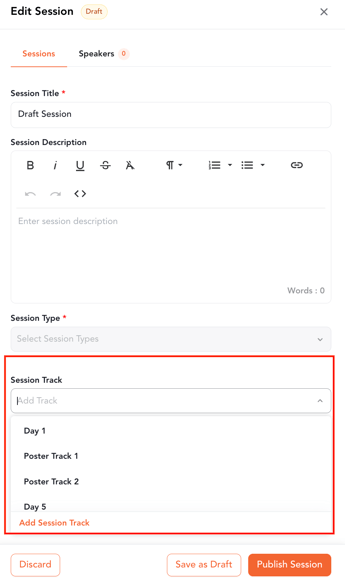
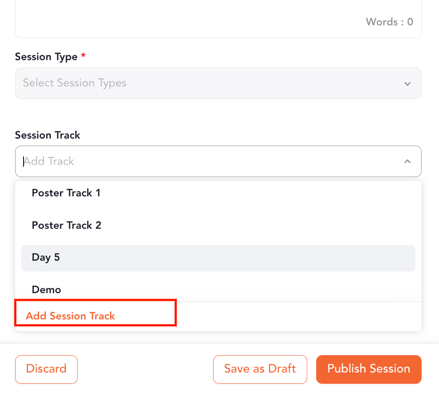
- If the track you need isn't listed, click Add Session Track. The track creation drawer opens on top of your session.
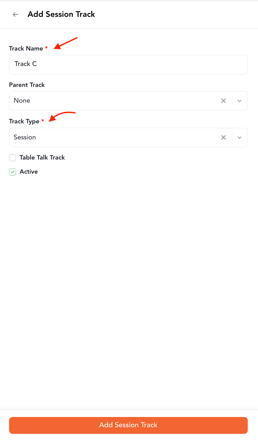
- Enter the track details, such as Track Name and Track Type.
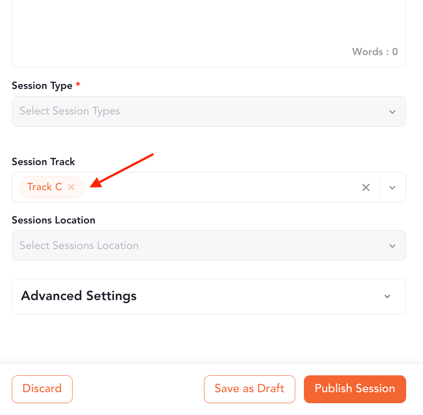
- Click Add Session Track. The track creation drawer closes, and the new track is automatically mapped to your session.
Create a Location
- In the session creation drawer, open the Location dropdown.
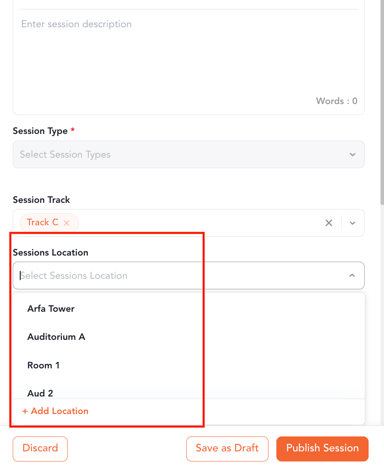
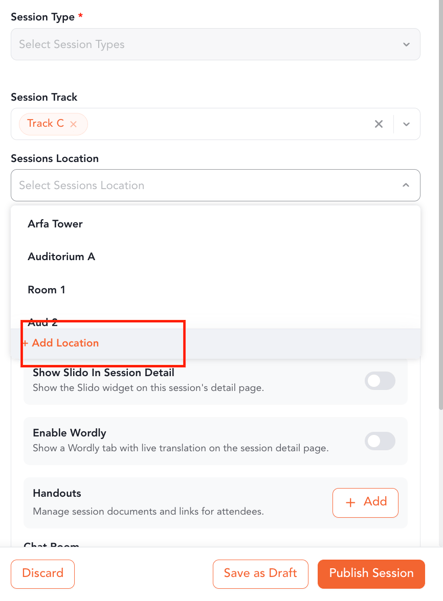
- If the location you need isn't listed, click Add Location. The location creation drawer opens.
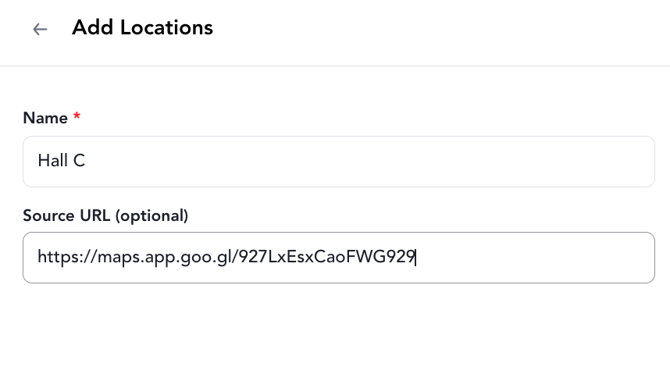
- Enter the location details, such as the room or venue name and Location redirection URL.
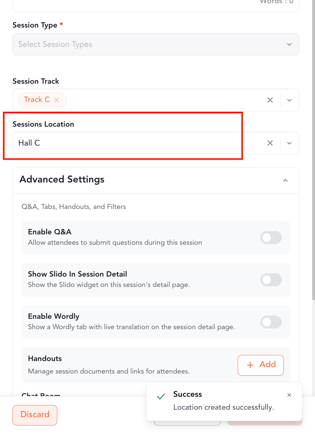
- Click Add. The new location is automatically mapped to your session.
- In the session creation drawer, scroll to the Survey field and open the dropdown.
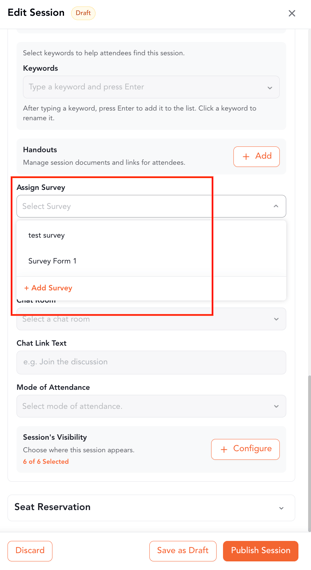
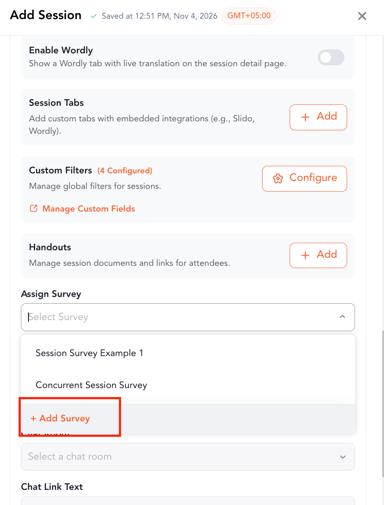
- If the survey you need isn't listed, click Add Survey. The survey creation drawer opens.
- Enter a survey title and select the type from the "Registration Type" dropdown.
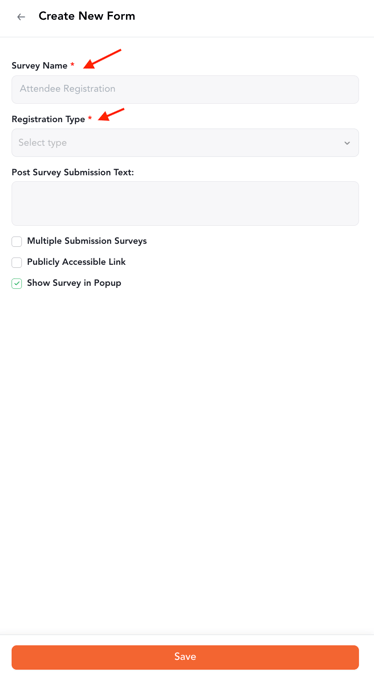
- Click Save. The new survey is automatically mapped to your session.
Note: Creating a survey through the Session Creation Drawer only adds the survey to the event. To configure the survey fields, click the Manage Survey link, which will redirect you to the Form Builder, where you can add or edit the required fields.
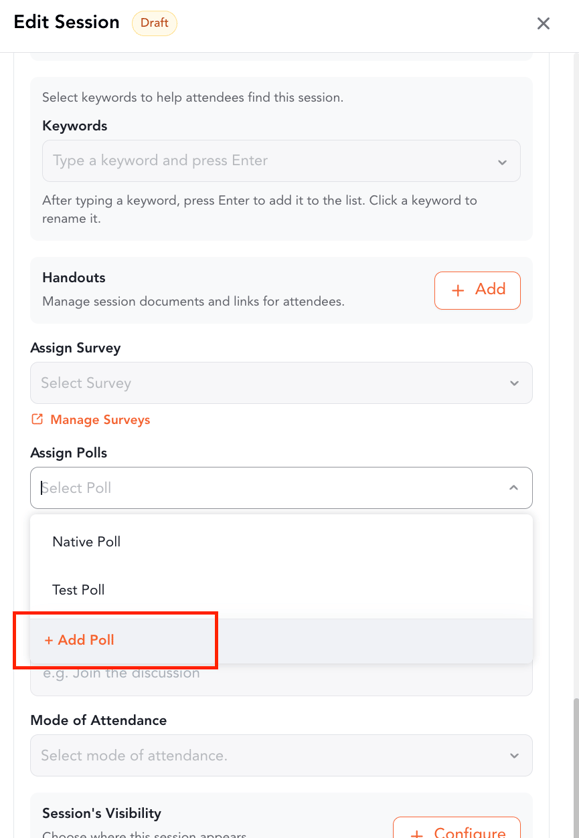
Create a Session Poll- In the session creation drawer, scroll to the Poll field and open the dropdown.
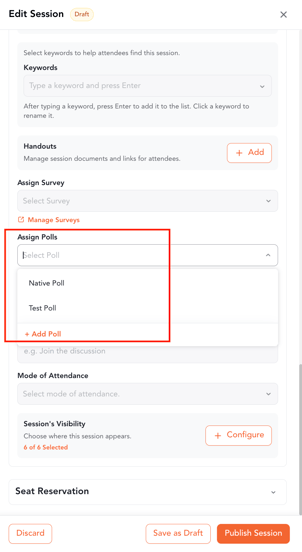
- If the poll you need isn't listed, click Add Poll. The poll creation drawer opens
- Enter the poll title and adjust the settings.
- Click Save. The new poll is automatically mapped to your session.
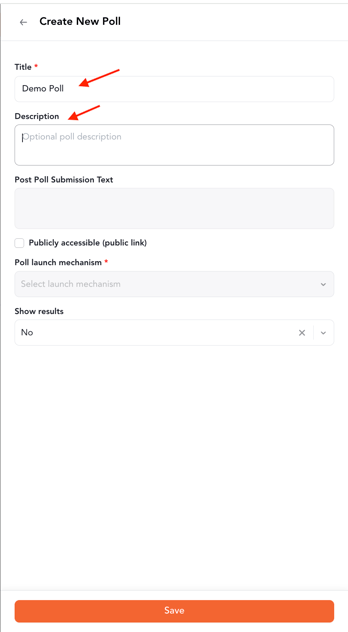
Note: Creating a poll through the Session Creation Drawer only adds the poll to the event. To configure the poll options and settings, click the Manage Poll link, which will redirect you to the Poll Management section, where you can add or edit the required options.
Anything you create here is saved to the event, not only to this session. Your new tracks, locations, surveys, and polls appear in their own sections of the backend and can be reused for other sessions. Your session keeps auto-saving the whole time, so closing a creation drawer never loses your work.