1. Navigate to the Form Builder
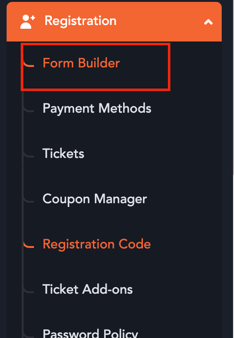
- Log in to the event Backend.
- Go to Engagement → Form Builder.
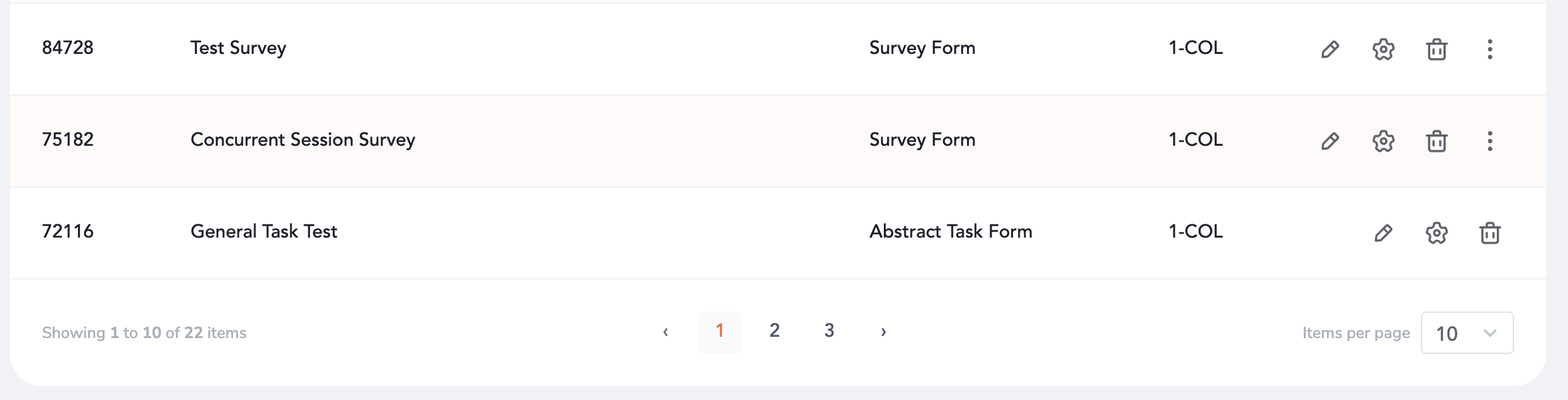
- Open the Survey, Poll, or Quiz for which you want to generate a QR code.
2. Generate the QR Code
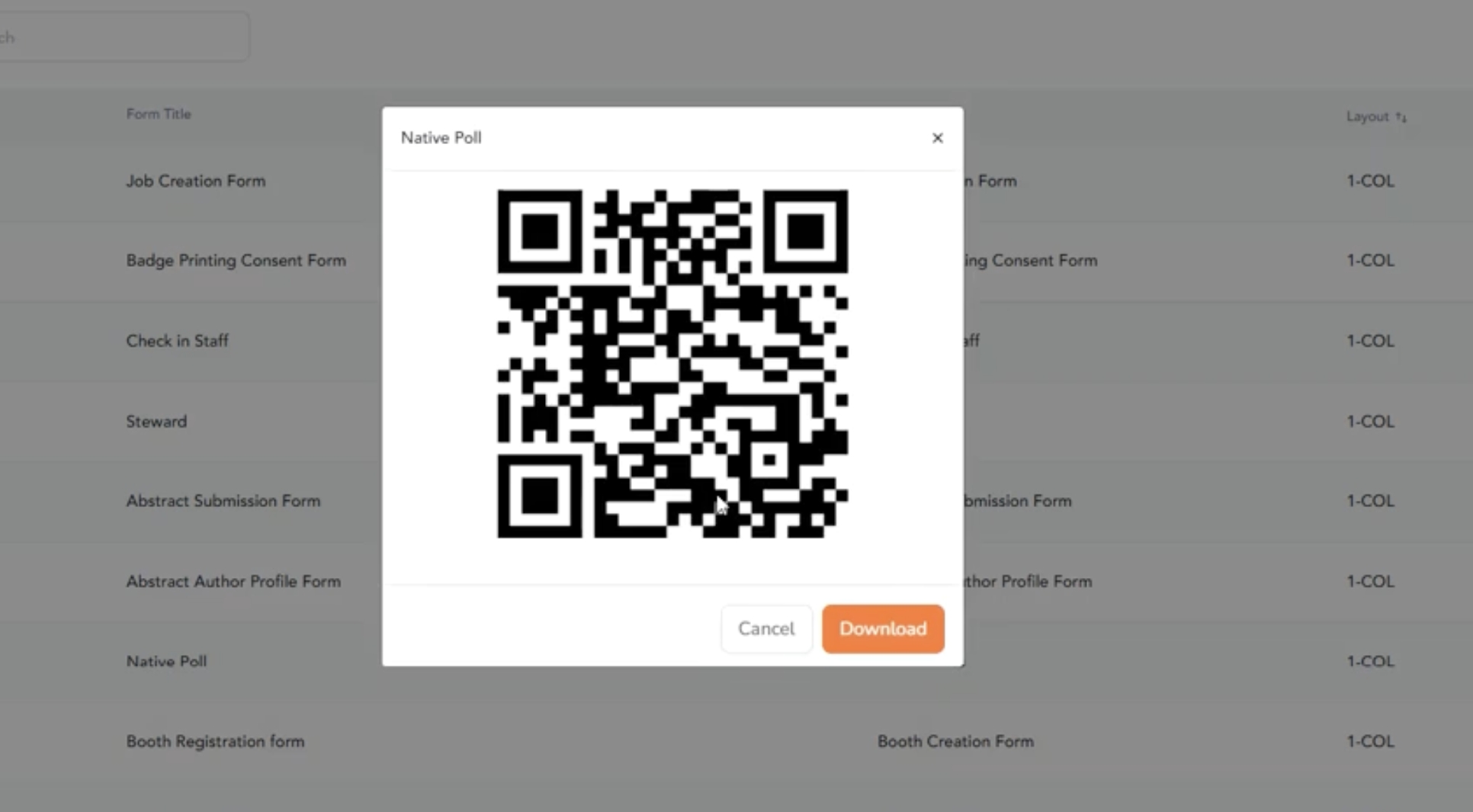
- Click the QR Code option available for the selected form.
- The system generates a unique QR code linked to that specific Survey, Poll, or Quiz.
- Download the QR code for use across your event.

3. Display the QR Code
Share or display the QR code wherever attendees should participate, including:
- Session rooms
- Booths
- Registration areas
Attendee Experience
Survey
- The attendee scans the Survey QR code using a mobile device.
- The system identifies the associated Survey.
- The attendee is redirected directly to the Survey.
- The attendee completes and submits the Survey.
Poll
- The attendee scans the Poll QR code.
- The associated Poll opens automatically.
- The attendee submits their response.
Quiz
- The attendee scans the Quiz QR code.
- The associated Quiz opens immediately.
- The attendee completes the Quiz and submits their answers.