---
title: How to Manage Quick Links in the vFairs Mobile App
description: Learn how to add, reorder, and group Quick Links in the vFairs App Builder to customize your mobile app’s home screen navigation.
---
[Skip to content](https://help.vfairs.com/knowledge/how-to-manage-quick-links-in-the-vfairs-mobile-app#main-content)
English
Show submenu for translations
[Customer portal](https://support.vfairs.com/care?hsLang=en)
Open main navigation
Close main navigation
- English
Show submenu for translations
- [Customer portal](https://support.vfairs.com/care)
Welcome to vFairs Help Center
- There are no suggestions because the search field is empty.
1. [Help Center](https://help.vfairs.com/knowledge?hsLang=en)
2. [Attendee Mobile App](https://help.vfairs.com/knowledge/attendee-mobile-app?hsLang=en)
3. [Build & Customize Your App](https://help.vfairs.com/knowledge/attendee-mobile-app?hsLang=en#build-customize-your-app)
# How to Manage Quick Links in the vFairs Mobile App
## Learn how to add, reorder, and group Quick Links in the App Builder to customize the home screen navigation of your mobile app.
### **Accessing the App Builder**
1. From the left navigation menu, go to **Mobile App**.
2. Click **App Builder**.
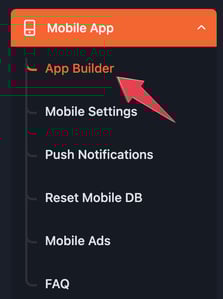
You will be taken to the App Builder page where you can manage your mobile app layout.
### **Understanding Quick Links**
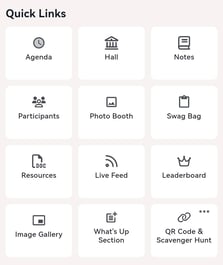
Quick Links are the primary menu items displayed on the home screen of the mobile app.
- They appear in a **grid layout (3 columns per row)**
- You can add as many items as needed
- These links help users quickly navigate to different sections of the app
### **Reordering Quick Links**
You can easily rearrange Quick Links using drag and drop:
1. Go to the **Quick Links** section in the left panel.
2. Click and hold a Quick Link.
3. Drag it up or down in the list.
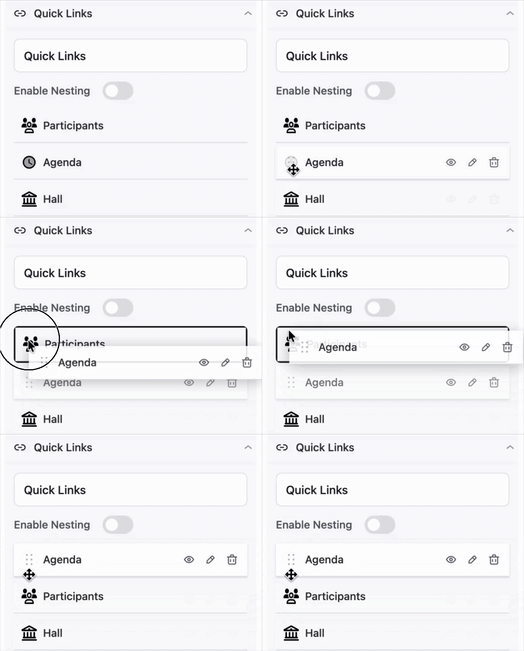
While dragging:
- A **highlight (halo)** will appear around another Quick Link
- When you drop, the selected item will be placed **above** the highlighted item
This allows you to control the order in which Quick Links appear in the app.
### **Enabling and Using Nesting (Grouping)**
You can group related Quick Links together using the **Enable Nesting** feature.
### To enable nesting:
1. Toggle **Enable Nesting** ON at the top of the Quick Links section
### To create a group:
1. Drag one Quick Link on top of another
2. Drop it when the target item is highlighted
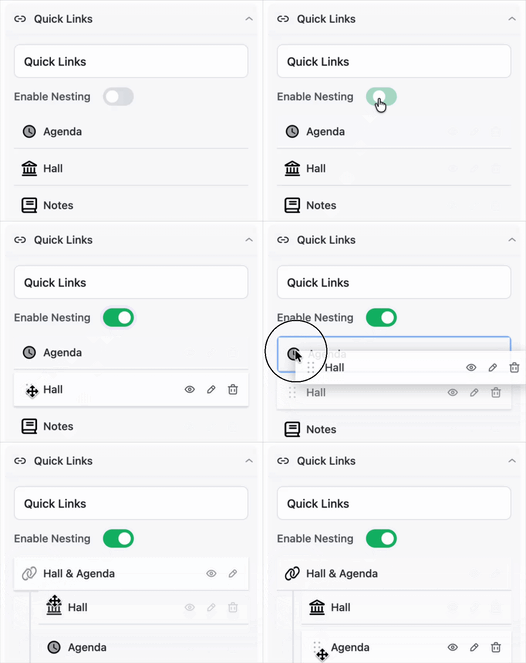
A **parent menu item** will automatically be created.
- The parent name is generated by combining the names of the grouped items
- This parent acts as a container for the nested links
### **Managing Nested Menu Items**
When nesting is enabled, you can manage grouped items as follows:
### Reordering within a group
- Drag and drop child items within the parent menu
### Removing an item from a group
1. Drag the child item out of the parent group
2. Drop it outside the group
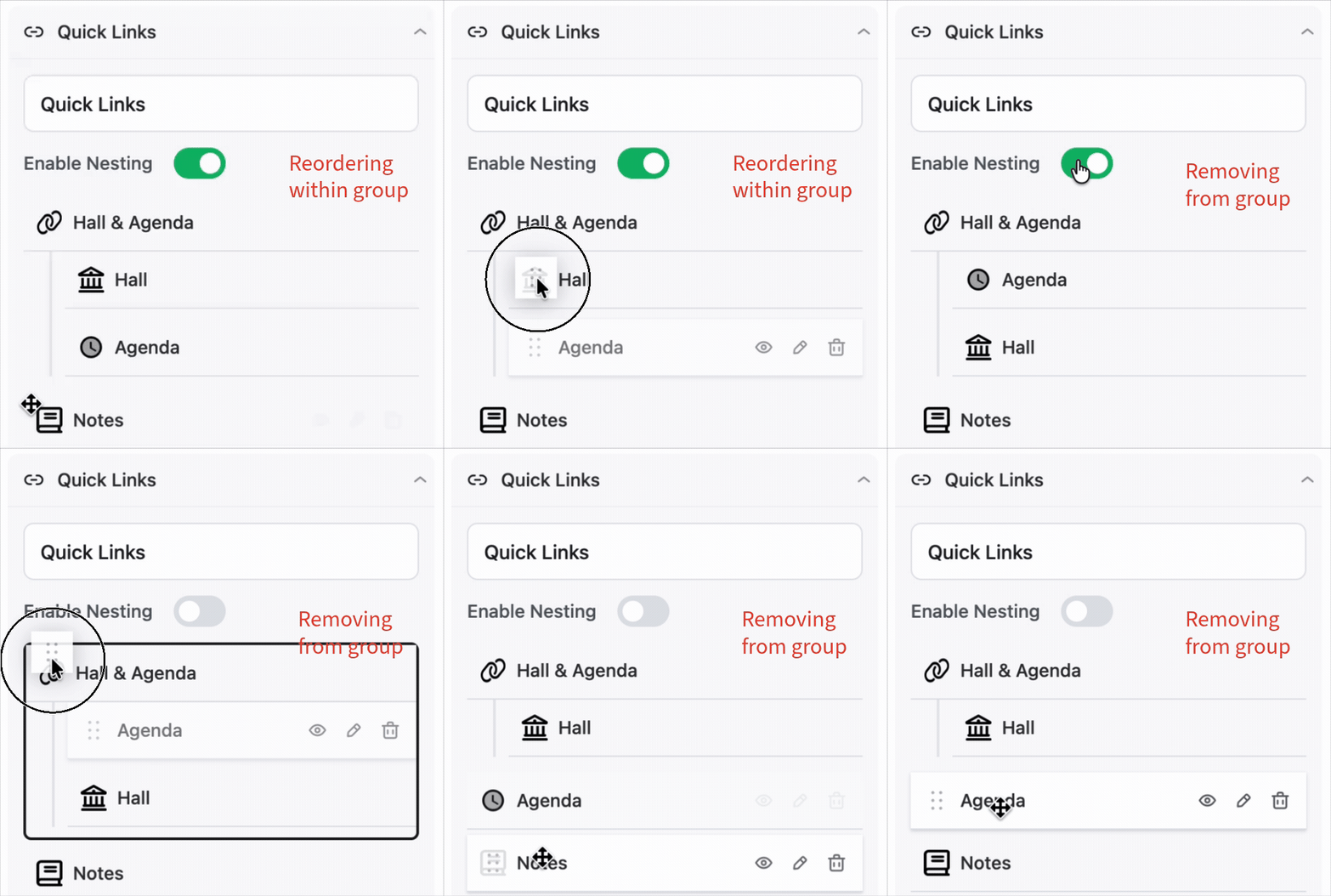
The item will appear **below the parent menu item**.
**Note:**
- Nested items can only be rearranged inside the parent **while nesting is enabled**
- Once you move an item out of a group, you can:
- Turn **Nesting OFF**
- Reorder the item freely in the main list
### **Conclusion**
Quick Links give you full control over how users navigate your mobile app. With simple drag-and-drop actions and the ability to group related items, you can create a clean, organized, and intuitive home screen experience.
Take a moment to structure your Quick Links thoughtfully to ensure users can easily find what they need. If you need further assistance, feel free to reach out to your assigned vFairs representative.
- [Organization Management](https://help.vfairs.com/knowledge/organization-management?hsLang=en)
- [Event Setup & Navigation](https://help.vfairs.com/knowledge/event-setup-navigation?hsLang=en#main-content)
- [Document Library](https://help.vfairs.com/knowledge/event-setup-navigation?hsLang=en#document-library)
- [Translations And Labels](https://help.vfairs.com/knowledge/event-setup-navigation?hsLang=en#translations-and-labels)
- [Attendee Management](https://help.vfairs.com/knowledge/attendee-management?hsLang=en)
- [Agenda Management](https://help.vfairs.com/knowledge/agenda-management?hsLang=en#main-content)
- [Session Management](https://help.vfairs.com/knowledge/agenda-management?hsLang=en#session-management)
- [Speaker Management](https://help.vfairs.com/knowledge/agenda-management?hsLang=en#speaker-management)
- [Speaker Management](https://help.vfairs.com/knowledge/speaker-management?hsLang=en)
- [Event Website & Landing Pages](https://help.vfairs.com/knowledge/event-website-landing-pages?hsLang=en#main-content)
- [Web Page Management](https://help.vfairs.com/knowledge/event-website-landing-pages?hsLang=en#web-page-management)
- [Registration & Ticketing](https://help.vfairs.com/knowledge/registration-ticketing?hsLang=en#main-content)
- [Registration](https://help.vfairs.com/knowledge/registration-ticketing?hsLang=en#registration)
- [Ticketing](https://help.vfairs.com/knowledge/registration-ticketing?hsLang=en#ticketing)
- [Payments](https://help.vfairs.com/knowledge/registration-ticketing?hsLang=en#payments)
- [Exhibitor Management](https://help.vfairs.com/knowledge/exhibitor-management?hsLang=en#main-content)
- [Booth Negotiation](https://help.vfairs.com/knowledge/exhibitor-management?hsLang=en#booth-negotiation)
- [Task Management](https://help.vfairs.com/knowledge/exhibitor-management?hsLang=en#task-management)
- [Booth Management](https://help.vfairs.com/knowledge/exhibitor-management?hsLang=en#booth-management)
- [Document / Video](https://help.vfairs.com/knowledge/exhibitor-management?hsLang=en#document-video)
- [Jobs](https://help.vfairs.com/knowledge/exhibitor-management?hsLang=en#jobs)
- [Sponsor Management](https://help.vfairs.com/knowledge/sponsor-management?hsLang=en)
- [Networking](https://help.vfairs.com/knowledge/networking?hsLang=en#main-content)
- [Chat](https://help.vfairs.com/knowledge/networking?hsLang=en#chat)
- [Chat Queue](https://help.vfairs.com/knowledge/networking?hsLang=en#chat-queue)
- [Video Matchmaking](https://help.vfairs.com/knowledge/networking?hsLang=en#video-matchmaking)
- [Reports](https://help.vfairs.com/knowledge/networking?hsLang=en#reports)
- [Meeting](https://help.vfairs.com/knowledge/networking?hsLang=en#meeting)
- [Engagement](https://help.vfairs.com/knowledge/engagement?hsLang=en#main-content)
- [Certificate Management](https://help.vfairs.com/knowledge/engagement?hsLang=en#certificate-management)
- [Scavenger Hunt](https://help.vfairs.com/knowledge/engagement?hsLang=en#scavenger-hunt)
- [Notifications](https://help.vfairs.com/knowledge/engagement?hsLang=en#notifications)
- [Survey](https://help.vfairs.com/knowledge/engagement?hsLang=en#survey)
- [LeaderBoard](https://help.vfairs.com/knowledge/engagement?hsLang=en#leaderboard)
- [Quiz](https://help.vfairs.com/knowledge/engagement?hsLang=en#quiz)
- [Reports & Analytics](https://help.vfairs.com/knowledge/reports-analytics?hsLang=en#main-content)
- [Registration and Ticketing](https://help.vfairs.com/knowledge/reports-analytics?hsLang=en#registration-and-ticketing)
- [User Journey Tracker](https://help.vfairs.com/knowledge/reports-analytics?hsLang=en#user-journey-tracker)
- [Post Event PDF Report](https://help.vfairs.com/knowledge/reports-analytics?hsLang=en#post-event-pdf-report)
- [Survey](https://help.vfairs.com/knowledge/reports-analytics?hsLang=en#survey)
- [Cross Event Report & Reporting 360](https://help.vfairs.com/knowledge/reports-analytics?hsLang=en#cross-event-report-reporting-360)
- [Marketing](https://help.vfairs.com/knowledge/marketing?hsLang=en#main-content)
- [Email Campaigns](https://help.vfairs.com/knowledge/marketing?hsLang=en#email-campaigns)
- [System Emails](https://help.vfairs.com/knowledge/marketing?hsLang=en#system-emails)
- [SMS Campaign](https://help.vfairs.com/knowledge/marketing?hsLang=en#sms-campaign)
- [AI Assistant](https://help.vfairs.com/knowledge/marketing?hsLang=en#ai-assistant)
- [Social Meta](https://help.vfairs.com/knowledge/marketing?hsLang=en#social-meta)
- [Web Notifications](https://help.vfairs.com/knowledge/marketing?hsLang=en#web-notifications)
- [Accommodation & Budget Management](https://help.vfairs.com/knowledge/accommodation-budget-management?hsLang=en#main-content)
- [Accommodation](https://help.vfairs.com/knowledge/accommodation-budget-management?hsLang=en#accommodation)
- [Attendee Mobile App](https://help.vfairs.com/knowledge/attendee-mobile-app?hsLang=en#main-content)
- [Event Assistant](https://help.vfairs.com/knowledge/attendee-mobile-app?hsLang=en#event-assistant)
- [Getting Started & App Access](https://help.vfairs.com/knowledge/attendee-mobile-app?hsLang=en#getting-started-app-access)
- [Build & Customize Your App](https://help.vfairs.com/knowledge/attendee-mobile-app?hsLang=en#build-customize-your-app)
- [Legacy App](https://help.vfairs.com/knowledge/attendee-mobile-app?hsLang=en#legacy-app)
- [Sessions & Event Content](https://help.vfairs.com/knowledge/attendee-mobile-app?hsLang=en#sessions-event-content)
- [Engagement & Networking](https://help.vfairs.com/knowledge/attendee-mobile-app?hsLang=en#engagement-networking)
- [Event Operations & Insights](https://help.vfairs.com/knowledge/attendee-mobile-app?hsLang=en#event-operations-insights)
- [Lead Capture App](https://help.vfairs.com/knowledge/lead-capture-app?hsLang=en#main-content)
- [Reporting 360](https://help.vfairs.com/knowledge/lead-capture-app?hsLang=en#reporting-360)
- [Badge Printing & Check-in App](https://help.vfairs.com/knowledge/badge-printing-check-in-app?hsLang=en#main-content)
- [Printers](https://help.vfairs.com/knowledge/badge-printing-check-in-app?hsLang=en#printers)
- [Badge Design](https://help.vfairs.com/knowledge/badge-printing-check-in-app?hsLang=en#badge-design)
- [Integrations](https://help.vfairs.com/knowledge/integrations?hsLang=en#main-content)
- [Custom Workflow](https://help.vfairs.com/knowledge/integrations?hsLang=en#custom-workflow)
- [E-commerce](https://help.vfairs.com/knowledge/e-commerce?hsLang=en#main-content)
- [Product Management](https://help.vfairs.com/knowledge/e-commerce?hsLang=en#product-management)
- [Allowance Negotiation](https://help.vfairs.com/knowledge/e-commerce?hsLang=en#allowance-negotiation)
- [Venue Builder](https://help.vfairs.com/knowledge/venue-builder?hsLang=en)
- [Abstract Management](https://help.vfairs.com/knowledge/abstract-management?hsLang=en)
- [Group Meeting](https://help.vfairs.com/knowledge/group-meeting?hsLang=en)
- [Exhibitor Portal](https://help.vfairs.com/knowledge/exhibitor-portal?hsLang=en#main-content)
- [Booth](https://help.vfairs.com/knowledge/exhibitor-portal?hsLang=en#booth)
- [Search Attendee](https://help.vfairs.com/knowledge/search-attendee?hsLang=en)
- [Data Tags](https://help.vfairs.com/knowledge/data-tags?hsLang=en)
- [Organization Website](https://help.vfairs.com/knowledge/organization-website?hsLang=en)
- [AI Tools](https://help.vfairs.com/knowledge/ai-tools?hsLang=en)
[-1.webp?width=107&height=44&name=vfairs-logo-landscape-gradient-5%20(3)-1.webp "vfairs-logo-landscape-gradient-5 (3)-1")](http://vfairs.com)
vfairs.com Help Center
Copyright © 2026, vFairs LLC