Open Task Manager
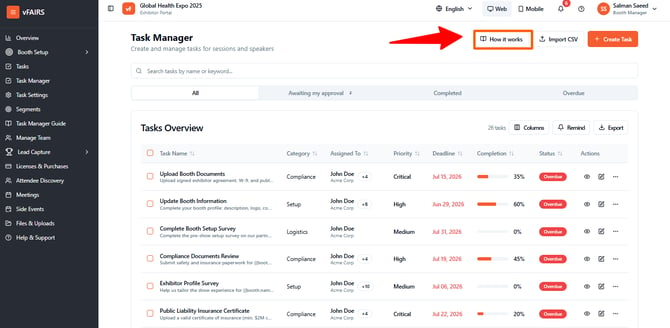
1. In the left sidebar, select Task Manager.
2. Use How it works for the in-product guide or Create Task to set up a new task.
3. Below the search box, select a tab: All, Awaiting my approval, Completed, or Overdue.

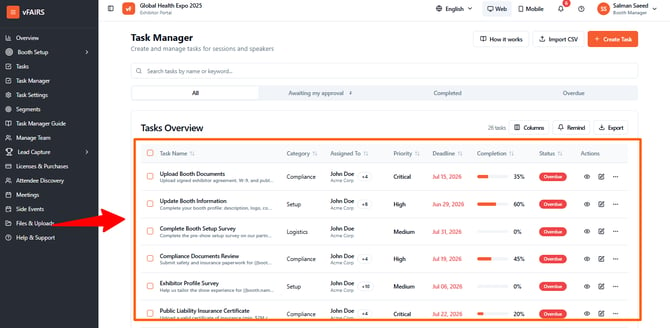
4. Review the Tasks Overview table for a list of assigned tasks.
Understand the Tasks Overview table
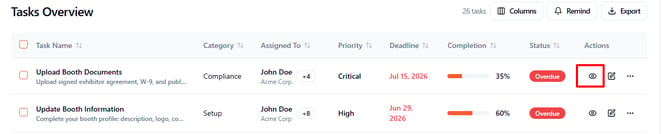
The table displays Task Name, Category, Assigned To, Priority, Deadline, Completion, Status, and Actions.
1. Enter a task name or keyword in the search field to narrow the list.

2. Select a column heading to sort the table. Select it again to reverse the sort direction.

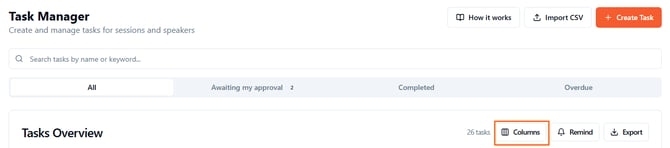
3. Select Columns to show or hide table columns. Use Reset to default to restore them.
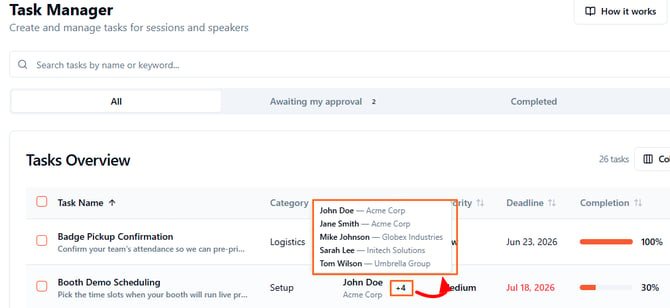
4. When an Assigned To cell shows +N, hover over it to see the other recipients.
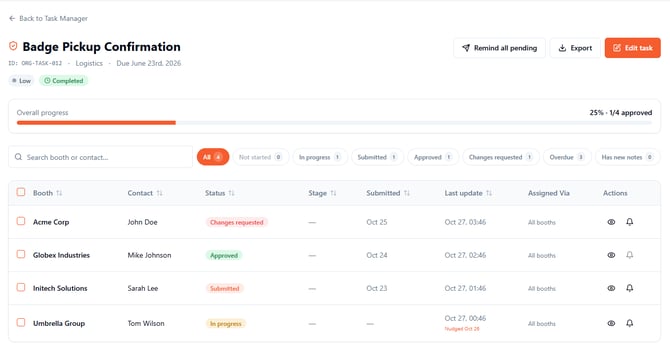
5. Select a task row, its Completion percentage, or the eye icon to open its submissions.
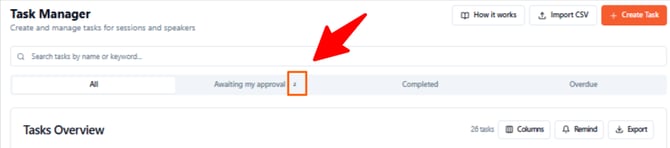
Note: The number beside Awaiting my approval shows submissions that currently need your review.