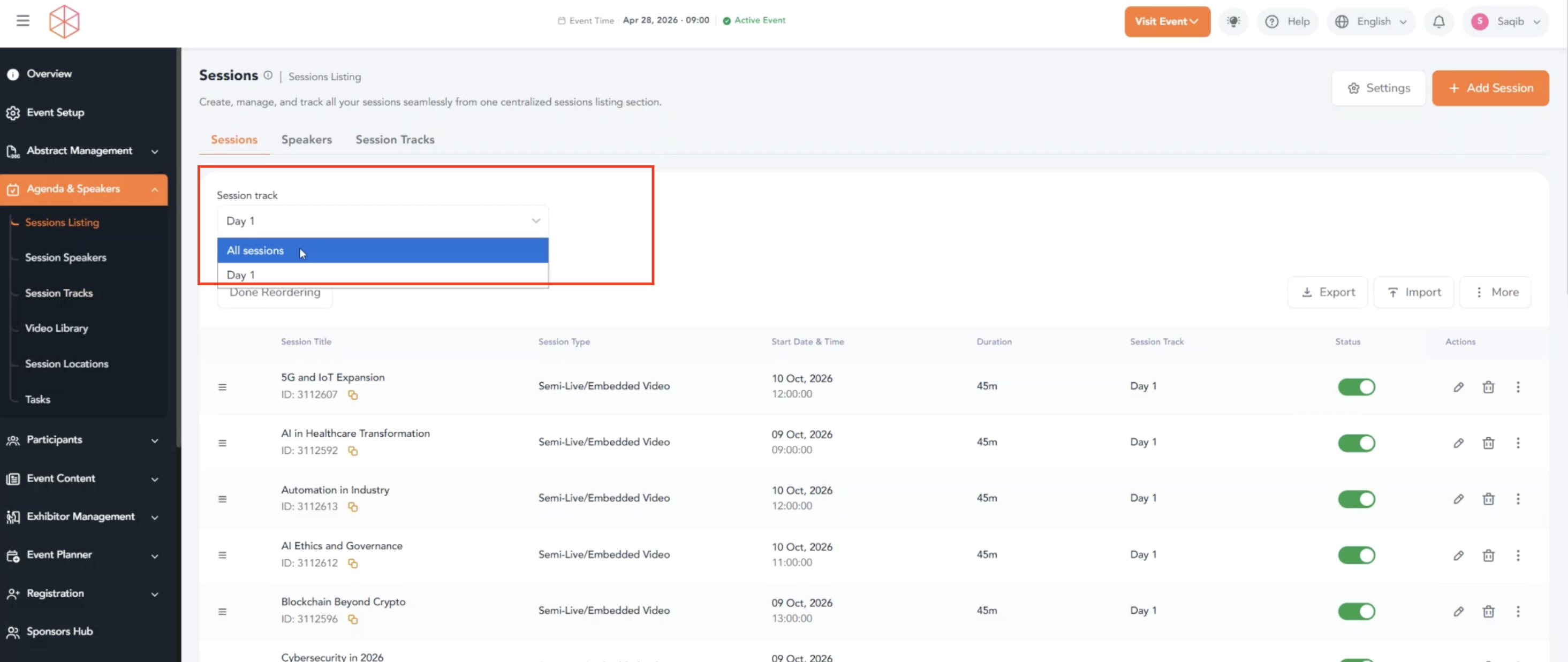
Step 1: From the admin panel, navigate to the "Agenda & Speakers" menu item on the left-hand side.
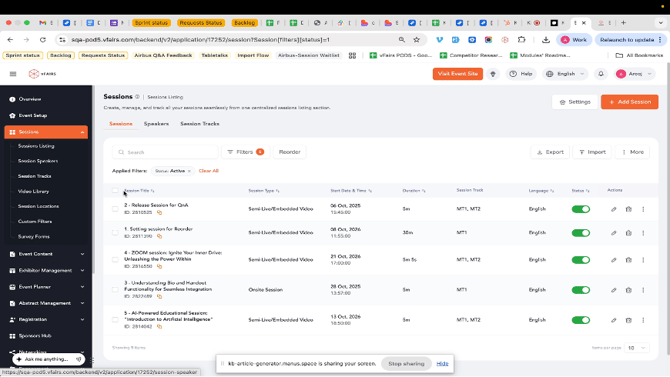
Step 2: Click on the Sessions tab to view your list of sessions.
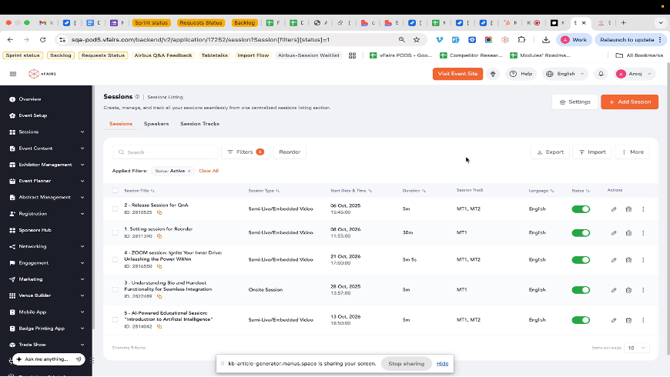
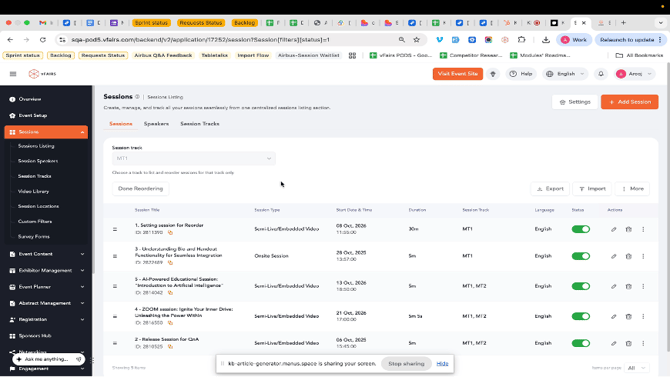
Step 3: Click the Reorder button located next to the Filters button.
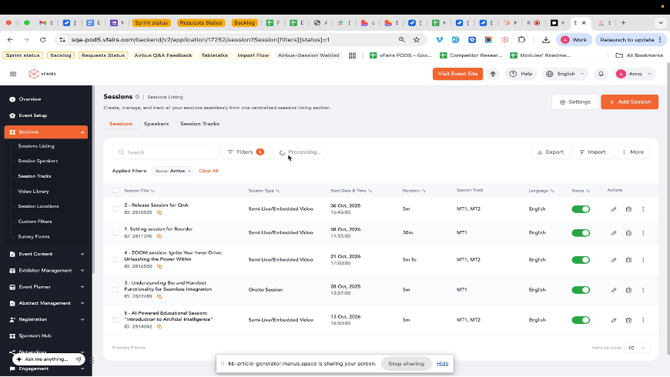
Reordering Sessions
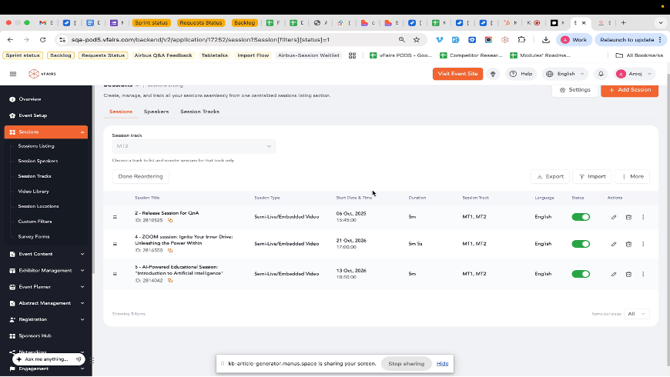
Step 4: A dropdown menu labeled "Session track" will appear. Click on this dropdown to select the session track you wish to reorder.
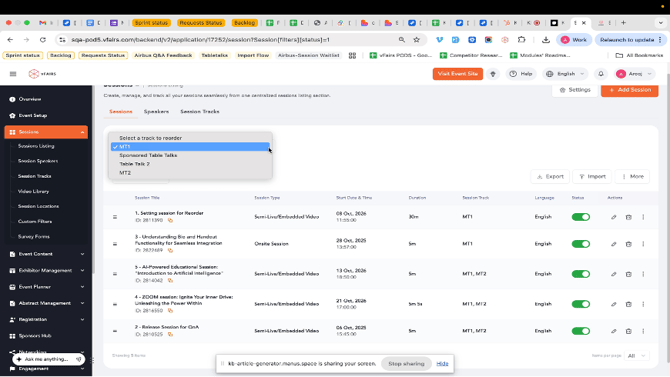
Step 5: From the list of available tracks, select the desired track. For example, select "MT1".
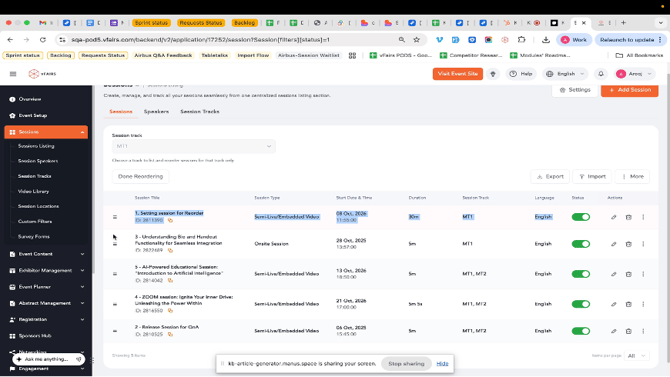
Step 6: Once a track is selected, the sessions belonging to that track will be displayed. You can now drag and drop sessions using the handle on the left side of each session row to change their order.
Step 7: To confirm the reordering, click the Done Reordering button.
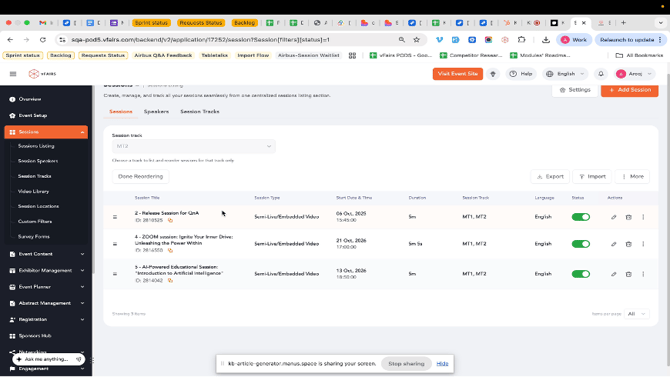
Note: The changes will be reflected immediately on the event agenda which include the sessions listed on both landing page and internal environment.
Step 8: You can verify the updated order by navigating to the event agenda. The sessions will now appear in the sequence you defined.
-
Reordering sessions is specific to each session track. If a session belongs to multiple tracks, its order must be managed separately for each track.
-
Ensure you click "Done Reordering" to save your changes after adjusting the session order.
Note: To reorder sessions displayed under the "All" tab in the mobile app, select the "All" option from the session reordering dropdown and arrange the sessions in the desired sequence. The updated order should be reflected accordingly within the mobile app's "All" tab.