Require an exhibitor file upload
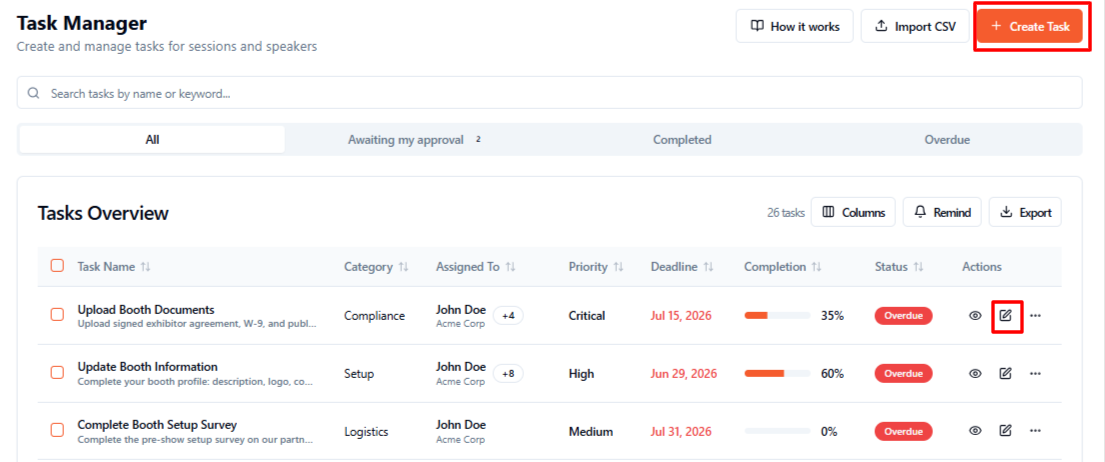
1. Open a new or existing task in the task drawer.
2. Turn on Require File Upload For Exhibitors.
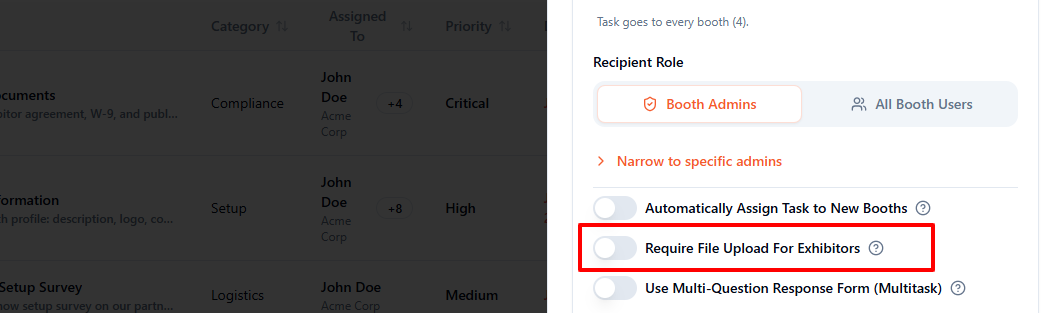
3. Set Minimum files required to a value from 1 to 50.

4. Save the task. Exhibitors will need to upload the minimum number of files before completing it.
Collect answers with a Multitask form
1. Turn on Use Multi-Question Response Form (Multitask).
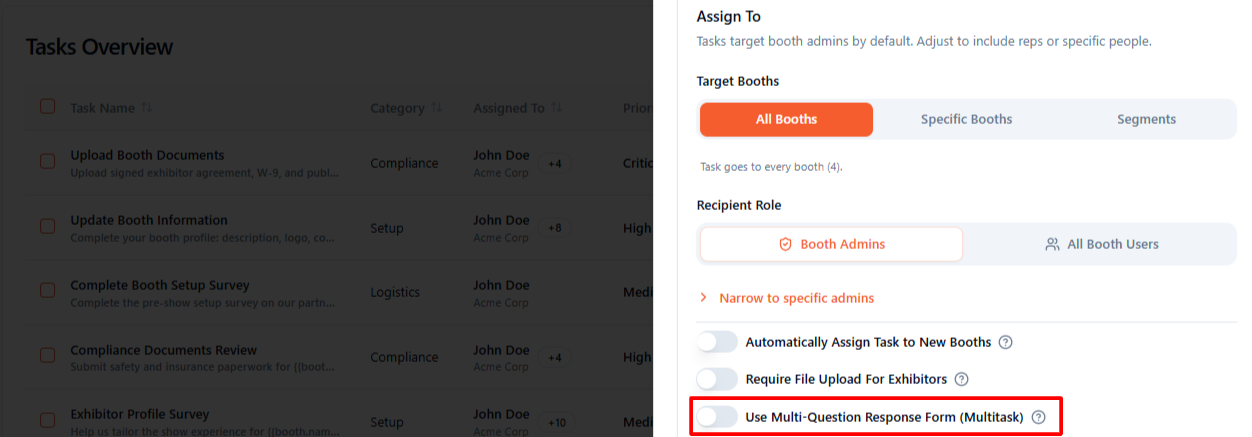
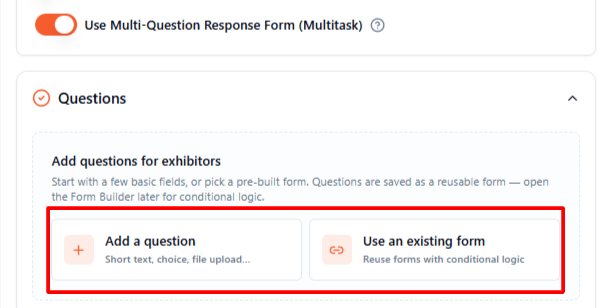
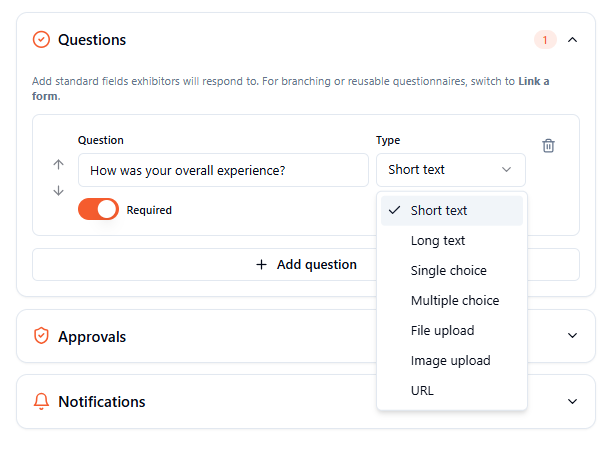
2. Expand the Questions section.
3. Choose Add a question to build questions within the task, or Use an existing form to select a form created in Form Builder.
4. For an inline question, enter the question text and choose its Type: Short text, Long text, Single choice, Multiple choice, File upload, Image upload, or URL.
5. For single- or multiple-choice questions, add each option on a separate line.
6. Turn on Required for questions the exhibitor must answer.
7. Select Add question to add more questions, use the arrows to reorder them, or select the bin icon to remove one.
Important: Enabling Multitask switches off the separate Require File Upload For Exhibitors toggle. If the task needs files, you can use a file-upload question within Multitask instead.
Add conditional questions
For questions that appear based on a previous answer, choose Use an existing form and select a form with conditional logic created in Form Builder. Inline questions do not support conditional branching.
What exhibitors see
Exhibitors see the required uploads or numbered questions under Your submission when they open the task. Required questions are marked with an asterisk.