Every task has its own submissions page, where you can see each assignee’s progress, open their response and follow up with anyone who has not finished.
1. Open the Submissions Page- In the Task Manager, click on a task row or on the eye icon (View submissions).
- The page header shows the task name, ID, category, due date, priority and any overdue status. Click on the back arrow to return to the listing, or Edit task to change the task.
- The Overall progress bar shows how many assignees have submitted (for example, 0/1 submitted), with a count for each status.
- Use the status filters to narrow the list: All, Not started, In progress, Submitted, Approved, Changes requested or Overdue.
- Type in Search organizer to find a specific person. Click on a column header to sort.
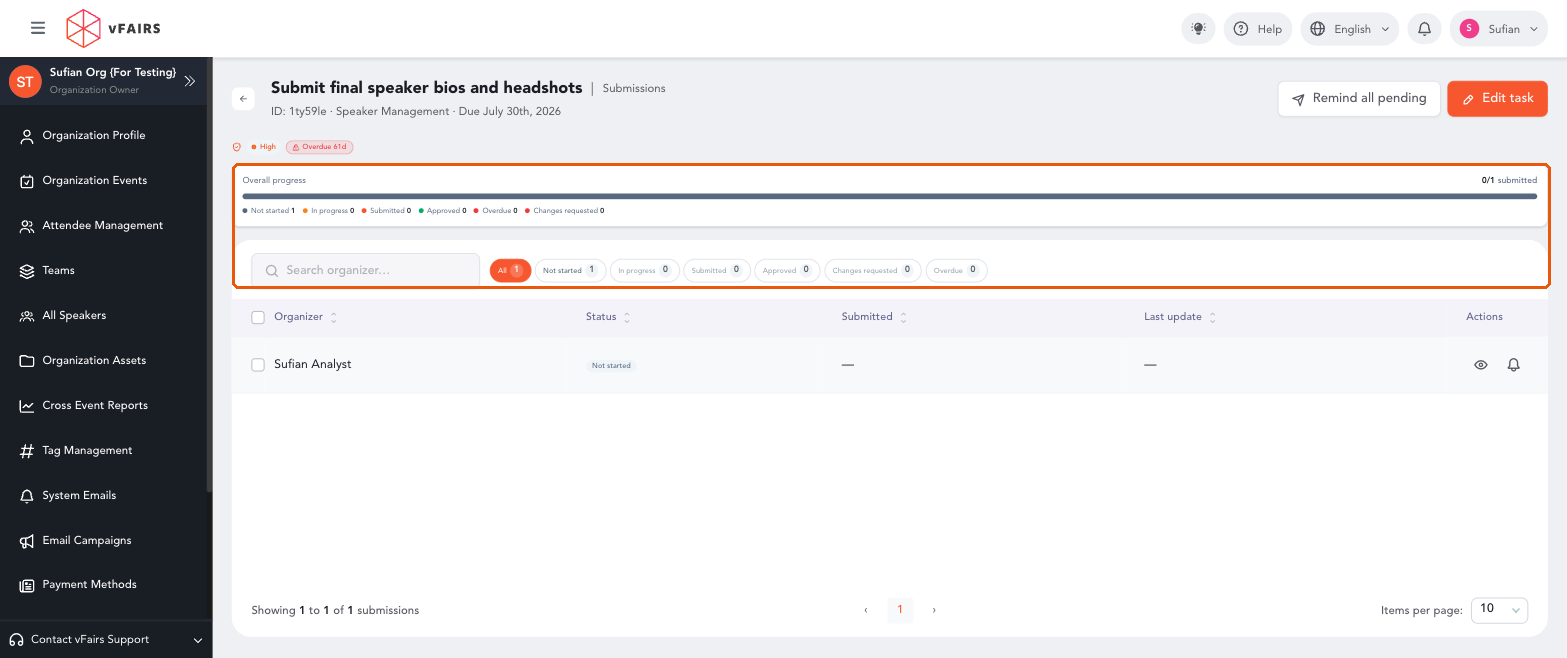
Submissions page with overall progress and status filters · 20-submissions-page.png
3. Open a Submission- Click on the eye icon in an organizer’s row.
- The drawer shows the Task description and deadline, the organizer’s Submission, and a Conversation thread.
- Type in the message box and click on the send icon to post a note to the organizer.
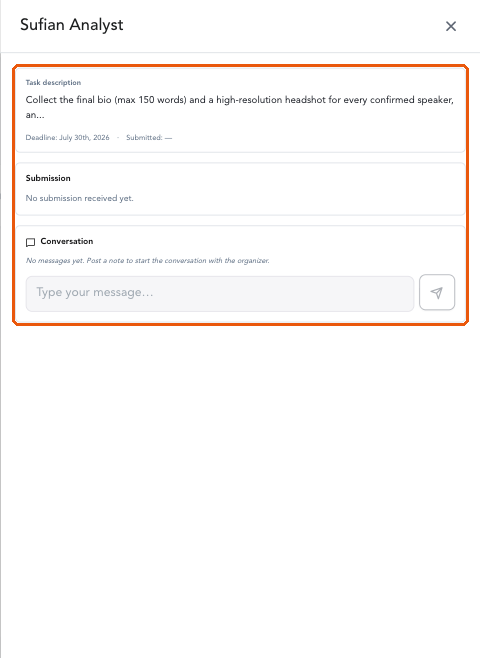
Submission drawer with conversation · 23-submission-drawer.png
Editor check (remove before publishing): Approve, Reject and Request changes actions show once an organizer has submitted; not captured because no submission existed on the test task.
4. Send Reminders in Bulk- Tick the checkbox next to one or more organizers (or the header checkbox to select all).
- In the action bar at the bottom, click on Send reminder.
- Alternatively, click on Remind all pending at the top of the page to remind everyone who has not finished.
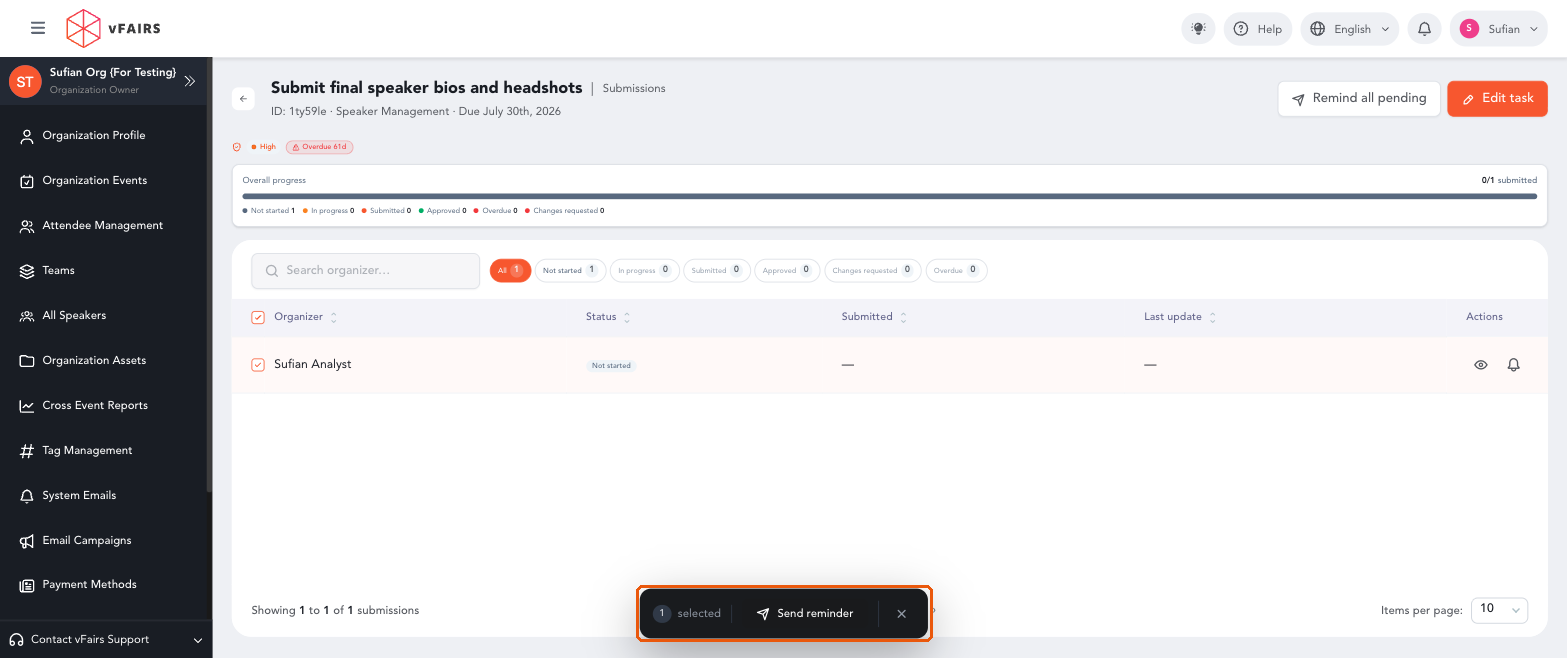
Bulk action bar · 21-submissions-bulk-bar.png
OutcomeBy following these steps, you can see exactly who has completed a task, review each response, and follow up with the people who still need to act.