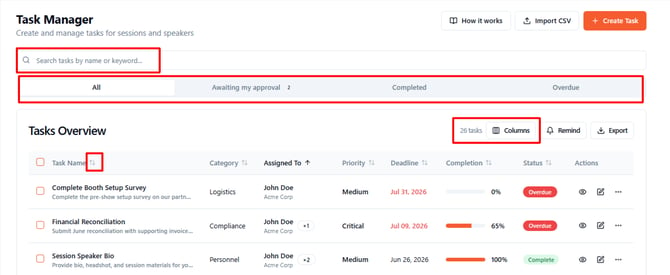
The Tasks Overview table provides shortcuts for managing tasks after creation.
Find and organize a task
1. Open Task Manager.
2. Search by name or keyword, or switch between All, Awaiting my approval, Completed, and Overdue.
3. Select a table heading to sort tasks. Select Columns to show or hide fields, or Reset to default to restore the original column selection.
Edit, duplicate, or delete a task
1. Find the task in the overview table.
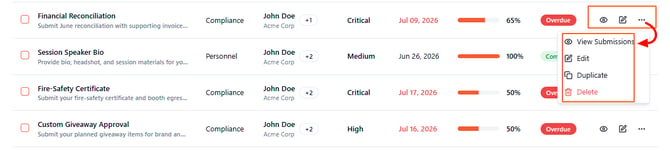
2. Select the pencil icon to edit the task in its drawer.
3. Alternatively, open the three dots menu and choose View Submissions, Edit, Duplicate, or Delete.
4. If you choose Duplicate, review the copied task, initially named with (Copy), before saving it.
Send a reminder for pending tasks
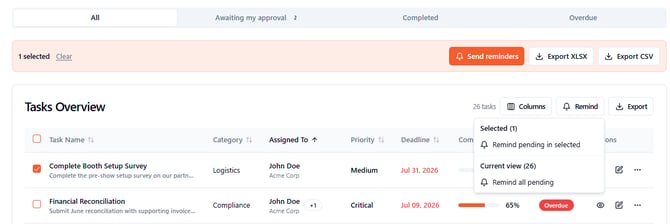
1. In the task overview, select the checkbox beside one or more tasks if you want to work with a selection.
2. Select Remind above the table.
3. Choose Remind pending in selected for your selection, or Remind all pending under Current view for pending tasks in the current view.
4.Fill in the details and send reminder
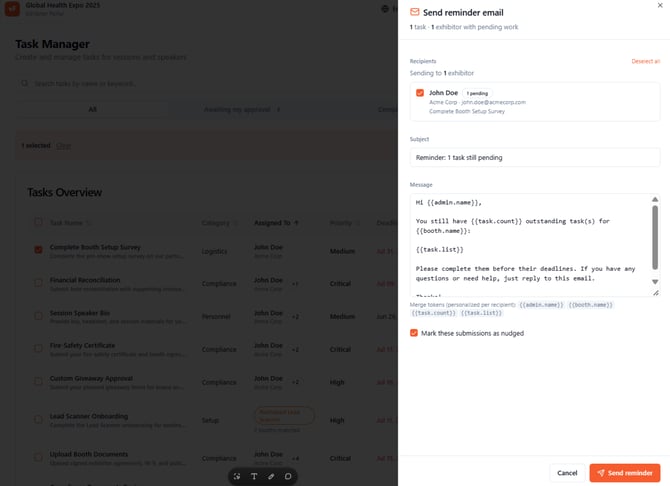
Note: The selected-task option is unavailable when no tasks are selected.
Export task information
1. Select Export above the task table.
2. Choose an export scope: Selected, Current view, or All tasks.
3. Choose XLSX or CSV for the export. The selected-task options are unavailable when nothing is selected.
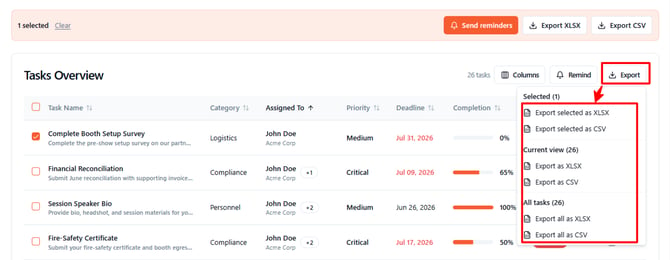
Tip: The export menu shows task counts for the selected, current-view, and all-task scopes, helping you confirm what is included before exporting.