Steps to Check if an Attendee Fast Forwarded a Video
- Access the Sessions Duration Tracking Report
- Login to backend portal and head Analytics section in left navigation menu. Then click Post Event Reports.
- To view the data on how long an attendee spent in a session, including video sessions, navigate to the Sessions Duration Tracking Report.
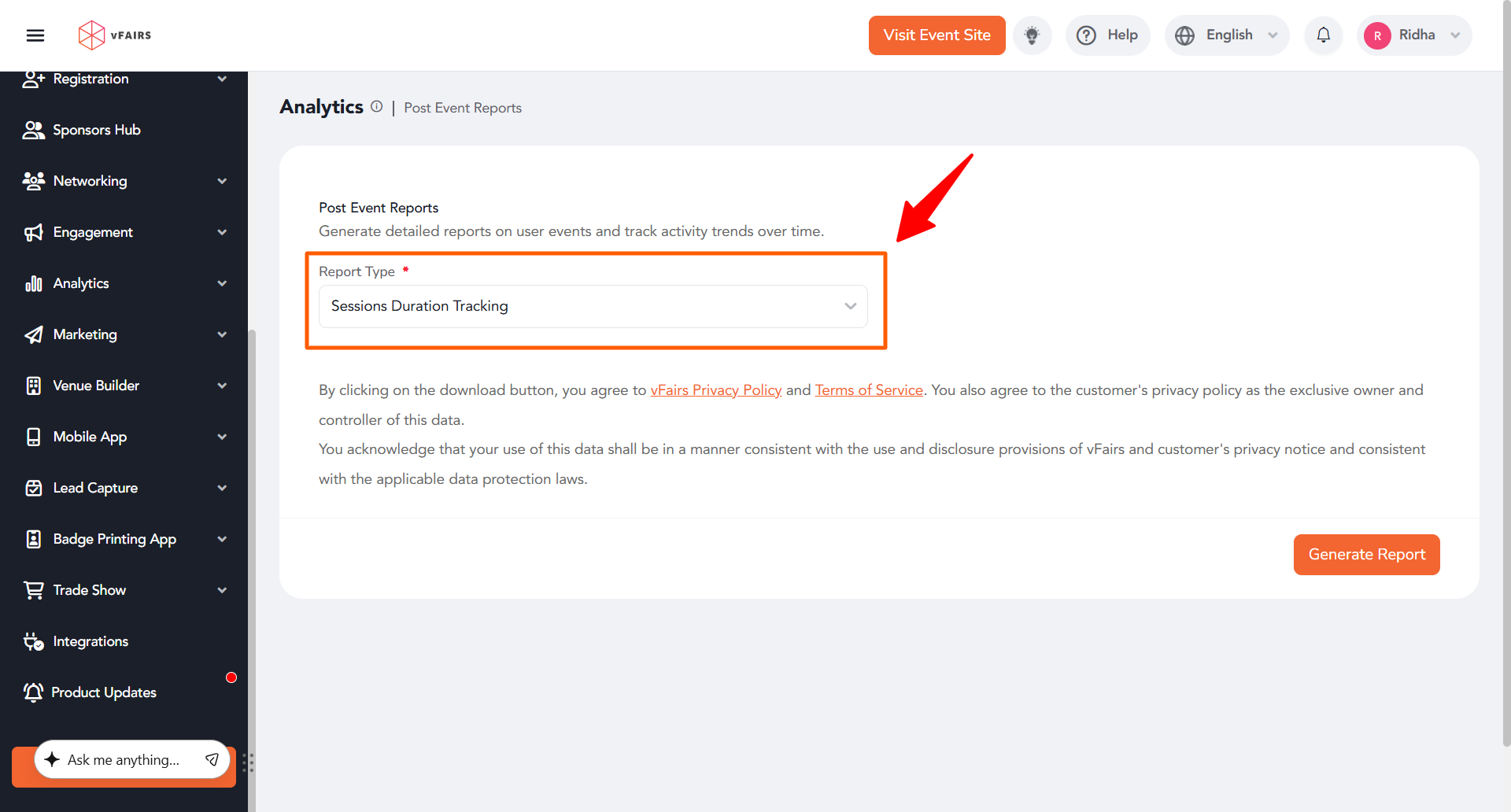
- Login to backend portal and head Analytics section in left navigation menu. Then click Post Event Reports.
- Generate the Report
- Once you access the report, you will be able to see detailed information on the duration attendees spent in each session, including any skipped or fast-forwarded content.
- Analyze the Data
- The report will show how long each attendee engaged with the video, providing insights into whether they fast forwarded or skipped parts of the video session.
Benefits of Session Duration Tracking
- Engagement Insights: Understand how engaged attendees are with video content and which sections they may have fast forwarded.
- Data-Driven Decisions: Use the data to improve future content and sessions, focusing on parts of the video that may need more attention or engagement.
- Enhanced Event Management: Track attendee behavior and refine event strategies accordingly.
Conclusion
vFairs tracks attendee engagement with videos, including duration and any fast-forwarding actions. Access this data via the Sessions Duration Tracking Report to analyze attendee behavior and make data-driven improvements.