---
title: How to Set Up Meeting Types
description: Meeting Types allow organizers to control how meetings are conducted—whether virtual, physical, or both. By configuring these options, you provide flexibility to participants and ensure meetings align with your event format.
---
[Skip to content](https://help.vfairs.com/knowledge/how-to-set-up-meeting-types#main-content)
English
Show submenu for translations
[Customer portal](https://support.vfairs.com/care?hsLang=en)
Open main navigation
Close main navigation
- English
Show submenu for translations
- [Customer portal](https://support.vfairs.com/care)
Welcome to vFairs Help Center
- There are no suggestions because the search field is empty.
1. [Help Center](https://help.vfairs.com/knowledge?hsLang=en)
2. [Group Meeting](https://help.vfairs.com/knowledge/group-meeting?hsLang=en)
# How to Set Up Meeting Types
## The Meeting Types feature allows organizers to define how meetings will be conducted during an event. This helps participants choose whether they want to meet virtually or in person, based on event setup and availability.
#### **Types of Meetings**
There are two primary meeting types:
### **1. Virtual Meetings**
- Meetings conducted via a **virtual link**.
- Ideal for remote participants.
### **2. Physical Meetings**
- Meetings conducted at a **defined location** (room, booth, etc.).
- Used for in-person interactions at physical or hybrid events.
---
#### **How to Add Meeting Types**
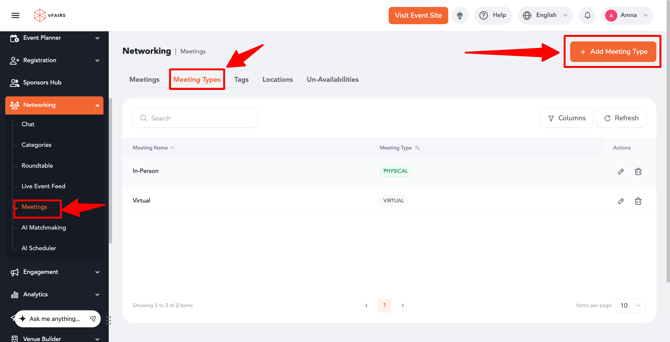
1. Go to your **Event Backend**.
2. Navigate to **Networking → Meetings**.
3. Open the **Meeting Types** section.
4. Click **Add Meeting Type**.
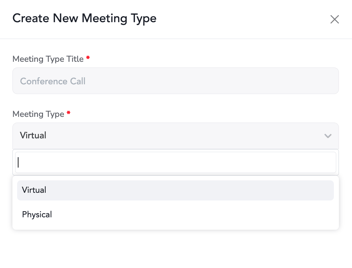
5. Enter the following details:
- **Meeting Type Name** (e.g., Virtual Call, Booth Meeting, In-Person Meeting)
- **Meeting Type** (select either *Virtual* or *Physical*)
- 
6. Click **Save**.
---
#### **Default Meeting Types (Based on Event Type)**
When an event is created, the system automatically adds meeting types:
| Event Type | Default Meeting Types |
| --- | --- |
| **In-Person** | Physical Meetings |
| **Hybrid** | Physical + Virtual Meetings |
| **Virtual** | Virtual Meetings |
---
#### **Customizing Meeting Types**
- Organizers can add additional meeting types as needed.
- Example:
- “VIP In-Person Meeting”
- “Quick Virtual Chat”
- “Booth Demo Session”
---
#### **Where Meeting Types Are Used**
- During **meeting creation**, users will see available meeting types.
- Users can select their **preferred meeting method** (virtual or physical).
- The selected type determines whether:
- A **meeting link** is used (virtual), or
- A **location** is assigned (physical).
- [Organization Management](https://help.vfairs.com/knowledge/organization-management?hsLang=en)
- [Event Setup & Navigation](https://help.vfairs.com/knowledge/event-setup-navigation?hsLang=en#main-content)
- [Document Library](https://help.vfairs.com/knowledge/event-setup-navigation?hsLang=en#document-library)
- [Translations And Labels](https://help.vfairs.com/knowledge/event-setup-navigation?hsLang=en#translations-and-labels)
- [Attendee Management](https://help.vfairs.com/knowledge/attendee-management?hsLang=en)
- [Agenda Management](https://help.vfairs.com/knowledge/agenda-management?hsLang=en#main-content)
- [Session Management](https://help.vfairs.com/knowledge/agenda-management?hsLang=en#session-management)
- [Speaker Management](https://help.vfairs.com/knowledge/agenda-management?hsLang=en#speaker-management)
- [Speaker Management](https://help.vfairs.com/knowledge/speaker-management?hsLang=en)
- [Event Website & Landing Pages](https://help.vfairs.com/knowledge/event-website-landing-pages?hsLang=en#main-content)
- [Web Page Management](https://help.vfairs.com/knowledge/event-website-landing-pages?hsLang=en#web-page-management)
- [Registration & Ticketing](https://help.vfairs.com/knowledge/registration-ticketing?hsLang=en#main-content)
- [Registration](https://help.vfairs.com/knowledge/registration-ticketing?hsLang=en#registration)
- [Ticketing](https://help.vfairs.com/knowledge/registration-ticketing?hsLang=en#ticketing)
- [Payments](https://help.vfairs.com/knowledge/registration-ticketing?hsLang=en#payments)
- [Exhibitor Management](https://help.vfairs.com/knowledge/exhibitor-management?hsLang=en#main-content)
- [Booth Negotiation](https://help.vfairs.com/knowledge/exhibitor-management?hsLang=en#booth-negotiation)
- [Task Management](https://help.vfairs.com/knowledge/exhibitor-management?hsLang=en#task-management)
- [Booth Management](https://help.vfairs.com/knowledge/exhibitor-management?hsLang=en#booth-management)
- [Document / Video](https://help.vfairs.com/knowledge/exhibitor-management?hsLang=en#document-video)
- [Jobs](https://help.vfairs.com/knowledge/exhibitor-management?hsLang=en#jobs)
- [Sponsor Management](https://help.vfairs.com/knowledge/sponsor-management?hsLang=en)
- [Networking](https://help.vfairs.com/knowledge/networking?hsLang=en#main-content)
- [Chat](https://help.vfairs.com/knowledge/networking?hsLang=en#chat)
- [Chat Queue](https://help.vfairs.com/knowledge/networking?hsLang=en#chat-queue)
- [Video Matchmaking](https://help.vfairs.com/knowledge/networking?hsLang=en#video-matchmaking)
- [Reports](https://help.vfairs.com/knowledge/networking?hsLang=en#reports)
- [Meeting](https://help.vfairs.com/knowledge/networking?hsLang=en#meeting)
- [Engagement](https://help.vfairs.com/knowledge/engagement?hsLang=en#main-content)
- [Certificate Management](https://help.vfairs.com/knowledge/engagement?hsLang=en#certificate-management)
- [Scavenger Hunt](https://help.vfairs.com/knowledge/engagement?hsLang=en#scavenger-hunt)
- [Notifications](https://help.vfairs.com/knowledge/engagement?hsLang=en#notifications)
- [Survey](https://help.vfairs.com/knowledge/engagement?hsLang=en#survey)
- [LeaderBoard](https://help.vfairs.com/knowledge/engagement?hsLang=en#leaderboard)
- [Quiz](https://help.vfairs.com/knowledge/engagement?hsLang=en#quiz)
- [Reports & Analytics](https://help.vfairs.com/knowledge/reports-analytics?hsLang=en#main-content)
- [Registration and Ticketing](https://help.vfairs.com/knowledge/reports-analytics?hsLang=en#registration-and-ticketing)
- [User Journey Tracker](https://help.vfairs.com/knowledge/reports-analytics?hsLang=en#user-journey-tracker)
- [Post Event PDF Report](https://help.vfairs.com/knowledge/reports-analytics?hsLang=en#post-event-pdf-report)
- [Survey](https://help.vfairs.com/knowledge/reports-analytics?hsLang=en#survey)
- [Cross Event Report & Reporting 360](https://help.vfairs.com/knowledge/reports-analytics?hsLang=en#cross-event-report-reporting-360)
- [Marketing](https://help.vfairs.com/knowledge/marketing?hsLang=en#main-content)
- [Email Campaigns](https://help.vfairs.com/knowledge/marketing?hsLang=en#email-campaigns)
- [System Emails](https://help.vfairs.com/knowledge/marketing?hsLang=en#system-emails)
- [SMS Campaign](https://help.vfairs.com/knowledge/marketing?hsLang=en#sms-campaign)
- [AI Assistant](https://help.vfairs.com/knowledge/marketing?hsLang=en#ai-assistant)
- [Social Meta](https://help.vfairs.com/knowledge/marketing?hsLang=en#social-meta)
- [Web Notifications](https://help.vfairs.com/knowledge/marketing?hsLang=en#web-notifications)
- [Accommodation & Budget Management](https://help.vfairs.com/knowledge/accommodation-budget-management?hsLang=en#main-content)
- [Accommodation](https://help.vfairs.com/knowledge/accommodation-budget-management?hsLang=en#accommodation)
- [Attendee Mobile App](https://help.vfairs.com/knowledge/attendee-mobile-app?hsLang=en#main-content)
- [Event Assistant](https://help.vfairs.com/knowledge/attendee-mobile-app?hsLang=en#event-assistant)
- [Getting Started & App Access](https://help.vfairs.com/knowledge/attendee-mobile-app?hsLang=en#getting-started-app-access)
- [Build & Customize Your App](https://help.vfairs.com/knowledge/attendee-mobile-app?hsLang=en#build-customize-your-app)
- [Legacy App](https://help.vfairs.com/knowledge/attendee-mobile-app?hsLang=en#legacy-app)
- [Sessions & Event Content](https://help.vfairs.com/knowledge/attendee-mobile-app?hsLang=en#sessions-event-content)
- [Engagement & Networking](https://help.vfairs.com/knowledge/attendee-mobile-app?hsLang=en#engagement-networking)
- [Event Operations & Insights](https://help.vfairs.com/knowledge/attendee-mobile-app?hsLang=en#event-operations-insights)
- [Lead Capture App](https://help.vfairs.com/knowledge/lead-capture-app?hsLang=en#main-content)
- [Reporting 360](https://help.vfairs.com/knowledge/lead-capture-app?hsLang=en#reporting-360)
- [Badge Printing & Check-in App](https://help.vfairs.com/knowledge/badge-printing-check-in-app?hsLang=en#main-content)
- [Printers](https://help.vfairs.com/knowledge/badge-printing-check-in-app?hsLang=en#printers)
- [Badge Design](https://help.vfairs.com/knowledge/badge-printing-check-in-app?hsLang=en#badge-design)
- [Integrations](https://help.vfairs.com/knowledge/integrations?hsLang=en#main-content)
- [Custom Workflow](https://help.vfairs.com/knowledge/integrations?hsLang=en#custom-workflow)
- [E-commerce](https://help.vfairs.com/knowledge/e-commerce?hsLang=en#main-content)
- [Product Management](https://help.vfairs.com/knowledge/e-commerce?hsLang=en#product-management)
- [Allowance Negotiation](https://help.vfairs.com/knowledge/e-commerce?hsLang=en#allowance-negotiation)
- [Venue Builder](https://help.vfairs.com/knowledge/venue-builder?hsLang=en)
- [Abstract Management](https://help.vfairs.com/knowledge/abstract-management?hsLang=en)
- [Group Meeting](https://help.vfairs.com/knowledge/group-meeting?hsLang=en)
- [Exhibitor Portal](https://help.vfairs.com/knowledge/exhibitor-portal?hsLang=en#main-content)
- [Booth](https://help.vfairs.com/knowledge/exhibitor-portal?hsLang=en#booth)
- [Search Attendee](https://help.vfairs.com/knowledge/search-attendee?hsLang=en)
- [Data Tags](https://help.vfairs.com/knowledge/data-tags?hsLang=en)
- [Organization Website](https://help.vfairs.com/knowledge/organization-website?hsLang=en)
- [AI Tools](https://help.vfairs.com/knowledge/ai-tools?hsLang=en)
[-1.webp?width=107&height=44&name=vfairs-logo-landscape-gradient-5%20(3)-1.webp "vfairs-logo-landscape-gradient-5 (3)-1")](http://vfairs.com)
vfairs.com Help Center
Copyright © 2026, vFairs LLC