Turn on approval
1. In the task drawer, expand Approvals.
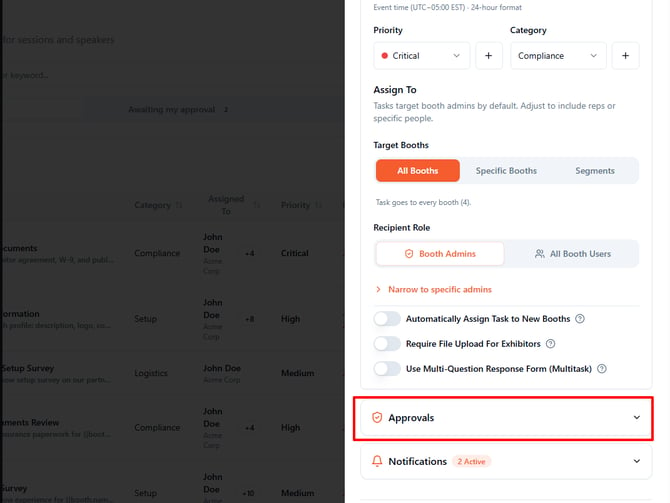
2. Turn on Requires approval before completion.

3. Under Approval flow, choose Direct approvers or Staged flow.
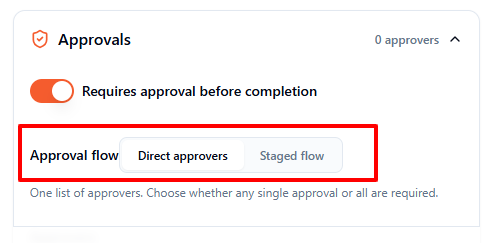
Option 1: Set direct approvers
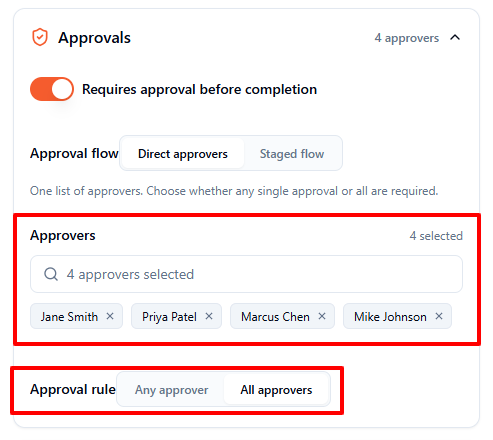
1. Select Select approvers... and choose one or more people.
2. Choose the Approval rule: Any approver (one approval is enough) or All approvers (everyone selected must approve).
Option 2: Set a staged approval flow
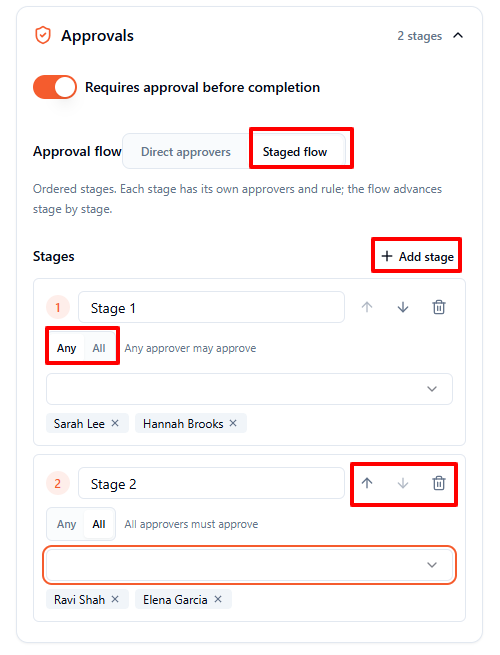
1. Select Add stage to create each review stage.
2. Give each stage a clear name, such as Compliance review or Event Director.
3. For each stage, choose Any or All and select Add approvers... to assign reviewers.
4. Use the arrows to reorder stages or the bin icon to delete one. Each stage must pass before the next stage starts.
Note: A task with direct approval needs at least one approver. A staged flow needs at least one approver in every stage before the task can be saved.
Configure reminders and overdue notices
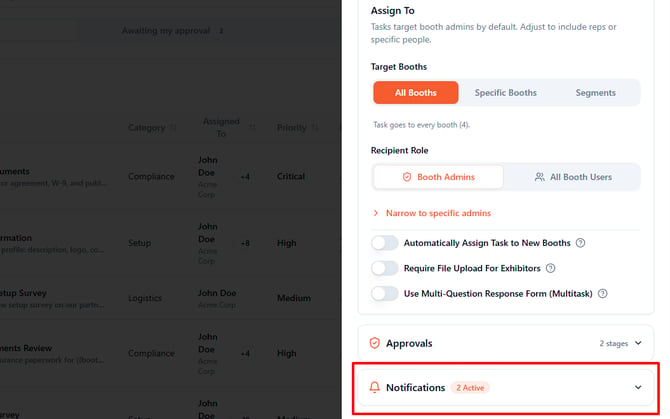
1. Expand Notifications tab.
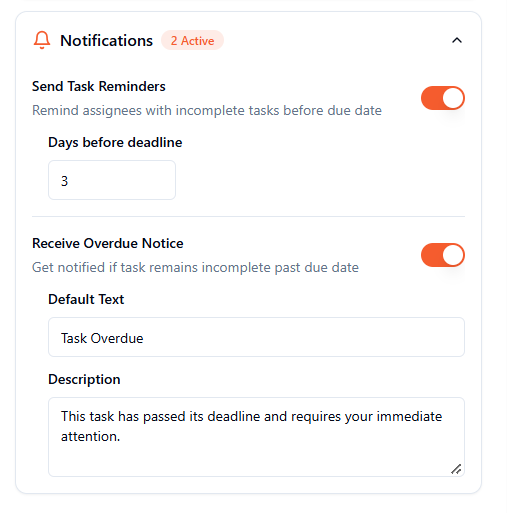
2. Turn on Send Task Reminders and set Days before deadline from 1 to 30. The default is 3 days.
3. To configure overdue communication, turn on Receive Overdue Notice.
4. Update the default Description if needed.
5. Select Create Task to save a new task, or Update Task when editing an existing task.
What happens after submission?
When approval is enabled, an exhibitor submission is sent for review instead of becoming immediately complete. In a staged flow, approval moves the submission to the next stage; after the final approval, it becomes approved.