Reminders and overdue notices keep assignees on schedule without you having to chase them. You can set automatic reminders on each task and send a reminder yourself at any time.
1. Turn On Automatic Reminders- In the Create Task drawer, click on the Notifications section to expand it.
- Turn on Send Task Reminders.
- Enter the Days before deadline when the reminder should go out (3 by default).
- Turn on Receive Overdue Notice.
- Edit the Default Text (the notice title, “Task Overdue” by default) and the Description assignees will see once the deadline passes.
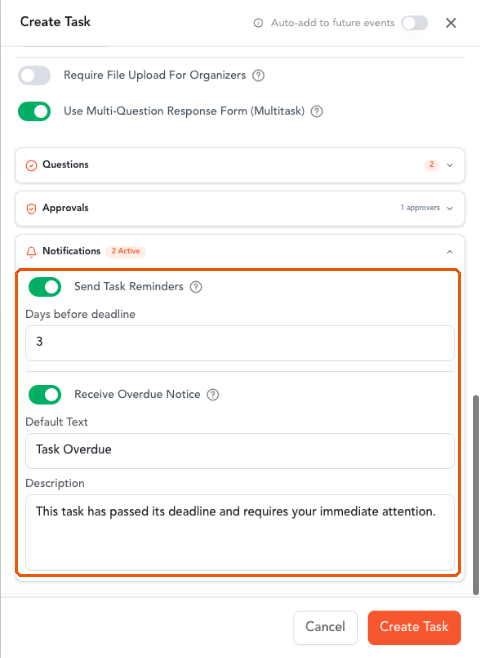
Reminder and overdue notice settings · 13-notifications.png
Note: The badge next to Notifications shows how many of the two settings are active. Reminders follow the task’s actual deadline, including relative deadlines.
3. Send a Reminder Manually- Open the task’s submissions page (click on the task row in the Task Manager).
- Click on Remind all pending at the top of the page, or select organizers and click on Send reminder in the action bar. You can also use the bell icon (Send reminder) in a task row on the Task Manager.
- The Send reminder email drawer opens. Review the Recipients; untick anyone you do not want to remind, or click on Deselect all.
- Edit the Subject if needed and review the email preview under Message.
- Click on Send reminder.
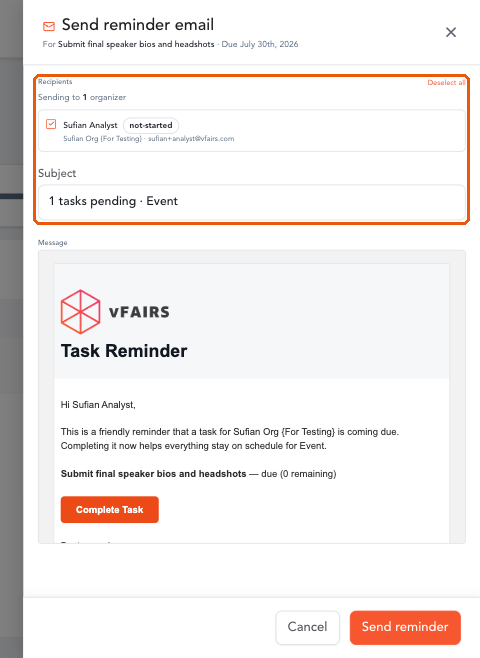
Send reminder email drawer · 22-send-reminder.png
OutcomeBy following these steps, you can nudge assignees automatically before a deadline, alert them when a task is overdue, and send a reminder yourself whenever it is needed.