Note: Ensure your event has sessions hosted on Sequel.
Step 1: Access the Video Library
- Navigate to Agenda & Speakers from the backend menu.
- Open the Video Library sub-menu.
- Select the Uploaded Videos tab.
Step 2: Initiate Recording Synchronization
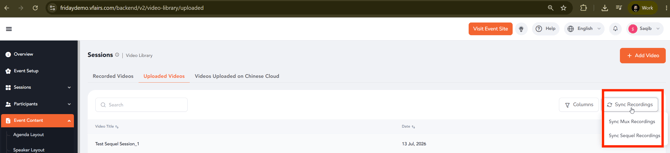
- Click the Sync Recordings button located at the top-right of the Video Library.
- A provider selection pop-up will appear.
The following synchronization options are available:
- Sync Mux Recordings
- Sync Sequel Recordings
Step 3: Select Sequel as the Recording Provider
- Click Sync Sequel Recordings.
- The system will initiate the synchronization process using the configured Sequel integration.
- Available recordings associated with your event will automatically begin syncing into the Video Library.
Step 4: Review Imported Recordings
Once synchronization completes:
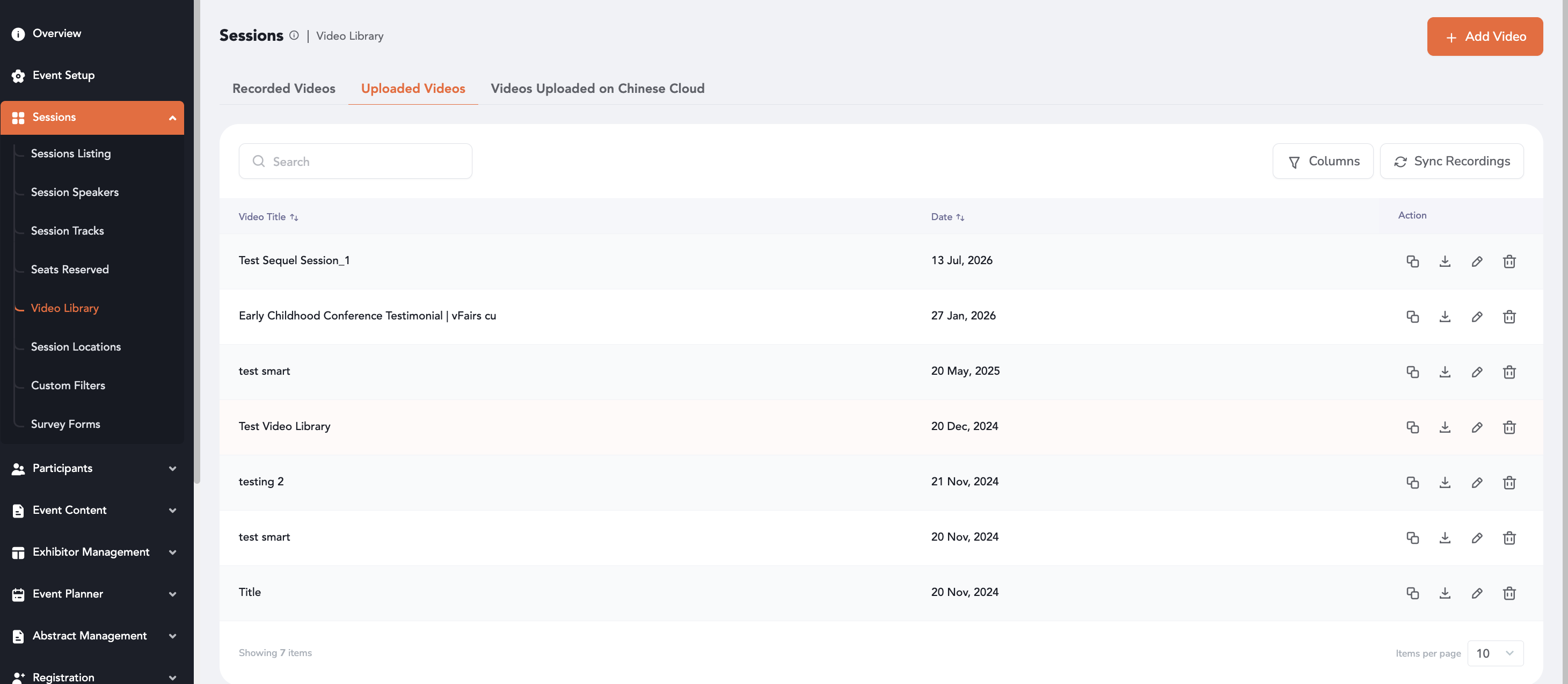
- All successfully imported Sequel recordings will appear within the Uploaded Videos listing.
- Sequel recordings will follow the same layout and metadata structure as existing Mux recordings.
- Newly synchronized videos become immediately available for viewing, management, and download from the Video Library.
If synchronization cannot be completed due to an API or connectivity issue:
- The system will display an error notification indicating that the synchronization was unsuccessful.
- Existing recordings within the Video Library will remain unaffected.
- You can retry the synchronization once the issue has been resolved.