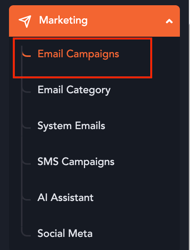
1. Navigate to the Email Campaign Module
- Open the event Backend.
- Go to Marketing section.
- Click Email Campaigns.
- Create a new email campaign or edit an existing one.
2. Select the Recipient Segment
Choose the audience for your campaign.
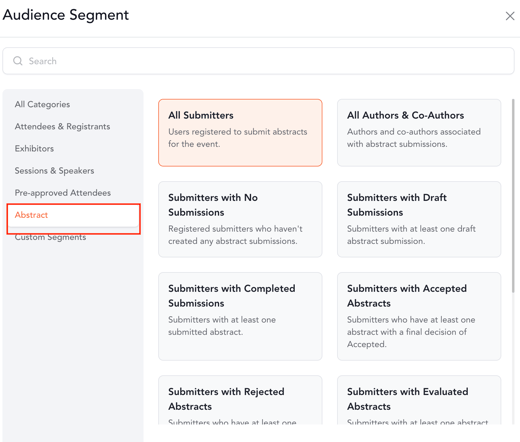
Supported recipient segments include:
- Abstract Submitters
- Reviewers
- Other supported Abstract Management segments
The system automatically determines the appropriate abstract record based on the selected recipient.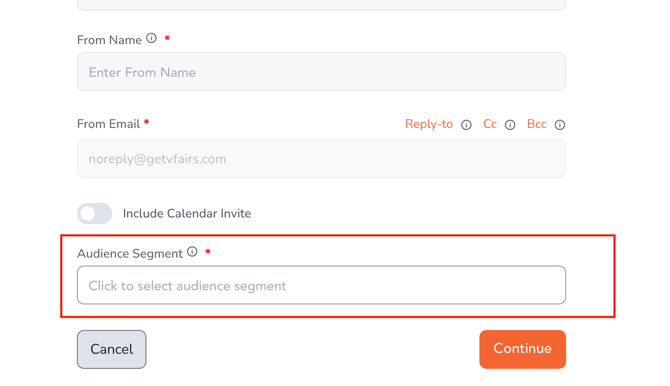
3. Compose Your Email
Enter the email Subject and Body.
Position the cursor where you'd like abstract-specific information to appear.
4. Insert a Personalization Tag
From the Personalization Tags menu, insert the required merge tag.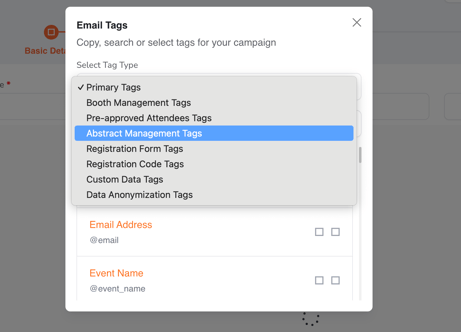
Available tags include:
@abstract_id
Displays the unique Abstract ID associated with the recipient.
The tag automatically resolves based on the campaign audience.
Example
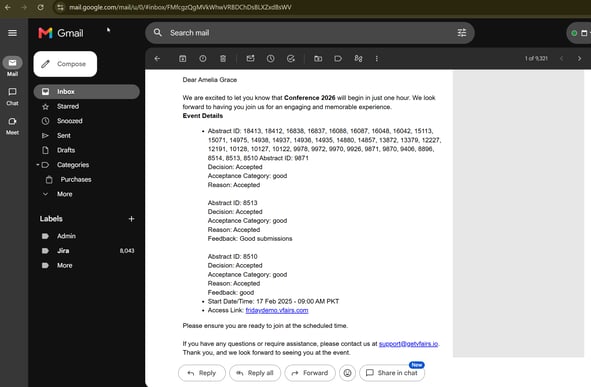
Abstract ID: @abstract_id@abstract_decision_details
Displays the decision details associated with the abstract.
Depending on the submission outcome, the tag automatically includes the available information, such as:
- Decision Outcome
- Acceptance or Rejection Category (if configured)
- Decision Reason
- Additional Feedback
Example Output
Accepted
Decision: Accepted
Acceptance Category: Oral Presentation
Reason: High Scientific Merit
Feedback: Excellent methodology and relevance to conference objectives.
Rejected
Decision: Rejected
Reason: Does not align with conference theme
Feedback: Consider revising the scope and resubmitting next year.
@abstract_evaluation_response
Displays the evaluation details captured during the review process.
Depending on the available evaluation data, the tag may include:
- Evaluation Result
- Overall Score
- Reviewer Feedback Comments
Example Output
Evaluation Result: Recommended for Acceptance
Score: 8.5/10
Feedback: Strong submission with clear objectives and robust methodology.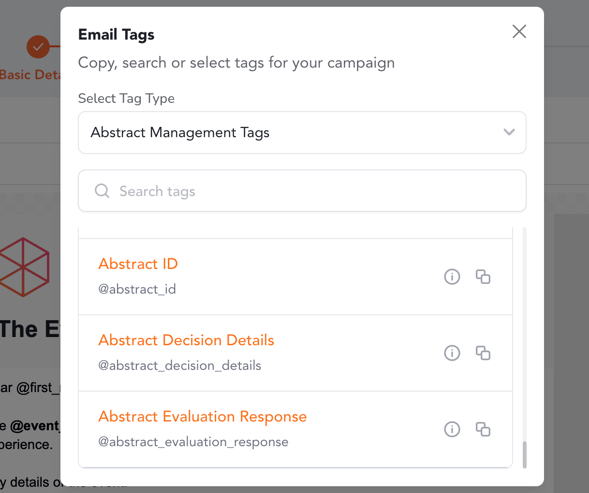 5. Preview the Email
Before sending the campaign:
- Review the email preview.
- Verify that all inserted merge tags resolve correctly based on the selected recipient.
- Confirm that the email content appears as expected.
6. Send the Campaign
Once the campaign has been reviewed:
- Click Send or Schedule.
- During email generation, the system automatically replaces each personalization tag with the appropriate abstract-specific information for every recipient.
How Personalization Tags Resolve
The inserted tags dynamically populate data based on the campaign recipient.
| Recipient Type | Tag Resolution |
|---|---|
| Submitters | Displays information associated with the recipient's abstract submission. |
| Reviewers | Displays information from the abstract(s) evaluated by the reviewer. |
| Organizer-Initiated Communications | Displays information from the abstract record from which the email is initiated. |
Notes
- Only information available for the associated abstract is included in the email.
- If optional fields such as decision categories, reasons, scores, or feedback are not configured, only the available information is displayed.
- Missing values are handled using the platform's existing merge tag fallback behavior to ensure successful email delivery.