Table of Contents
- Accessing the Settings Screen
- Managing Notifications
- Changing the App Theme
- Adjusting Timezone Settings
Accessing the Settings Screen
In the new vFairs Mobile App, a dedicated Settings option is available in the app menu.
- Open the Menu screen in the mobile app.
- Tap Settings.
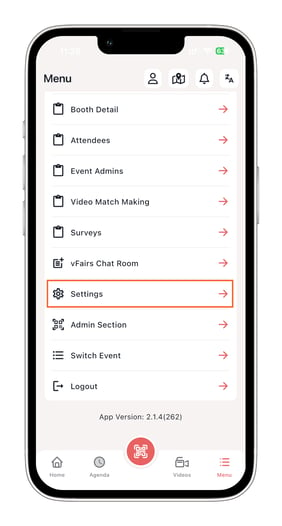
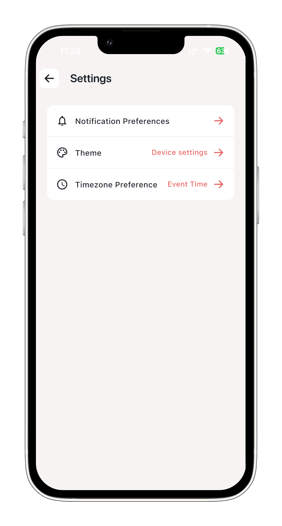
A new screen will open with the following options:
- Notifications
- Theme
- Timezone
Managing Notifications
Tap Notifications to manage your app notifications.
Here, you can:
- Turn off all push notifications for the app
- Manage notifications individually for specific features
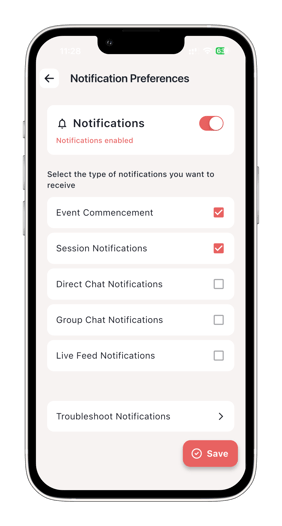
Examples include:
- Session Q&A notifications
- Chat notifications
- Group Chat notifications
- Other event-related alerts
This allows users to customize which notifications they want to receive.
Changing the App Theme
Tap Theme to customize the app appearance.
You will see three options:
- Light
- Dark
- Device Settings
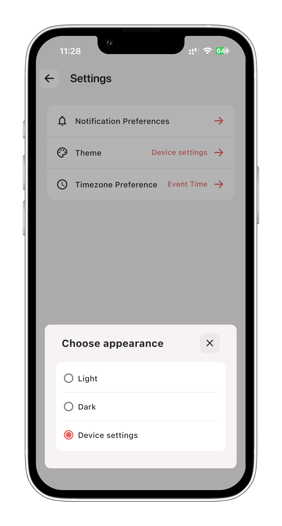
By default, the app follows your device’s system settings.
Selecting Light or Dark mode overrides the device preference for the app.
Adjusting Timezone Settings
Tap Timezone to choose how event times are displayed in the app.
You will see two options:
- Local
- Event
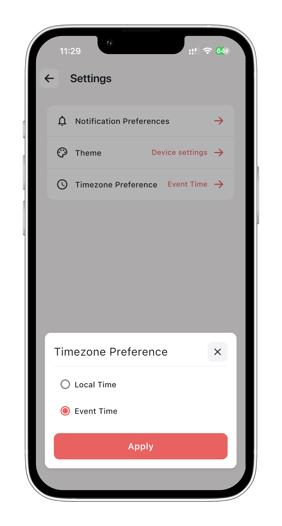
Local Timezone
Displays sessions, meetings, and event timings according to the user’s current local timezone.
Event Timezone
Displays all timings according to the timezone configured for the event.
For example:
If the event is configured in the UK timezone but the attendee is currently located in the US, they can switch to Local timezone to view sessions and schedules in their own local time.
This helps attendees better plan and manage their event schedule.