Configuration Steps
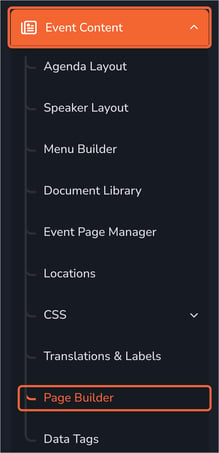
- From the left menu, navigate to Event Content → Page Builder.
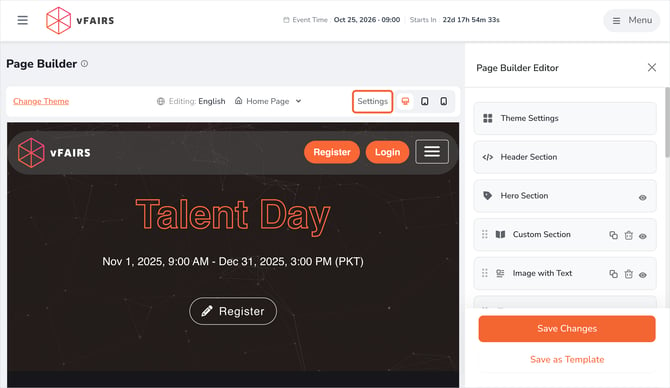
- In the Page Builder toolbar, click Settings.
- On the Settings page, select the SEO Settings tab.
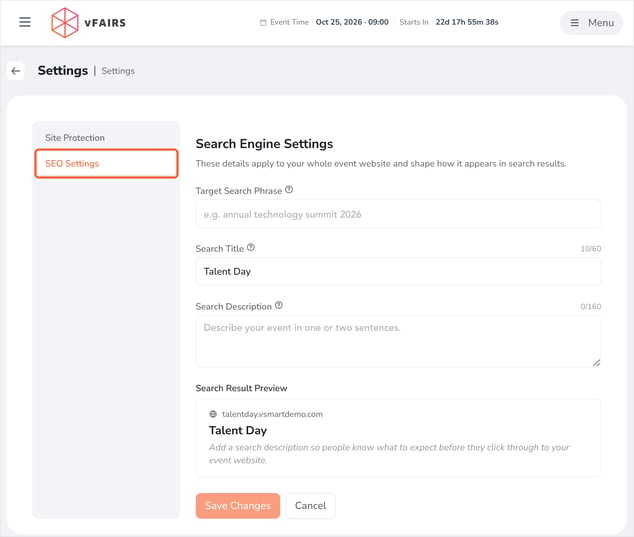
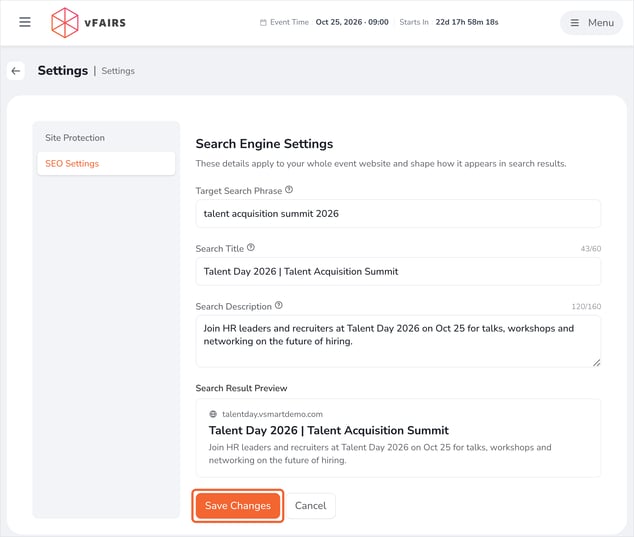
- Fill in the Search Engine Settings fields:
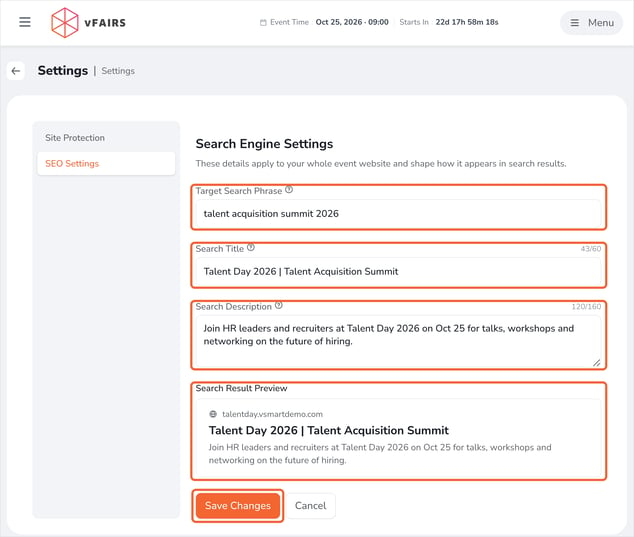
- Target Search Phrase – the main phrase people would search to find your event.
- Search Title – shown as the clickable headline in search results (up to 60 characters).
- Search Description – a short summary shown under the title (up to 160 characters).
- Search Result Preview - check how your event will look in search results; it updates as you type.
- Click Save Changes to apply your settings.
Tip: Hover over the ? icon next to any field to see a quick description (Tooltip) of what it does.
Important Notes
- SEO Settings apply to the entire event website, not to individual pages.
- The Search Title is pre-filled with your event name until you change it.
- If no Search Description is added, the preview prompts you to add one so visitors know what to expect before they click through.
- Search engines may take some time to show updated titles and descriptions after you save.