Step 1: Add Sessions Widget to the Form
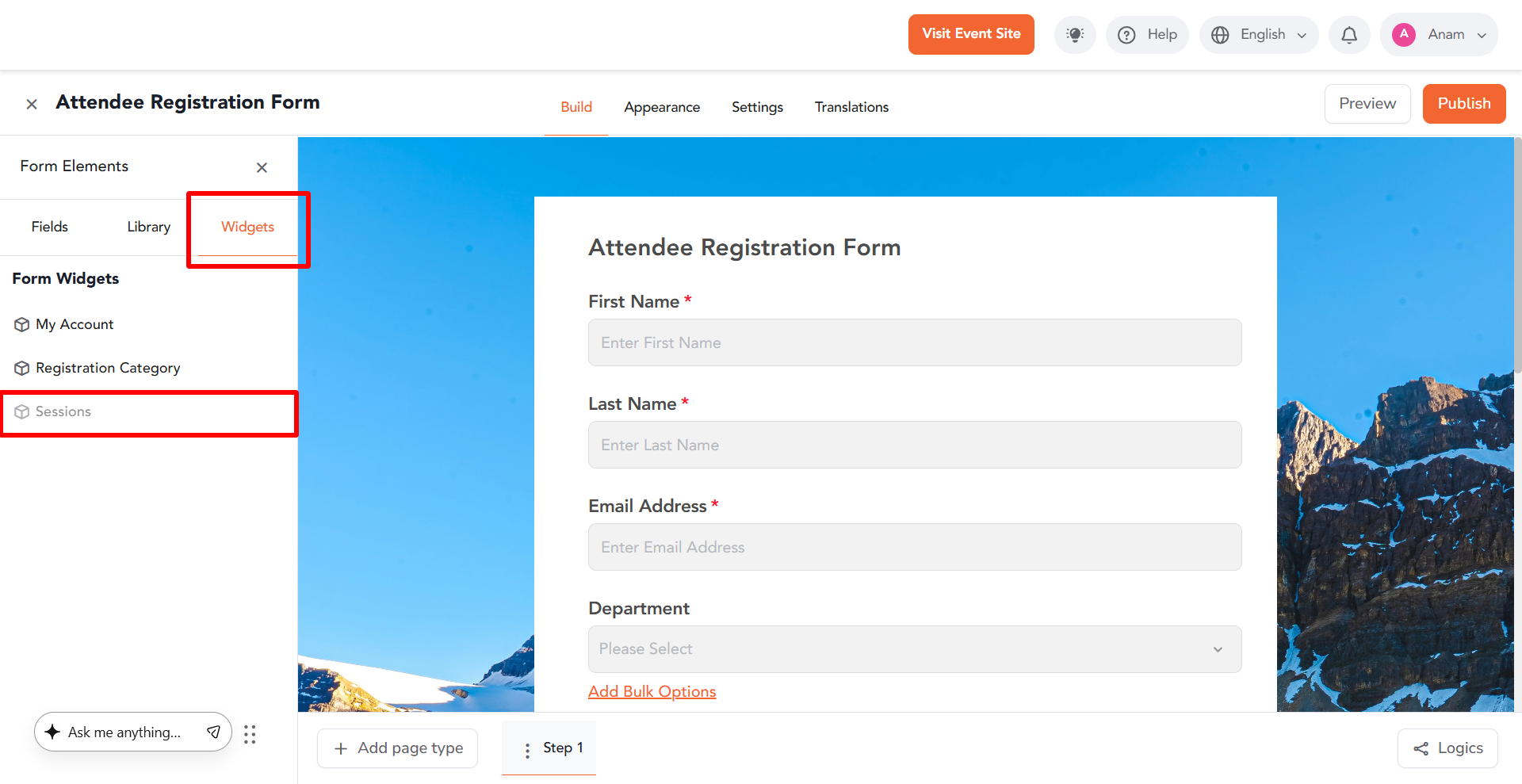
- Navigate to Registration > Attendee Registration Form.
- In the left panel, go to Widgets.
- Locate the Sessions Widget.
- Click or drag and drop it onto your form.
Step 2: Customize Widget Content
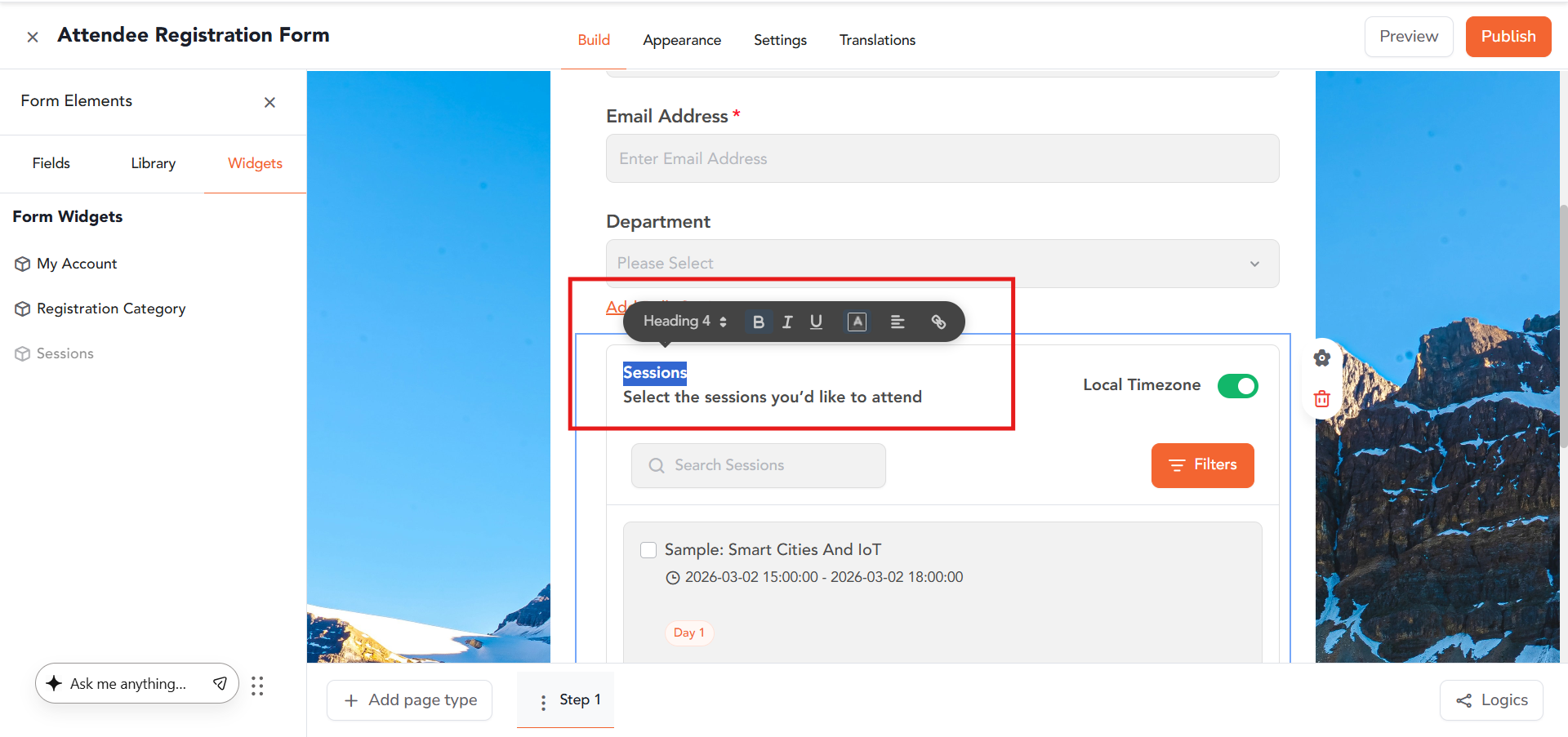
- Once added, you can edit the heading and subheading inline.
- Double-click the text to open the floating formatting bar.
- From here, you can update:
- Font size
- Alignment
- Styling (bold, italic, etc.)
- Colors
Step 3: Access Widget Settings
- Click on the Sessions Widget.
- Click the gear icon to open the right panel settings.
- Settings are divided into General and Advanced tabs.
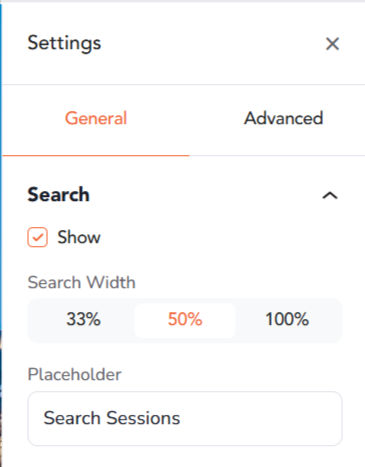
1. Search
- Show Toggle: Enables a search bar for attendees to find sessions quickly.
- Search Width: Choose between 33%, 50%, or 100% width.
- Placeholder: Customize the search input text (e.g., “Search Sessions”).
2. Speakers
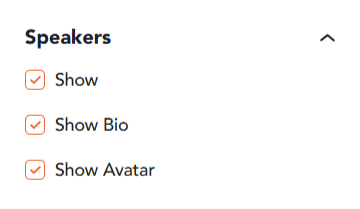
- Show Toggle: Displays speakers associated with sessions.
- Show Bio: Allows attendees to view speaker bios.
- Show Avatar: Displays speaker profile images.
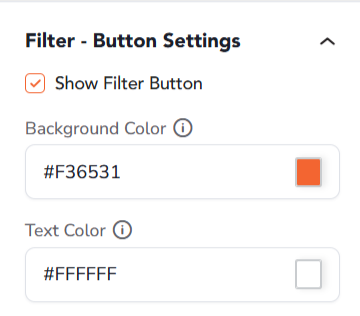
3. Filter Button Settings
- Show Filter Button: Enables filtering options for sessions.
- Background Color: Customize the filter button background color.
- Text Color: Customize the filter button text color.
4. Available Filter Types
Choose which filters attendees can use:
- Session Types
- Tracks
- Dates
- Custom Filters (Tags)
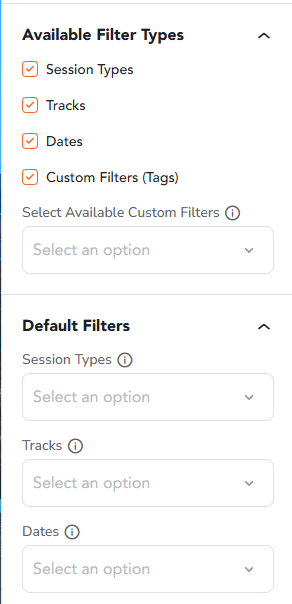
You can also configure:
- Default filter selections
5. Default Filters
Set pre-selected filters for attendees when the widget loads, such as:
- Default session type
- Default track
- Default date
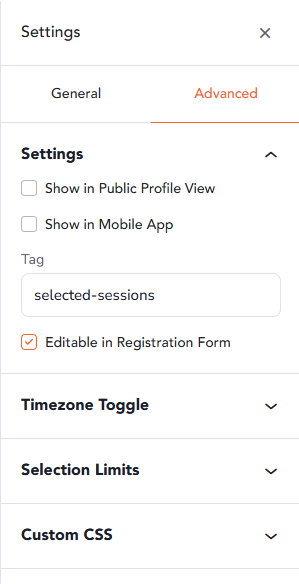
1. Tag
- Default value: selected-sessions
- This tag is used for data mapping and email merge tags.
- It allows selected sessions to be referenced in system emails
2. Editable in Registration Form
- When enabled, attendees can modify their session selection during profile edits.
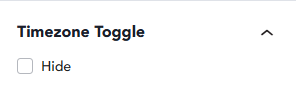
3. Timezone Toggle
- Allows attendees to switch between event timezone and their local timezone.
- Can be hidden if not required.
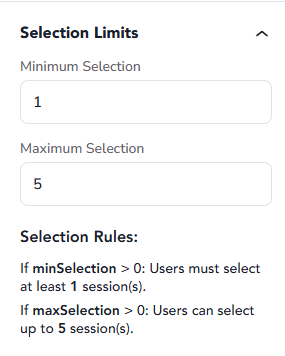
4. Selection Limits
- Minimum Selection: Set the minimum number of sessions a user must select.
- Maximum Selection: Set the maximum number of sessions allowed.
- Use 0 to allow unlimited selection.
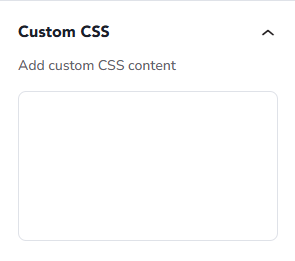
5. Custom CSS
- Add custom styling using CSS for advanced design customization.
- Useful for:
- Custom layouts
- Styling overrides
- Brand alignment
View Selected Sessions
After registration:
- Selected sessions can be viewed in:
Participants > Attendees & Registrants
(Enable columns via the Columns button)
Reporting
Selected Sessions are also available in:
Analytics > Reporting 360 > Registrations Report
- Accessible under the User Pill
Set Session Limits
For sessions with limited capacity organizers can set limits by navigating to:
Agenda & Speakers > Session Listing > Settings > Basic > Enable Save a Seat > Attendee Registration Form
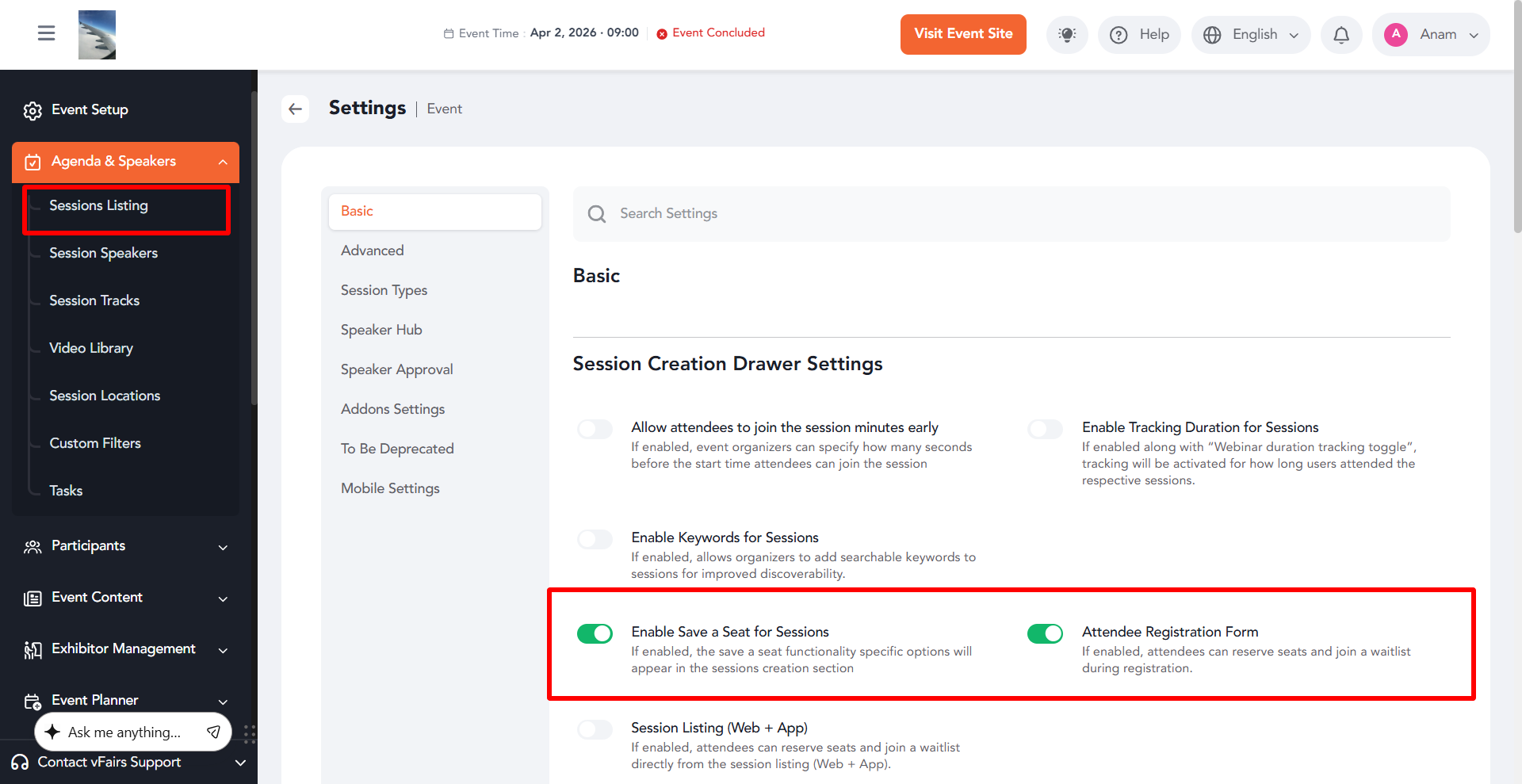
- After enabling these 2 toggle click on Update Settings
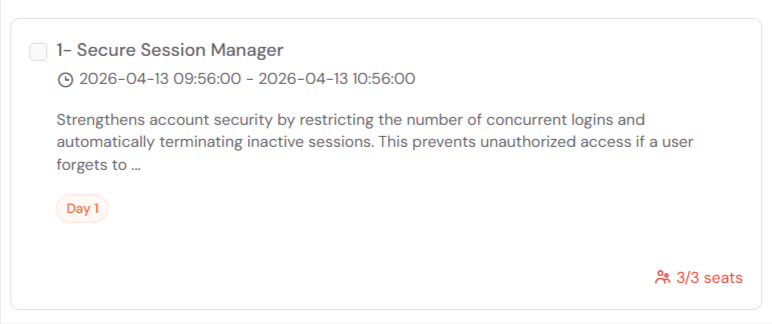
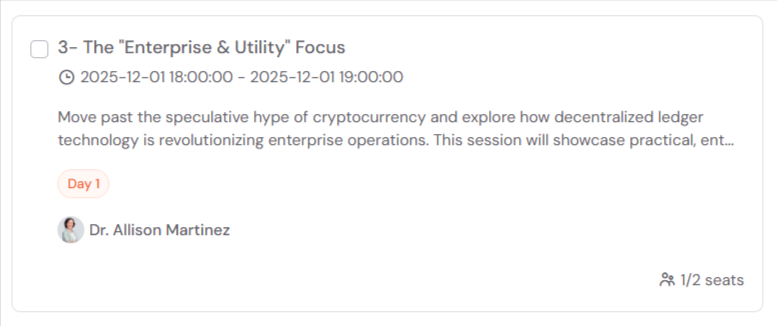
- Now when creating or editing a session organizers can define seat limits under the Seat Reservation section
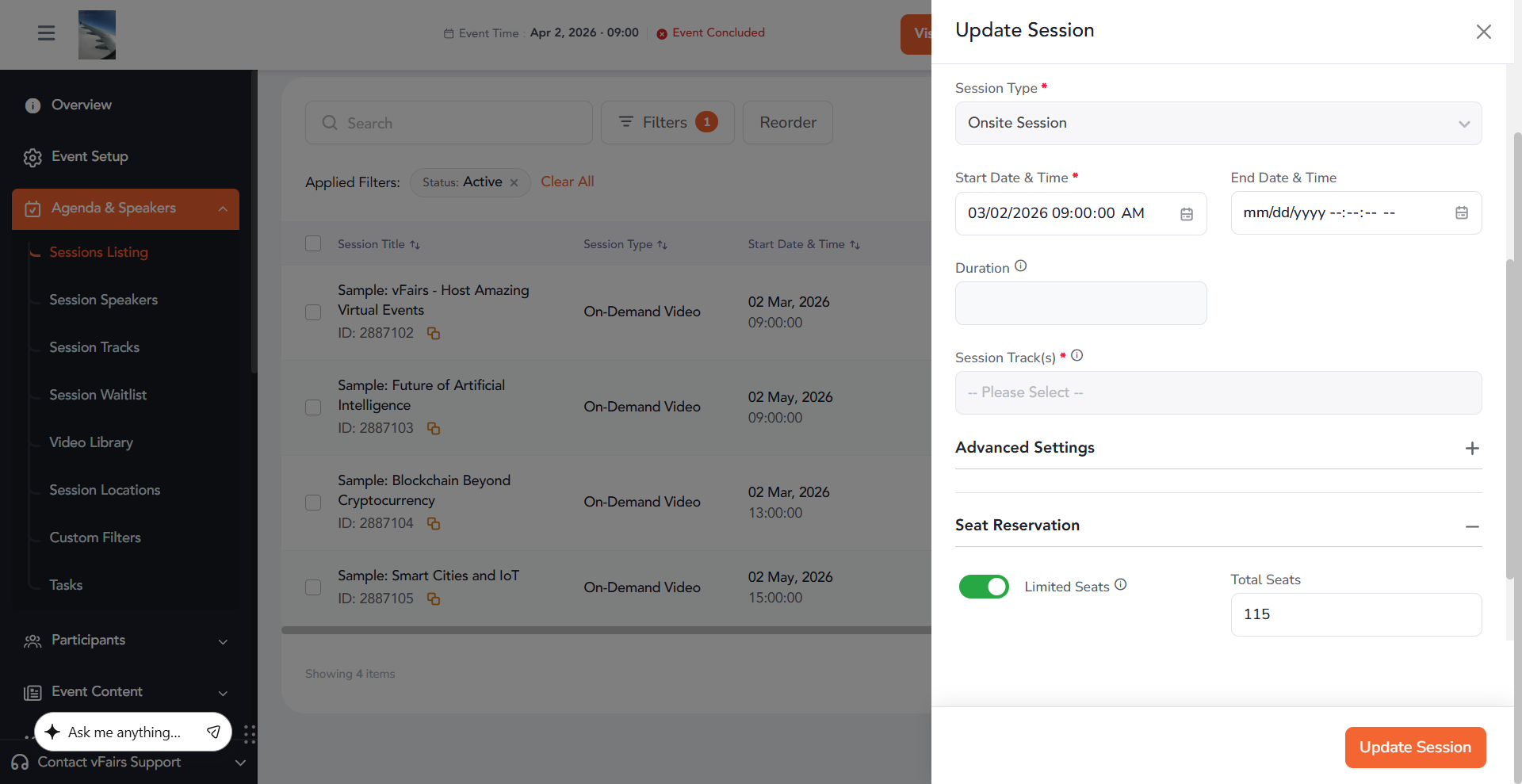
Since the Attendee Registration Form is enabled along with Save a Seat these limits will now be enforced for Session Widget as well
Summary
The Sessions Widget provides a flexible way to integrate session selection into your registration form. With customizable search, filters, display options, and selection rules, it ensures a smooth and personalized experience for attendees while giving organizers full control over session management.