---
title: "Timed Menu Items: Multiple Availability Slots"
description: Schedule menu items with multiple time slots to control visibility across time zones ensuring the right links appear and disappear automatically during your event
---
[Skip to content](https://help.vfairs.com/knowledge/timed-menu-items-multiple-availability-slots#main-content)
English
Show submenu for translations
[Customer portal](https://support.vfairs.com/care?hsLang=en)
Open main navigation
Close main navigation
- English
Show submenu for translations
- [Customer portal](https://support.vfairs.com/care)
Welcome to vFairs Help Center
- There are no suggestions because the search field is empty.
1. [Help Center](https://help.vfairs.com/knowledge?hsLang=en)
2. [Organization Management](https://help.vfairs.com/knowledge/organization-management?hsLang=en)
# Timed Menu Items: Multiple Availability Slots
## The Timed Menu Item feature allows organizers to control the visibility of specific navigation links in the event hall based on a schedule.
### **Purpose**
Use this feature when you need a menu item (like a specific Exhibit Hall or a Live Webinar link) to appear and disappear at specific times. This is especially useful for global, 24-hour events spanning multiple regions (e.g., US and China), allowing you to automate visibility across different time zones without manual intervention during the event.
### **Step-by-Step Instructions**
#### **Step 1: Access the Menu Builder**
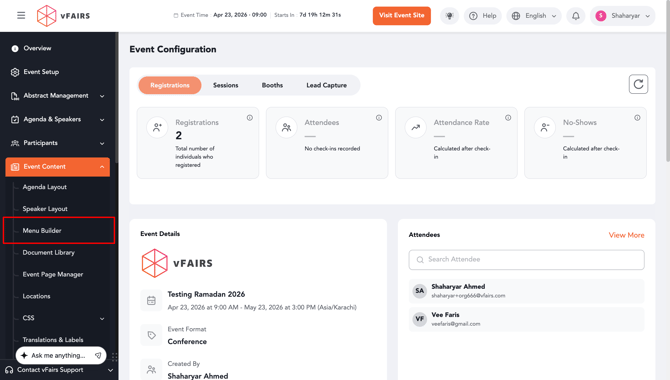
Log in to your vFairs backend and navigate to the **Event Content** tab on the left-hand sidebar. From the dropdown options, select **Menu Builder**.
#### **Step 2: Select a Menu Item to Edit**
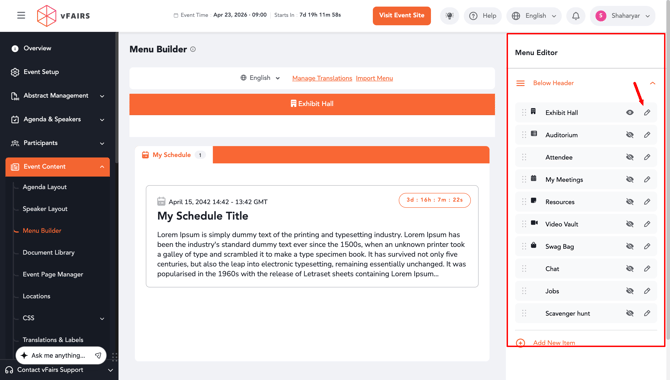
In the **Menu Editor** panel on the right, locate the specific item you wish to schedule (e.g., "Exhibit Hall"). Click the **Edit (pencil) icon** next to that item.
#### **Step 3: Configure Multiple Timing Slots**
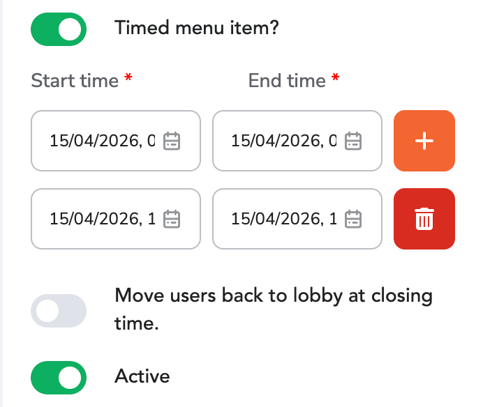
Scroll down within the edit settings to find the **Timed menu item?** toggle and switch it **ON**.
- **Add Slots:** Click the **"+" icon** to create multiple start and end time windows. This allows the item to appear and disappear multiple times throughout the event.
- **Remove Slots:** Click the **"bin" icon** to delete a specific timing window.
- **Set Schedule:** Enter the specific Start and End dates and times for each slot to accommodate different regional schedules.
#### **Step 4: Save and Verify**
Once the times are set, save your changes. Before the scheduled start time, the menu item will remain hidden from the attendee's view.
---
### **What Happens After Setup**
- **Before the Start Time:** The navigation bar in the event hall will be empty or will not show the timed item.
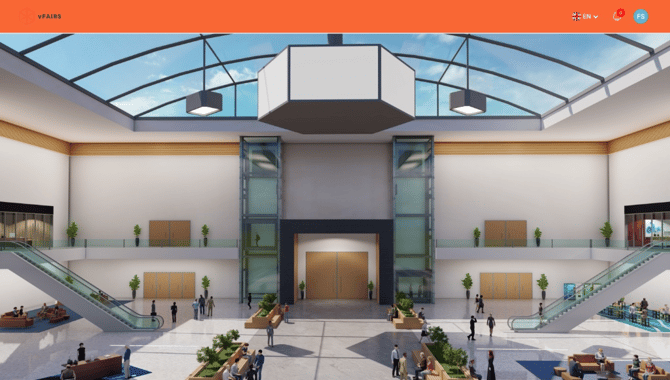
- **During the Scheduled Slot:** The menu item (e.g., Exhibit Hall) automatically appears in the top navigation bar with a "NEW" tag (if configured), allowing attendees to click and enter.
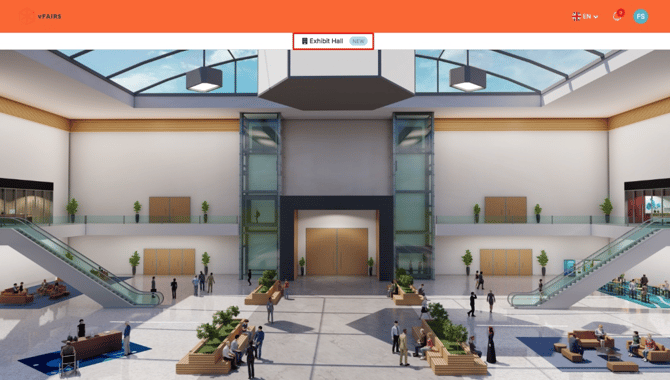
- **After the End Time:** The menu item will automatically disappear from the navigation bar, preventing further access.
---
### **Summary**
- **Navigate** to Event Content \> Menu Builder.
- **Edit** the desired menu item and toggle **Timed menu item** to ON.
- **Add multiple timing slots** using the "+" icon to cover different time zones or event phases.
**The system automates** the visibility, showing the link only during your defined windows.
- [Organization Management](https://help.vfairs.com/knowledge/organization-management?hsLang=en)
- [Event Setup & Navigation](https://help.vfairs.com/knowledge/event-setup-navigation?hsLang=en#main-content)
- [Document Library](https://help.vfairs.com/knowledge/event-setup-navigation?hsLang=en#document-library)
- [Translations And Labels](https://help.vfairs.com/knowledge/event-setup-navigation?hsLang=en#translations-and-labels)
- [Attendee Management](https://help.vfairs.com/knowledge/attendee-management?hsLang=en)
- [Agenda Management](https://help.vfairs.com/knowledge/agenda-management?hsLang=en#main-content)
- [Session Management](https://help.vfairs.com/knowledge/agenda-management?hsLang=en#session-management)
- [Speaker Management](https://help.vfairs.com/knowledge/agenda-management?hsLang=en#speaker-management)
- [Speaker Management](https://help.vfairs.com/knowledge/speaker-management?hsLang=en)
- [Event Website & Landing Pages](https://help.vfairs.com/knowledge/event-website-landing-pages?hsLang=en#main-content)
- [Web Page Management](https://help.vfairs.com/knowledge/event-website-landing-pages?hsLang=en#web-page-management)
- [Registration & Ticketing](https://help.vfairs.com/knowledge/registration-ticketing?hsLang=en#main-content)
- [Registration](https://help.vfairs.com/knowledge/registration-ticketing?hsLang=en#registration)
- [Ticketing](https://help.vfairs.com/knowledge/registration-ticketing?hsLang=en#ticketing)
- [Payments](https://help.vfairs.com/knowledge/registration-ticketing?hsLang=en#payments)
- [Exhibitor Management](https://help.vfairs.com/knowledge/exhibitor-management?hsLang=en#main-content)
- [Booth Negotiation](https://help.vfairs.com/knowledge/exhibitor-management?hsLang=en#booth-negotiation)
- [Task Management](https://help.vfairs.com/knowledge/exhibitor-management?hsLang=en#task-management)
- [Booth Management](https://help.vfairs.com/knowledge/exhibitor-management?hsLang=en#booth-management)
- [Document / Video](https://help.vfairs.com/knowledge/exhibitor-management?hsLang=en#document-video)
- [Jobs](https://help.vfairs.com/knowledge/exhibitor-management?hsLang=en#jobs)
- [Sponsor Management](https://help.vfairs.com/knowledge/sponsor-management?hsLang=en)
- [Networking](https://help.vfairs.com/knowledge/networking?hsLang=en#main-content)
- [Chat](https://help.vfairs.com/knowledge/networking?hsLang=en#chat)
- [Chat Queue](https://help.vfairs.com/knowledge/networking?hsLang=en#chat-queue)
- [Video Matchmaking](https://help.vfairs.com/knowledge/networking?hsLang=en#video-matchmaking)
- [Reports](https://help.vfairs.com/knowledge/networking?hsLang=en#reports)
- [Meeting](https://help.vfairs.com/knowledge/networking?hsLang=en#meeting)
- [Engagement](https://help.vfairs.com/knowledge/engagement?hsLang=en#main-content)
- [Certificate Management](https://help.vfairs.com/knowledge/engagement?hsLang=en#certificate-management)
- [Scavenger Hunt](https://help.vfairs.com/knowledge/engagement?hsLang=en#scavenger-hunt)
- [Notifications](https://help.vfairs.com/knowledge/engagement?hsLang=en#notifications)
- [Survey](https://help.vfairs.com/knowledge/engagement?hsLang=en#survey)
- [LeaderBoard](https://help.vfairs.com/knowledge/engagement?hsLang=en#leaderboard)
- [Quiz](https://help.vfairs.com/knowledge/engagement?hsLang=en#quiz)
- [Reports & Analytics](https://help.vfairs.com/knowledge/reports-analytics?hsLang=en#main-content)
- [Registration and Ticketing](https://help.vfairs.com/knowledge/reports-analytics?hsLang=en#registration-and-ticketing)
- [User Journey Tracker](https://help.vfairs.com/knowledge/reports-analytics?hsLang=en#user-journey-tracker)
- [Post Event PDF Report](https://help.vfairs.com/knowledge/reports-analytics?hsLang=en#post-event-pdf-report)
- [Survey](https://help.vfairs.com/knowledge/reports-analytics?hsLang=en#survey)
- [Cross Event Report & Reporting 360](https://help.vfairs.com/knowledge/reports-analytics?hsLang=en#cross-event-report-reporting-360)
- [Marketing](https://help.vfairs.com/knowledge/marketing?hsLang=en#main-content)
- [Email Campaigns](https://help.vfairs.com/knowledge/marketing?hsLang=en#email-campaigns)
- [System Emails](https://help.vfairs.com/knowledge/marketing?hsLang=en#system-emails)
- [SMS Campaign](https://help.vfairs.com/knowledge/marketing?hsLang=en#sms-campaign)
- [AI Assistant](https://help.vfairs.com/knowledge/marketing?hsLang=en#ai-assistant)
- [Social Meta](https://help.vfairs.com/knowledge/marketing?hsLang=en#social-meta)
- [Web Notifications](https://help.vfairs.com/knowledge/marketing?hsLang=en#web-notifications)
- [Accommodation & Budget Management](https://help.vfairs.com/knowledge/accommodation-budget-management?hsLang=en#main-content)
- [Accommodation](https://help.vfairs.com/knowledge/accommodation-budget-management?hsLang=en#accommodation)
- [Attendee Mobile App](https://help.vfairs.com/knowledge/attendee-mobile-app?hsLang=en#main-content)
- [Event Assistant](https://help.vfairs.com/knowledge/attendee-mobile-app?hsLang=en#event-assistant)
- [Getting Started & App Access](https://help.vfairs.com/knowledge/attendee-mobile-app?hsLang=en#getting-started-app-access)
- [Build & Customize Your App](https://help.vfairs.com/knowledge/attendee-mobile-app?hsLang=en#build-customize-your-app)
- [Legacy App](https://help.vfairs.com/knowledge/attendee-mobile-app?hsLang=en#legacy-app)
- [Sessions & Event Content](https://help.vfairs.com/knowledge/attendee-mobile-app?hsLang=en#sessions-event-content)
- [Engagement & Networking](https://help.vfairs.com/knowledge/attendee-mobile-app?hsLang=en#engagement-networking)
- [Event Operations & Insights](https://help.vfairs.com/knowledge/attendee-mobile-app?hsLang=en#event-operations-insights)
- [Lead Capture App](https://help.vfairs.com/knowledge/lead-capture-app?hsLang=en#main-content)
- [Reporting 360](https://help.vfairs.com/knowledge/lead-capture-app?hsLang=en#reporting-360)
- [Badge Printing & Check-in App](https://help.vfairs.com/knowledge/badge-printing-check-in-app?hsLang=en#main-content)
- [Printers](https://help.vfairs.com/knowledge/badge-printing-check-in-app?hsLang=en#printers)
- [Badge Design](https://help.vfairs.com/knowledge/badge-printing-check-in-app?hsLang=en#badge-design)
- [Integrations](https://help.vfairs.com/knowledge/integrations?hsLang=en#main-content)
- [Custom Workflow](https://help.vfairs.com/knowledge/integrations?hsLang=en#custom-workflow)
- [E-commerce](https://help.vfairs.com/knowledge/e-commerce?hsLang=en#main-content)
- [Product Management](https://help.vfairs.com/knowledge/e-commerce?hsLang=en#product-management)
- [Allowance Negotiation](https://help.vfairs.com/knowledge/e-commerce?hsLang=en#allowance-negotiation)
- [Venue Builder](https://help.vfairs.com/knowledge/venue-builder?hsLang=en)
- [Abstract Management](https://help.vfairs.com/knowledge/abstract-management?hsLang=en)
- [Group Meeting](https://help.vfairs.com/knowledge/group-meeting?hsLang=en)
- [Exhibitor Portal](https://help.vfairs.com/knowledge/exhibitor-portal?hsLang=en#main-content)
- [Booth](https://help.vfairs.com/knowledge/exhibitor-portal?hsLang=en#booth)
- [Search Attendee](https://help.vfairs.com/knowledge/search-attendee?hsLang=en)
- [Data Tags](https://help.vfairs.com/knowledge/data-tags?hsLang=en)
- [Organization Website](https://help.vfairs.com/knowledge/organization-website?hsLang=en)
- [AI Tools](https://help.vfairs.com/knowledge/ai-tools?hsLang=en)
[-1.webp?width=107&height=44&name=vfairs-logo-landscape-gradient-5%20(3)-1.webp "vfairs-logo-landscape-gradient-5 (3)-1")](http://vfairs.com)
vfairs.com Help Center
Copyright © 2026, vFairs LLC