![vfairs-logo-landscape-white-3.png]](https://help.vfairs.com/hs-fs/hubfs/vfairs-logo-landscape-white-3.png?height=40&name=vfairs-logo-landscape-white-3.png)
Prerequisites
-
Access to Admin/Event Owner role or Booth Admin role for Exhibitors.
-
Set up customizable fields in the Booths Setup Form under the Registration section.
Step-by-Step Guide
1. Adding Individual Booths
-
Navigate to Booth Management
-
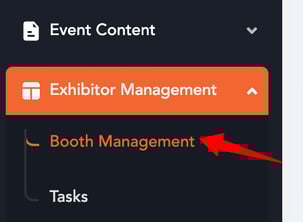
Go to Exhibitor Management in the left-side panel.
-
Click on Booth Management.
-
-
Click the "Add Booth" Button
-
Located in the top-right corner of the Booth Management screen.

-
-
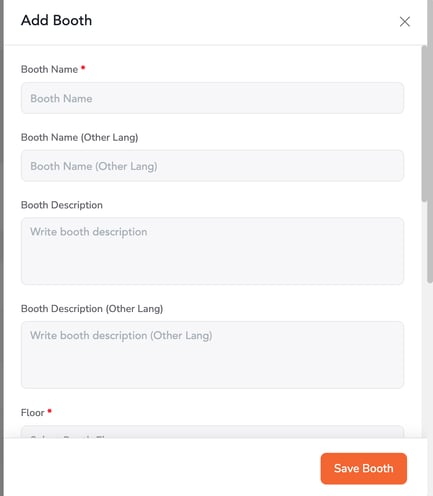
Fill Out the Form
-
Complete the required fields (these fields should be set up in advance in the Booth Registration Form).
-
-
Save the Booth
-
Click Save to create the booth.
-
2. Importing Booths in Bulk
Bulk import allows you to add multiple booths simultaneously using a CSV template.
-
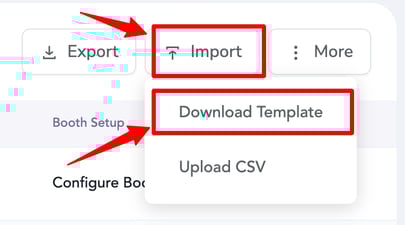
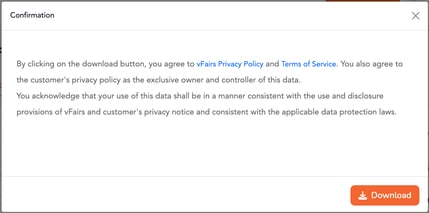
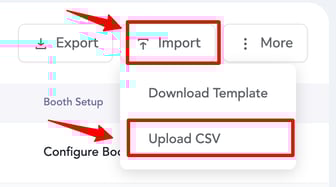
Download the CSV Template
-
The template contains the required fields, aligned with the Booth Registration Form.
-
-
Populate the CSV File
-
Enter the booth details following the template structure.
- Booth Negotiation related information can also be filled when booth negotiation toggle is enabled.
-
-
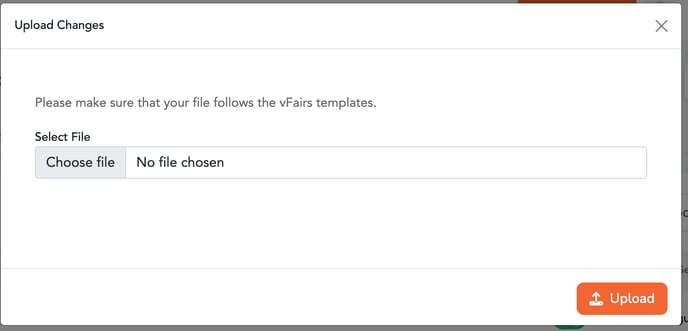
Import the CSV File
-
Upload the completed CSV file back into the Booth Management Dashboard.
-
The booths will now appear in the booth list.
-