![vfairs-logo-landscape-white-3.png]](https://help.vfairs.com/hs-fs/hubfs/vfairs-logo-landscape-white-3.png?height=40&name=vfairs-logo-landscape-white-3.png)
Overview
The Lead Capture app uses role-based access control to ensure booth user management is handled securely. Only Booth Admins are authorized to add new booth users or update existing users’ access levels. This prevents unauthorized changes and helps maintain proper control over booth data and permissions.
Booth Roles Explained
Booth Admin
Booth Admins have full control over booth user management. This includes:
-
Adding new booth users
-
Updating access levels of existing booth users
-
Managing who can access booth-related data
Booth Rep
Booth Reps are intended to focus on lead capture and booth operations. They do not have permission to manage booth users or change access levels.
How Booth Admins Can Add or Update Booth Users
Adding a New Booth User
-
Log in to the Lead Capture app as a Booth Admin
-
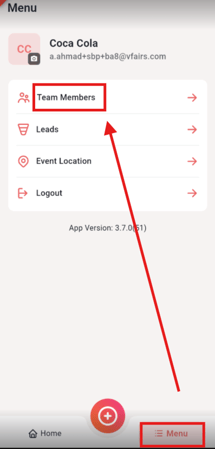
Open the right-hand navigation menu
-
Select Users / Team Members
-
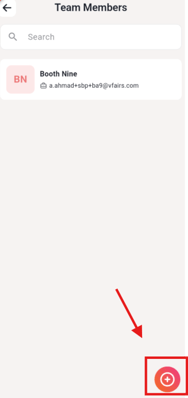
Click Add User
-
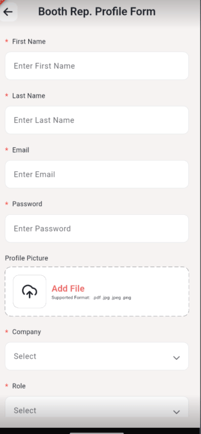
Enter the required user details
-
Assign the appropriate role
-
Save the changes
The new user will immediately have access based on the role assigned.
Updating an Existing Booth User
-
Log in as a Booth Admin
-
Navigate to Users / Team Members
-
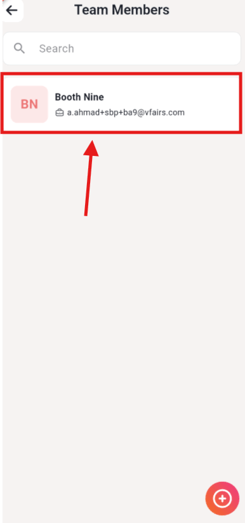
Select the user you want to update
-
Modify their role or access level
-
Save the changes
Updates take effect immediately after saving.
Why This Change Matters
Restricting user management to Booth Admins:
-
Prevents unauthorized access changes
-
Reduces the risk of accidental permission updates
-
Ensures consistent and secure booth operations
-
Aligns with best practices for role-based access control